How to Set Multiple Clocks on Windows 11
Last updated on February 27th, 2026 at 6:04 am
Does your work require dealing with clients in different regions with different time zones? Regularly checking the local time in various cities might be inconvenient and time-consuming. However, having multiple world clock widgets in Windows 11 makes it easier to collaborate with individuals in various time zones. It also makes it easier to communicate with relatives and friends worldwide.
Windows 11 allows you to display two additional clocks in the Notification Center calendar from various time zones. Introducing clocks from multiple time zones to your Windows 11 desktop is a useful tool that does not hamper or clutter the screen. We will show you how to set up multiple clocks on Windows 11 in this article.
Top 3 Approaches to Set Multiple Clocks on Windows 11
Many individuals are unaware that their PCs running Windows 11 may display multiple clocks. Indeed, the Taskbar of the Windows 11 system may show up to two clocks. This is because when you initially run Windows, it prompts you to identify your location and, based on that data, displays the clock on the Taskbar. However, you might want to view more Windows 11 clocks occasionally. So, to achieve the greatest results, use the following methods.
Method 1: Set Up Clock to the Notification Center Calendar
Follow these steps to display the actual zone world clock widget in Windows 11 within the calendar flyout:
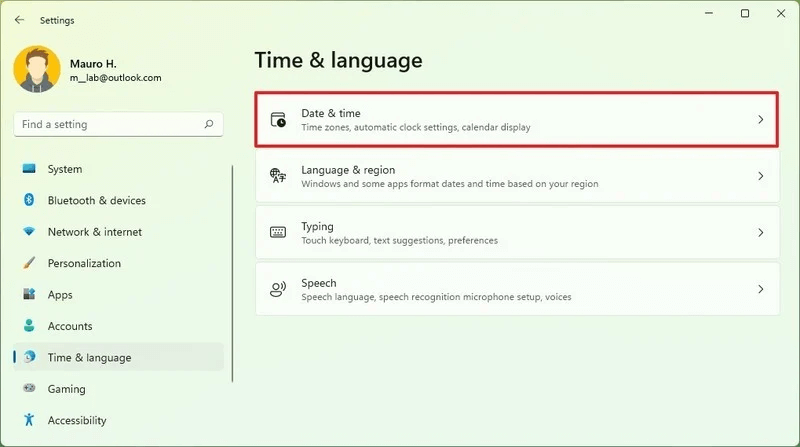
Step 1: Navigate to the Settings of Windows 11 and select the Time & Language option.
Step 2: Select the Date & Time page on the right side.
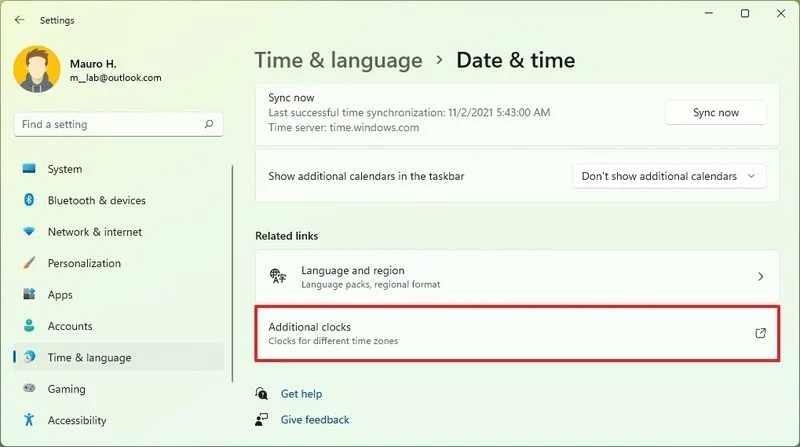
Step 3: Select the Additional clocks setting option displayed under the “Related links” column.
Step 4: Select the Show this clock option. You will get a new window that asks to “enter a display name.” Here, type in the name of the new clock you are setting up.
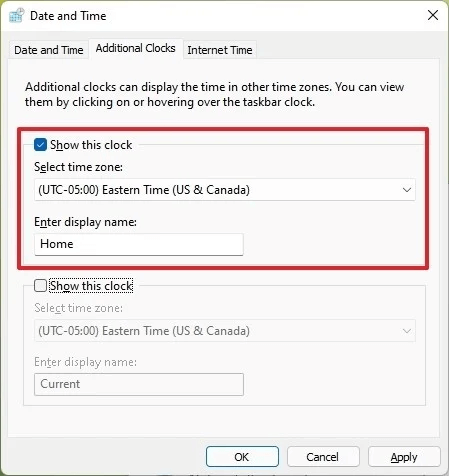
Step 5: Then, hit the Apply button and press the OK button.
The clock will display in the Notification Center once you have completed these instructions.
Method 2: Set Up Two Different Time Zone Clocks
In Windows 11, you may insert up to 2 time zones’ worth of clocks to the Notification Centre’s Calendar. Use the Settings app to add two different Windows 11 clocks to the Notification Center:
Step 1: Consider heading to the Start menu and navigating to the Settings app.
Step 2: Choose the Time & language option from the sidebar menu.
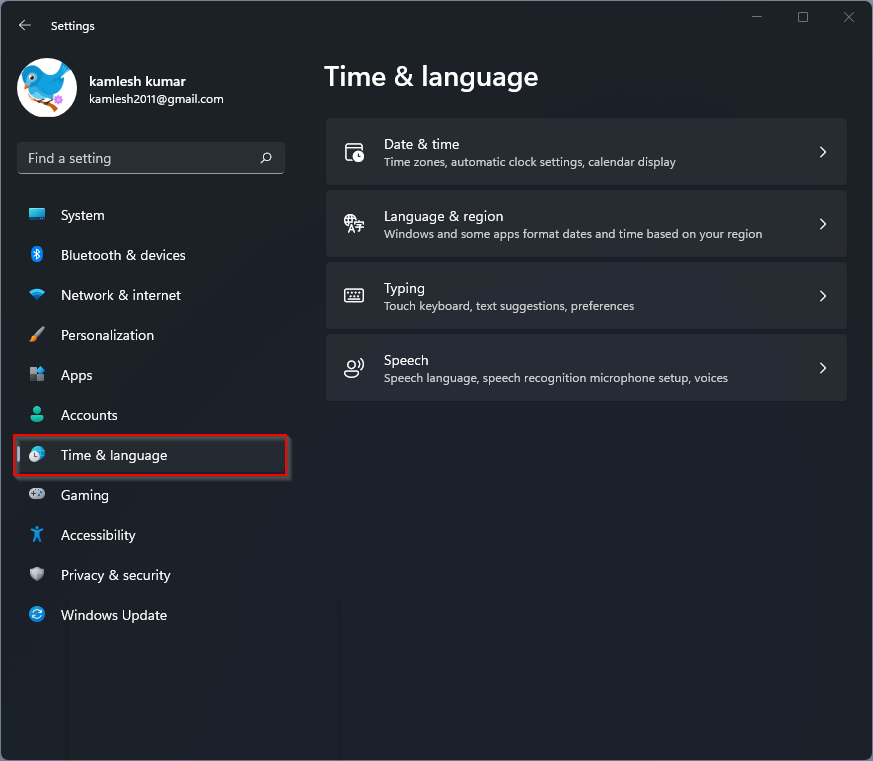
Step 3: You will now have to select the Date & Time tab.
Step 4: Scroll down to the Related links column after you have visited the Date & time settings page.
Step 5: A new dialogue box of Date & time will appear once you select the Additional clocks.
Step 6: Pick a time zone and give the clock a screen name by checking the Show this clock option.
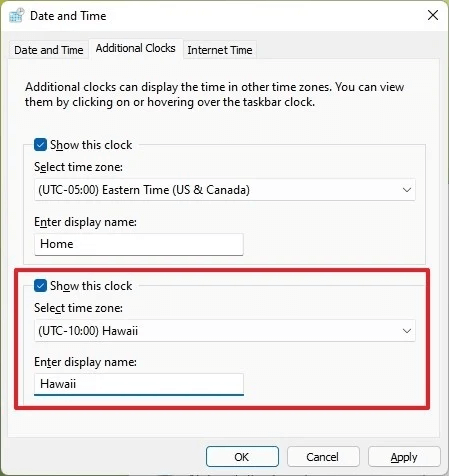
Step 7: Continue similarly for the second clock if you wish to add two clocks.
Step 8: After making the appropriate adjustments, select Apply and click on the Ok option afterwards.
By selecting the Date & Time in the Taskbar and then extending the calendar flyout, you may now see the other clocks.
Method 3: Set Up More than Two Additional Clocks
The standard Date and time in Windows 11 primarily assist users with two added time zone clocks. You will have to employ separate software if you want to set up more than three clocks, along with the main clock displayed on the desktop.
Conveniently, the Alarms & Clock software is an in-built Windows software that can display multiple time zone clocks as per your requirement. As a result, there’s no need to download a third-party program only to see clocks from other time zones. The steps to add a more than two-time zone world clock widget to Windows 11 are as follows.
Step 1: You may use the Search or Start menu to find and launch the Alarms & Clock application.
Note: Users get the option to pin the Alarms & Clock application to the Taskbar by right-clicking the search outcome and selecting Pin to the Taskbar. It helps them to launch it fast next time.
Step 2: Select the World Clock option on the Alarms and Clock app’s left sidebar.
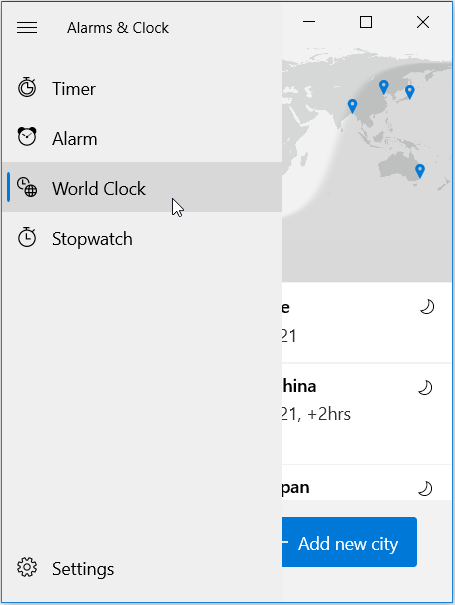
Step 3: Afterwards, select the “Add new city” option to append a clock for a time zone or city.
Step 4: Type the city name into the search field to find the location you want to set up the global clock.
Step 5: To insert a city’s local time clock into the global map, select its name displayed in the search results.
You may update the app with multiple Windows 11 clocks as you like from various places and time zones. The clocks that have been inserted will be stored. After exiting the application, display the globe clocks, and successfully launch the Alarms & Clock app once more.
Bottom Line
We enjoy several features in Windows 11, and the opportunity to modify several of them makes it all even better. For many Windows 11 users, this option of putting up a world clock widget windows 11 makes things easier. Use the three methods mentioned above and display two or more additional clocks for other locations and the standard time for the present location. Therefore, select any of the preferred approaches and set up multiple clocks on your Windows 11 desktop.
Recommended Articles:
How to Speed Up Gaming Experience on Windows 10?
Popular Post
Recent Post

How To Clear Cache Memory On Windows 11/10 [2026]
Learn how to clear cache memory on Windows 11/10 using safe built-in methods to improve speed, free space, and maintain smooth system performance.

Windows Installer Cleanup Utility: Complete Review And Alternatives
Detailed review of Windows Installer Cleanup Utility, reasons for removal, risks, and safer modern alternatives explained clearly.

How To Clean Junk Files On Windows 11/10
Learn how to clean junk files on Windows 11 and 10 using safe, simple steps to boost speed and free storage space effectively.

Clearing App Cache Data on Windows 11/10: Complete Guide
Learn how to safely clear app cache on Windows 11 and 10 to fix slow apps, free disk space, and improve overall system performance.

How To Clean Up System Files On Windows 11/10: Complete Guide
Explore a step-by-step guide explaining how Windows users can safely remove unnecessary system data using built-in tools.

How To Clean a Laptop Fan Without Opening [2026 Guide]
Learn how to clean a laptop fan without opening the device using safe steps, simple tools, and easy methods for better cooling.

How to Clear the Queue in the Printer Automatically in 2026
Learn how to clear the queue in the printer with simple steps. This easy guide explains why print jobs get stuck and how to fix them safely for smooth printing.

How To Clear Delivery Optimization Cache In Windows
Learn how to clear Delivery Optimization Cache in Windows safely and easily. This guide explains steps, precautions, benefits, and FAQs to free space and avoid update issues.

How To Clear Cache in Edge [Windows 11/10]: Latest Guide
Learn how to clear cache in Edge on Windows 11 and Windows 10. Step by step guide with precautions, FAQs, and tips to fix slow pages and errors.

Top 15 Questions About PC Cleaning and Their Answers
Learn safe and simple ways to clean your PC. This guide answers top questions, covers precautions, and gives advanced tips for better PC health and performance.
