PC Cleaning Tips For Beginners and Advanced Users In 2026

Last updated on March 2nd, 2026 at 1:01 pm
Computers are trusted daily for work, study, gaming, and casual browsing. While a machine often runs smoothly on its own, dust and clutter gradually weaken performance. This decline is easy to overlook because the system continues to function, yet its strength and speed diminish over time.
A clean device feels lighter, more responsive, handles demanding tasks without strain, and remains cool for extended periods.
A simple routine built on steady habits can safeguard any computer with minimal effort. These habits create the foundation of reliable maintenance and reinforce the practical methods outlined in this guide, including detailed PC Cleaning Tips suitable for users at every level.
Before You Start, First Know The Answer To These Questions:
1. Why does dust affect performance?
Dust builds up in corners where you cannot see it. As the dust grows, airflow becomes weak. When little air passes through the case, heat stays trapped inside. The processor and graphics card try to protect themselves by slowing their own speed, which leads to lag. Heat also dries thermal paste and gums up cooling fins. Over time, the machine becomes noisy and warm. A simple cleaning clears the airflow, cools the parts, and restores normal speed. This natural balance is why dust removal matters more than most people realize.
2. How often should a computer be cleaned?
Some homes collect dust faster than others. A house near a busy road or an open window gathers dust every day. If your computer sits on the floor, it draws dust even faster. A light cleaning every two to three months keeps things healthy. If you use pets or keep the device in a warm room, monthly cleaning works better. A deep internal cleaning twice a year protects the device for long term use. Consistency is the main rule. Small cleanings done often are far better than a large cleaning done once a year.
3. Does cleaning improve speed?
Cleaning improves speed by lowering heat. When the system stays cool, it uses its full power without slowing down. Dust removal helps fans turn freely. Better fan movement means strong airflow, and strong airflow means fast performance. Cleaning also frees storage space. Temporary files fill the drive and make programs load slowly. Removing them gives room for new data and helps the system find files faster. Together, these changes make the computer feel fresh without spending money on new hardware.
4. Is it safe for beginners to clean a PC?
It is safe as long as beginners follow a few careful steps. Start with easy areas such as the screen, case vents, and keyboard. These areas do not require opening the case. After gaining confidence, beginners can clean inside the case and the fans. Move slowly. Do not use force. If something feels stuck, check again. Many people learn that cleaning is easier than they expected. With the right habits, even first-time users can care for their device without fear.
Precautions
Important Safety Points Before You Start
- Shut down the computer
Turn off the system fully and disconnect the power line. This prevents shocks and stops the fans from spinning during cleaning. - Ground yourself to avoid static
Static can damage delicate parts. Touch a metal surface, or use a grounding strap if you have one. - Use soft cleaning tools
A gentle cloth and a soft brush are enough for most jobs. Hard cloths or rough brushes can scratch plastic and metal. - Stay away from strong cleaners
Strong chemicals leave marks on screens and surfaces. Choose mild cleaners made for electronics. - Do not spray liquid on the device
Spray only on the cloth. Let the cloth stay slightly damp, not wet. Water inside ports can cause short circuits. - Hold fans still when cleaning
A spinning fan can break if pushed too fast. Hold it in place while you spray short bursts of air around the blades. - Check cable placement before closing the case
Loose wires inside the case can block airflow. Check that each wire lies safely and does not touch the fan. - Store screws in one place
Small screws are easy to lose. Keep a bowl on your desk to store every screw you remove.
PC Cleaning Tips For Beginners and Advanced Users
A clean computer works longer, stays cool, and gives better performance. Many people believe cleaning is a technical task, yet most steps are simple. Even advanced users follow the same basic habits because these habits protect every part of the system.
The following methods cover external cleaning, internal cleaning, software cleanup, cable care, and airflow management. Each tip includes a short introduction and two easy steps so beginners can follow without confusion.
Tip 1. Clean the case vents
The vents help the system breathe. When these vents fill with dust, the fans must work harder. Strong fan activity increases noise and heat. Once the vents are clear, the temperature drops and the fans calm down. This also protects internal components.
Two steps
Step 1. Brush the vent edges with a soft brush.
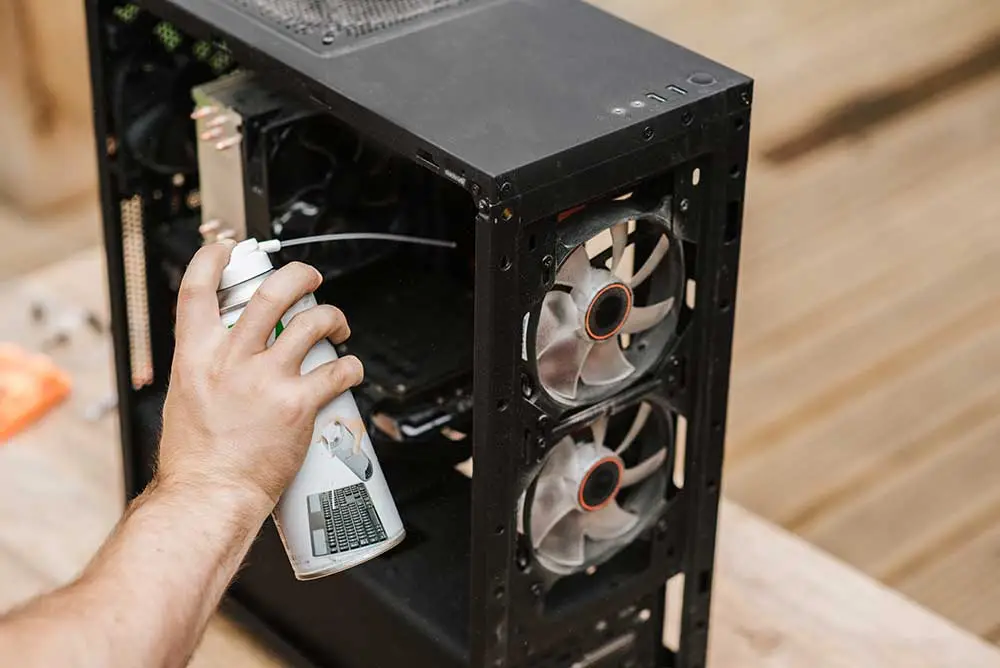
Step 2. Spray short bursts of compressed air from a safe distance.
Read This Complete Guide on Cleaning Fans
Tip 2. Wipe the screen
A clear screen makes text and images sharp. Stains and fingerprints cause glare and strain your eyes. Regular cleaning keeps the screen pleasant and safe for long hours of work.
Two steps
Step 1. Use a dry microfiber cloth on the dark screen.
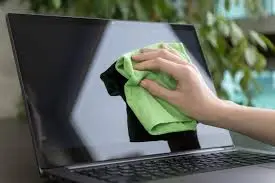
Step 2. Use a small amount of screen cleaner on the cloth and wipe gently.
Read This Complete Guide On Cleaning Screen
Tip 3. Organize the desktop
A crowded desktop slows startup time. A neat desktop makes navigation easier. Many users feel more focused when their desktop looks tidy.
Two steps
Step 1. Move saved items to named folders.
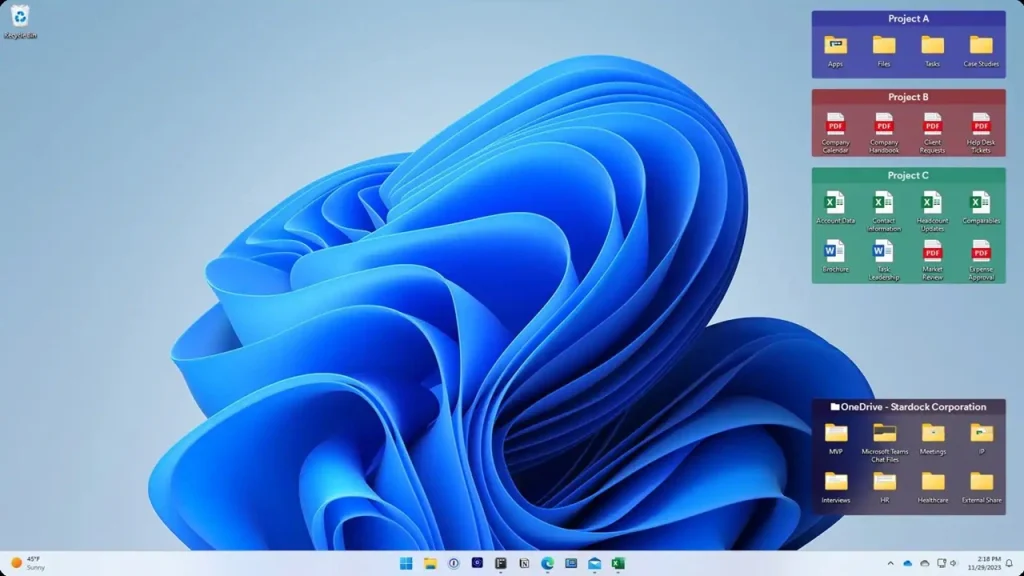
Step 2. Remove unused shortcuts and files.
Read This Complete Guide On Cleaning Desktop
Tip 4. Remove temporary files
Temporary files take up space. When too many pile up, the system struggles. Clearing them frees storage and improves speed.
Two steps
Step 1. Press Windows + R to open the Run dialog. Type %temp% and press Enter. This opens the temporary files folder.
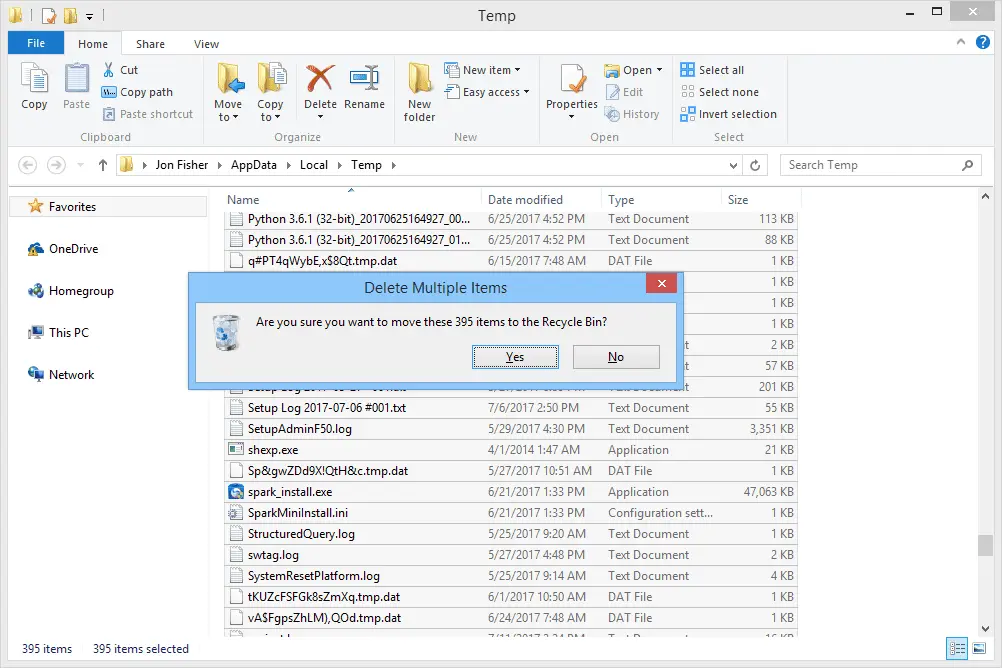
Step 2. Select all items (Ctrl + A). Press Delete on the keyboard. Confirm if prompted.
Read This Complete Guide On Cleaning Temp Files
Tip 5. Check cables and ports
Dust in ports affects charging and data transfer. Loose cables also cause random errors. A short check helps avoid these issues.
Two steps
Step 1. Unplug and inspect each cable.
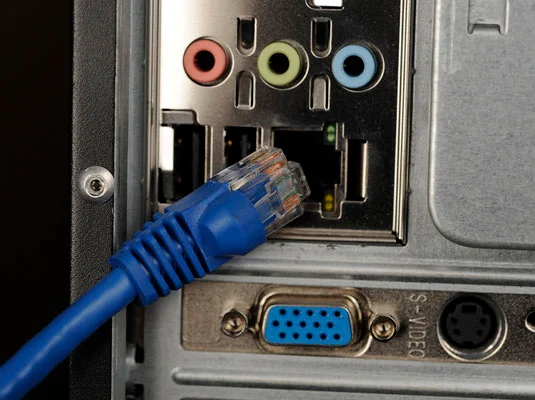
Step 2. Use a dry cotton swab to clean port edges.
Read This Complete Guide on Cleaning Ports
Tip 6. Clean the keyboard
Keyboards collect dust, hair, and crumbs. This affects typing comfort. A regular cleaning session keeps the keys responsive.
Two steps
Step 1. Turn the keyboard upside down and tap lightly.
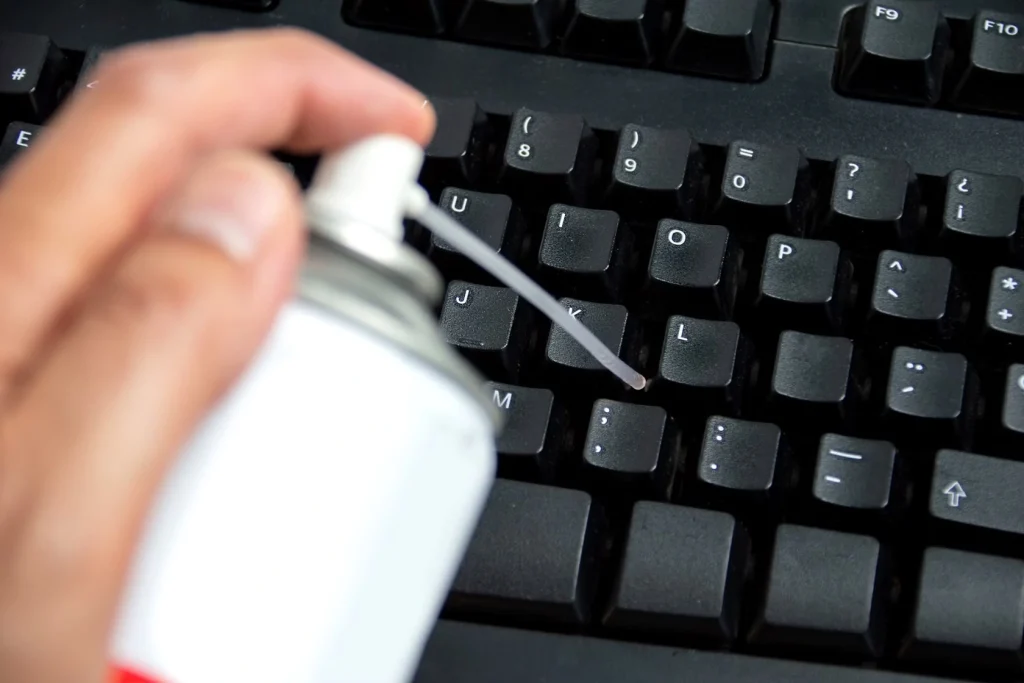
Step 2. Spray compressed air between the keys.
Read This Complete Guide on Cleaning Keyboards
Tip 7. Update installed programs
Old software files linger and create clutter. Updates keep programs stable and secure. Removing unused software clears space and reduces conflict.
Two steps
Step 1. Check for updates in each program.
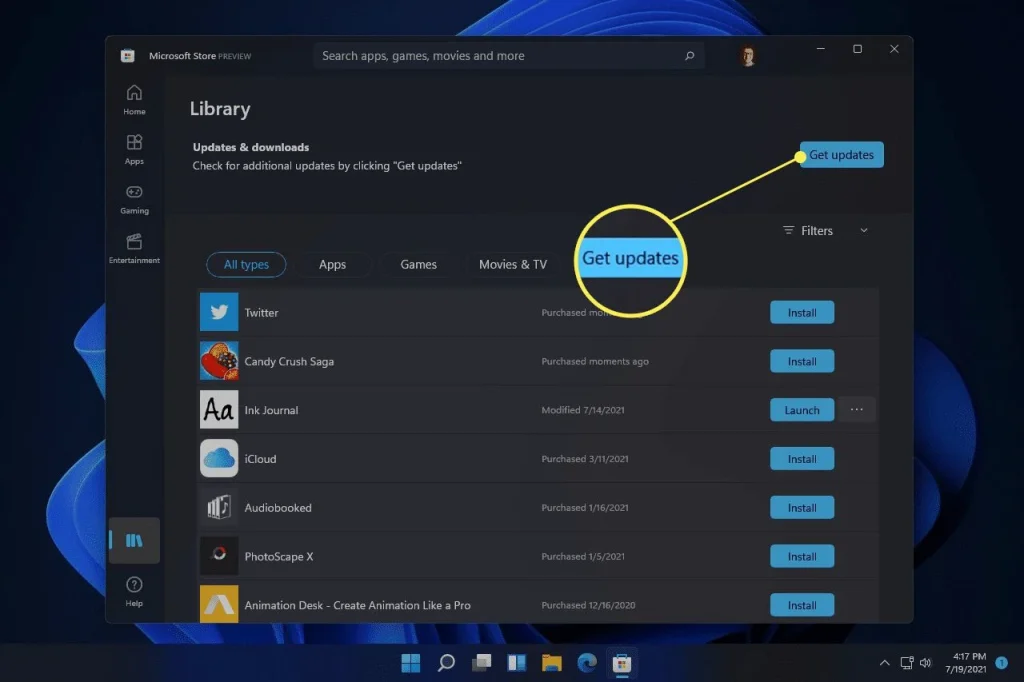
Step 2. Remove programs you no longer use.
Author’s Tip
Cleaning computers effectively requires patience. Rushing often leads to mistakes, while a steady pace allows attention to small details such as loose screws, dusty corners, or misplaced wires. These details are important because they influence airflow and overall stability. Gentle care helps protect systems from long-term damage. Expensive tools are rarely necessary; a soft brush, a cloth, and compressed air are sufficient for most cleaning tasks.
Planning the work is equally valuable. Decide which components need attention before starting. Arrange tools neatly on the desk and create a clear path between the chair and the system to ensure easy access.
Organized preparation reduces stress, prevents misplaced screws, and keeps the process smooth. This simple discipline turns each cleaning session into a more efficient and reliable routine.
Advanced Tips
Extra Steps For Experienced Users
- Deep-clean the CPU cooler
Remove the cooler and brush the metal fins. Dust on the fins blocks heat from leaving the processor. - Reapply thermal paste
Old paste dries out. Fresh paste improves heat transfer and helps the processor stay cool. - Clean the power supply vents
The power supply gathers dust at the back. Clearing these vents helps steady power delivery. - Manage startup programs
Some programs run at startup without a need. Removing them reduces boot time and frees memory. - Adjust fan curves
Fan curves control speed at different temperatures. Adjusting them improves cooling and reduces noise. - Replace old fans
Fans weaken with age. New fans give smoother airflow and help reduce heat. - Clean the graphics card shroud
The graphics card collects dust near its cooling area. Cleaning helps it maintain stable performance. - Plan airflow with intake and exhaust fans
Place fans in a pattern that guides air from front to back. This improves cooling and prevents heat pockets inside the case.
Conclusion
A well-cleaned computer lasts years longer than a neglected one. Regular care reduces heat, noise, and sudden errors. Even simple routines create a big difference. Many users believe cleaning requires skill, yet most tasks are easy. The right steps protect the device without special tools or technical training.
Both beginners and advanced users benefit from steady habits. A calm approach and regular maintenance prevent major problems. The system feels smooth, quiet, and strong. With patience and proper care, your computer serves you with reliable performance every day. This is the value behind thoughtful PC Cleaning Tips that guide both new and experienced users.
FAQs
Why is airflow important
Airflow removes heat from the case. When heat leaves the system, parts stay stable and run efficiently. Poor airflow forces the components to slow down, which leads to lag.
How do I know if my PC needs cleaning
If you hear louder fans, feel warm surfaces, or notice slow performance, it may be time to clean the device. Dust near vents is also a clear sign.
Can cleaning reduce noise
Yes. Dust makes fans spin harder. Once the dust is gone, the fans calm down and stay quieter during long sessions.
Popular Post
Recent Post

How To Clear Cache Memory On Windows 11/10 [2026]
Learn how to clear cache memory on Windows 11/10 using safe built-in methods to improve speed, free space, and maintain smooth system performance.

Windows Installer Cleanup Utility: Complete Review And Alternatives
Detailed review of Windows Installer Cleanup Utility, reasons for removal, risks, and safer modern alternatives explained clearly.

How To Clean Junk Files On Windows 11/10
Learn how to clean junk files on Windows 11 and 10 using safe, simple steps to boost speed and free storage space effectively.

Clearing App Cache Data on Windows 11/10: Complete Guide
Learn how to safely clear app cache on Windows 11 and 10 to fix slow apps, free disk space, and improve overall system performance.

How To Clean Up System Files On Windows 11/10: Complete Guide
Explore a step-by-step guide explaining how Windows users can safely remove unnecessary system data using built-in tools.

How To Clean a Laptop Fan Without Opening [2026 Guide]
Learn how to clean a laptop fan without opening the device using safe steps, simple tools, and easy methods for better cooling.

How to Clear the Queue in the Printer Automatically in 2026
Learn how to clear the queue in the printer with simple steps. This easy guide explains why print jobs get stuck and how to fix them safely for smooth printing.

How To Clear Delivery Optimization Cache In Windows
Learn how to clear Delivery Optimization Cache in Windows safely and easily. This guide explains steps, precautions, benefits, and FAQs to free space and avoid update issues.

How To Clear Cache in Edge [Windows 11/10]: Latest Guide
Learn how to clear cache in Edge on Windows 11 and Windows 10. Step by step guide with precautions, FAQs, and tips to fix slow pages and errors.

Top 15 Questions About PC Cleaning and Their Answers
Learn safe and simple ways to clean your PC. This guide answers top questions, covers precautions, and gives advanced tips for better PC health and performance.
