How to Force Quit on Windows 11 and Windows 10
Last updated on February 25th, 2026 at 6:18 am
Encountering unresponsive programs or frozen applications on our Windows devices can be a frustrating experience. When a program hangs or stops responding, it can disrupt our workflow and hinder productivity. This is where the ability to force quit a program comes in handy. Here, we will explore different methods to force quit on Windows 11 and Windows 10. Therefore, if you want to learn how to force quit on Windows, keep reading.
Common Reasons to Force Quit On Windows
There are some common reasons to force quit on Windows. Some of the common reasons to force quit on Windows are discussed here:
1. Software Compatibility Issues
One of the most common reasons for force-quitting applications on Windows is due to software compatibility issues. When a program is not fully compatible with the Windows operating system version or other installed software, it may become unresponsive or crash, requiring the user to force quit the application.
2. Insufficient System Resources
Another common reason for the need to force-quit applications is the lack of sufficient system resources. When a program demands more resources (such as memory or CPU usage) than are available, it can lead to the application becoming unresponsive, prompting the user to force quit in order to regain control of the system.
3. Software Bugs and Glitches
Software bugs and glitches can also cause applications to freeze or become unresponsive, necessitating the use of force quit. These issues may arise due to coding errors, memory leaks, or other technical problems within the application itself.
4. Hardware Malfunctions
In some cases, hardware malfunctions such as a failing hard drive, overheating components, or faulty RAM can lead to applications freezing or crashing, requiring the user to force quit in order to continue using the system.
5. Operating System Errors
Errors within the Windows operating system itself can also lead to the need to force-quit applications. These errors may be related to system files, drivers, or other core components of the operating system, causing applications to become unresponsive.
6. Virus and Malware Infections
The presence of viruses or malware on a Windows system can lead to applications freezing or crashing. Force quitting may be necessary to stop the malicious processes and prevent further damage to the system.
7. Overloaded Startup Programs
When a large number of programs are set to launch at system startup, it can lead to system slowdowns and unresponsive applications. Force quitting may be required to regain control of the system and address the overloaded startup programs.
How to Force Quit on Windows 11 and Windows 10
There are many ways to force quit on Windows 11 and Windows 10. Some of the most effective methods to force Windows 11 and Windows 10 are discussed below:
Method 1: Using Task Manager
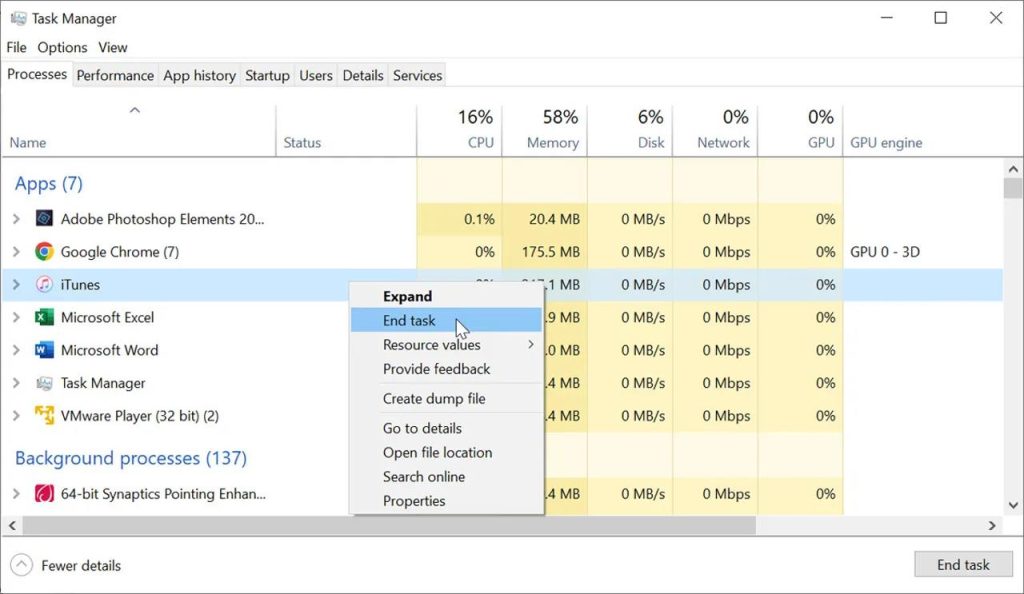
Task Manager is a powerful tool that allows users to manage processes and applications running on their Windows devices. To learn how to force quit on Windows using Task Manager, simply follow these steps:
Step 1: Press Ctrl + Shift + Esc to open Task Manager.
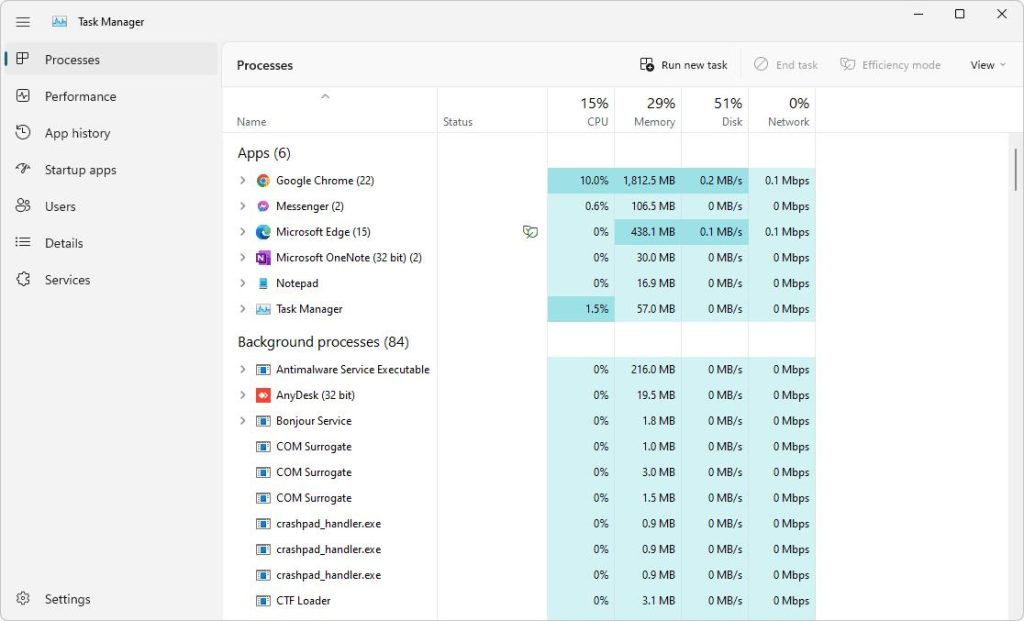
Step 2: Navigate to the “Processes” tab.
Step 3: Locate the unresponsive program in the list of running processes.
Step 4: Right-click on the program and select “End task” to force quit the application.
Method 2: Using Alt + F4
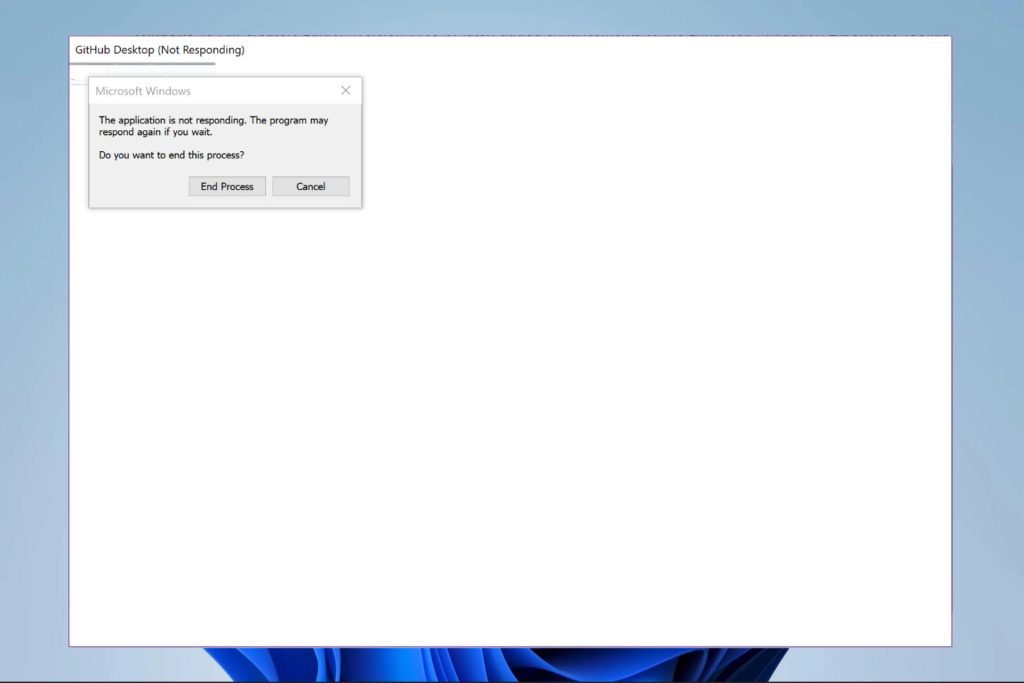
The Alt + F4 keyboard shortcut is a quick and easy way for those who want to know how to force quit on Windows. To use this method, follow these steps:
Step 1: Click on the unresponsive program window to make it active.
Step 2: Press Alt + F4 on your keyboard.
Step 3: A prompt will appear asking if you want to close the program. Select “OK” to force quit the application.
Method 3: Using the Taskkill Command
For users comfortable with using the Command Prompt, the Taskkill command provides a powerful way to force quit programs on Windows. To force quit a program using Taskkill, follow these steps:
Step 1: Press Win + R to open the Run dialog box.
Step 2: Type “cmd” and press Enter to open the Command Prompt.
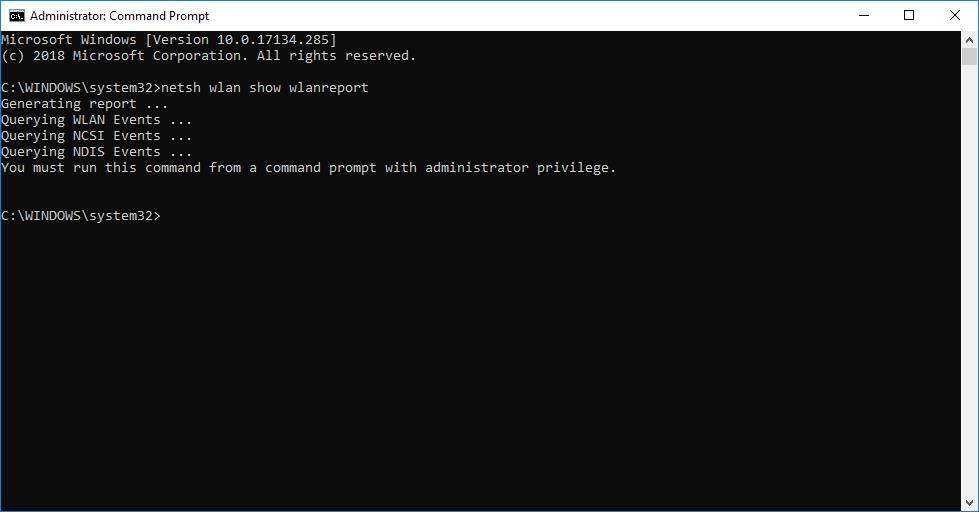
Step 3: In the Command Prompt window, type the following command and press Enter:
taskkill /f /im program_name.exe
Replace “program_name.exe” with the name of the unresponsive program you want to force quit.
Method 4: Using the Ctrl + Shift + Esc Shortcut
In addition to opening Task Manager, the Ctrl + Shift + Esc keyboard shortcut can also be used to force quit a program directly. To use this method, follow these steps:
Step 1: Press Ctrl + Shift + Esc to open Task Manager.
Step 2: Hold down Ctrl + Shift on your keyboard.
Step 3: Right-click on the unresponsive program in Task Manager.
Step 4: Select “End task” while holding down Ctrl + Shift to force quit the application.
Method 5: Using the Windows Security Screen
Windows 10 and Windows 11 offer a built-in feature called the Windows Security screen, which allows users to manage and troubleshoot unresponsive programs. To learn how to force quit on Windows using the Windows Security screen, follow these steps:
Step 1: Press Ctrl + Alt + Delete on your keyboard.
Step 2: Click on “Task Manager” from the menu that appears.
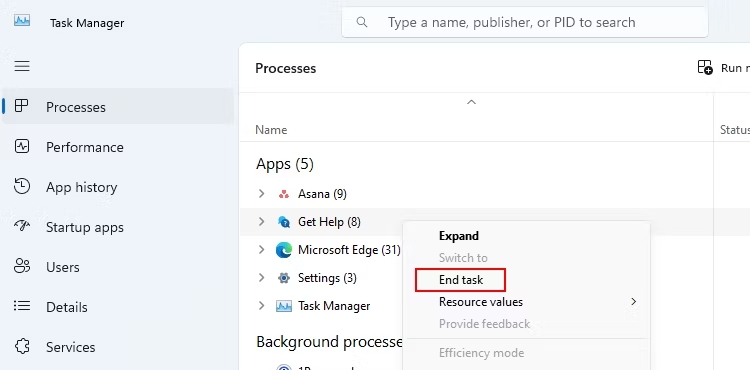
Step 3: In Task Manager, locate the unresponsive program and select “End task” to force quit the application.
Method 6: Using the Windows PowerShell
For advanced users looking for a more robust solution, Windows PowerShell provides a command-line interface to force quit programs on Windows. To force quit a program using Windows PowerShell, follow these steps:
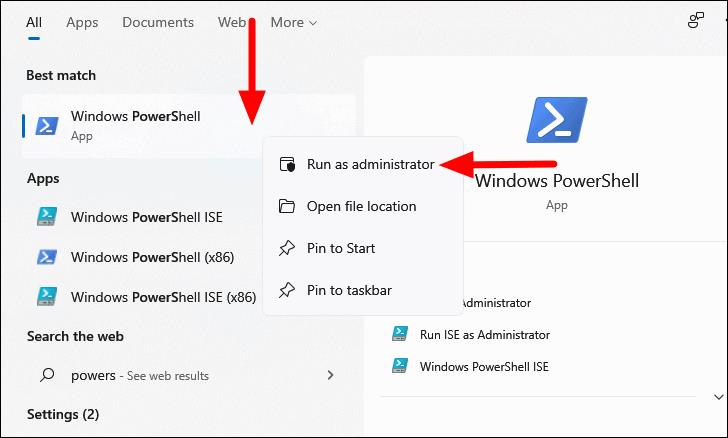
Step 1: Press Win + X on your keyboard and select “Windows PowerShell (Admin)” from the menu.
Step 2: In the Windows PowerShell window, type the following command and press Enter:
Get-Process -Name program_name | Stop-Process -Force
Replace “program_name” with the name of the unresponsive program you want to force quit.
Conclusion
Encountering unresponsive programs on Windows devices is a common issue that can disrupt our workflow and productivity. Knowing how to force quit a program is essential in quickly resolving these issues and getting back to work. Hopefully, you have now learned how to force quit on Windows.
FAQs
1. When should I consider force-quitting an application?
Force-quitting an application should be considered when the application becomes unresponsive, freezes, or stops functioning properly. If an application is not responding to user input and is preventing the user from performing other tasks, force-quitting may be necessary to regain control of the system.
2. Can force-quitting cause data loss or damage to the system?
Force-quitting an application does not inherently cause data loss or system damage. However, it is possible that unsaved changes in the application may be lost if the user has not saved their work prior to force-quitting. Additionally, force-quitting certain system-critical processes or applications may lead to system instability or unexpected behavior.
3. How can I prevent the need to force-quit applications?
To minimize the need for force-quitting applications, users can take proactive measures to maintain system stability and prevent application crashes. This includes keeping the operating system and applications up to date, avoiding running multiple resource-intensive applications simultaneously, and regularly performing system maintenance tasks such as disk cleanup and defragmentation.
Popular Post
Recent Post

How To Clear Cache Memory On Windows 11/10 [2026]
Learn how to clear cache memory on Windows 11/10 using safe built-in methods to improve speed, free space, and maintain smooth system performance.

Windows Installer Cleanup Utility: Complete Review And Alternatives
Detailed review of Windows Installer Cleanup Utility, reasons for removal, risks, and safer modern alternatives explained clearly.

How To Clean Junk Files On Windows 11/10
Learn how to clean junk files on Windows 11 and 10 using safe, simple steps to boost speed and free storage space effectively.

Clearing App Cache Data on Windows 11/10: Complete Guide
Learn how to safely clear app cache on Windows 11 and 10 to fix slow apps, free disk space, and improve overall system performance.

How To Clean Up System Files On Windows 11/10: Complete Guide
Explore a step-by-step guide explaining how Windows users can safely remove unnecessary system data using built-in tools.

How To Clean a Laptop Fan Without Opening [2026 Guide]
Learn how to clean a laptop fan without opening the device using safe steps, simple tools, and easy methods for better cooling.

How to Clear the Queue in the Printer Automatically in 2026
Learn how to clear the queue in the printer with simple steps. This easy guide explains why print jobs get stuck and how to fix them safely for smooth printing.

How To Clear Delivery Optimization Cache In Windows
Learn how to clear Delivery Optimization Cache in Windows safely and easily. This guide explains steps, precautions, benefits, and FAQs to free space and avoid update issues.

How To Clear Cache in Edge [Windows 11/10]: Latest Guide
Learn how to clear cache in Edge on Windows 11 and Windows 10. Step by step guide with precautions, FAQs, and tips to fix slow pages and errors.

Top 15 Questions About PC Cleaning and Their Answers
Learn safe and simple ways to clean your PC. This guide answers top questions, covers precautions, and gives advanced tips for better PC health and performance.
