How to Prevent Data Corruption in Windows PC

Last updated on February 26th, 2026 at 6:09 am
Does your Windows system run slowly or behave strangely? And you have no clue what’s happening with your PC?
In most cases, corrupted system files can be a problem. However, sometimes malware or a virus infection attacks your files and corrupts them.
This slows your PC and prevents you from accessing your important files. In addition, you can lose your work files and other personal data when your files get corrupted.
So, the best solution is to prevent your files from getting corrupted rather than being sorry.
Here, we will discuss how to prevent data corruption on Windows PC in detail.
What is a Corrupted File?
A corrupted file is a file that is tampered with or not working properly. This can happen to any file, including documents, media, or system files.
In most cases, a simple PC reboot is enough to fix the problem. But occasionally, situations get serious where you might have to take some advanced steps.
Usually, all computer files have a specific structure and content. Therefore, there is no issue when all files are arranged the way they should be.
But when the wrong content is written in a file or the correct content is added in the wrong location, it can cause a problem.
Corrupted files often don’t open at all or might appear in the wrong format. This doesn’t mean your program is corrupted.
For example, Word might not be able to open a certain document, but others without trouble.
How Do Windows Files Get Corrupted?
There is no particular reason behind files getting corrupted in Windows. However, several factors can cause file corruption on Windows, such as:
Malware or virus attacks. The most common reason behind file corruption is malware or virus attacks. When your PC gets a virus infection, it can change file settings and corrupt them.
Improper file saving. File corruption also happens when a glitch occurs during the file-saving process. For example, if the file crashes when you open it, this is likely happening because your file is not saved properly in the first place.
Incorrect file location. If you store files in the wrong location, it can cause trouble opening them. For example, if you store system files in Photos, you might not get the proper access.
Sudden unplugging of the storage devices. Often, people unplug USBs or other storage devices instantly from their PCs. Unfortunately, this can disturb the data transfer process, and corrupted files get stored on your computer. That’s why it is always recommended to follow a proper protocol to plug or unplug storage devices from/to computers.
Disk allocation. If your disk partition is not properly allocated, it can cause problems accessing some files. For instance, if your C drive has limited free space, it can prevent some system files from opening. That’s because large files need adequate RAM to process.
Updating errors. When your system updates are disturbed during the installation process, it can corrupt files. This happens because system updates are not installed accurately.
Power outage. Imagine you are transferring data from your USB drive, and suddenly the electricity goes off. This sudden power outage can corrupt your files.
Outdated versions. If your computer doesn’t support the file format, you can not access the file content properly. Thus, convert the file format to something that your computer supports.
How to Prevent Data Corruption in Windows PC?
File corruption is annoying. It can delay your work and slow down your PC.
But there is nothing to worry about. Following all the precautions, you never have to deal with a corrupted file.
Here’s how to prevent data corruption on a Windows PC with ease:
Solution 1. Never Open Files in Unsupported Format
A common reason for file opening in the Windows PC is opening files in unsupported software. When you force open a file with incompatible software, it can corrupt some of the file’s data.
Therefore, check out which software supports your file type and use it to access the file. Of course, you can also convert files to the software-supported format. But this can also damage the file quality.
So, whenever you have unknown software, create a file copy, so you don’t damage the original file content.
Solution 2. Make the File Transfer Process Smooth
Whether transferring files within your computer or from a portable storage device, ensure the process doesn’t get disturbed.
Here’s how to prevent data corruption on a Windows PC while transferring files:
- Ensure that your laptop has full power to prevent sudden power outages. Desktop users should connect their devices to an external power source like a UPS.
- Never take out your USB drive abruptly; it can disturb data transfer.
- Don’t simply copy or paste files. Instead, follow the proper process to move data from one location to another.
- Always move your files to the right location after checking the drive size.
Solution 3. Use an Antivirus Program
As we have already mentioned, viruses are the main reason behind data corruption. Thus, to prevent your data from being corrupted, install the best antivirus program on your computer.
The software will ensure that no virus or malware can enter your system and destroy your files. Moreover, if malware has already infected your data, the software can help you fix those corrupted files.
Some of the best Windows antivirus programs are McAfee, Norton, etc. If you want to use a third-party antivirus program, you can use Microsoft Windows Defender to scan your PC for viruses.
Solution 4. Use File Ejection Option
Make it your thumb rule to never suddenly pull out USB drives from your computer after the data transfer. It can be difficult to determine when the data transfer process is complete, and it is safe to unplug the USB drive.
Therefore, many people unplug USB drives at the wrong time. So, we recommend you follow the proper ejection process to remove the storage device from your computer.
Here’s how you can eject the external storage device from your computer:
Step 1. On the Taskbar, look for the Safely Remove Hardware icon. If you can’t see the icon, click on the Show hidden icon.
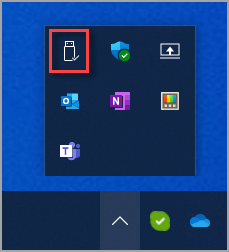
Step 2. Once you find the Safely Remove Hardware icon, turn on the Eject Media button.
If this doesn’t work, go to Start > Settings > Bluetooth & devices > Device > More > Select Remove device.
Solution 5. Protect Your Hard Disk from Physical Damage
The flaws in your hard drive can cause your files to become corrupted. Power surges, water drops, overheating, or dust inside the storage can damage your data.
So, here are some tips that you can follow to protect your hard disk:
- Frequently clean your laptop or desktop to keep it dust-free.
- Ensure your CPU never overheats. Shut down your computer at regular intervals.
- Always use the proper power plug and cable to supply electricity to your computer.
- Never press the power button to shut down your Windows computer. Always follow the proper shutdown of your machine.
- Use a linen cloth or a soft-bristle brush to clean your CPU parts.
Solution 6. Use the System File Checker Tool
The System File Checker (SFC) tool is a default tool available on Windows to scan your system files. It also helps to find and repair corrupted files. It can automatically replace or alter your corrupted files to a clean version.
To run the SFC tool, you have to open the Command Prompt from the Start menu and run it as an admin.
On the Command Prompt window, type this command and hit Enter:
sfc/scannow
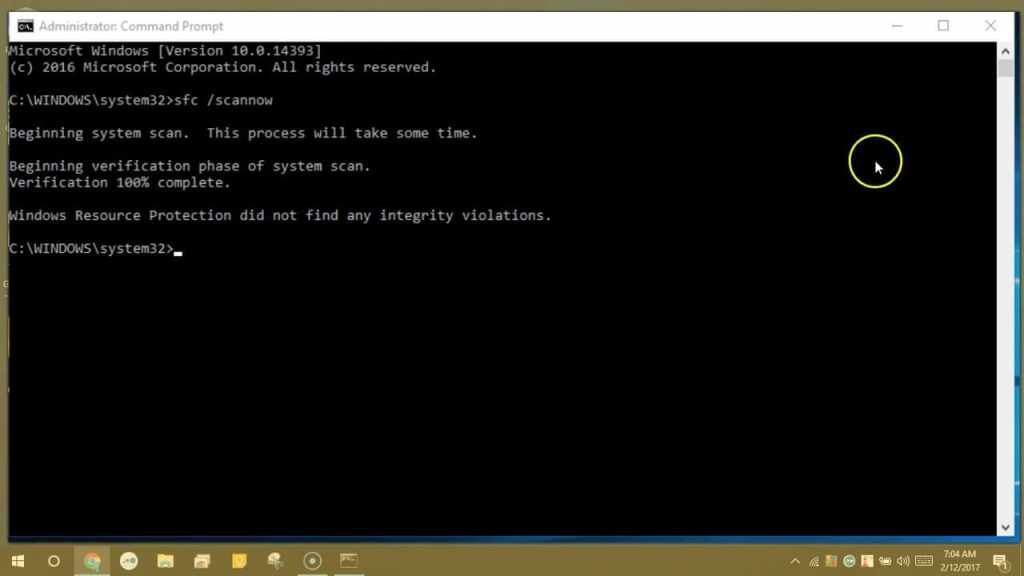
It might take some time to complete the entire scanning process. So, don’t close the command prompt window during the entire scanning process. Once the scan is complete, you will receive a message on your screen. After that, you can exit the window.
If the SFC couldn’t find any corrupted files, you can reboot your computer in safe mode. To do so, you can hold the Shift key down during the restart.
In safe mode, you can manually fix the broken files using the SFC tool. You need to access the CBS.Log to locate the corrupted files. You can follow this path to locate corrupted files:
C:\Windows\Logs\CBS\CBS.log
Now, open the log file and search for corrupted files. Scroll towards the bottom of the log and search for entries that start with cannot repair member file.
You can copy the message from the log and paste it into your web browser to find specific information to fix that particular file.
Conclusion: How to Prevent Data Corruption in Windows PC
There you go, people! You have learned how to prevent data corruption on a Windows PC. As you can see, file corruption is a common problem.
But if you follow the proper precautions, you can prevent data corruption. Just keep your data clean and well-organized. Also, make sure your disk is clean both from the inside and outside.
That’s it for now! For more Windows solutions, keep on following this blog site.
Popular Post
Recent Post

How To Clear Cache Memory On Windows 11/10 [2026]
Learn how to clear cache memory on Windows 11/10 using safe built-in methods to improve speed, free space, and maintain smooth system performance.

Windows Installer Cleanup Utility: Complete Review And Alternatives
Detailed review of Windows Installer Cleanup Utility, reasons for removal, risks, and safer modern alternatives explained clearly.

How To Clean Junk Files On Windows 11/10
Learn how to clean junk files on Windows 11 and 10 using safe, simple steps to boost speed and free storage space effectively.

Clearing App Cache Data on Windows 11/10: Complete Guide
Learn how to safely clear app cache on Windows 11 and 10 to fix slow apps, free disk space, and improve overall system performance.

How To Clean Up System Files On Windows 11/10: Complete Guide
Explore a step-by-step guide explaining how Windows users can safely remove unnecessary system data using built-in tools.

How To Clean a Laptop Fan Without Opening [2026 Guide]
Learn how to clean a laptop fan without opening the device using safe steps, simple tools, and easy methods for better cooling.

How to Clear the Queue in the Printer Automatically in 2026
Learn how to clear the queue in the printer with simple steps. This easy guide explains why print jobs get stuck and how to fix them safely for smooth printing.

How To Clear Delivery Optimization Cache In Windows
Learn how to clear Delivery Optimization Cache in Windows safely and easily. This guide explains steps, precautions, benefits, and FAQs to free space and avoid update issues.

How To Clear Cache in Edge [Windows 11/10]: Latest Guide
Learn how to clear cache in Edge on Windows 11 and Windows 10. Step by step guide with precautions, FAQs, and tips to fix slow pages and errors.

Top 15 Questions About PC Cleaning and Their Answers
Learn safe and simple ways to clean your PC. This guide answers top questions, covers precautions, and gives advanced tips for better PC health and performance.
