How To Recover Photos From Encrypted SD Cards?

Last updated on February 26th, 2026 at 6:14 am
While factory resetting the SD card, some people notice the issue of data access issues. It becomes difficult to read or view photos through the SD card. Usually, that is possible due to the encryption protection. However, there are tools available that you can use to fix this issue, like Systweak Photo Recovery software. It can help with quick and faultless photo recovery from encrypted SD cards.
Methods to Recover Photos from Encrypted SD Cards
There are different solutions available for people to recover their backed-up photos from SD cards under encryption protection. After carefully going through many of them and trying them out, we have settled on the following methods as our top picks.
Method 1: Use EaseUS data recovery software to recover deleted or lost files from your SD card
You can easily use an SD card if you decrypt it first. However, if you have lost your data due to SD card damage or other conditions, use a data recovery tool. EaseUS Data Recovery Wizard is a simple software to utilize.
Remember that you would have to decrypt your SD card correctly first for the data file recovery to work.
How to decrypt an encrypted SD card?
You could use third-party encryption software to decrypt your card if you encrypted it on your own first. The following are two varying solutions for SD decryption, without a password and with a password.
Solution 1: Without a password
For this, you need to download an app to restore the account password.
Step 1: Insert and keep the SD card in place on your phone device. Connect using a USB cable to the PC.
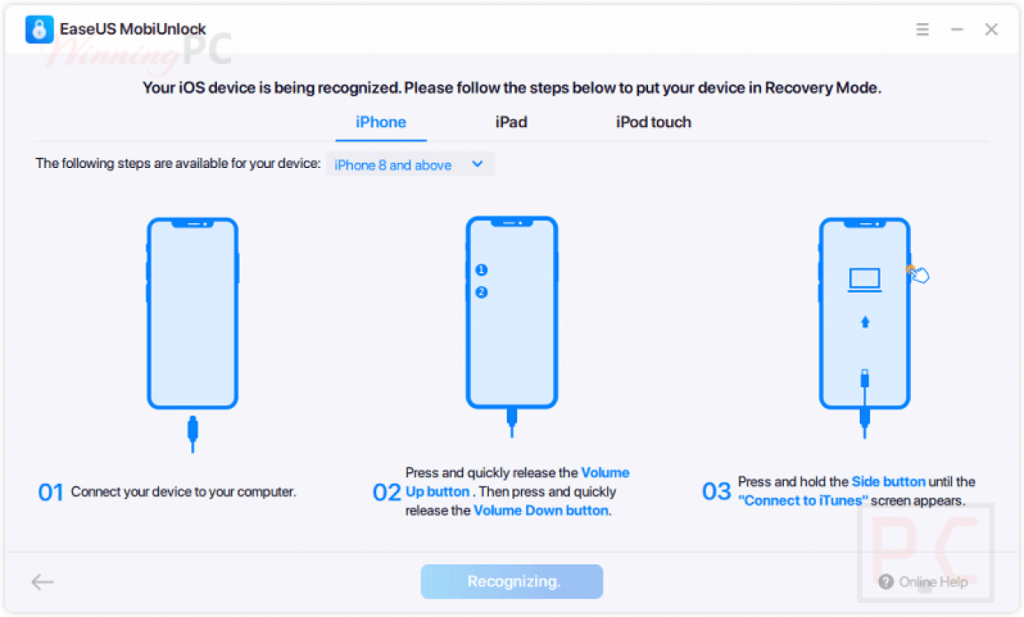
Step 2: Install app for password recovery, like EaseUS MobiUnlock for iPhone/iPad/iPod. Run the software.
Step 3: Access Internal Storage > mmcstore folder. Then, rename it as mcstore.txt.
Step 4: Copy the file into your PC and then access it via Notepad.
Step 5: Decrypt your SD card with the recovered password.
Solution 2: With the password
Step 1: Put the SD card into your Android mobile device and restart.
Step 2: Access Settings > Lock Screen and Security.

Step 3: Scroll downward and choose the “DECRYPT SD CARD” option. Enter the password.
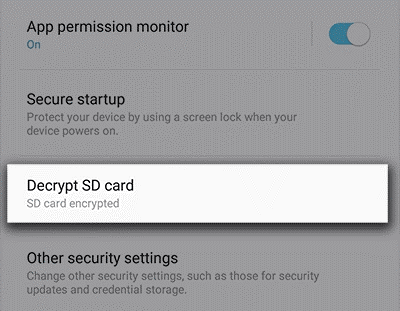
Step 4: Wait for the process to complete. Keep your device charged at this time.
EaseUS Data Recovery Wizard allows users to recover photos and other files after formatting, deletion, or permanent file loss conditions.
What are the steps?
Step 1: Download, install, and run the EaseUs Data Recovery Wizard on your PC.
Step 2: Link your Transcend/Lexar/SanDisk SD card to your computer.
Step 3: Access the EaseUS software you downloaded for SD card recovery. You can see all your connected devices. Then, choose the SD card and Scan.
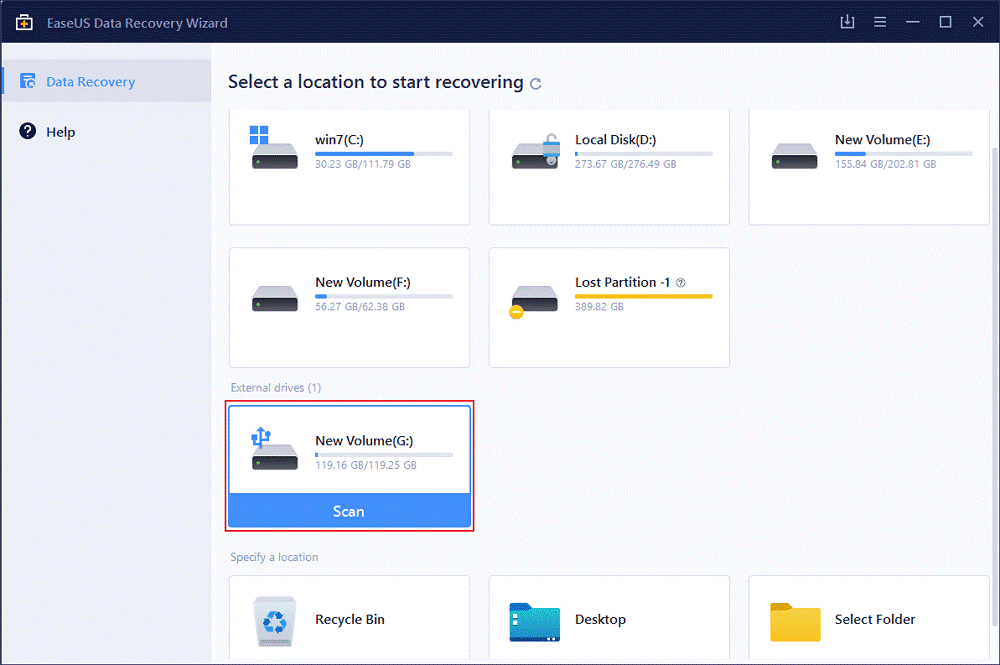
Step 4: Wait until the scanning process finishes.
Step 5: Press on “Filter” and select the file types you want to see, like Pictures, PDF, Excel, Videos, etc. Use the “Preview” button to verify your selection.
Step 6: Select the files you want and click on the “Recover” button.
Step 7: Select the destination folder for the recovered photos.
Method 2: Use Systweak Photo Recovery Software
One of the most user-friendly software options for encrypted SD card recovery is Systweak Photo Recovery Software. This checks the different aspects of the hard disk well. Then, it performs erased photo, video, and audio clip restoration with some steps.
What are the steps?
Step 1: Download and install the Systweak Photos Recovery Software.
Step 2: Double-click on your downloaded file to start the installation process.
Step 3: Follow the on-screen guide to install the software properly.
Step 4: Access the app and put the key you get in the email into the field.
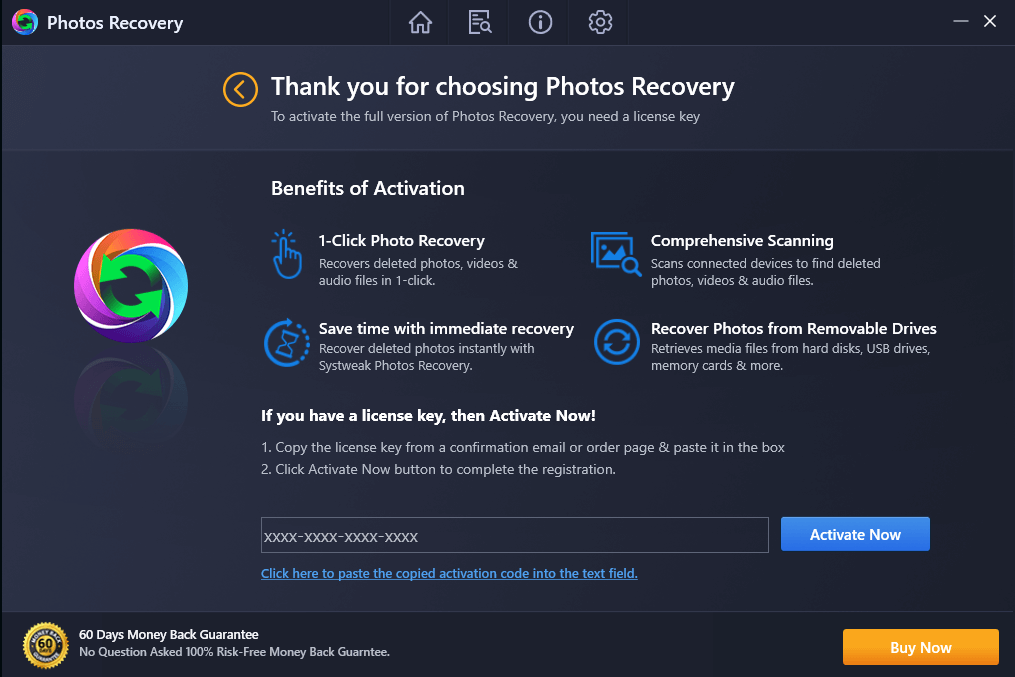
Step 5: Access the main screen after completing registration. Choose the destination. Ensure that your SD card is connected correctly to your PC in a suitable adapter via the USB port.
Step 6: Next, take the time to decrypt your SD card using the right tool like BitLocker.
Step 7: Open Removable Drive > Deep Scan/Quick Scan. Choose as per your preference and click on the “Start Scan” button.
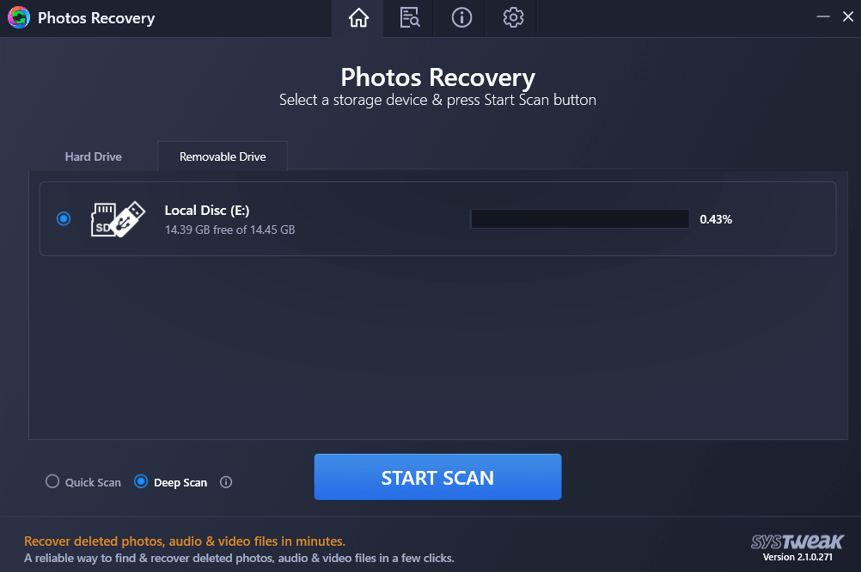
Wait for the process to complete.
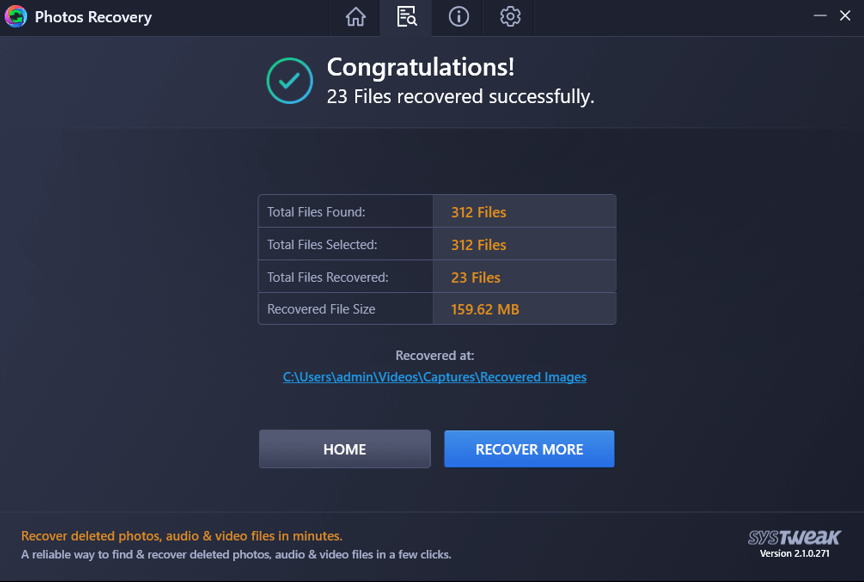
Step 8: Then, you would notice a list of videos and photos that are possible to retrieve. Choose your options one by one or all images.
Step 9: Click on the OK option to begin photo restoration. Here, choose another location as your saving destination to avoid mix-up.
Step 10: Wait until the process completes and all files are saved in the destination location.
Method 3: Use the Minitool Photo Recovery application
Another notable option to try is the Minitool Photo Recovery software. It is a suitable and easy-to-use tool for quick and efficient photo recovery of deleted or lost files from the formatted hard drive.
It supports different audio, video, and image formats and works well with varying device types. These include memory cards, HDDs, removable disks, digital cameras, and USBs. Make sure to decrypt your SD card first before using this.
What are the steps?
Step 1: Install and run the Minitool Photo Recovery Software. Then, click on the “Start” button.
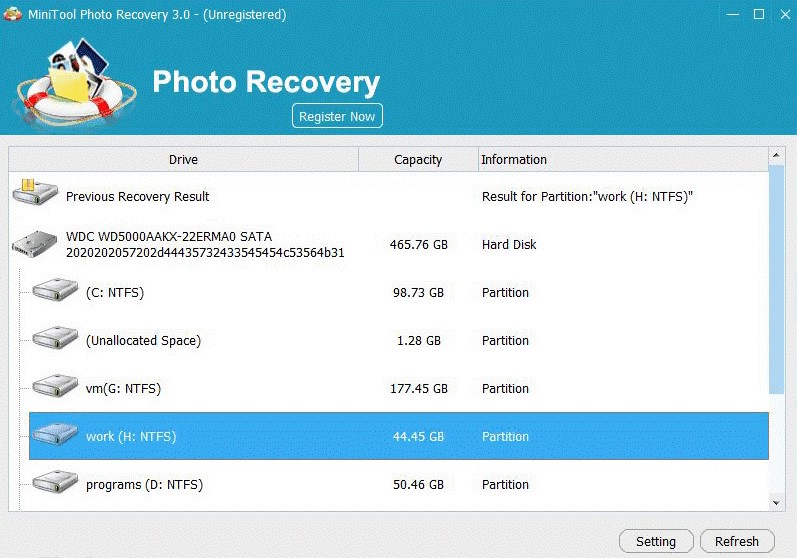
Step 2: A list of devices would come up. Choose the target device, and then press on Scan.
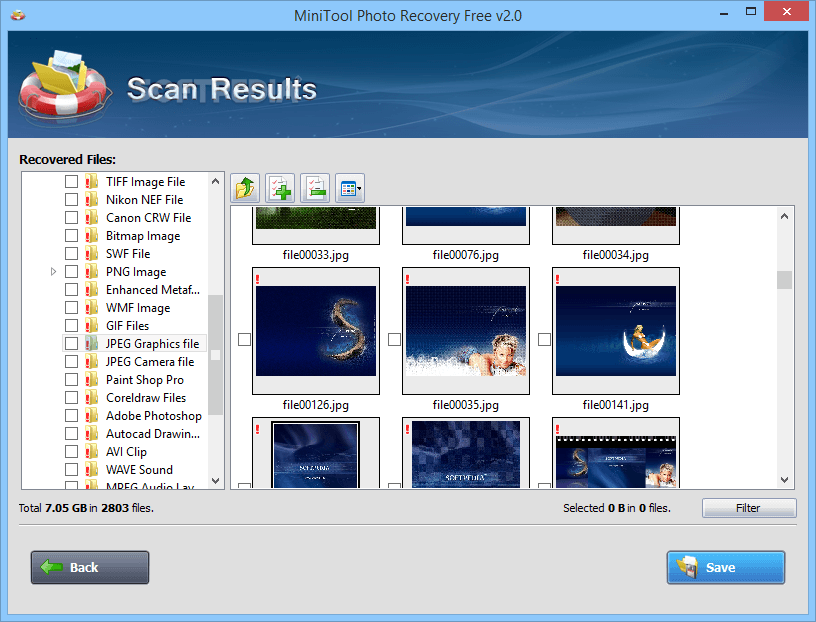
Step 3: You would notice a group of photos that the software would retrieve after processing. Filter out the options you want.
Step 4: Select them to Preview and then press on “Recover” button.
Method 4: Use the Stellar Photo Recovery software
You can use the Stellar Photo Recovery tool to recover photos or videos, among other options, from your device. It supports different SD card models like Samsung, Sony, Kingston, Lexar, etc. In addition, it is compatible with Windows 10/8/7 and older versions.
What are the steps?
Step 1: Install and run your Stellar Photo Recovery software.
Step 2: Choose Recover Photo Audio & Video > add the driver letter or key for the SD card.
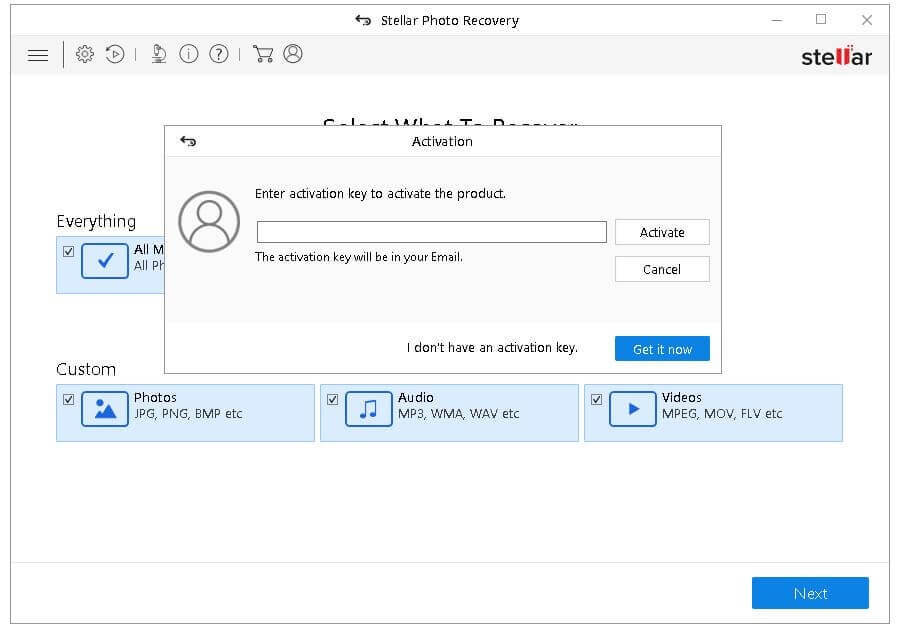
Step 3: Access Advanced Settings > Photo File Format. Then, choose your requirements.
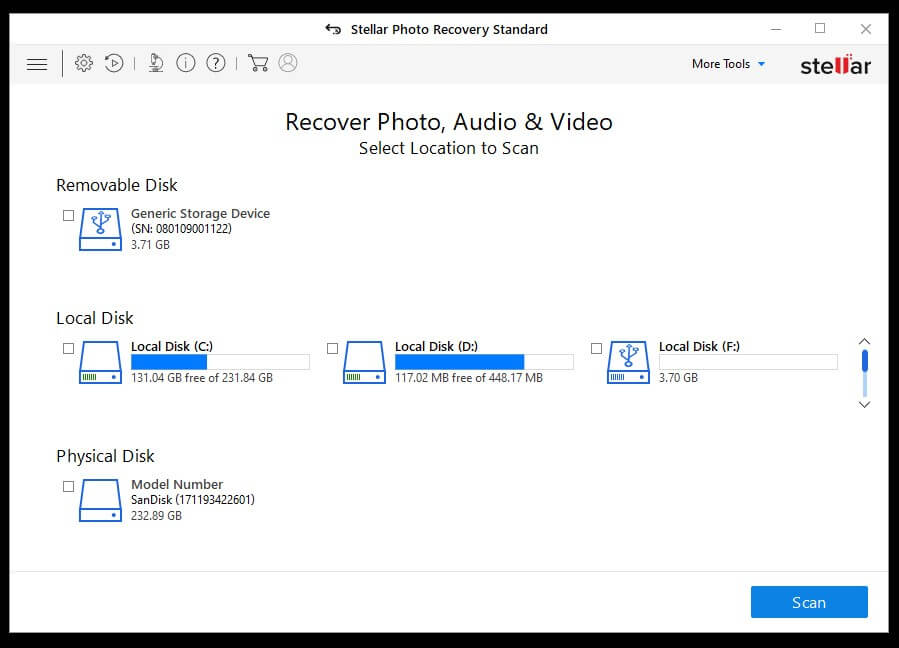
Step 4: Open the “Select Region” option and add the specific values for the Ending Sector/Starting Sector. Press OK.
Step 5: Start the scanning process by clicking on Scan Now.
Step 6: Choose the encrypted files you want to retrieve and press the “Recover” button. Mention the destination for the recovered photo saving.
Conclusion
You can use different tools and methods to recover your lost or deleted photos from encrypted SD cards. Options like EaseUS Recovery Wizard are handy for a quick and safe recovery process. However, make sure to decrypt your SD Card first to complete the process using these software options without issues.
Popular Post
Recent Post

How To Clear Cache Memory On Windows 11/10 [2026]
Learn how to clear cache memory on Windows 11/10 using safe built-in methods to improve speed, free space, and maintain smooth system performance.

Windows Installer Cleanup Utility: Complete Review And Alternatives
Detailed review of Windows Installer Cleanup Utility, reasons for removal, risks, and safer modern alternatives explained clearly.

How To Clean Junk Files On Windows 11/10
Learn how to clean junk files on Windows 11 and 10 using safe, simple steps to boost speed and free storage space effectively.

Clearing App Cache Data on Windows 11/10: Complete Guide
Learn how to safely clear app cache on Windows 11 and 10 to fix slow apps, free disk space, and improve overall system performance.

How To Clean Up System Files On Windows 11/10: Complete Guide
Explore a step-by-step guide explaining how Windows users can safely remove unnecessary system data using built-in tools.

How To Clean a Laptop Fan Without Opening [2026 Guide]
Learn how to clean a laptop fan without opening the device using safe steps, simple tools, and easy methods for better cooling.

How to Clear the Queue in the Printer Automatically in 2026
Learn how to clear the queue in the printer with simple steps. This easy guide explains why print jobs get stuck and how to fix them safely for smooth printing.

How To Clear Delivery Optimization Cache In Windows
Learn how to clear Delivery Optimization Cache in Windows safely and easily. This guide explains steps, precautions, benefits, and FAQs to free space and avoid update issues.

How To Clear Cache in Edge [Windows 11/10]: Latest Guide
Learn how to clear cache in Edge on Windows 11 and Windows 10. Step by step guide with precautions, FAQs, and tips to fix slow pages and errors.

Top 15 Questions About PC Cleaning and Their Answers
Learn safe and simple ways to clean your PC. This guide answers top questions, covers precautions, and gives advanced tips for better PC health and performance.
