How to Update the Amazon Fire TV Stick?
Last updated on November 11th, 2025 at 5:46 pm
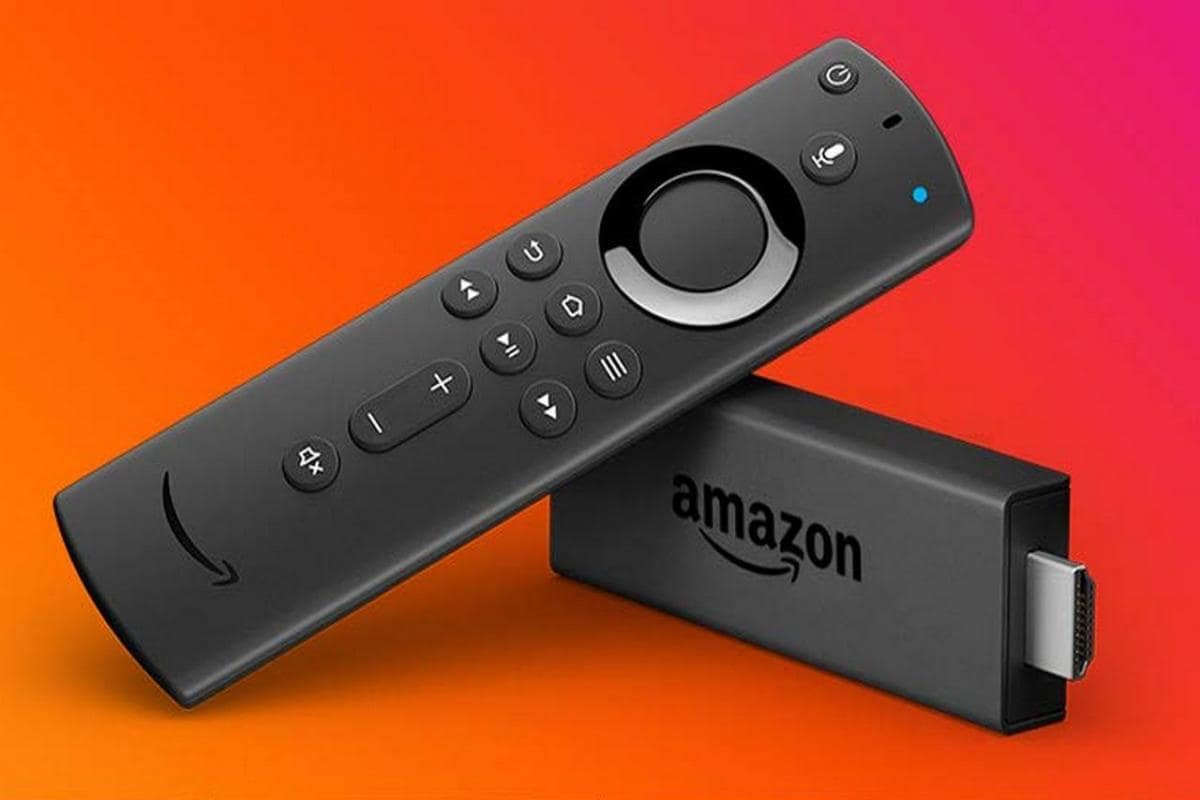
Many people use Amazon Fire TV Stick for its high-quality streaming services. However, the models can show some issues if one is running a reasonably outdated version. You need to upgrade your system to the latest version with new features, bug fixes, and upgrades in the user interface.
You can download and use VPN with the smart TV software to keep it safe from malware and improve your connection. But, when you update firestick software, you can expect better performance and improvements.
While there is an automated update function available, methods are available to do this manually. We discuss them in detail in this post, so read ahead.
Best Methods to Update the Amazon Fire TV Stick
An Amazon Fire TV Stick update feature is present that automatically upgrades the system to the current version with an active internet connection. You can also do the steps directly through the settings. It is vital to keep the internet connection switched on while downloading necessary update files.
Method 1: Check the Version of the Amazon TV Stick
Before beginning the updating process, you should understand the existing version. The steps to update the different Amazon Fire TV sticks are related to the type of device version it holds. Some of the common ones that are currently active are mentioned hereafter.
- Amazon Fire TV (Gen 3)- Fire OS 6.2.6.0 version
- Amazon Fire TV (Gen 2)- Fire OS 5.2.6.9 version
- Amazon Fire TV (Gen 1)- Fire OS 5.2.6.9 version
- Fire TV Stick (Gen 1)- Fire OS 5.2.6.9 version
- Fire TV Stick + Voice Remote- Fire OS 5.2.6.9 version
- Fire TV Stick + Alexa Voice Remote- Fire OS 5.2.6.9 version
- Amazon Fire TV Stick 4K- Fire OS 6.2.6.3 version
- Amazon Fire TV Recast- Fire OS 6.2.5.8 version
- Fire TV Stick Basic Edition- Fire OS 5.2.6.8 version
- Amazon Fire TV Cube- Fire OS 6.2.6.0 version
Check the version of the Fire Stick and then update Firestick software.
How to do this?
Step 1: First, you should access the main homepage of your Amazon Fire TV platform.
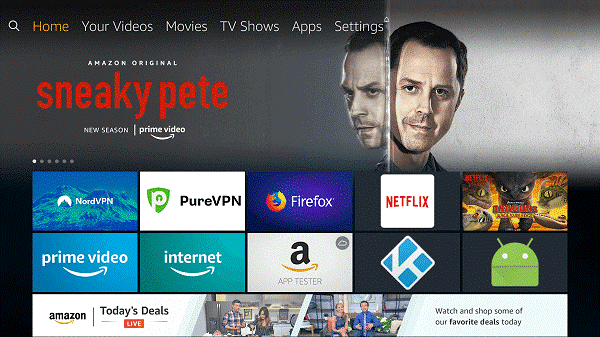
Step 2: On the upper-right side of the screen, you will see the “Settings” option. Click to open the menu.
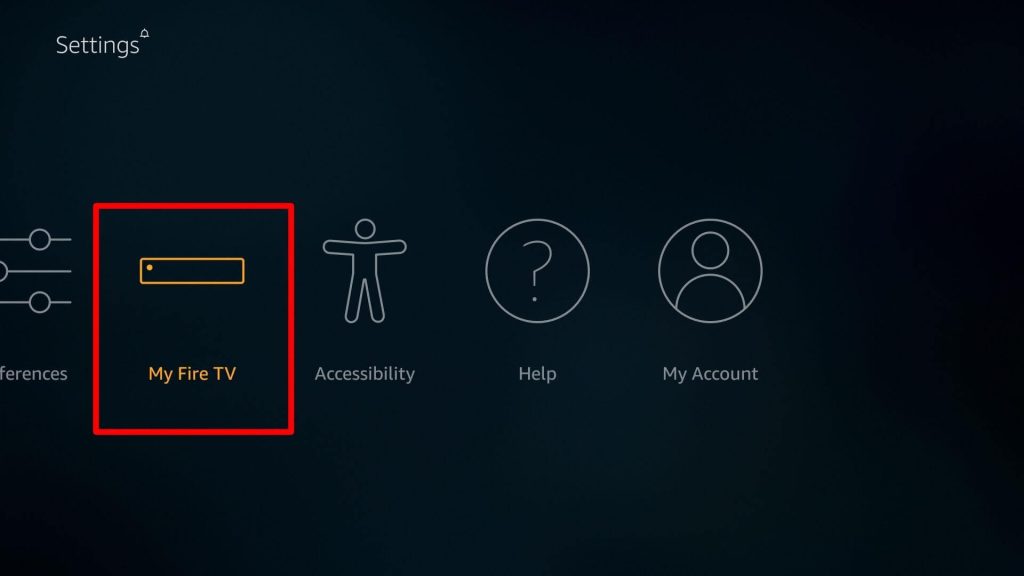
Step 3: On the next page, press your cursor on the “My Fire TV” option.
Step 4: Access the “About” section on the next page that appears.
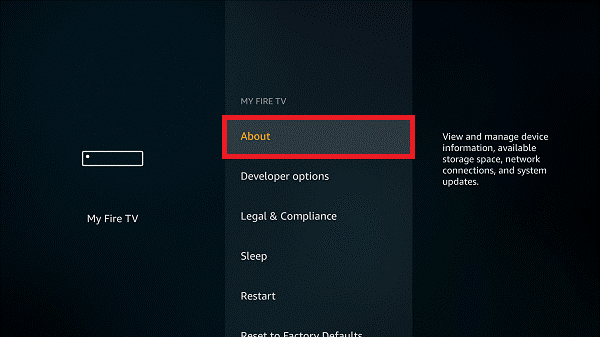
Step 5: Hover your cursor on top of the Fire TV Stick option.
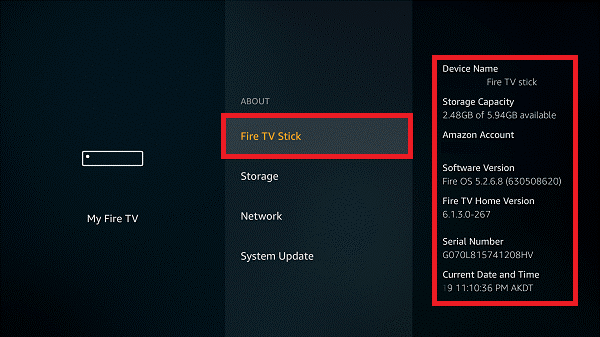
The tech specifications of the device you are using and the Fire OS would appear on the right-hand side of the screen.
Method 2: Update the Amazon Fire TV Stick through Settings
After knowing the type of Amazon Fire TV Stick you are using, you should manually update the Amazon fire stick. Optimized software versions come up frequently for Amazon products and services. Check the updates that are available each month, and install them manually. The steps for updating the Fire TV Stick are the same for most of the available device and version types.
How to do this?
Step 1: Open the Home of your Amazon Fire TV.
Step 2: Access “Settings” from your menu bar at the top of your screen on the upper-right side.
Step 3: Then, scroll your cursor toward the right side of your screen. You would see either the “System” or “Device” option, mainly for older 1st Gen Fire TV Stick and Fire TV versions. The primary choice in most devices is “Device”.
Step 4: Select the “My Fire TV” option.
Step 5: Then, you would get multiple selections. Click on About.
Step 6: You will get one of two options on the next page. If no new updates are available, the “Check For Updates” options would appear.
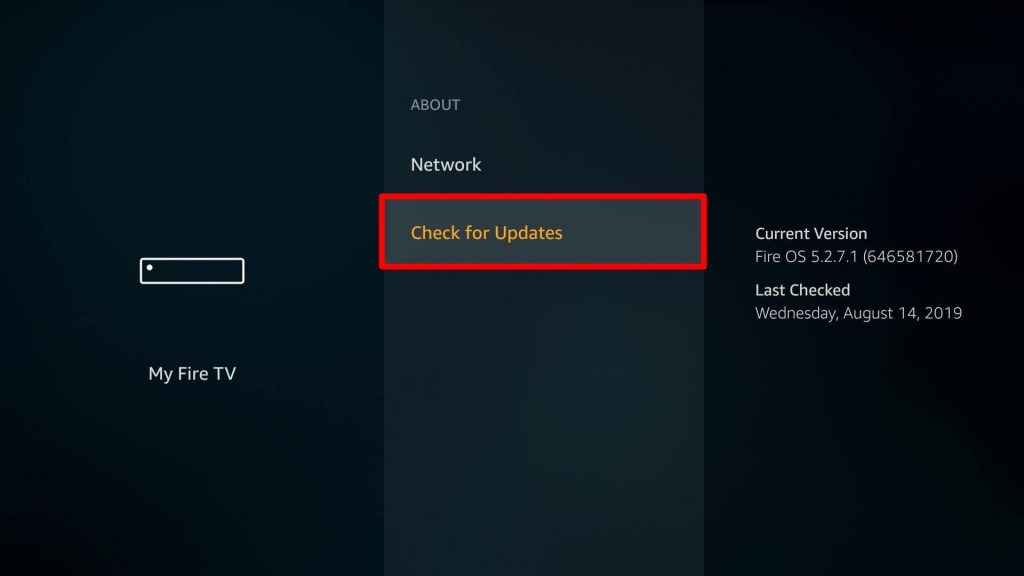
The “Install Update” option will come up if new updates are present. A message showing the next update would automatically appear on the panel’s right-hand side. Users must reboot the system for update installation.
Step 7: Choose the Select button on your Amazon Fire TV Stick remote. Then, the TV would turn off.
Step 8: Do not shut your system off from the power cable and wait for all the updates to complete. The whole process of updating the software typically takes 5 to 15 minutes. This depends on the speed of the internet connection.
Step 9: After the updates are complete, you can switch your Fire TV on.
Conclusion
You need to follow the steps mentioned to update Firestick carefully. You can take the route through the software settings itself or use another device to jailbreak it
Please check out our other posts on diverse software-related matters if you found this guide helpful.
Popular Post
Recent Post

How to Clear the Queue in the Printer: A Step-by-Step Guide
Learn how to clear the queue in the printer with simple steps. This easy guide explains why print jobs get stuck and how to fix them safely for smooth printing.

How To Clear Delivery Optimization Cache In Windows
Learn how to clear Delivery Optimization Cache in Windows safely and easily. This guide explains steps, precautions, benefits, and FAQs to free space and avoid update issues.

How To Clear Cache in Edge [Windows 11/10]: Latest Guide
Learn how to clear cache in Edge on Windows 11 and Windows 10. Step by step guide with precautions, FAQs, and tips to fix slow pages and errors.

Top 15 Questions About PC Cleaning and Their Answers
Learn safe and simple ways to clean your PC. This guide answers top questions, covers precautions, and gives advanced tips for better PC health and performance.

11 Mistakes To Avoid While Cleaning a PC
Cleaning a PC is important because dust and dirt can slow the system and heat up the parts. A clean computer also lasts longer and works with fewer sudden issues. Many users clean their PCs only when they notice noise or overheating. This delay can make the job harder and sometimes cause more trouble. A […]
How To Clean a Gaming PC: Complete Guide
A clear and expanded guide that shows how to clean your gaming computer, maintain airflow, protect hardware, and keep performance smooth with simple methods for all user levels.

How to Clean Your Windows Registry (Safe Methods)
Learn safe ways to clean Windows registry entries using built-in tools, backups, and trusted cleaners. Follow simple steps, avoid risks, and keep your system fast and stable.
How to Clean a Laptop Webcam Lens Without Damage
Learn how to clean a Laptop Webcam Lens with simple steps, safety tips, and advanced methods to keep your webcam clear, sharp, and ready for video calls or recordings.
How To Clean the Speakers of Your PC or Laptop
A clear and simple guide on how to clean speakers of a PC or laptop with safe steps, precautions, and advanced care tips that help restore bright and steady sound.
PC Cleaning Tips For Beginners and Advanced Users
A complete guide that explains simple cleaning methods, safety steps, airflow care, and advanced maintenance habits for beginners and skilled users.
