4 Easy Ways To Fix Your Frozen MacBook

Last updated on October 14th, 2025 at 1:52 pm
Frozen MacBook is annoying. It is like you are stuck in a place with no way to get out. It can delay your work and dramatically reduce your productivity.
The MacBook is a powerful machine with stunning graphics. Thus, you might not encounter many frozen issues. But, once in a while, the MacBook freezes on the Safari screen or while using certain apps.
So, if your Mac is freezing on you a lot, this is a serious problem and needs to be professionally dealt with. This guide will help you fix your frozen MacBook and ensure you never have to deal with this problem ever again.
Reason Behind My Frozen MacBook
Before we fix your frozen MacBook, understand that a frozen screen happens in different variants, like you can move your cursor, but nothing clicks or full freeze where you can not move anything with your mouse or keyboard.
In addition, the MacBook freeze due to several reasons, like:
Third-party Apps
When your screen is stuck while using the app, your Mac is perfectly fine — it is just the problematic app. The apps often crash when they are not regularly updated or due to bugs. The apps can also freeze your screen without sufficient free space. Thus, you can either remove those apps or upgrade them to fix bugs.
Web Browser Extensions
Suppose your macOS system crashes while web browsing; this may be related to third-party extensions you have installed. It is possible that the extension is too heavy and freezes your system. Also, bugs or system errors can be a problem. So, you can uninstall some browser extensions to run your Mac smoothly.
Hardware Failure
There is a possibility that your keyboard or mouse is at fault. If your mouse or keyboard is not connected properly or damaged, it can freeze your Mac screen. You connect another mouse or keyboard to your MacBook to rule out hardware failure. If hardware is causing a problem, you can replace it.
Malware
MacOS doesn’t get malicious infections easily like Windows. But still, it is a chance that you have downloaded some malicious content, which has frozen your MacBook. If you observe a sudden increased load on your CPU or memory, it is a sign of malware infection. For this, you need to get a MacOS antivirus program to fix your frozen MacBook.
Here’s How You Can Fix Your Frozen MacBook
Now, let’s see how you can fix your frozen Mac computer with ease:
Solution 1. Close the Problematic App
When you encounter a frozen screen while using a particular app, that app might be buggy, or your system doesn’t have sufficient processors or speed to run it.
In addition, you might also notice the rainbow wheel, the spinning pizza of death, or the spinning beach ball while using the app. In any case, force quitting the problematic app is the best solution.
Here’s how you force quit the app and fix your frozen MacBook:
Step 1. Click on another app or desktop to move from the frozen screen. Alternatively, press Command-Tap to switch the app and pull out your Mac from the frozen state.
Step 2. Next, click on the Apple logo located on top of your screen and choose Force Quit.
Step 3. All the unresponsive apps will be highlighted on the Force Quit Application popup. Click on the app you want to Force Quit.
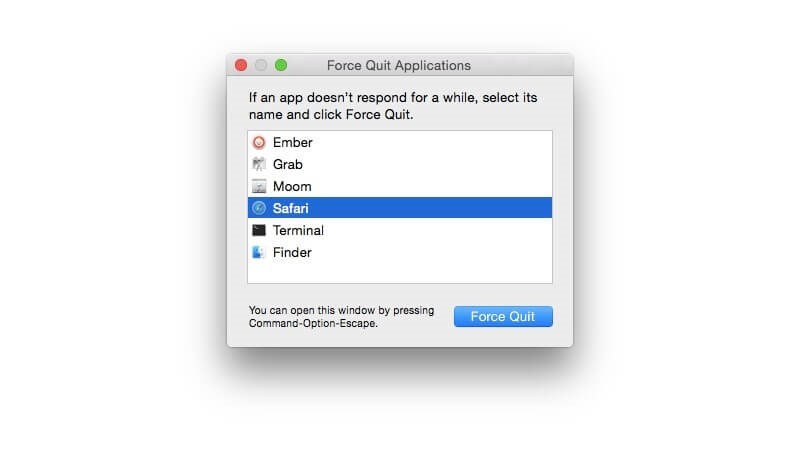
If you don’t know which app is the problem, you can follow these steps to Force Quit:
Step 1. In the Dock, right-click on the app’s icon. You can now see options to Quit or Force Quit on the app.
Step 2. Right-click on the app and press the Alt key simultaneously to Force Quit. If you are not getting the Force Quit option, this command can turn Quit to Force Quit.
If you work better with keyboard commands, you can use this command to Force Quit Apps on Mac—
Cmd + Alt/Option + Esc

Solution 2. Reboot Your MacBook
There is a chance that Force Quit might not work when your MacBook is completely unresponsive or hardware fails. In that case, you can reboot your system to fix the frozen MacBook. Here’s how you can do that:
Step 1. Click on the Apple logo > Restart option.
Step 2. In case your mouse is unresponsive, press this key combination Command-Control-Eject. On new Mac devices, this command will work — Option-Command-Power. This option will save your app settings before shutting it off. However, this will not work if you use a Touch ID sensor.
Step 3. If your keyboard is also unresponsive, simply press and hold the Power button until your device shuts off. After a moment, again press the Power button to turn on your computer.
Solution 3. Reboot in the Safe Mode
Safe Mode is the best way to make changes on your Mac without impacting your system. You can reboot your Mac in Safe Mode if the problem is with the startup app.
Follow these steps to reboot your MacBook in Safe Mode:
Step 1. Press and hold the Shift key immediately when your MacBook starts.
Step 2. Release the Shift key once the login screen appears.
Step 3. Enter your Mac’s login credentials. You might have to log in twice. When you can see Safe Boot on the top right corner of your screen, it means you have entered the Safe Mode.
Solution 4. Use Third-party Tools
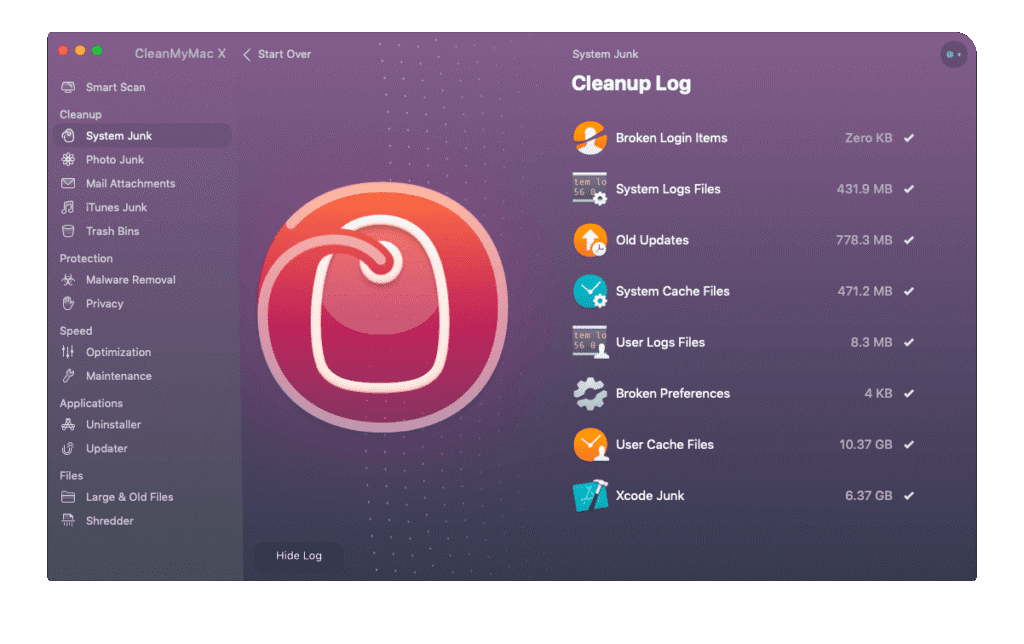
When nothing happens after Force Quit or reboot, malware infection or utility tools might be freezing your screen. In that case, you can get CleanMyMac X to clean, optimize and scan your system for malware.
This tool has a dedicated Optimization module to quickly detect and fix hung apps. Besides this, the software can keep your MacBook healthy and infection-free.
After downloading the software from the MacPaw website, follow these steps:
Step 1. Launch CleanMyMac X and click on the Optimization module.
Step 2. Head over to View All Items > Hung Applications.
Step 3. Choose the app you want to close and press the Quit button. This will automatically fix your frozen MacBook.
Preventive Measures to Stop MacBook from Freezing
MacBook frozen problems can be avoided with some simple preventative steps, like:
Update your OS
By updating your macOS, you can easily fix several system errors, including a frozen Mac. To do so, just go to the Apple menu > About this Mac > Software Update > Install.
Update your apps
Problems with macOS apps can be fixed by updating. Often, new updates are designed to fix bugs. So, go to the App Store and click on the Update All button to update all apps. Or, you can open the problematic app and upgrade it.
Run First Aid
First Aid is a built-in MacBook tool to fix regular glitches. Simply go to Applications > Utilities > Disk Utility > First Aid. This will automatically fix glitches that are freezing your screen.
Use native apps
Sometimes third-party tools are not compatible with your macOS version, or developers don’t update them regularly. This can impact your computer and even invite malware infections. Thus, the best approach is to only use native Apple tools like Safari for web browsing or Notes to take notes.
Remove browser extensions
Too many web browser extensions can put a load on your browser, leading to a freeze or crash. In addition, some extensions are buggy and also infect your system. Thus, remove all the unwanted extensions from your web browsers.
Scheduled malware scan
Viruses and malicious files are always bad for your computer. Not only freezing, but they can cause system crashes, stutters and other serious problems. Thus, use an antivirus program like CleanMyMac X and keep your device healthy.
Use Activity Monitor
Activity Monitor is a utility tool that detects the applications taking up more space on your Mac. This way, you can remove the programs consuming a large space on your disk. To do so, head over to Applications > Utilities > Activity Monitor and tap on the CPU column to get details on every app’s storage.
Let’s Unfreeze Your Mac!
Let’s not get frustrated every time your Mac freezes. Just follow the solutions and precautions mentioned in this post to maintain your MacBook’s performance.
That’s it for now! However, explore other posts on this website for more Mac guides.
Popular Post
Recent Post

How to Clear the Queue in the Printer: A Step-by-Step Guide
Learn how to clear the queue in the printer with simple steps. This easy guide explains why print jobs get stuck and how to fix them safely for smooth printing.

How To Clear Delivery Optimization Cache In Windows
Learn how to clear Delivery Optimization Cache in Windows safely and easily. This guide explains steps, precautions, benefits, and FAQs to free space and avoid update issues.

How To Clear Cache in Edge [Windows 11/10]: Latest Guide
Learn how to clear cache in Edge on Windows 11 and Windows 10. Step by step guide with precautions, FAQs, and tips to fix slow pages and errors.

Top 15 Questions About PC Cleaning and Their Answers
Learn safe and simple ways to clean your PC. This guide answers top questions, covers precautions, and gives advanced tips for better PC health and performance.

11 Mistakes To Avoid While Cleaning a PC
Cleaning a PC is important because dust and dirt can slow the system and heat up the parts. A clean computer also lasts longer and works with fewer sudden issues. Many users clean their PCs only when they notice noise or overheating. This delay can make the job harder and sometimes cause more trouble. A […]

How To Clean a Gaming PC: Complete Guide
A clear and expanded guide that shows how to clean your gaming computer, maintain airflow, protect hardware, and keep performance smooth with simple methods for all user levels.

How to Clean Your Windows Registry (Safe Methods)
Learn safe ways to clean Windows registry entries using built-in tools, backups, and trusted cleaners. Follow simple steps, avoid risks, and keep your system fast and stable.

How to Clean a Laptop Webcam Lens Without Damage
Learn how to clean a Laptop Webcam Lens with simple steps, safety tips, and advanced methods to keep your webcam clear, sharp, and ready for video calls or recordings.

How To Clean the Speakers of Your PC or Laptop
A clear and simple guide on how to clean speakers of a PC or laptop with safe steps, precautions, and advanced care tips that help restore bright and steady sound.

PC Cleaning Tips For Beginners and Advanced Users
A complete guide that explains simple cleaning methods, safety steps, airflow care, and advanced maintenance habits for beginners and skilled users.
