How to Clean or Remove A Malware/Virus from PC
Computer malware are one of the most common threats for Windows users today. They can slow down a PC, steal personal data, or lock important files. Many infections start in simple ways. A user downloads a free tool, opens an email attachment, or clicks a fake update. The damage can begin within minutes, and often goes unnoticed for days.
The good news is that an infected PC can be fixed. Most infections can be fixed without expert help or a full reinstall. In most cases, you can remove malware from PC by following a clear process. The key is to act early, stay calm, and use the right steps in the right order.
This guide explains how to deal with a PC infection step by step. You will learn how to recognize common malware symptoms, prepare your computer for removal, and use seven different techniques to get rid of malicious files. It also includes simple security practices to reduce the risk of future infections.
Complete Guide To Clean A Malware Or Virus From A Windows 11 PC
Part 1: What Is a Virus and What Is Malware?
Virus
A computer virus is a type of malicious program that attaches itself to files or applications and spreads when they are opened or executed. It can modify files, damage data, slow down your PC, or interfere with normal system operations. Some viruses can also spread to other computers through shared files, USB drives, or networks.
Malware
Malware is a broad term used for any software designed to harm a computer, steal information, disrupt operations, or gain unauthorized access. It includes viruses, trojans, ransomware, spyware, adware, and worms. Depending on its type, malware may steal personal information, display unwanted ads, encrypt files, monitor user activity, or affect your computer’s performance.
Summary: A virus is a type of malware, meaning all viruses are malware, but not all malware is a virus.
The table below covers common malware types, how they work, and the signs they leave behind.
| Type | What It Is | How It Spreads | What It Does | Common Warning Sign |
| Virus | A program that attaches itself to a clean file | Infected files, USB drives, email attachments | Damages or deletes files and slows the PC | Files go missing, or apps crash often |
| Worm | A program that copies itself on its own | Networks, email, and weak security holes | Uses up internet speed and system power | Internet becomes slow for no reason |
| Trojan | A bad program that looks like a useful app | Fake downloads, cracked software, fake updates | Opens a door for hackers and installs more threats | Unknown apps appear on the PC |
| Ransomware | A program that locks your files | Email links, bad websites, infected downloads | Asks for money to unlock your files | A message demands payment |
| Spyware | A program that secretly watches you | Free software bundles and bad links | Records what you type and where you browse | Passwords get changed or accounts get misused |
| Adware | A program that shows unwanted ads | Free software and shady websites | Floods the screen with pop-ups and redirects | Ads appear even when the browser is closed |
| Rootkit | A program that hides deep inside Windows | Infected downloads and software holes | Hides other threats and gives hackers full control | Security tools stop working |
| Keylogger | A tool that records every key you press | Trojans, bad attachments, fake apps | Steals logins, card numbers, and private chats | Strange logins from other places |
Part 2: Signs That Your PC Has Malware or Virus
Some infections are loud. Others are quiet. Look for these warning signs before you start the cleanup.
- Slow PC performance: Programs take longer to launch.
- Frequent pop-ups: Unwanted ads appear, even when the browser is closed.
- Unexpected browser changes: Your homepage or default search engine changes without your permission.
- Unknown applications: You find programs on your PC that you do not remember installing.
- Unusual CPU or disk usage: Task Manager shows high resource usage even when no apps are running.
- Antivirus problems: Your security software stops working or refuses to open.
- Missing or locked files: Some files disappear or become inaccessible.
- Unusual network activity: Your internet connection slows down despite no active downloads.
Part 3: Important Steps to Take Before Removing Malware
Taking a few precautions beforehand can prevent bigger problems during the cleanup. Start with these steps.
- Back up important files. Move essential photos and personal documents to an external storage device. Leave installed applications and Windows files behind.
- Scan the backup drive. Malware can spread to external storage. Run a security scan before opening the backed-up files.
- Avoid banking websites. Some malware can capture passwords and other sensitive details. Do not access financial accounts until the PC is clean.
- Keep a clean USB drive handy. You may need it to transfer security tools from another computer.
- Record error messages. Write down unusual alerts or error codes. They may help identify the infection.
- Never rush to pay a ransom. Paying does not guarantee that you will get your files back.
Part 4: How to Clean Malware/Virus from Your PC: Seven Methods
Method 1: Use Safe Mode
Safe Mode starts Windows with only the basic files and drivers. Most malware cannot run in this mode. That makes them easier to find and delete. This is the best first step for any infection.
Safe Mode also stops many malware from blocking your tools. Some malware fights back when Windows runs normally. In Safe Mode, it loses that power. So your scan runs with fewer problems.
Why use this method:
- It stops most malware from loading.
- It is free and built into Windows.
- It makes later scans faster and safer.
Steps:
- Press the Windows key and click Power. Hold Shift and click Restart.
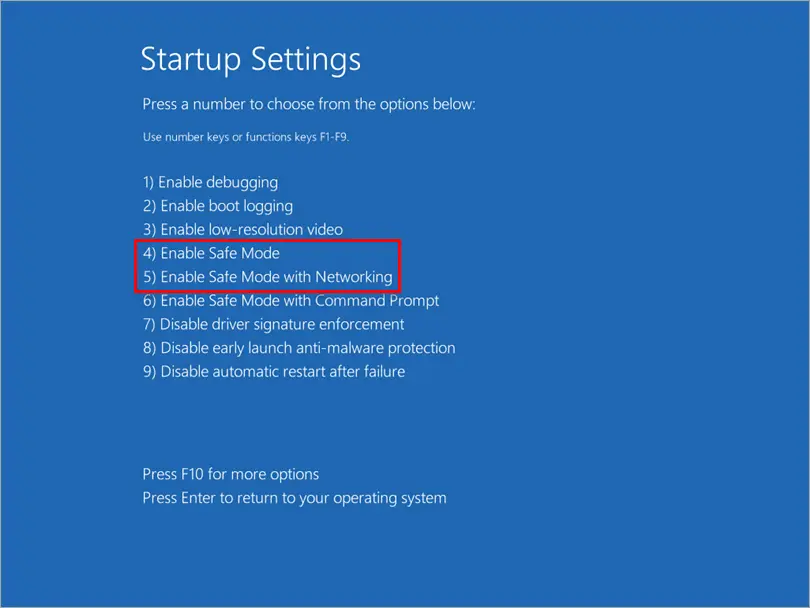
- Go to Troubleshoot, then Advanced options, then Startup Settings, then Restart. After the restart, press 5 or F5 to choose Safe Mode with Networking.
Method 2: Delete Temporary Files
Many malware hide in temporary folders. Your PC also stores a lot of junk there. Clearing it out can remove the hiding spots. It also frees up space and speeds up the scan that follows.
Do this step while you are still in Safe Mode. It takes only a few minutes. You do not need extra software for it.
Why use this method:
- It removes junk that may hide threats.
- It frees up disk space.
- It makes the next scan quicker.
- It is safe for your personal files.
Steps:
- Type Disk Cleanup in the Start menu and open it. Pick your C drive.
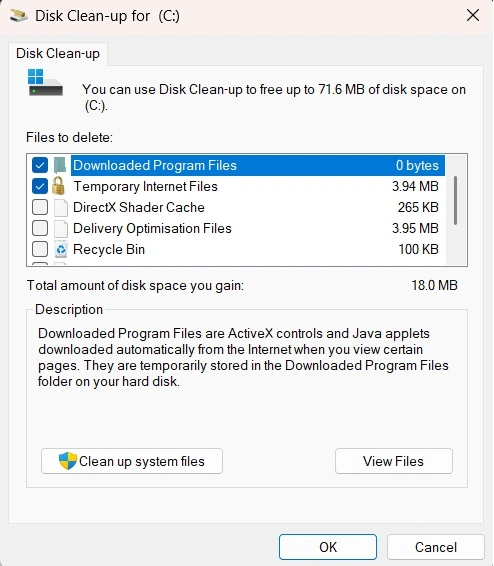
- Tick Temporary files and Temporary Internet Files. Click OK, then click Delete Files.
Method 3: Run a Full Scan with Windows Security
Windows comes with a free security tool. It is called Windows Security, and it uses Microsoft Defender. It is the quickest way to remove malware from PC without installing anything new. It is also updated often by Microsoft.
Do not choose the Quick scan. It checks only a few places. A Full scan checks every file on your drive. It takes longer, maybe an hour or more. But it is far more complete. Let it run and do not use the PC meanwhile.
Why use this method:
- It is free and already on your PC.
- It gets regular updates from Microsoft.
- It scans every file and folder.
- It removes or quarantines threats for you.
Steps:
- Open Start and type Windows Security. Click Virus and threat protection.
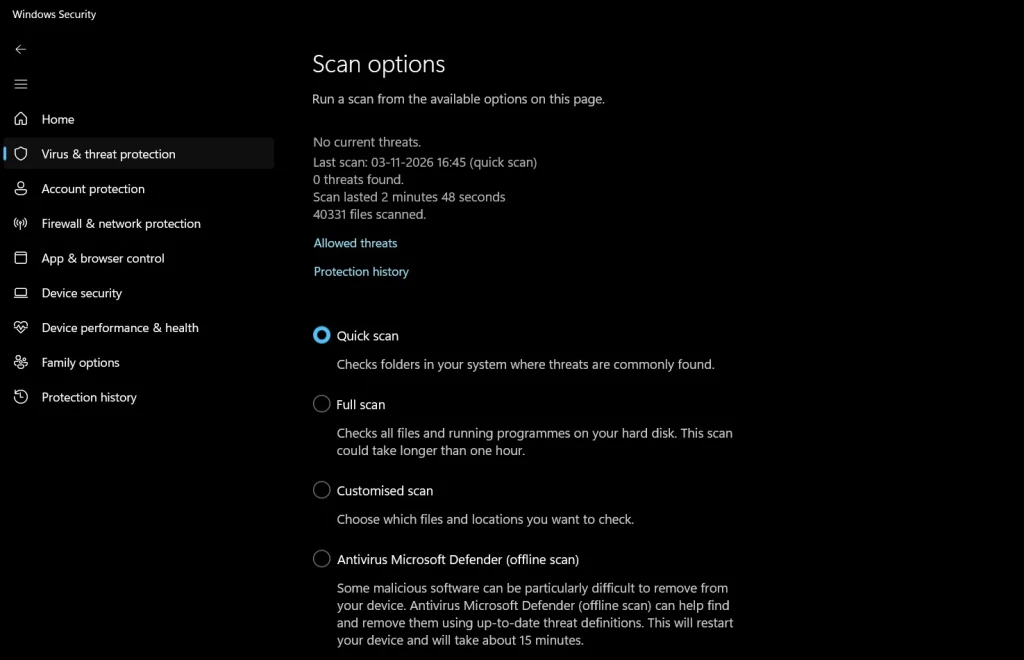
- Click Scan options, pick Full scan, and click Scan now. When it ends, click Start actions to remove any threats.
Method 4: Use Microsoft Defender Offline Scan
Some malware are clever. They hide while Windows is running. The Offline scan solves this problem. It restarts your PC and scans before Windows fully loads. At that point, the malware has no place to hide.
This method is great for stubborn threats. Use it if the normal scan finds nothing, but the PC still acts strange. Save your work first, because the PC will restart on its own.
Why use this method:
- It finds threats that hide inside Windows.
- It works well on rootkits and deep infections.
- It needs no extra download.
- It runs on its own once started.
Steps:
- In Windows Security, go to Virus and threat protection, then Scan options.
- Choose Microsoft Defender Offline scan and click Scan now. Your PC restarts and runs the scan.
Method 5: Remove Suspicious Programs and Browser Extensions
Not all malware is a hidden file. Sometimes it is a normal-looking app. Fake toolbars, PDF makers, and free video tools often hide bad code. They may even come bundled with software you installed on purpose.
Check your list of apps carefully. If you do not know a program, search its name online. If it looks fishy, remove it. Do the same for your browser extensions. A bad extension can spy on your browsing and show ads all day.
Why use this method:
- It removes the source of ads and redirects.
- It cuts off tools that spy on your browsing.
- It stops bundled programs from coming back.
- It gives you a cleaner, faster browser.
Steps:
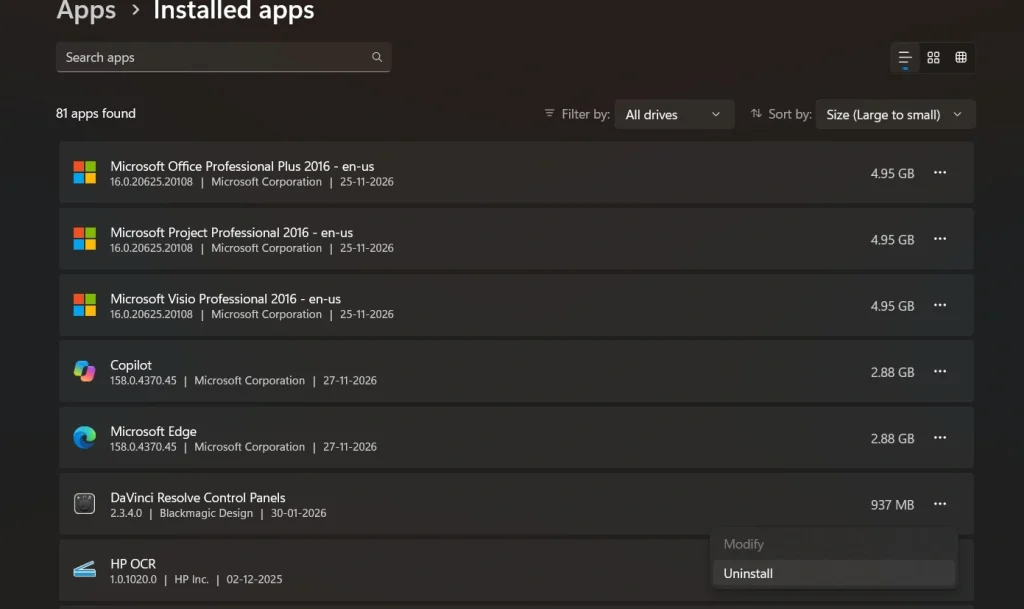
- Open Settings, click Apps, then Installed apps. Sort by install date and remove anything you do not know.
- In Chrome or Edge, open the Extensions page. Turn off and remove any extension you did not add.
Method 6: Use a Second Opinion Malware Scanner
No scanner catches everything. A second tool can find what the first one missed. Malwarebytes is a popular choice. Many people use its free version for a one-time cleanup. Other trusted names include ESET Online Scanner and Kaspersky Virus Removal Tool.
This step adds extra safety. A second scanner can clean malware from PC that Windows Security left behind. Always download these tools from the official website. Fake scanner sites are a common trap. If a site claims your PC is infected and asks you to pay, close it.
Why use this method:
- A different scanner uses different detection methods.
- It often finds adware and unwanted programs.
- Many tools offer a free manual scan.
- It gives you more confidence that the PC is clean.
Steps:
- Reconnect to the internet. Download your chosen scanner from its official site.
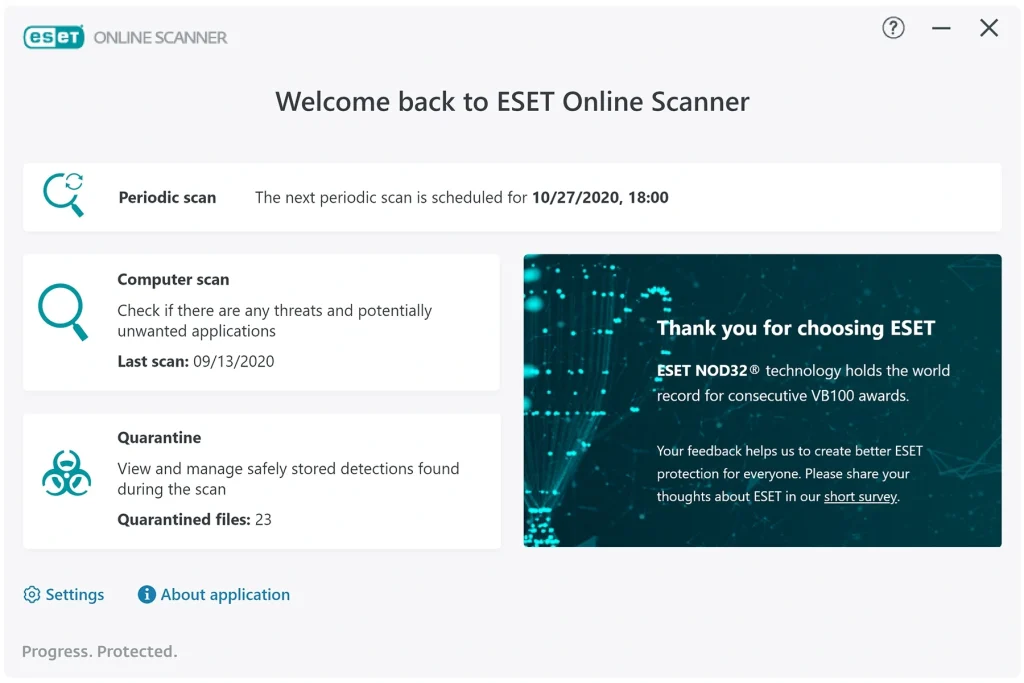
- Install it, run a full scan, and remove everything it flags. Restart the PC when it finishes.
Method 7: Reset Windows as a Last Resort
Sometimes the infection is too deep. Maybe the PC still acts odd after every scan. In that case, a reset is the safest choice. It puts Windows back to a fresh state. Think of it as a new start.
A reset deletes your installed apps. You can choose to keep your personal files. But if you fear the malware is in your files, remove everything. Then restore only the safe files from your backup. Scan those files first.
Why use this method:
- It wipes out even stubborn threats.
- It restores Windows to a clean state.
- It can fix other software problems too.
- It gives you a fresh start.
Steps:
- Open Settings, click System, then Recovery. Click Reset PC under Recovery options.
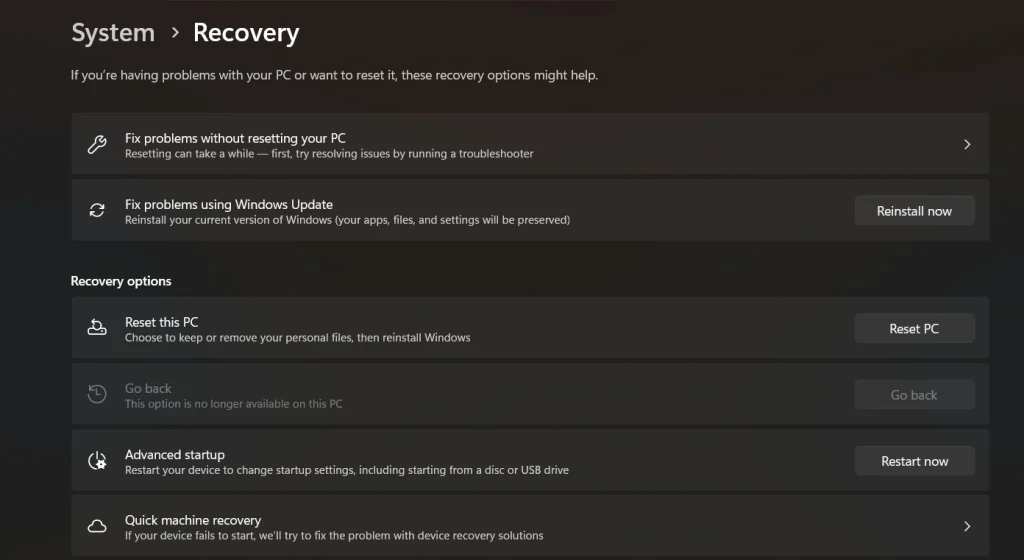
- Choose Remove everything, then Cloud download. Follow the prompts and wait for it to finish.
Part 5: What to Do After the Malware Clean-Up
Your PC may feel fast and normal again. That is a good sign. But the work is not done yet. A malware may have stolen data before you caught it. It may also have left small changes behind. A few extra steps will keep you safe.
Think of this part as a safety check. It takes less than an hour. But it can save you from big problems later, like stolen money or a second infection.
Change your passwords. Use a clean device or your freshly cleaned PC to do this. Start with email, banking, and social media. Your email comes first because it can reset all your other accounts. Make each password long and different.
Turn on two-step login. This adds a second lock to your key accounts. Even if a hacker has your password, they cannot get in without the code. Use an authenticator app instead of text messages if you can.
Update Windows. Open Settings, go to Windows Update, and click Check for updates. Install everything it finds. Restart the PC when asked. Many malware get in through old security holes. Updates close those holes.
Update your apps. Old software has known problems. Check your browser, PDF reader, and media player. Remove any app you no longer use. Fewer apps mean fewer doors for attackers.
Check your bank and card statements. Look for charges you do not know. If you see one, call your bank at once. Ask them to block the card and give you a new one.
Review your email settings. Some malware add hidden rules that forward your mail to a stranger. Open your email settings. Look for forwarding rules or new linked accounts. Delete anything that looks odd.
Check your browser settings. Look at your home page, search engine, and saved sites. Make sure they are the ones you chose. Also clear your browser cache and cookies.
Restore your files with care. Scan your backup drive before you copy anything back. Do it in small batches. Open a few files and check that they work well.
Turn real time protection on. Open Windows Security and go to Virus and threat protection. Make sure real time protection is on. Also turn on Firewall and Browser protection.
Run one more full scan. Do this after one or two days. Some threats come back if a small piece was left behind. A second scan gives you peace of mind.
Watch Your PC for a Week. Keep an eye on your PC for the next few days. Notice if it slows down again. Check if pop-ups return. Look at Task Manager for any program that uses too much power. If the old signs come back, repeat the scans from Part 4. If they still return, think about a full reset.
Also keep your clean backup safe. Store one copy on an external drive that stays unplugged. This way, a future attack cannot touch it. Good habits after the cleanup are just as important as the cleanup itself.
Part 6: Tips to Stay Safe from Malware or Viruses in the Future
Prevention is easier than cure. Small habits go a long way. Follow these tips every day.
- Download only from trusted sites. Use the official site or the Microsoft Store.
- Think before you click. Be careful with email links and attachments, even from friends.
- Skip cracked software. Pirated tools often hide malware inside.
- Keep everything updated. Turn on automatic updates for Windows and your browser.
- Use a standard account. Do your daily work without admin rights.
- Use a password manager. Strong and unique passwords limit the damage.
- Back up your files often. Keep one copy offline. That way, you can recover from ransomware.
- Be careful on public Wi Fi. Avoid logging in to bank sites on open networks.
- Scan USB drives. Always scan a drive before you open files on it.
Conclusion
A malware on your PC feels scary. But it is a problem you can fix. Start with Safe Mode. Clear the junk files. Run a full scan with Windows Security. Try the Offline scan for stubborn threats. Then check your apps and extensions. If needed, use a second scanner. And if nothing works, reset Windows.
Now you know how to clean malware from PC in a clear and safe order. Take your time with each step. Do not rush, and do not skip the precautions. The backup step alone can save you from a big loss. It is also smart to learn the signs early. That way, you can remove malware from PC before it does real damage.
After the cleanup, build good habits. Keep Windows updated. Download from trusted sources. Stay careful with links and files. With these simple steps, your PC will stay fast, safe, and ready for work.
FAQs
Q1. Can I clean a malware from my PC without antivirus software?
Yes, in many cases. Windows has a free tool called Windows Security. It scans your PC and removes most common threats. You can also use Safe Mode and delete suspicious apps by hand. For stubborn threats, an Offline scan helps a lot. A second free scanner can add extra help. Paid antivirus is not always needed. But a good tool gives you steady protection every day.
Q2. How long does it take to remove a malware from a PC?
It depends on the threat and the size of your drive. A Quick scan takes a few minutes. A Full scan can take one to three hours. A reset may take another hour or more. Most people finish the whole process in half a day. Do not stop a scan in the middle. Let it finish so that it can find every hidden file.
Q3. Will resetting my PC remove all malware?
A reset removes almost all viruses/malware. It wipes the system and installs a fresh copy of Windows. Very rare threats can hide in the BIOS or in firmware. But these cases are uncommon for home users. The bigger risk is your backup. If you copy infected files back, the malware returns. So always scan your backup before restoring it.

Author Bio:
Dinesh Lakhwani, the entrepreneurial brain behind “TechCommuters,” achieved big things in the tech world. He started the company to make smart and user-friendly tech solutions. Thanks to his sharp thinking, focus on quality and the motto of never giving up, TechCommuters became a top player in the industry. His commitment to excellence has propelled the company to a leading position in the industry.
Popular Post

Recent Post
How to Clean or Remove A Malware/Virus from PC
Computer malware are one of the most common threats for Windows users today. They can slow down a PC, steal personal data, or lock important files. Many infections start in simple ways. A user downloads a free tool, opens an email attachment, or clicks a fake update. The damage can begin within minutes, and often […]
How to Remove PUP Files: 5 Methods to Clean PUP Files
Last month, a friend called me in a panic. Her laptop had slowed to a crawl. A strange search page kept opening in her browser. Ads showed up even when she was just reading a plain document. She thought she had a virus. She had not visited any risky site. At least, that is what […]
How To Clean a Gaming PC: Complete Guide
A clear and expanded guide that shows how to clean your gaming computer, maintain airflow, protect hardware, and keep performance smooth with simple methods for all user levels.
CCleaner vs. BleachBit: Complete Comparison Guide
Over time, every Windows PC accumulates unnecessary files that take up valuable storage space. Temporary files, browser caches, cookies, and forgotten installers can slowly build up on the system. While these files may seem harmless individually, their combined size can consume disk space and affect system performance. Cleaning utilities help remove this digital clutter, and […]
Total PC Cleaner: Clean Disk, Antivirus for Windows (An Honest Review)
Simply type “PC cleaner” into the Microsoft Store search box and a long list appears. Well, yes! The icons look alike. The names overlap, and almost every description promises a faster, cleaner, safer computer. Many also use the word antivirus, which adds to the confusion. Total PC Cleaner: Clean Disk, Antivirus is one of the […]
PrivaZer PC Cleaning Tool: An In-Depth Review
Deleting a file in Windows does less than most people think. The system removes the file’s entry from its index and marks the space as free. The actual data often stays on the disk until something else overwrites it. That is why recovery tools can bring back files long after they were deleted. Files are […]
Windows Disk Cleanup Review: Features, Steps, and Real Results
Storage space does not disappear overnight. Tiny pieces of data accumulate little by little while Windows performs routine tasks. Old update files, temporary program data, and other unused items often remain saved on the drive. Eventually, these forgotten files can take up room that could be used for something more important. Disk Cleanup is a […]
JetClean Junk File Cleaner and PC Cleaning Tool: A Complete Review
Heads up before you read further: JetClean (made by BlueSprig) is discontinued. Its last version dates to 2016, and several listings say the official download is gone. Let’s begin our review article! Few Windows utilities stay in circulation for more than a decade without a major update. JetClean is one of them. The tool first […]
Defencebyte Computer Optimizer: An In-Depth Review
Slow startup, delayed app launches, and freezing windows are among the most common complaints from Windows users. In many cases, the cause is not failing hardware. It is the gradual buildup of leftover data. Uninstalled programs leave registry entries behind. Temporary files and logs collect in system folders. Broken file paths and unused extensions stay […]
Windows Storage Sense For PC Cleaning: Everything You Need To Know
The low disk space warning always shows up at the worst time. A big update is waiting to install. A file refuses to save. The storage bar in Settings has turned red, and nobody remembers what filled it. Most people react by hunting for a cleaner to download. Many never notice that Windows already has […]
