How To Clean Junk Files On Windows 11/10
Over time, every Windows computer starts to feel slow. Apps take longer to open. Storage fills up for no clear reason. Most of this happens because the system stores unwanted data. These include temporary files, update leftovers, and app caches. When you clean junk files regularly, your PC works better and feels lighter. It also helps reduce crashes and random errors.
This slowdown does not appear overnight. It builds slowly as files collect in the background. Users often blame hardware, but the real issue is clutter. Even new systems face this problem after months of use. Regular care keeps the operating system stable and easy to use.
Many users do not notice how much clutter builds up inside Windows 11 or 10. Most files stay hidden from daily view. This makes the issue easy to ignore. These files stay hidden but keep growing. Learning how to clear junk files is not hard. With safe steps and built-in tools, anyone can delete junk files without harming the system. A simple system junk cleanup can improve speed, free space, and extend your device’s life.
Questions People Usually Have About Junk Files
Why does Windows create junk files?
Windows creates junk files to support normal tasks. These files store short-term information during app use. They also keep records for error tracking and system updates. Over time, many files lose their value. Old logs and caches remain even after tasks finish. If ignored, this data piles up quietly. Regular care prevents storage pressure and keeps the system smooth.
Cleaning helps balance performance and storage use. It removes only what the system no longer needs. The process supports faster loading and stable behavior without touching personal files. It also helps avoid storage warnings during important work. A tidy system feels more predictable and less stressful to manage.
Is it safe to remove junk files on Windows 11 and 10?
Yes, it is safe when done the right way. Windows tools are designed to clean computer junk files without touching personal data. Problems happen only when users delete system folders by mistake. Using trusted methods keeps your files safe while clearing clutter.
How often should junk files be cleaned?
Once every two or three weeks is enough for most users. Heavy users may do it weekly. Systems with low storage need more attention. Frequent cleanup keeps the system responsive and avoids sudden slowdowns.
Will cleaning junk files make my PC faster?
Yes, but results vary. Cleaning removes background clutter and frees space. This helps apps run smoothly. While it does not replace hardware upgrades, it improves overall system balance.
Precautions Before Cleaning Junk Files
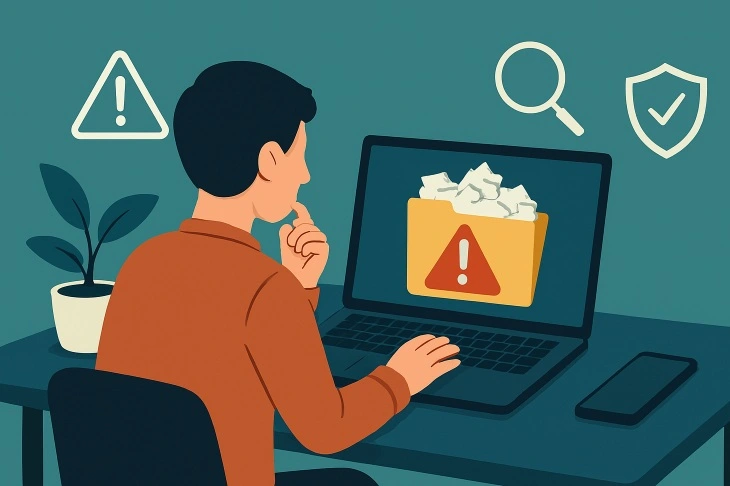
Before starting any cleanup, a few safety steps matter. These steps protect your system and personal data. They reduce the risk of accidental loss. These steps protect your system and personal data. Cleaning is simple, but rushing can cause mistakes. A careful approach makes the process smooth and risk-free.
- Create a restore point before major cleanup tasks. This gives you a safe way to return the system to an earlier state if something goes wrong.
- Avoid deleting files from System32 or Windows folders. These folders contain core files that keep the operating system running properly.
- Use built-in Windows tools whenever possible. They are designed to remove clutter safely without affecting system stability.
- Review file lists before confirming deletion. Take a moment to check what will be removed to avoid accidental loss.
- Close all running apps before cleanup. This prevents file conflicts and ensures better cleanup results.
- Back up important files if storage is very low. This adds an extra layer of protection for personal data.
- Avoid unknown third-party cleaners. Some tools remove files aggressively and may cause system issues.
- Restart the system after cleanup. A reboot helps apply changes and refresh system performance.
How To Clean Junk Files On Windows 11/10
Windows 11 and Windows 10 include several tools to handle clutter. These options work without extra software. They are tested and supported by Microsoft. These tools are easy to use and safe. You do not need advanced software. Each method targets different file types. Using more than one method gives better results.
The goal is to remove useless data without harming the system. When done right, you can clean junk files fully and keep Windows stable. Below are six effective methods that work on both versions.
Method 1: Disk Cleanup Tool
Disk Cleanup is a built-in Windows feature. It has existed for years and remains reliable. Many system administrators still trust it for routine maintenance. It scans the drive for safe-to-remove files. It helps clear junk files left by updates and apps. This tool is ideal for beginners and works fast.
It focuses on temporary data, recycle bin files, and system logs. Disk Cleanup is a reliable way to delete junk files without risk.
How it helps:
- Removes temporary system files
- Clears update leftovers
- Frees space quickly
- Improves boot time
Steps:
- Search for Disk Cleanup and open it.
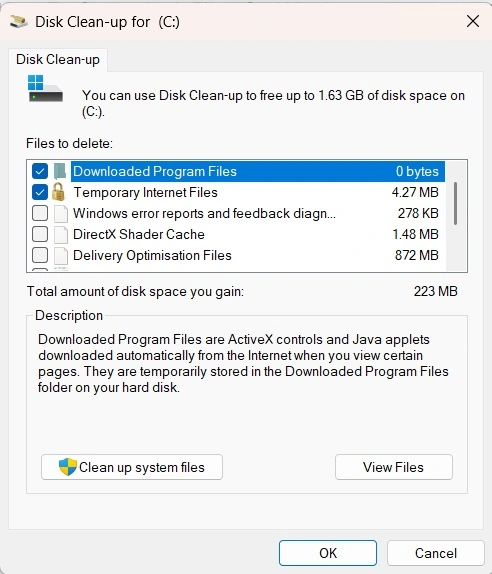
- Select the drive and confirm the cleanup
Method 2: Storage Sense
Storage Sense is an automatic cleanup feature. It works quietly in the background once enabled. This makes it useful for long-term care. It runs in the background and manages clutter. It is great for users who forget manual cleaning. This tool supports long-term system junk cleanup.
It removes temporary files and empties the recycle bin on schedule. Once enabled, it keeps your system tidy without effort.
How it helps:
- Automates cleanup tasks
- Manages low storage alerts
- Reduces manual work
- Keeps storage balanced
Steps:
- Open Settings and go to Storage.
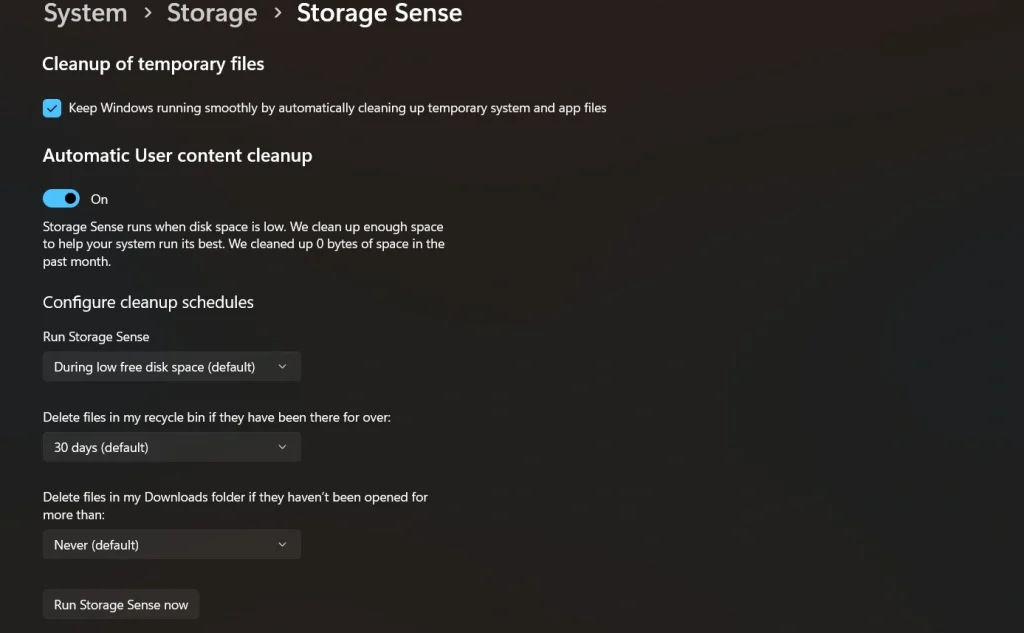
- Turn on Storage Sense
Method 3: Settings Temporary Files
Windows Settings show a detailed list of temporary files. This view helps users understand what uses space. It improves awareness of storage habits. This method gives control over what gets removed. It is useful when storage is nearly full.
You can review files before removal. This makes it safe to remove junk files while keeping important data.
How it helps:
- Shows file size details
- Allows selective cleanup
- Targets app caches
- Clears download leftovers
Steps:
- Open Settings and click Storage.
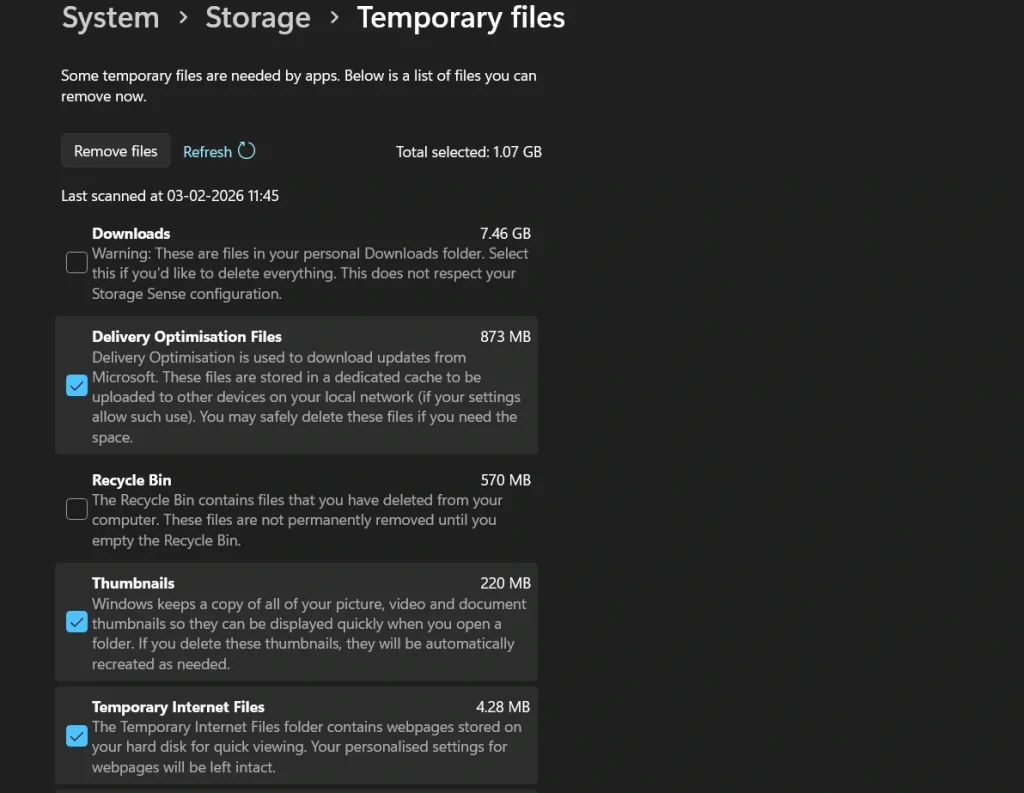
- Select Temporary Files and remove them
Method 4: Empty Recycle Bin
Deleted files stay in the Recycle Bin. Many users forget this step. Clearing it gives instant space back. They still use the space until cleared. Emptying it helps clean computer junk files quickly.
This step is often ignored but makes a clear difference. It is safe once you confirm no files are needed.
How it helps:
- Frees hidden storage
- Removes unused files
- Improves storage view
- Supports overall cleanup
Steps:
- Right-click the Recycle Bin.
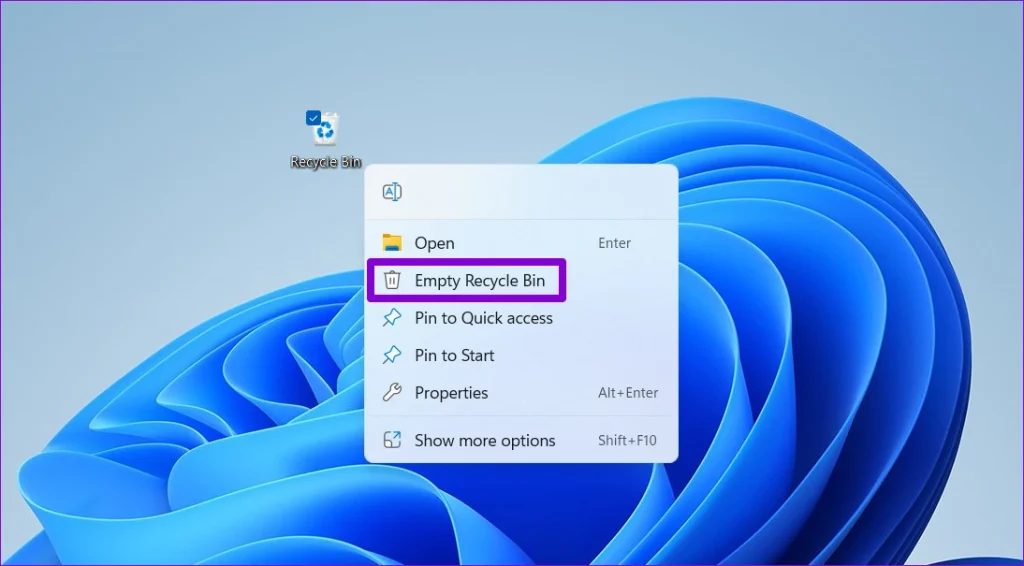
- Click Empty Recycle Bin.
Method 5: Uninstall Unused Apps
Old apps generate junk files over time. Even small apps leave traces behind. Removing them simplifies the system structure. Removing unused apps reduces clutter and background processes.
This method helps delete junk files linked to software you no longer use.
How it helps:
- Removes app data
- Reduces startup load
- Free disk space
- Improves system speed
Steps:
- Open Apps in Settings.
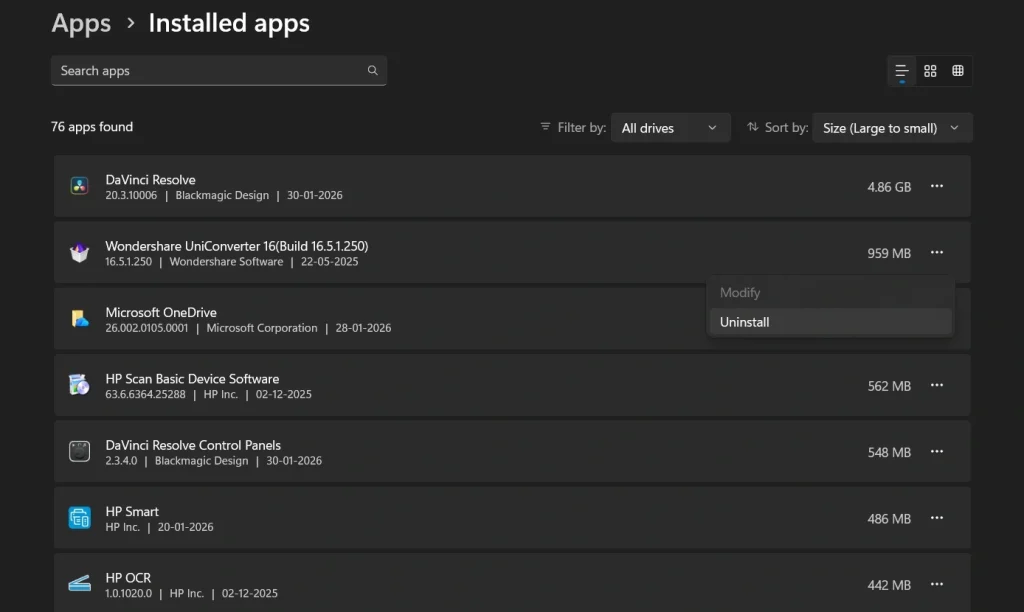
- Uninstall unused programs
Method 6: Browser Cache Cleanup
Browsers store cache files for speed. These files grow quickly with daily browsing. Periodic clearing keeps browsers responsive. Over time, this cache grows large. Clearing it helps free space.
This step helps clean junk files related to internet use.
How it helps:
- Clears browsing data
- Improves browser speed
- Reduces storage use
- Fixes loading issues
Steps:
- Open browser settings.
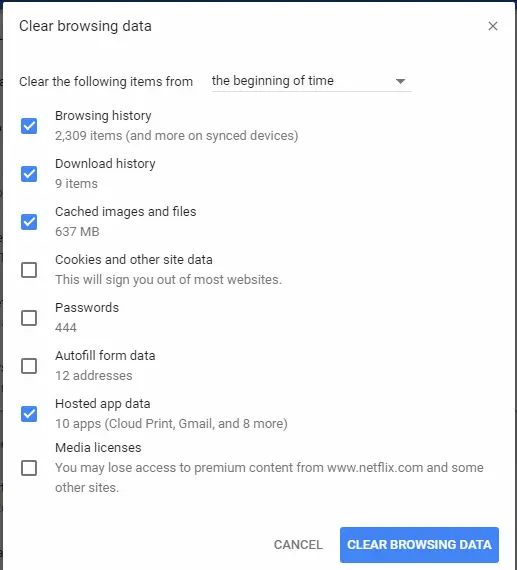
- Clear cached data
Author’s Tip
Always keep cleanup simple. Focus on routine care rather than one-time fixes. Small habits prevent major issues later and reduce sudden slowdowns. Use built-in tools first, as they are designed to work safely with Windows. Avoid aggressive cleaners that promise extreme results, since they often remove files without enough clarity. Regular small cleanups are safer than rare deep ones and are easier to manage. A balanced approach helps maintain performance without stress or confusion.
Track storage monthly to spot changes early. If space drops fast, review installed apps and recent downloads to find the cause. Remove items you no longer need and keep folders organized. Learning to remove junk files carefully builds long-term system health. It also keeps Windows responsive during daily tasks and future updates.
Conclusion
Cleaning junk files is an essential habit for Windows users. It supports long-term stability and helps updates install with fewer issues. A system with less clutter responds faster to everyday commands. Apps open more smoothly, and background tasks stay under control. With simple steps, anyone can clear junk files safely. Built-in tools make the process easy and secure, even for beginners.
Regular cleanup prevents slowdowns and repeated storage warnings. It also reduces the chances of random errors caused by overloaded drives. When you clean computer junk files often, your PC stays reliable during work and personal use. Over time, this habit extends system life. A clean system lasts longer and performs better every day.
FAQs
Does cleaning junk files delete personal data?
Cleaning junk files does not remove personal data when done correctly. Windows tools focus only on temporary files, caches, logs, and unused system items. Documents, photos, videos, and saved work remain safe. Problems occur only if users manually delete folders without checking. Using built-in options and reviewing lists before removal keeps personal files untouched.
Can I automate junk file cleaning?
Yes, Windows offers automation through Storage Sense. This feature runs in the background and handles routine cleanup tasks. You can choose how often it runs and what it removes. It helps maintain storage without manual effort. Automation is helpful for users who want consistent care without remembering cleanup dates.
Is third-party software needed?
No, third-party software is not required for safe cleanup. Windows includes reliable tools that handle most cleanup needs. Disk Cleanup, Storage Sense, and Settings options are enough for regular maintenance. Third-party tools may add risk if not trusted. Built-in tools provide control and safety for everyday users.

Author Bio:
Dinesh Lakhwani, the entrepreneurial brain behind “TechCommuters,” achieved big things in the tech world. He started the company to make smart and user-friendly tech solutions. Thanks to his sharp thinking, focus on quality and the motto of never giving up, TechCommuters became a top player in the industry. His commitment to excellence has propelled the company to a leading position in the industry.
Popular Post




Recent Post
How to Remove PUP Files: 5 Methods to Clean PUP Files
Last month, a friend called me in a panic. Her laptop had slowed to a crawl. A strange search page kept opening in her browser. Ads showed up even when she was just reading a plain document. She thought she had a virus. She had not visited any risky site. At least, that is what […]
How To Clean a Gaming PC: Complete Guide
A clear and expanded guide that shows how to clean your gaming computer, maintain airflow, protect hardware, and keep performance smooth with simple methods for all user levels.
CCleaner vs. BleachBit: Complete Comparison Guide
Over time, every Windows PC accumulates unnecessary files that take up valuable storage space. Temporary files, browser caches, cookies, and forgotten installers can slowly build up on the system. While these files may seem harmless individually, their combined size can consume disk space and affect system performance. Cleaning utilities help remove this digital clutter, and […]

Total PC Cleaner: Clean Disk, Antivirus for Windows (An Honest Review)
Simply type “PC cleaner” into the Microsoft Store search box and a long list appears. Well, yes! The icons look alike. The names overlap, and almost every description promises a faster, cleaner, safer computer. Many also use the word antivirus, which adds to the confusion. Total PC Cleaner: Clean Disk, Antivirus is one of the […]

PrivaZer PC Cleaning Tool: An In-Depth Review
Deleting a file in Windows does less than most people think. The system removes the file’s entry from its index and marks the space as free. The actual data often stays on the disk until something else overwrites it. That is why recovery tools can bring back files long after they were deleted. Files are […]
Windows Disk Cleanup Review: Features, Steps, and Real Results
Storage space does not disappear overnight. Tiny pieces of data accumulate little by little while Windows performs routine tasks. Old update files, temporary program data, and other unused items often remain saved on the drive. Eventually, these forgotten files can take up room that could be used for something more important. Disk Cleanup is a […]

JetClean Junk File Cleaner and PC Cleaning Tool: A Complete Review
Heads up before you read further: JetClean (made by BlueSprig) is discontinued. Its last version dates to 2016, and several listings say the official download is gone. Let’s begin our review article! Few Windows utilities stay in circulation for more than a decade without a major update. JetClean is one of them. The tool first […]

Defencebyte Computer Optimizer: An In-Depth Review
Slow startup, delayed app launches, and freezing windows are among the most common complaints from Windows users. In many cases, the cause is not failing hardware. It is the gradual buildup of leftover data. Uninstalled programs leave registry entries behind. Temporary files and logs collect in system folders. Broken file paths and unused extensions stay […]
Windows Storage Sense For PC Cleaning: Everything You Need To Know
The low disk space warning always shows up at the worst time. A big update is waiting to install. A file refuses to save. The storage bar in Settings has turned red, and nobody remembers what filled it. Most people react by hunting for a cleaner to download. Many never notice that Windows already has […]

EaseUS CleanGenius Reviewed: Features, Pricing, and Real Results
Nobody notices the first temporary file. Nobody notices the hundredth either. Then one day the drive is almost full, the browser drags, and Windows takes ages to start. Clutter builds in quiet ways. Installers leave leftovers. Browsers store cache and cookies. Apps write logs that nobody reads. Programs add themselves to startup without asking. None […]
