CCleaner vs. BleachBit: Complete Comparison Guide
Over time, every Windows PC accumulates unnecessary files that take up valuable storage space. Temporary files, browser caches, cookies, and forgotten installers can slowly build up on the system.
While these files may seem harmless individually, their combined size can consume disk space and affect system performance. Cleaning utilities help remove this digital clutter, and two popular options worth comparing are CCleaner and BleachBit.
The two tools solve the same problem in different ways. CCleaner comes from a commercial company. It offers a friendly design, extra utilities, and paid plans. BleachBit is open source and free. It has a plain look and a sharper focus on privacy and file shredding. Both can win back storage space. Both can wipe the traces of daily activity. The real gap lies in how much each tool offers, and what it asks from the user in return.
This guide examines both tools in detail. It covers key features, usage steps, pros and cons, pricing, safety, and free alternatives. It also shows where each tool fits best.
By the end, the CCleaner vs BleachBit decision should feel clear and easy. Read on to find the right fit for your PC.
CCleaner or BleachBit: Which PC Cleaner Should You Pick?
Part 1: Meet the Two PC Cleaners for Windows
What Is CCleaner?
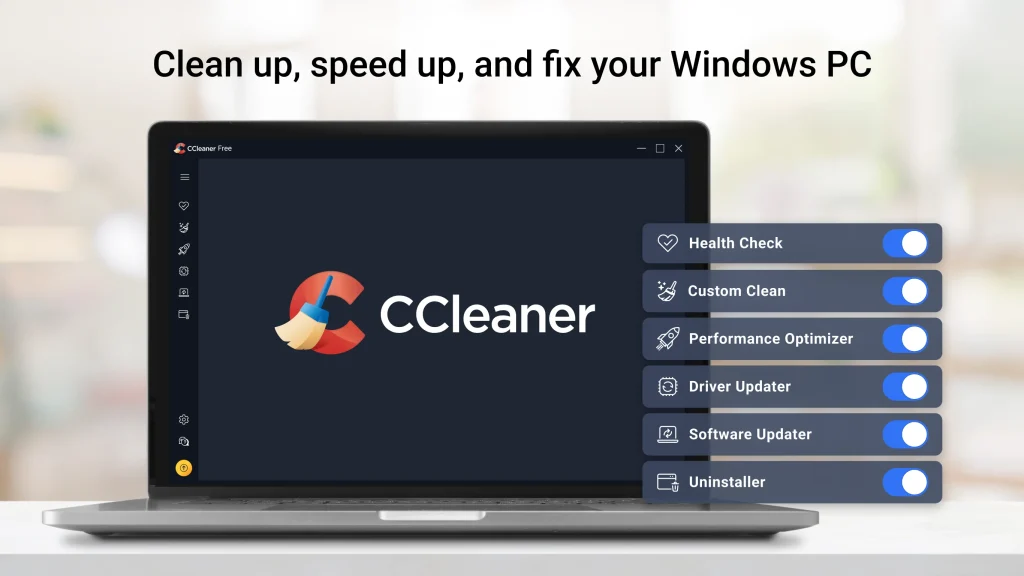
CCleaner is a PC cleaning tool made by Piriform. The company launched it in 2004. Today it belongs to Gen Digital, the company behind Norton and Avast. The tool began as a small junk file cleaner. It has since grown into a larger system care suite. Millions of people use it on Windows. It also runs on Mac and Android.
CCleaner clears temp files, browser traces, and Recycle Bin clutter. It also has a registry cleaner, a startup manager, and a software uninstaller. The look is clean and modern. The free plan covers the basics. The paid plans add automation, updates, and support.
What Is BleachBit?
BleachBit is a free and open-source cleaner. Andrew Ziem started it in 2008. The code is public under the GPL license. Anyone can read it, test it, or improve it. It runs on Windows and Linux. The Linux support is a big reason it has loyal fans.
BleachBit has one main job. So, it deletes junk and hides your traces. It can clean cache, cookies, logs, and temp files for many apps. It can also shred files so nobody can bring them back. The look is plain. Still, the tool is fast and direct.
Quick Overview Table
| Detail | CCleaner | BleachBit |
| Developer | Piriform, now part of Gen Digital | Andrew Ziem and open source contributors |
| First release | 2004 | 2008 |
| Platforms | Windows, Mac, Android | Windows, Linux |
| License | Free and paid, closed source | Free, open source (GPL) |
| Interface | Modern and polished | Simple and plain |
| Registry cleaner | Yes | No |
| Extra tools | Many | Very few |
| Best for | Everyday home users | Privacy-focused and Linux users |
Part 2: Key Features of Both Tools
Features decide how useful a cleaner will be. Let’s look at what each tool offers. We start with CCleaner.
Main Features of CCleaner
Health Check. This is a one-click scan. It looks at junk files, privacy trackers, slow startup items, and outdated apps. It then shows a short report. You can fix all issues with a single button. It suits people who want zero fuss.
Custom Clean. This is the heart of the tool. It has three tabs: Junk, Browser, and Registry. You tick what you want to clean. That includes cache, history, temp files, and logs. You can also preview with the Analyze button before you delete anything.
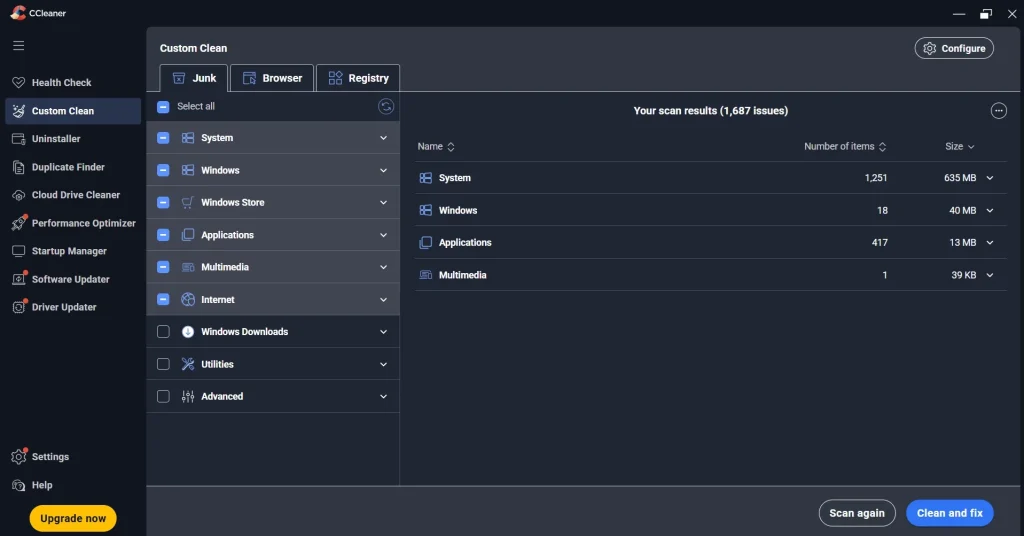
Registry Cleaner. It scans for broken or old entries left by removed apps. It asks you to save a backup before fixing. That backup is a safety net. Note that the speed gain from this feature is small on most PCs.
Startup Manager. Too many startup apps slow down boot time. This tool lists them in one place. You can turn off any app with a click. You can also manage scheduled tasks and browser add-ons here.
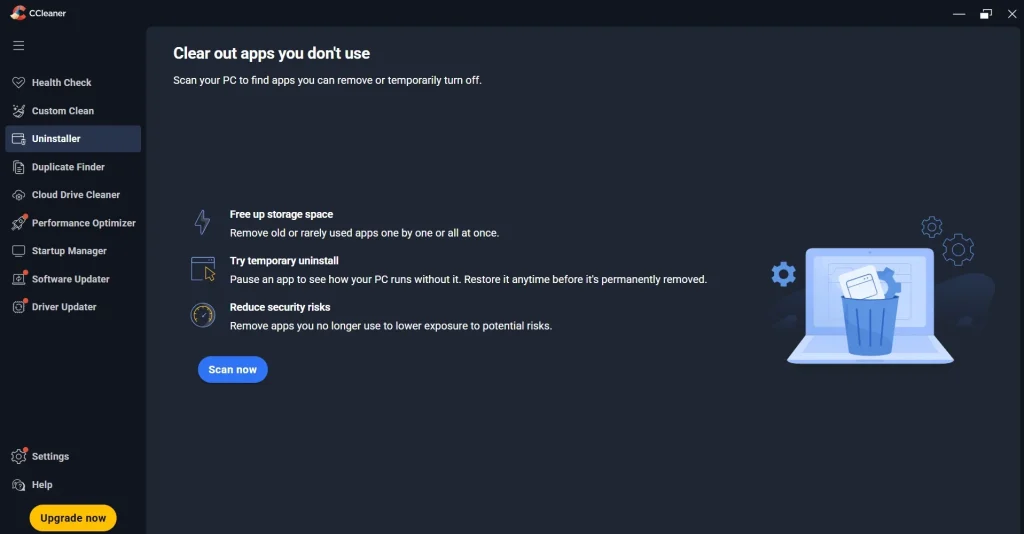
Uninstall Tool. It lists all installed programs and Microsoft Store apps. You can remove them from one screen. It also lets you rename or repair some entries. It is handy for clearing out old software.
Duplicate Finder and Disk Analyzer. The duplicate finder hunts for copies of files. The disk analyzer shows which file types eat your space. Together they help you free big chunks of storage fast.
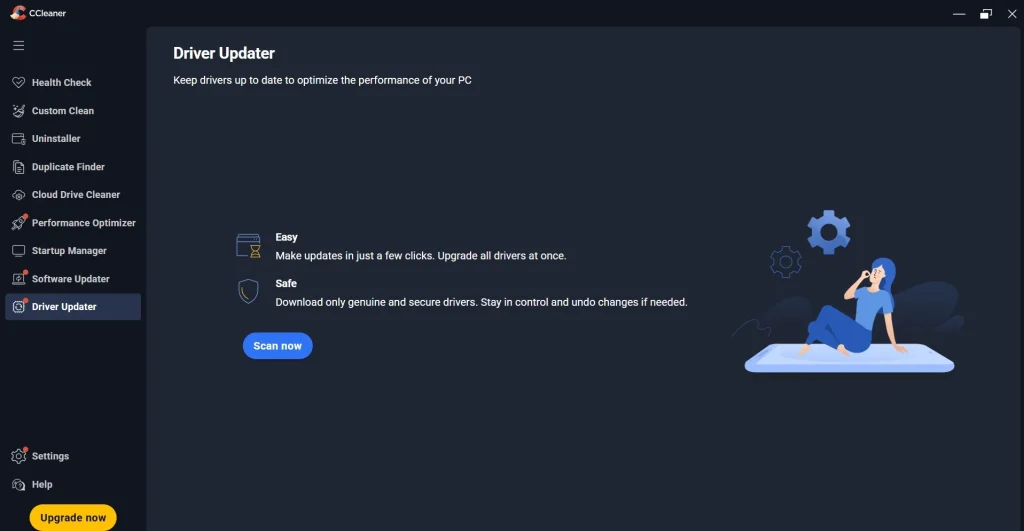
Software Updater and Driver Updater. These are paid features. They check for old apps and old drivers. They can update many of them in a few clicks. Paid users also get a Performance Optimizer that puts idle background apps to sleep.
Main Features of BleachBit
Wide app coverage. BleachBit cleans many apps. That list includes browsers, Office tools, media players, and chat apps. It also reaches Windows items like Explorer history and thumbnails. New cleaners keep arriving through updates.
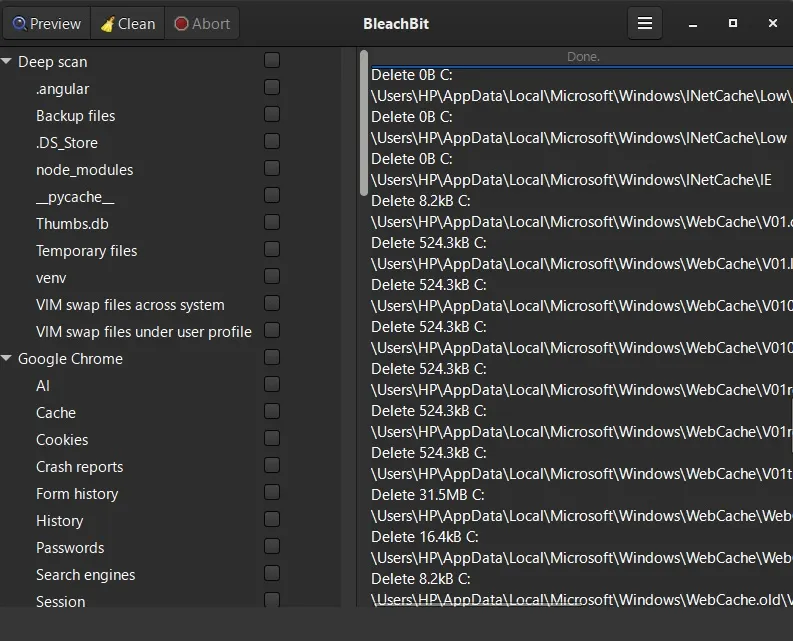
Preview before deleting. The Preview button shows what will go before you commit. You see file names and sizes. This keeps mistakes low. It is a feature every cleaner needs, and BleachBit does it well.
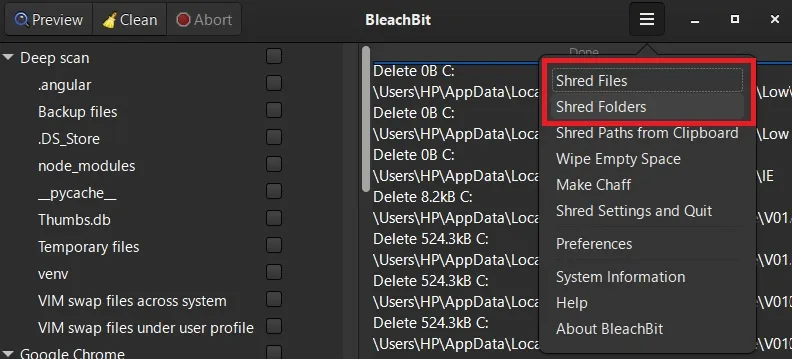
File shredder. You can shred single files or full folders. The tool overwrites the data so recovery tools cannot read it. This is a core privacy feature. It is free and easy to reach from the File menu.
Wipe free space. Deleted files often hide on a drive. This option overwrites the empty space. It makes old deleted data much harder to restore. It takes time on large drives, so plan for it.
Portable version. BleachBit offers a portable build. You can run it from a USB stick. You do not need to install anything. It is great for fixing a friend’s PC or for a locked work laptop.
Command line support. Power users can run BleachBit from a terminal. This makes scripting and automation possible. You can set up a scheduled task and clean on autopilot. That adds flexibility the main window lacks.
Linux power features. On Linux, it can clean package caches, shell history, system logs, and more. It can also tidy memory and swap. Few cleaners match this. It is a key reason many Linux users pick it.
Feature Comparison Table
| Feature | CCleaner Free | CCleaner Paid | BleachBit |
| Junk file cleaning | Yes | Yes | Yes |
| Browser cleaning | Yes | Yes | Yes |
| Preview before cleaning | Yes | Yes | Yes |
| Registry cleaner | Yes | Yes | No |
| Startup manager | Yes | Yes | No |
| Software uninstaller | Yes | Yes | No |
| Duplicate finder | Yes | Yes | No |
| File shredding | Drive Wiper | Drive Wiper | Yes |
| Scheduled cleaning | No | Yes | Only with Task Scheduler |
| Driver updater | No | Yes | No |
| Command line use | Basic | Basic | Strong |
| Open source code | No | No | Yes |
Part 3: Step-by-Step Guide to Use Each Tool
Both tools are easy once you know the path. Here are the steps for each one.
How to Clean Your PC with CCleaner
- Download CCleaner from the official website only. Run the installer. Open CCleaner. Click Health Check for a quick scan, or click Custom Clean for full control.
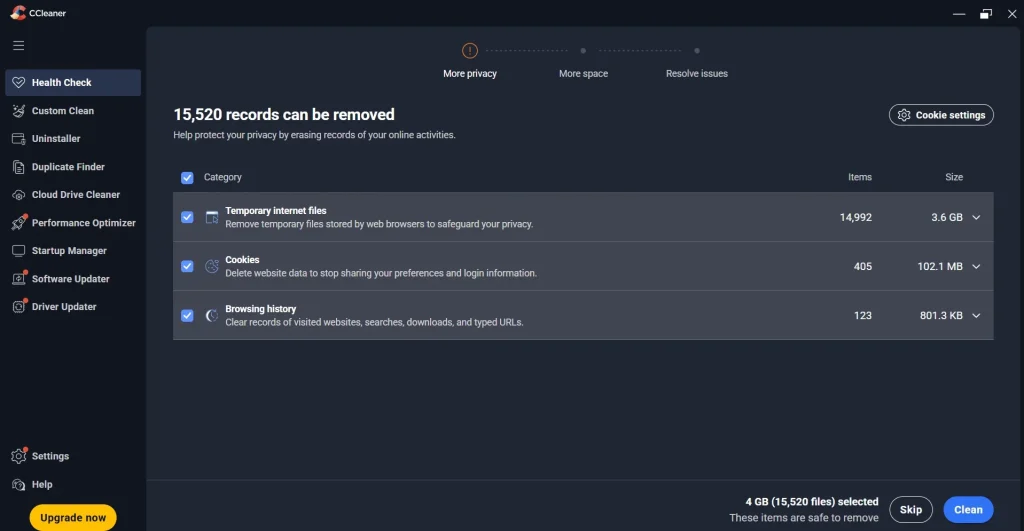
- In Custom Clean, look at the Windows and Applications tabs. Tick the items you want to clear. Leave saved passwords and autofill data unticked unless you are sure.
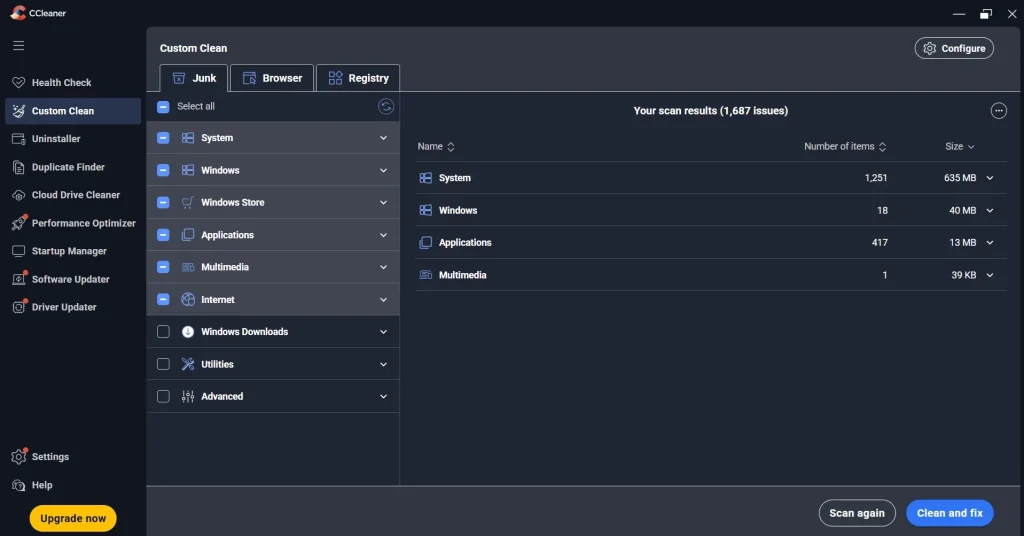
- Click Clean and Fix. Review the result. Then click Run Cleaner. Wait for the finish message.
How to Clean Your PC with BleachBit
- Visit the BleachBit website and download the installer or the portable file. Install it, or just unzip and open the portable version. Run it as administrator if you want to clean system items.
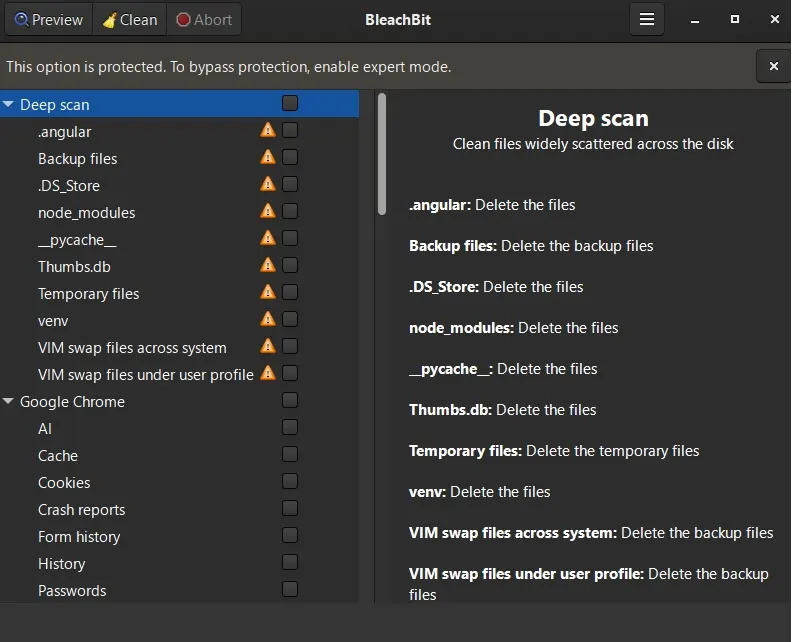
- Look at the list on the left. It shows apps and system areas you can clean. Tick the boxes you want. Start with browsers and the System section. Skip anything you do not understand.
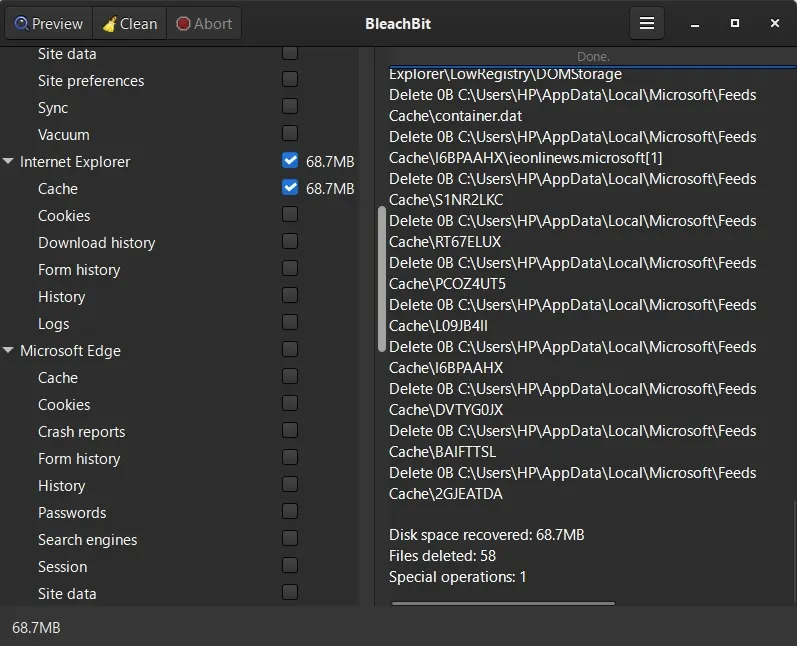
- Click Preview. BleachBit will list every file it plans to remove. Read through the list. Untick any item that looks wrong. Click Clean. Wait until the log says it is done.
For extra privacy, open the File menu. Choose Shred Files, Shred Folders, or Wipe Free Space.
A small tip for both tools. Close your browser before you clean. Open browsers lock their files, and the tool may skip them.
Part 4: Pros and Cons
I ran both tools on the same Windows 11 laptop for about 2 days. I cleaned after normal use, not on a fresh PC. Here is what worked and what annoyed me.
CCleaner: What I Liked
- Health Check gave me a full report in under a minute. One button fixed everything it listed.
- Custom Clean splits Windows and app items into two tabs. I found my Chrome and Edge cache in seconds.
- The Analyze button showed how much space each item would free. I knew the number before I deleted anything.
- The Startup tool let me switch off a few launcher apps. My next boot felt quicker.
- The Uninstall tool lists Store apps beside normal programs. I removed old software from one screen.
- Duplicate Finder caught repeat photos and PDFs in my Downloads folder.
CCleaner: What Annoyed Me
- The free app shows upgrade pop-ups. One appeared right after I finished a clean.
- Driver and software updates sit behind the paid plan. The free app only shows them.
- The installer offered extra software. I had to untick it on two screens.
- The registry cleaner listed many issues. My PC felt the same after I fixed them.
- My first clean signed me out of several sites. I had left cookies ticked.
- The code is closed. I cannot check what it does, and the 2017 incident made me careful.
BleachBit: What I Liked
- The Preview list shows full file paths. I could see exactly what would go.
- The portable build ran straight from a USB stick. I did not install anything.
- Shredding a folder took two clicks from the File menu.
- Wipe Free Space ran for a long time on my drive. But it finished without any trouble.
- It opened fast and felt light. I saw no background process after closing it.
- It found cache from a few smaller apps that I had forgotten about.
- There were no pop-ups and no upsell. It simply stayed out of my way.
BleachBit: What Annoyed Me
- The look is plain. I needed a few minutes to learn the list on the left.
- There is no registry cleaner, no startup manager, and no uninstaller. I needed other tools for those jobs.
- There is no built-in scheduler. I had to set up Windows Task Scheduler myself.
- Some system items need admin rights. Without them, the tool skipped those items.
- My first run had too many boxes ticked. It cleared my browser sessions.
- There is no support desk. I had to rely on the guides and the forum.
Here is my short take. CCleaner felt easier and gave me more tools. BleachBit felt lighter and gave me more control. Your pick depends on which of those matters more to you.
Part 5: Pricing Plans and Free vs Paid
Cost matters, so let’s be clear. BleachBit is free. You can donate if you like it, but nothing is locked. CCleaner has a free plan and paid plans. Prices change by region and by season. The figures below are rough guides. Always check the official site for the latest price.
| Plan | Approx. price | Best for | What you get |
| CCleaner Free | 0 | Basic cleaning | Health Check, Custom Clean, registry cleaner, startup manager, uninstaller, duplicate finder |
| CCleaner Professional | Around 30 USD per year for one PC | Home users who want hands-off care | Everything in Free, plus scheduled cleaning, auto updates, Software Updater, Driver Updater, and premium support |
| CCleaner Professional Plus | Higher yearly price for more PCs | Families and power users | Everything in Professional, plus Recuva Pro, Speccy Pro, and Defraggler Pro |
| BleachBit | 0 | Privacy fans and Linux users | All cleaning features, file shredder, wipe free space, command line, and custom cleaners |
What the Free CCleaner Plan Misses
The free plan cleans well. But it works only when you run it. It does not clean on a schedule. It does not update drivers. It does not update your apps. It also shows upgrade prompts now and then. If you can live with that, free is enough for many people.
What You Get with Paid CCleaner
Paid plans save time. They clean on their own and keep apps up to date. You also get support from the team. That helps if you are not tech-savvy. But if you only want a monthly clean, the paid plan may be more than you need.
The BleachBit Side
BleachBit has no paid tier for home users. Every feature is open to all. The trade-off is simple. You get no support desk, only guides and community help. Many users are fine with that.
Part 6: Head-to-Head Comparison
Now let’s test the CCleaner vs BleachBit question in plain terms. We look at cleaning power, safety, ease, and more. The table below sums it up.
| Area | CCleaner | BleachBit | Edge |
| Cleaning depth | Wide for Windows and common apps | Deep for apps, strong on Linux | Tie |
| Ease of use | Simple, guided, modern | Plain, but easy after one try | CCleaner |
| Privacy tools | Drive Wiper and browser cleaning | Shredder, wipe free space, browser cleaning | BleachBit |
| Extra tools | Registry, startup, uninstall, duplicates | Almost none | CCleaner |
| Transparency | Closed source | Open source | BleachBit |
| Automation | Built-in on paid plans | Command line and Task Scheduler | Tie |
| Cost | Free or paid | Free | BleachBit |
| Support | Help center and paid support | Docs and community | CCleaner |
| Platforms | Windows, Mac, Android | Windows, Linux | Depends on you |
Cleaning Power
Both tools remove the same kind of junk. That means temp files, cache, cookies, logs, and old history. The space you free will be similar for most PCs. Differences show up in the details. BleachBit may reach more small app traces. CCleaner may catch more Windows items with its extra tools.
Safety and Trust
This part matters a lot. In 2017, a version of CCleaner was hacked at the source. Bad code reached over two million PCs before the team fixed it. The company acted fast, and the issue was closed. Later, some users also raised concerns about data collection in the app. Settings now let you limit that. BleachBit has no such history. Its code is open, so many eyes can check it. That does not make it flawless. But it does build trust.
Speed and System Impact
Both tools scan fast on a modern PC. BleachBit feels lighter since it has fewer parts. CCleaner may run a small background process on some setups. Neither tool should slow your PC in daily use.
Part 7: Which One Should You Choose?
The CCleaner vs BleachBit answer depends on you. Here are simple rules to follow.
- Pick CCleaner if you want one tool that does many jobs.
- Pick CCleaner if you like a clean look and a guided flow.
- Pick CCleaner if you want automatic cleaning and app updates.
- Pick BleachBit if you care about privacy above all.
- Pick BleachBit if you want open-source code you can check.
- Pick BleachBit if you use Linux or like the command line.
- Pick BleachBit if you want a free tool with no upsell.
- Use both if you want CCleaner for startup and uninstall tasks and BleachBit for deep shredding.
Part 8: Free Alternatives Worth a Look
Not happy with either tool? You still have options. Some are already inside Windows. Others are free downloads from other makers. Here is how the most popular ones stack up.
| Tool | Type | Price | Best for | Main limit |
| Windows Storage Sense | Built-in Windows feature | Free | Automatic cleanup of temp files and the Recycle Bin | Few options and no privacy tools |
| Disk Cleanup | Built-in Windows tool | Free | Quick removal of system junk and old update files | Old look and basic scope |
| Microsoft PC Manager | Microsoft app | Free | Simple cleanup and startup control | Limited depth |
| PrivaZer | Third-party cleaner | Free, donations welcome | Deep privacy cleaning | Many setup screens at first |
| Wise Disk Cleaner | Third-party cleaner | Free | Light junk file cleaning | Fewer extra tools |
| Glary Utilities | Third-party suite | Free and paid | Many tools in one app | Upgrade prompts |
My advice is simple. Try the built-in tools first. They cost nothing and add no new software. If you need deeper cleaning or shredding, then move to a tool like BleachBit or CCleaner.
Part 9: How Often Should You Clean Your PC?
More cleaning is not always better. Many apps rebuild their cache after you clear it. That can make them load slower for a while. A steady, light routine works best. Use the guide below.
- Light daily use, like email, web, and Office files: clean once a month.
- Heavy browsing and many downloads: clean every two weeks.
- Gaming or video editing: clean after each big project, since temp files pile up fast.
- Shared or work PC: clean after each session if privacy matters, and use the shredder for sensitive files.
- Selling or gifting a PC: do a full clean, then wipe the free space before you hand it over.
- Low disk space warning: clean right away, then check which folders take the most room.
Watch for a few signs too. Slow boot times, a nearly full C drive, and a browser that lags are all good reminders. If you see any of them, run a Preview or Analyze first. Then clean only what you understand.
Tips to Get the Best Results
- Create a restore point before you run any big clean. It takes a minute and can save hours.
- Always press Preview or Analyze first. Never delete blind.
- Close your browsers before cleaning. Open apps lock files.
- Be careful with saved passwords and autofill. Cleaning them logs you out of sites.
- Do not clean your browser cache every day. It slows page loads, since sites must reload data.
- Skip the registry cleaner unless you have a real problem. The speed gain is small.
- Download only from the official sites. Fake copies carry malware.
- Keep Windows updates on. Clean tools help, but they do not replace updates.
- Check your storage once a month. A short, regular clean beats one huge clean a year.
- Back up key files before you shred anything. Shredded data cannot return.
Conclusion
So who wins the CCleaner vs BleachBit contest? The honest answer is that both do well. If you want a friendly all-in-one cleaner, CCleaner fits. It brings a clean look, many tools, and paid options for hands-off care. It is a good match for everyday Windows users. Just watch the upgrade prompts and keep privacy settings tight.
If you want a free, open, and privacy-first tool, BleachBit is a strong pick. It does less, but it does that work well. The file shredder and the wipe free space option stand out. It also gives Linux users a rare, trusted option. You pay nothing and give up nothing.
In the end, my advice is simple. Try both. They are free to test. Run a Preview on each and see what they find. Then keep the one that feels right. A clean PC feels faster, safer, and calmer. Either tool can take you there.
Frequently Asked Questions
Is BleachBit safer than CCleaner?
BleachBit is open source, so anyone can review its code. That adds trust. CCleaner has closed code and a past security incident from 2017. The company fixed it and has kept the tool updated since. Both are safe when you download them from the official sites. In both, you should always use the preview option before cleaning.
Can I use CCleaner and BleachBit together?
Yes, you can. They do not clash with each other. Many people use CCleaner for startup control and uninstalling. They then use BleachBit for deep cleaning and file shredding. Just avoid running both at the same moment. Run one, let it finish, and then run the other.
Will either tool make my PC faster?
They can help a little. Freeing disk space and removing junk may ease slowdowns, especially on a full drive. Turning off startup apps can also cut boot time. But neither tool is a magic fix. If your PC is old or short on memory, you may need a hardware upgrade or a fresh Windows install.

Author Bio:
Dinesh Lakhwani, the entrepreneurial brain behind “TechCommuters,” achieved big things in the tech world. He started the company to make smart and user-friendly tech solutions. Thanks to his sharp thinking, focus on quality and the motto of never giving up, TechCommuters became a top player in the industry. His commitment to excellence has propelled the company to a leading position in the industry.
Popular Post


Recent Post
CCleaner vs. BleachBit: Complete Comparison Guide
Over time, every Windows PC accumulates unnecessary files that take up valuable storage space. Temporary files, browser caches, cookies, and forgotten installers can slowly build up on the system. While these files may seem harmless individually, their combined size can consume disk space and affect system performance. Cleaning utilities help remove this digital clutter, and […]

Total PC Cleaner: Clean Disk, Antivirus for Windows (An Honest Review)
Simply type “PC cleaner” into the Microsoft Store search box and a long list appears. Well, yes! The icons look alike. The names overlap, and almost every description promises a faster, cleaner, safer computer. Many also use the word antivirus, which adds to the confusion. Total PC Cleaner: Clean Disk, Antivirus is one of the […]
PrivaZer PC Cleaning Tool: An In-Depth Review
Deleting a file in Windows does less than most people think. The system removes the file’s entry from its index and marks the space as free. The actual data often stays on the disk until something else overwrites it. That is why recovery tools can bring back files long after they were deleted. Files are […]
Windows Disk Cleanup Review: Features, Steps, and Real Results
Storage space does not disappear overnight. Tiny pieces of data accumulate little by little while Windows performs routine tasks. Old update files, temporary program data, and other unused items often remain saved on the drive. Eventually, these forgotten files can take up room that could be used for something more important. Disk Cleanup is a […]
JetClean Junk File Cleaner and PC Cleaning Tool: A Complete Review
Heads up before you read further: JetClean (made by BlueSprig) is discontinued. Its last version dates to 2016, and several listings say the official download is gone. Let’s begin our review article! Few Windows utilities stay in circulation for more than a decade without a major update. JetClean is one of them. The tool first […]
Defencebyte Computer Optimizer: An In-Depth Review
Slow startup, delayed app launches, and freezing windows are among the most common complaints from Windows users. In many cases, the cause is not failing hardware. It is the gradual buildup of leftover data. Uninstalled programs leave registry entries behind. Temporary files and logs collect in system folders. Broken file paths and unused extensions stay […]
Windows Storage Sense For PC Cleaning: Everything You Need To Know
The low disk space warning always shows up at the worst time. A big update is waiting to install. A file refuses to save. The storage bar in Settings has turned red, and nobody remembers what filled it. Most people react by hunting for a cleaner to download. Many never notice that Windows already has […]

EaseUS CleanGenius Reviewed: Features, Pricing, and Real Results
Nobody notices the first temporary file. Nobody notices the hundredth either. Then one day the drive is almost full, the browser drags, and Windows takes ages to start. Clutter builds in quiet ways. Installers leave leftovers. Browsers store cache and cookies. Apps write logs that nobody reads. Programs add themselves to startup without asking. None […]
Advanced SystemCare: Tool To Clean Your PC [Complete Review]
The first thing I notice is how the startup screen hangs. The fan kicks in fast and stays loud. If I open a simple folder, the whole system pauses for a moment. It does not look like a clear hard failure, yet the PC feels heavy and slow. This is not usually one big problem. […]
CCleaner PC Cleaning Tool: An In-Depth Review
Learn how to clean your PC with CCleaner. This complete guide covers features, step-by-step instructions, pros, cons, pricing, and FAQs to help you decide.
