How to Reset Windows 11: Complete Guide
A computer may slow down over time. Files grow old. Programs create clutter. You may also face errors that keep coming back. When the problem feels too large, a clean start can help. One useful way to get that fresh start is a system reset.
Many people want to learn how to reset Windows 11 in a simple way. The process is built into the system. It can fix performance issues. It can solve software conflicts. It can also prepare a device for a new user. In this guide, you will learn everything you need so that the reset goes smoothly.
Precautions to Take Before You Reset:
Important things to check before you reset
- Back up your files
Save all important documents, photos, and project folders. A reset can remove your data. A backup keeps you safe. - Sign out of apps that use licenses
Some paid apps count how many devices you use. Sign out so that you do not lose a license. - Note your Wi-Fi password
After the reset, your device may forget all network settings. Knowing your password helps you reconnect quickly. - Check your Microsoft account details
Make sure you remember your sign-in email and password. You will need them later. - Disconnect external storage
Unplug drives that are not needed. This prevents mistakes during the reset. - Charge your device or keep it plugged in
A reset takes time. If the power fails, the system may get damaged. - Disable BitLocker if enabled
BitLocker might ask for a recovery key during the reset. Turn it off or keep the recovery key ready. - Know your apps
List the programs you use daily. You can reinstall them later without confusion.
FLUQS:
A reset clears old clutter inside the system. Programs and files leave traces. These traces build up with time and fill the system with leftover data. A reset puts everything back into a clean form. It removes broken settings that cause slowdowns. If your device faces pop ups, errors, or random freezing, a reset may fix the root cause. Many users try small fixes but still face trouble later. A reset gives the system a chance to start fresh without that hidden baggage that has been collecting for years.
2. When should you consider a reset?
A reset should be considered when you have tried normal repair steps and still face problems. You may notice apps opening slowly or updates failing again and again. The device may stop responding during simple tasks. If malware has damaged the system, a reset can remove most of the harmful files. You may also consider a reset before selling or giving the device to someone. It wipes your data and prevents anyone from reading your private information later.
3. What options does Windows give you?
Windows lets you reset your PC in two ways: you can keep your files, which preserves personal documents but removes apps and settings, or remove everything, which wipes all files, apps, and settings for a completely fresh start. For reinstallation, you can choose cloud download, which fetches the latest system files from Microsoft and is better at fixing deeper corruption, or local reinstall, which uses files already stored on your device. Both reinstall methods deliver the same end result: a clean Windows system.
4. How long does a reset take?
The duration of a reset varies based on the option you select. Keeping your files is typically faster, while removing everything takes longer since the system must fully clear the drive. If you choose cloud download, your internet speed also affects the time. Some resets complete in under 30 minutes, while others may take an hour or more. Throughout the process, your device may restart multiple times, and it’s important to let it run without interruption.
How to Reset Windows 11: Complete Guide
You will now learn how to reset Windows 11 step by step. This method is built into the system. You do not need special tools. The process is simple. Anyone can follow it.
These steps will help you complete the reset safely.
Step 1:
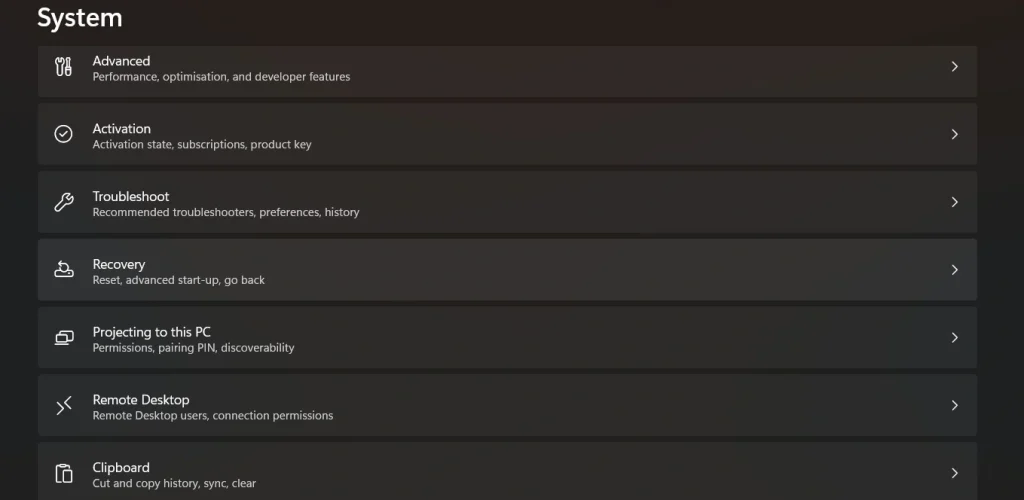
Open the Settings app. Select System. Then find the Recovery option.
Step 2

Look for Reset this PC. Select the Reset PC button.
Step 3

Choose Keep my files or Remove everything. Pick the option that matches your plan.
Step 4
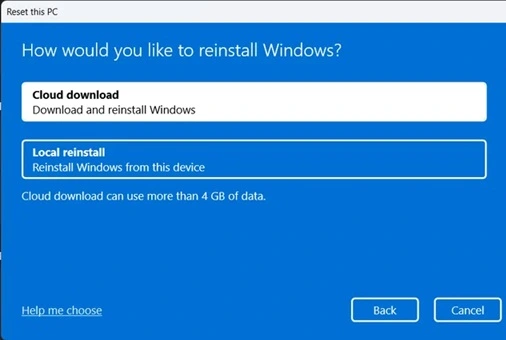
Choose Cloud download or Local reinstall. Cloud download needs the internet. Local reinstall uses files already stored on the device.
Step 5
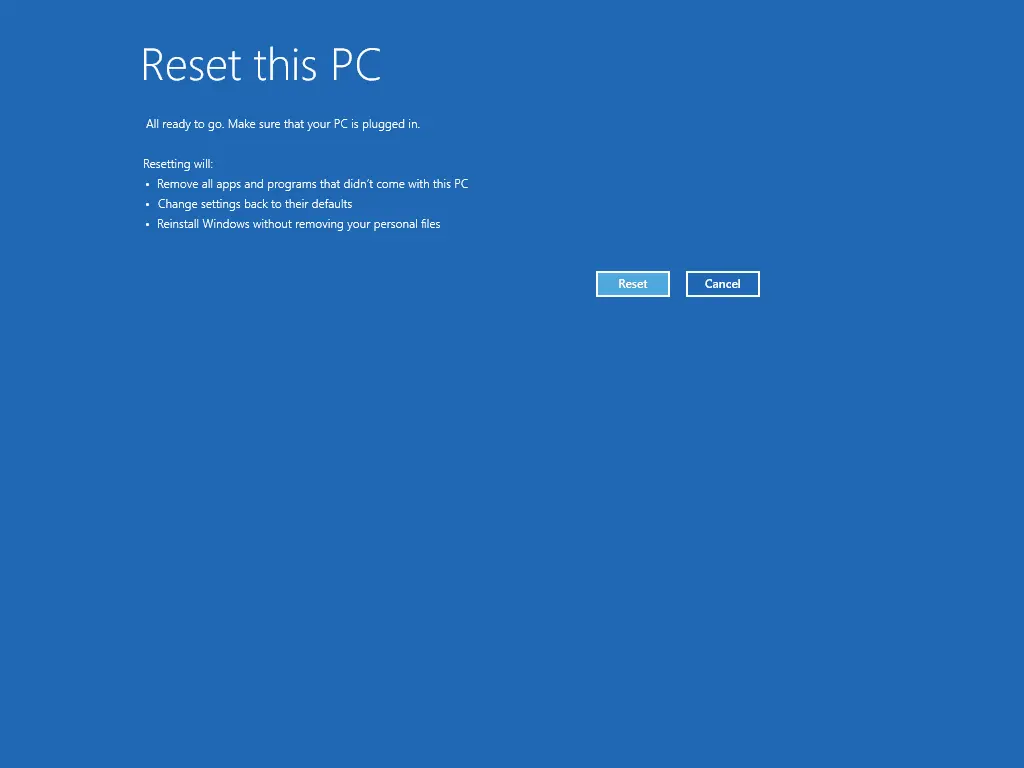
Review the summary of actions. Make sure you understand what will happen. Select Next.
Step 6
Select Reset. The process will begin. The device will restart and start rebuilding the system.
You now know the core steps in how to reset Windows 11 with confidence.
Author’s Tip
Many problems that seem serious come from poor system care. People add apps and keep them forever. These apps run in the background and take up memory. A reset clears these hidden tasks. Still, make sure you set up your system in a better way after the reset. Install only what you really need and keep your folders organized.
You may also use a simple maintenance routine. Update Windows on time. Clear temporary files once a month. Keep antivirus protection active. These habits reduce the need for future resets. Your device will remain stable for a longer time, and you will avoid unnecessary slowdown.
Advanced Tips
Extra ideas to get the best results
- Use cloud download when files are corrupt
If system files are damaged, a cloud download pulls clean files from Microsoft. This gives a more reliable reset. - Remove old user accounts before resetting
Old accounts can leave behind settings. Cleaning them before the reset can help make the process smoother. - Turn off startup programs after reinstalling
Many programs add themselves to the startup. Turning off extra starters can keep the system fast. - Update drivers after the reset
A fresh system may need updated drivers. Updating them prevents display or sound issues. - Install apps slowly
Add only the apps you need. Install them one at a time. This helps you notice if any app causes problems. - Use storage sense
Storage Sense cleans temporary files. This keeps your fresh system tidy. - Create a restore point after setup
A restore point helps you fix issues later without doing a full reset. - Scan the system after reinstalling
A quick malware scan ensures that nothing harmful remains in your fresh environment.
These steps support the complete guide on how to reset Windows 11 and keep the system healthy.
Conclusion
Resetting a system may feel like a big step, but it is often the simplest way to solve deep problems. You now understand how to reset Windows 11 in a clear and careful manner. This knowledge helps you maintain your device with confidence.
A reset gives your computer a clean and stable start. If you use the tips in this guide, you can keep your device running smoothly. A well-maintained system does not need frequent resets. A few healthy habits can give you strong performance for a long time.
FAQs:
1. Will a reset delete my personal files?
It depends on the option you choose. If you choose Keep my files, your documents stay untouched. If you choose Remove everything, the system clears all your personal data. It is always safer to keep a backup before starting the reset.
2. Should I choose cloud download or local reinstall?
Cloud download fetches fresh files from Microsoft. Local reinstall uses files already stored on your device. Cloud download works well when you face corruption. Local reinstall works faster if your system files are healthy.
3. Do I need to reinstall drivers?
Most drivers install automatically during the setup. Still, some devices may need manual driver updates. You can check the website of the device maker if something does not work as expected.

Author Bio:
Dinesh Lakhwani, the entrepreneurial brain behind “TechCommuters,” achieved big things in the tech world. He started the company to make smart and user-friendly tech solutions. Thanks to his sharp thinking, focus on quality and the motto of never giving up, TechCommuters became a top player in the industry. His commitment to excellence has propelled the company to a leading position in the industry.
Popular Post
Recent Post
BleachBit PC Cleaner Tool: Complete Review After Running Tests
A PC never stays clean on its own. Every app you open, every website you visit, and every file you download leaves something behind. Weeks turn into months, and suddenly your storage feels tight, and your PC feels slower, with no clear reason why. The usual fix is a cleaning tool. But the market is […]

Iolo System Mechanic Review: Full Breakdown and Honest Take
Iolo System Mechanic is designed for users who want their PC to feel fresh and responsive again. With just a few clicks, it digs into the system, clears out unnecessary clutter, and delivers noticeable speed improvements. The interface is straightforward and beginner‑friendly, making it easy to navigate without confusion. But this tool goes beyond simple […]

Clean Master for PC Tested: A Full Breakdown of Its Tools
A computer doesn’t slow down overnight. Right? It happens bit by bit. Extra downloads, leftover cache, startup apps piling up. Soon the fast machine you loved feels sluggish. Boot times drag, programs freeze, and even opening a browser tab feels heavy. This slow decline is common, caused by junk files, cluttered registries, and hidden tasks […]
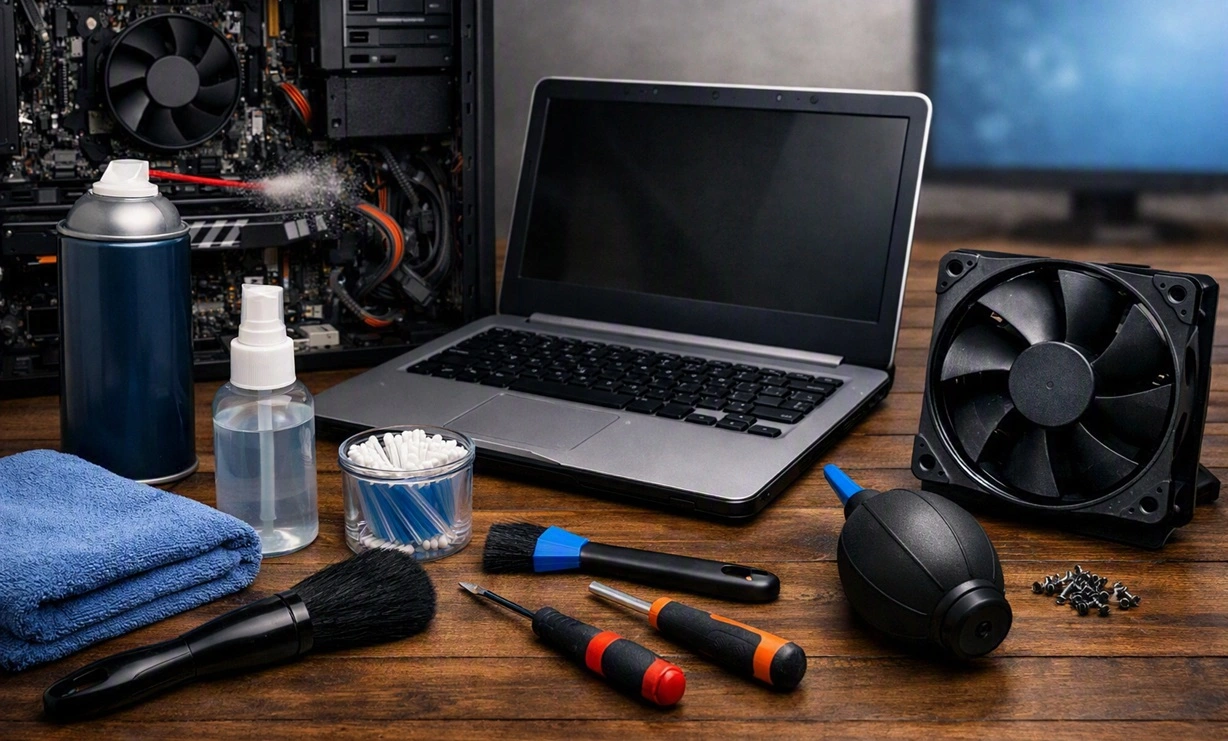
How To Clean Your PC/Laptop: Guide for Beginners to Experts
A computer never announces that it needs help. Well, yes! It just gets slower, hotter, and noisier, one day at a time, until you finally stop and wonder what changed. Nothing changed overnight. What happened is dust and clutter, working quietly in the background for months. Dust settles inside fans and vents, trapping heat and […]

Wise Care 365 PC Cleaner Tool: A Hands-On Review
Every Windows user knows the feeling. Your computer runs fast on day one. Then months pass. Files pile up. The registry gets messy. Startup takes longer. Apps freeze more often. This slow decline is normal, but it is also annoying. Most people just live with it. Some restart their PC often, hoping it helps. It […]

Glary Utilities PC Cleaner: Complete Review [Tested and Trusted]
Glary Utilities is one of the most popular PC optimization tools available today. It combines cleaning, repair, and performance‑boosting features into a single suite. The goal is simple: keep your computer running fast and stable without needing multiple separate programs. In this review, we’ll look at how Glary Utilities performs in real use, what features […]

Microsoft PC Manager: Complete In-Depth Review
A slow computer can ruin your whole day. Files pile up. Startup apps multiply. Before you know it, your once fast machine feels sluggish and tired. Most people search for a fix, but many tools out there are bloated, pushy, or full of ads. Microsoft PC Manager was built to solve this exact problem. It […]

AVG TuneUp Guide: Features, Pros, Cons, and Pricing
PC performance often drops with time. Junk files build up. Startup programs increase. Storage fills up. As a result, your computer may take longer to boot, feel sluggish, or run out of space. The good news is that these problems are usually easy to fix. AVG TuneUp is a PC optimization tool for Windows. It […]

Ashampoo WinOptimizer: Features and Process [Complete Guide]
Ashampoo WinOptimizer is built for users who want a faster, cleaner, and safer PC. In this review, I’ll walk through its features and how the optimization process works. The software promises one‑click fixes, smart automation, and tools that go beyond basic cleanup. The PC cleaning and optimization tool covers performance tuning, privacy protection, and system […]

Top 10 PC Cleaning and Optimization Tools For Windows 11/10 [2026]
Discover the best PC cleaning and optimization tools for Windows 11 and 10. Remove junk files, improve speed, and keep your PC healthy with trusted cleaners.
