How to Clean Your Windows Registry (Safe Methods)
Your computer stores system information in a large database called the Windows registry. It contains details about programs, settings, drivers, and many other parts of the system. When this database stays organised, the computer works in a smooth way and responds fast.
Over time, old entries gather in the registry. This often happens when apps update or when you remove old software. A messy registry can slow down the system. It can also cause random errors.
For this reason, users try to clean Windows registry files from time to time. If you want to clean registry on Windows in a safe way, it is important to follow the right steps. This guide explains those steps.
Precautions Before You Change the Registry
Safety First
Before you start any fixes inside the registry, you should take care of a few important points. A mistake inside this database can create system problems. Some errors can even stop Windows from loading. These steps lower the risk and keep your data safe.
- Do not rush into changes
Your registry holds deep system settings. A quick change can break a feature. Slow steps help you avoid errors. - Avoid random editing
You should not delete entries that you do not understand. Many entries look confusing. They may still be important for the system. - Check your system for malware
Viruses can damage or change registry values. Scan your system before you edit anything. A clean system keeps the fix safe. - Remove unused programs first
Old software creates leftover entries. Uninstall programs you no longer use. This removes some clutter even before you touch the registry. - Do not install unknown cleaners
Some tools do more harm than good. Pick trusted software only. This keeps your registry in stable shape. - Record all manual edits
Write down what you changed. If something goes wrong, this record helps you undo the change. - Restart your computer afterward
A restart helps the system load new settings. It also helps you check if any change caused trouble. - Seek help from support channels if unsure
Many users break the registry by guessing. If you are not sure, ask for help before you edit anything.
First, Let’s Discuss These Questions:
1. Why does the registry become messy?
The registry grows in size when you install apps and change parts of the system. Each app places entries inside it. When you remove apps, some entries stay behind. Apps also update themselves. This creates new values that replace old ones. Drivers also add their own entries. Over time, these changes build clutter in many parts of the registry. A messy registry can slow down searches inside it. This creates delays that your system may show as slow boot times or small errors. So users try to clean the Windows registry data to keep things stable.
2. Is it risky to change registry entries?
Yes, it is risky when you do it without proper care. The registry controls how the system loads. Wrong edits can stop apps from starting. Some edits may also stop hardware drivers. But with the right steps, the process becomes safe. A small mistake can be undone when you create a backup. This is why every guide teaches you to take a backup first. When you plan to clean the registry on Windows, you should always follow safe steps.
3. Can registry cleaning fix system errors?
Some errors come from incorrect entries. These entries appear when software crashes or shuts down in a strange way. Cleaning these entries can fix problems in some cases. It can also help when an app does not open. A tidy registry helps Windows load faster. But cleaning the registry does not fix every issue. It works best when the issue is caused by leftover values or broken paths.
4. How often should you clean the registry?
Most users do not need to clean the registry often. Modern systems manage it in a safe way. You can clean it if your computer runs slowly or if you have removed many programs. You can also clean it after a major update. If your system works fine, then you do not need to touch the registry at all. When you decide to clean Windows registry files, always check the system first. You should only clean registry on Windows when you see clear signs of clutter.
How to Clean Your Windows Registry (3 Safe Methods)
There are safe ways to clean the registry. These methods do not harm the system when used with care. Each method has its own purpose. Some require built-in tools. Some require trusted software. All steps are simple to follow.
Method 1: Use Windows Built-in Tools
Windows offers a few tools that support system cleanup. Disk Cleanup is the most common one. It removes temporary files. It also removes update leftovers. This keeps the system light. While it does not directly change the registry, it clears the system so the registry stays clean in the long run.
Many users like this method because it is safe. It uses trusted tools from Windows itself. The tool has a simple design. You do not need advanced skills to run it. The value of this method is in the way it keeps clutter low.
Why use this method
- Safe for all users
- Does not change deep system settings
- Helps remove leftover update files
- Makes your system faster
- Easy to run and understand
Steps
Step 1. Open Disk Cleanup from the Start menu.
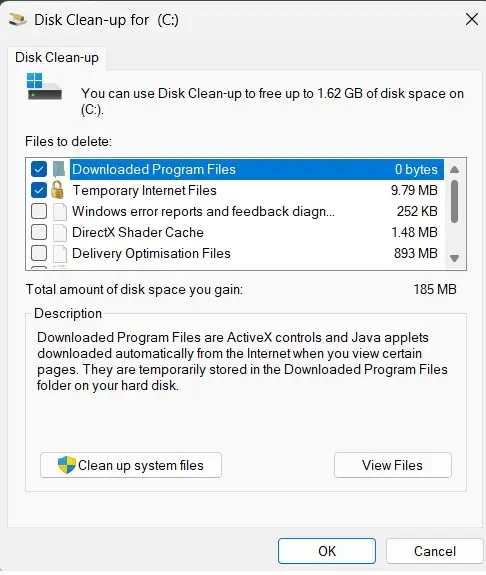
Step 2. Select the drive and remove the listed files.
Method 2: Create a Backup and Restore Point
This method protects you before you make changes. A restore point takes a snapshot of system settings. A registry backup holds a copy of your registry. If a problem occurs, you can return to the old state. This is the safest habit when you plan to change something inside the registry.
Creating backups keeps your trust in the system. It also helps you test edits. When you know you can return to the old state, you work with more care. This method is good for both new users and advanced users.
Why use this method
- Works as a safety blanket
- Let’s you undo mistakes
- Protects you from system errors
- Quick to set up
- Recommended for all edits
Steps
Step 1. Create a restore point through the System Protection window.
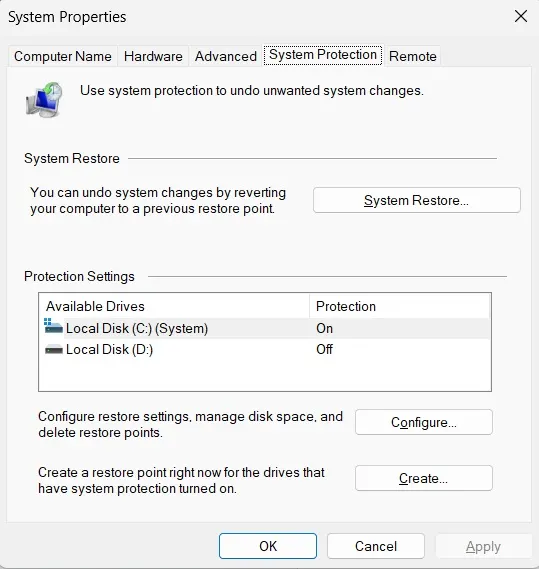
Step 2. Export a registry backup through the Registry Editor.
Method 3: Use Reliable Third-party Registry Cleaners
Some apps scan the registry for old entries. They remove broken keys. They also fix path problems. They do this with one click. This can save time for users who do not want to edit things manually. You should pick trusted tools only. A good tool checks values and avoids risky edits.
This method helps you avoid deep manual work. The tool does the heavy scan. It finds errors inside many parts of the registry. You should choose software with a known track record. Do not pick unknown tools.
Why use this method
- Saves time
- Finds deep leftover entries
- Fixes broken paths
- Gives clear reports
- Good for regular scan plans
Steps
Step 1. Install a trusted registry cleaner like Revo Registry Cleaner.
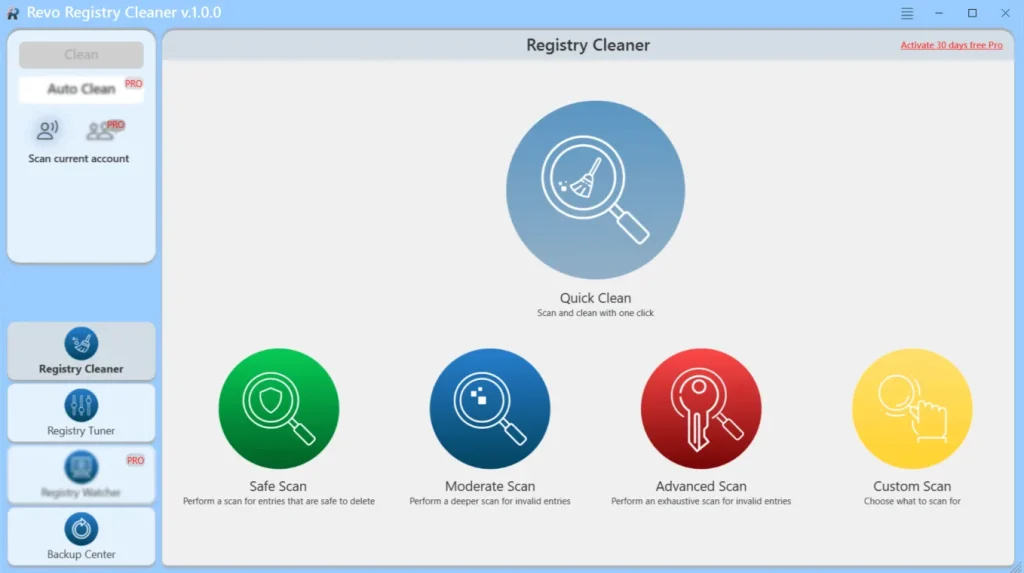
Step 2. Run the scan and remove only the suggested safe entries.
Author’s Tip
If your system still works fine, do not touch the registry. Most users do not need to clean it. Focus on removing unused apps and old files instead. This keeps the system tidy without risk.
If you still want to edit the registry, take your time. Read each guide with care. Make a backup. Restart after each edit. A slow and calm approach keeps your system safe.
Advanced Tips
Extra Steps for Experienced Users
Once you know the basics, you can try deeper steps to keep the system in good shape. These steps help the registry stay light and responsive. They also help you avoid errors from old entries.
- Check startup entries
Some programs add startup entries in the registry. Remove unused ones. This reduces system load. - Review app folders
Some apps leave folders behind. Remove leftover folders. This keeps the registry clean after uninstall. - Check services
Read service lists. Some old services stay active. Turn off unwanted services. - Update drivers
New drivers create better registry entries. Old drivers may leave clutter. Keep them updated. - Check background tasks
Some tasks add registry triggers. Remove the ones you do not need. - Use proper uninstall tools
Some uninstallers remove deep entries. This reduces clutter. - Inspect event logs
Errors in logs may point to broken registry keys. Fix or remove those keys. - Keep Windows updated
Updates tidy some parts of the registry. They also fix errors that come from old keys.
Conclusion
A clean registry keeps your system stable. You do not need to edit it often. Most of the time, Windows handles its own entries. Still, clutter can build up from apps and drivers. When you need to tidy it, use the safe steps listed here.
Always start with a backup. Do not install unknown cleaners. Use reliable tools only. Keep your apps updated and remove the ones you do not need. When you work in a careful way, the system stays safe. Your computer also runs better when the registry stays organised.
FAQs
1. Does cleaning the registry increase speed?
It may increase speed when clutter is the cause of the slowdown. It removes old and broken entries. This can help the system load faster. But the speed gain is often small.
2. Can I break Windows by editing the registry?
Yes, you can damage the system if you delete important entries. This is why you should create a backup and restore point before you make changes. If you follow safe steps, you reduce the risk.
3. Is third-party software safe for registry cleaning?
It is safe when you use software with a good reputation. Avoid unknown brands. Quality tools scan the registry and remove unwanted entries without harming the system.

Author Bio:
Dinesh Lakhwani, the entrepreneurial brain behind “TechCommuters,” achieved big things in the tech world. He started the company to make smart and user-friendly tech solutions. Thanks to his sharp thinking, focus on quality and the motto of never giving up, TechCommuters became a top player in the industry. His commitment to excellence has propelled the company to a leading position in the industry.
Popular Post






Recent Post

Total PC Cleaner: Clean Disk, Antivirus for Windows (An Honest Review)
Simply type “PC cleaner” into the Microsoft Store search box and a long list appears. Well, yes! The icons look alike. The names overlap, and almost every description promises a faster, cleaner, safer computer. Many also use the word antivirus, which adds to the confusion. Total PC Cleaner: Clean Disk, Antivirus is one of the […]

PrivaZer PC Cleaning Tool: An In-Depth Review
Deleting a file in Windows does less than most people think. The system removes the file’s entry from its index and marks the space as free. The actual data often stays on the disk until something else overwrites it. That is why recovery tools can bring back files long after they were deleted. Files are […]
Windows Disk Cleanup Review: Features, Steps, and Real Results
Storage space does not disappear overnight. Tiny pieces of data accumulate little by little while Windows performs routine tasks. Old update files, temporary program data, and other unused items often remain saved on the drive. Eventually, these forgotten files can take up room that could be used for something more important. Disk Cleanup is a […]

JetClean Junk File Cleaner and PC Cleaning Tool: A Complete Review
Heads up before you read further: JetClean (made by BlueSprig) is discontinued. Its last version dates to 2016, and several listings say the official download is gone. Let’s begin our review article! Few Windows utilities stay in circulation for more than a decade without a major update. JetClean is one of them. The tool first […]

Defencebyte Computer Optimizer: An In-Depth Review
Slow startup, delayed app launches, and freezing windows are among the most common complaints from Windows users. In many cases, the cause is not failing hardware. It is the gradual buildup of leftover data. Uninstalled programs leave registry entries behind. Temporary files and logs collect in system folders. Broken file paths and unused extensions stay […]

Windows Storage Sense For PC Cleaning: Everything You Need To Know
The low disk space warning always shows up at the worst time. A big update is waiting to install. A file refuses to save. The storage bar in Settings has turned red, and nobody remembers what filled it. Most people react by hunting for a cleaner to download. Many never notice that Windows already has […]

EaseUS CleanGenius Reviewed: Features, Pricing, and Real Results
Nobody notices the first temporary file. Nobody notices the hundredth either. Then one day the drive is almost full, the browser drags, and Windows takes ages to start. Clutter builds in quiet ways. Installers leave leftovers. Browsers store cache and cookies. Apps write logs that nobody reads. Programs add themselves to startup without asking. None […]

Advanced SystemCare: Tool To Clean Your PC [Complete Review]
The first thing I notice is how the startup screen hangs. The fan kicks in fast and stays loud. If I open a simple folder, the whole system pauses for a moment. It does not look like a clear hard failure, yet the PC feels heavy and slow. This is not usually one big problem. […]

CCleaner PC Cleaning Tool: An In-Depth Review
Learn how to clean your PC with CCleaner. This complete guide covers features, step-by-step instructions, pros, cons, pricing, and FAQs to help you decide.

Avira PC Speed Up Tool: Is It Actually Worth It?
A fresh Windows install feels like a different world. Isn’t it? Everything opens fast. Menus snap into place. Then a year passes, sometimes less, and that same machine starts to feel heavy for no clear reason. Nothing dramatic happened. No single event caused it. It was just months of small leftovers stacking up quietly in […]
