How To Clean a Laptop Fan Without Opening [2026 Guide]
Laptop fans work quietly in the background, yet they handle one of the most important jobs in your device. They push hot air out and pull cooler air in. Over time, dust gathers inside the fan vents. This dust blocks airflow and makes the fan work harder. The laptop may feel hot, slow down, or make loud noises.
Many users notice these signs but feel unsure about what to do next. Opening a laptop sounds risky to most people. Small screws, tight cables, and delicate parts can cause fear. Because of this, many users delay cleaning and keep using an overheating device.
The good news is that you can clean laptop fan without opening the device. This method is safer for beginners and regular users. It does not require technical skills or special tools. When done correctly, it can remove surface dust and loose debris from the fan path. While it may not replace deep internal cleaning, it helps reduce heat and noise. It also improves airflow and overall comfort during use. This guide explains each step in clear and simple language. You can follow it at home without stress or risk.
Quick Facts About Cleaning Laptop Fans
Common Questions You Should Know
Is it really possible to clean a laptop fan without opening it?
Yes, it is possible to clean laptop fan without opening the body. This method focuses on removing dust through air vents. It works best for loose dust that blocks airflow. It is safe for users who do not want to open hardware parts. It will not remove deep dust stuck inside, but it helps a lot.
How often should a laptop fan be cleaned this way?
You can do this every three to four months. If you use your laptop daily or live in a dusty area, you can clean it more often. Regular cleaning keeps heat levels stable. It also prevents fan noise from getting worse.
Can dust really affect laptop performance?
Yes, dust traps heat inside the system. When the heat rises, the laptop slows down to protect itself. This causes lag and sudden shutdowns. A clean fan allows better airflow, which helps the processor run smoothly.
Is this method safe for gaming or work laptops?
This method is safe for all types of laptops. It does not involve opening the case or touching parts. As long as you follow basic safety steps, there is no risk to gaming or work devices.
Precautions Before You Start Cleaning
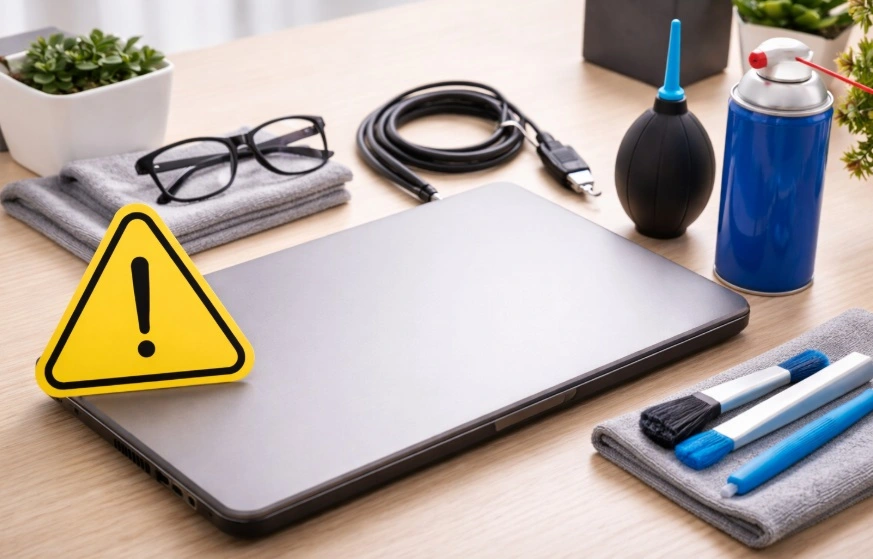
Simple Safety Steps to Protect Your Laptop
Before you begin, it is important to prepare properly. Even though you are not opening the laptop, small mistakes can cause damage. Taking a few simple precautions keeps both you and your device safe. These steps also help you get better results from cleaning.
- Shut down the laptop completely
Always power off the device. Do not use sleep or restart mode. This prevents electrical issues during cleaning. - Unplug the charger and accessories
Remove the charging cable, mouse, USB drives, and headphones. This avoids power flow and reduces risk. - Let the laptop cool down first
If the laptop is in use, wait at least twenty minutes. Cleaning a hot laptop can cause moisture issues. - Work in a clean and well-lit space
Choose a table with good light. This helps you see vents clearly and avoid accidents. - Avoid liquid cleaners
Never spray liquid near vents. Liquids can damage internal components even in small amounts. - Do not shake the laptop hard
Shaking can loosen internal parts. Gentle handling is always better. - Use proper tools only
Use compressed air or a soft brush. Do not use hair dryers or vacuum cleaners directly on vents. - Keep pets and dust away
Clean in a calm area. Floating dust can enter the vents again if the space is messy.
How to Clean Laptop Fan Without Opening: Step-by-Step
Understanding the Right Way to Do It
Cleaning the fan without opening the laptop focuses on airflow paths. Dust mostly collects near vents and fan blades. By using air pressure correctly, you can push dust out instead of pushing it deeper inside. This method is gentle and effective when done slowly. It is ideal for users who want a safe approach without tools or technical knowledge.
This process does not require much time. You only need patience and light pressure. Never rush or apply force. The goal is to clear airflow paths, not to blast air aggressively. Following these steps carefully will help clean laptop fan without opening and improve cooling.
Step 1: Locate All Air Vents
Place the laptop upside down on a flat surface. Look for ventilation grills on the bottom and sides. Some laptops also have vents near the hinge area. These vents connect directly to the fan system. Knowing their location helps you direct air properly.
Use a soft brush to gently wipe the outer surface of vents. This removes loose dust before using the air. Be gentle and slow during this step.
Step 2: Use Compressed Air Carefully
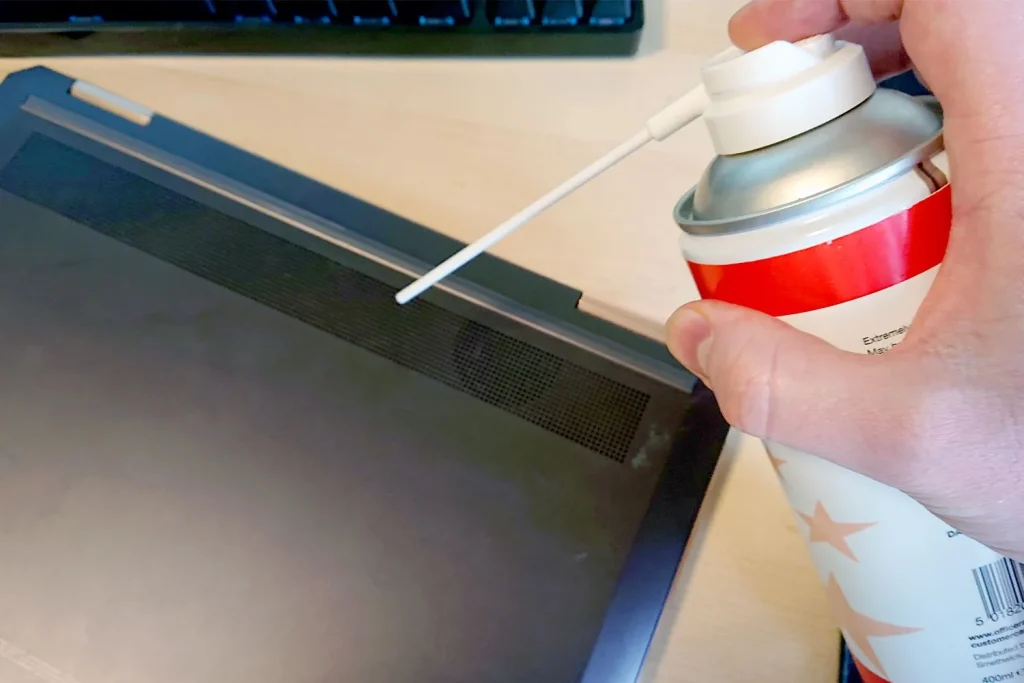
Hold the compressed air can upright. Keep it a few inches away from the vent. Short bursts are better than long sprays. Blow air into one vent at a time. Then move to the opposite vent. This helps push dust out instead of trapping it inside.
Do not tilt the can or spray continuously. Cold air or moisture from the can can harm parts. Take breaks between bursts. You may see dust come out of other vents. This is normal.
Step 3: Repeat and Finish Gently
Rotate the laptop and repeat the process from different angles. This helps remove remaining dust. Once done, wipe the vent area again with a dry cloth. Let the laptop sit for ten minutes before turning it on.
This simple routine helps clean laptop fan without opening and keeps the airflow smooth.
Author’s Tip
Many users clean their laptops only when problems appear. This approach often leads to overheating damage over time. Regular light cleaning is better than rare deep cleaning. Treat fan cleaning like routine maintenance. It keeps the device calm and quiet during use.
Never try to push objects into vents. Pins, sticks, or metal tools can break fan blades. Damage caused this way often requires costly repairs. Air and patience are the best tools for this task.
If your laptop still overheats after cleaning, software checks may help. Monitor temperature levels using trusted tools. Sometimes background apps cause extra heat. Fan cleaning works best when combined with smart usage habits.
Conclusion
Keeping your laptop cool does not always require opening it. With the right method, you can clean laptop fan without opening it and reduce dust buildup. This simple approach works well for regular maintenance. It lowers noise, improves airflow, and helps avoid overheating issues.
While this method cannot remove all internal dust, it makes a noticeable difference. It is safe for beginners and suitable for all laptops. Regular care extends the life of your device and keeps it running smoothly for daily tasks.
FAQs
Will this method completely remove all dust from the fan?
No, this method does not remove every bit of dust from the fan. It mainly clears loose and surface dust that blocks airflow near the vents. Dust that is stuck deep inside the fan may still remain. Even so, regular cleaning helps reduce heat buildup and improves airflow over time.
Can I use a household vacuum for cleaning vents?
Using a household vacuum is not recommended for laptop cleaning. Vacuums produce strong suction that can pull on small internal parts. They can also create static electricity, which may damage sensitive components. Compressed air is a much safer option.
What signs show that my laptop fan needs cleaning?
You may notice louder fan noise during normal use. The laptop may feel hot near the keyboard or the bottom panel. Performance can slow down, especially during simple tasks. In some cases, the system may shut down suddenly due to heat.

Author Bio:
Dinesh Lakhwani, the entrepreneurial brain behind “TechCommuters,” achieved big things in the tech world. He started the company to make smart and user-friendly tech solutions. Thanks to his sharp thinking, focus on quality and the motto of never giving up, TechCommuters became a top player in the industry. His commitment to excellence has propelled the company to a leading position in the industry.
Popular Post


Recent Post

Outbyte PC Repair and Cleanup Tool: A Detailed Review
The laptop took nearly two minutes to open one folder. Chrome froze twice. The fan sounded like a tiny jet engine. Most of us have lived through a day like this. Right? Don’t worry! The machine is not dying. It is just tired and messy. A good cleanup can often bring back some of the […]

WMaster Cleanup PC Cleaner Tool: A Detailed Review
Your PC was fast on day one. Right? Every click felt instant, every app opened in a snap, and the fan barely made a sound. Then came the browser tabs, the half-finished downloads, and the apps you tried once and forgot to remove. Slowly, without any warning, that same machine started to feel tired. Boot-ups […]

BleachBit PC Cleaner Tool: Complete Review After Running Tests
A PC never stays clean on its own. Every app you open, every website you visit, and every file you download leaves something behind. Weeks turn into months, and suddenly your storage feels tight, and your PC feels slower, with no clear reason why. The usual fix is a cleaning tool. But the market is […]

Iolo System Mechanic Review: Full Breakdown and Honest Take
Iolo System Mechanic is designed for users who want their PC to feel fresh and responsive again. With just a few clicks, it digs into the system, clears out unnecessary clutter, and delivers noticeable speed improvements. The interface is straightforward and beginner‑friendly, making it easy to navigate without confusion. But this tool goes beyond simple […]

Clean Master for PC Tested: A Full Breakdown of Its Tools
A computer doesn’t slow down overnight. Right? It happens bit by bit. Extra downloads, leftover cache, startup apps piling up. Soon the fast machine you loved feels sluggish. Boot times drag, programs freeze, and even opening a browser tab feels heavy. This slow decline is common, caused by junk files, cluttered registries, and hidden tasks […]
How To Clean Your PC/Laptop: Guide for Beginners to Experts
A computer never announces that it needs help. Well, yes! It just gets slower, hotter, and noisier, one day at a time, until you finally stop and wonder what changed. Nothing changed overnight. What happened is dust and clutter, working quietly in the background for months. Dust settles inside fans and vents, trapping heat and […]

Wise Care 365 PC Cleaner Tool: A Hands-On Review
Every Windows user knows the feeling. Your computer runs fast on day one. Then months pass. Files pile up. The registry gets messy. Startup takes longer. Apps freeze more often. This slow decline is normal, but it is also annoying. Most people just live with it. Some restart their PC often, hoping it helps. It […]

Glary Utilities PC Cleaner: Complete Review [Tested and Trusted]
Glary Utilities is one of the most popular PC optimization tools available today. It combines cleaning, repair, and performance‑boosting features into a single suite. The goal is simple: keep your computer running fast and stable without needing multiple separate programs. In this review, we’ll look at how Glary Utilities performs in real use, what features […]

Microsoft PC Manager: Complete In-Depth Review
A slow computer can ruin your whole day. Files pile up. Startup apps multiply. Before you know it, your once fast machine feels sluggish and tired. Most people search for a fix, but many tools out there are bloated, pushy, or full of ads. Microsoft PC Manager was built to solve this exact problem. It […]

AVG TuneUp Guide: Features, Pros, Cons, and Pricing
PC performance often drops with time. Junk files build up. Startup programs increase. Storage fills up. As a result, your computer may take longer to boot, feel sluggish, or run out of space. The good news is that these problems are usually easy to fix. AVG TuneUp is a PC optimization tool for Windows. It […]
