How To Clear Browsing History on PC: Chrome, Edge, Firefox, Opera
Every time you visit a website, your browser saves a record of it. This record is called browsing history. It helps your browser load websites faster and lets you find pages you visited before. But over time, this stored data can pile up. It can slow down your browser and take up space on your computer.
Many people want to clear browsing history from time to time. Maybe you used a shared computer. Maybe you want to keep your online activity private. Or maybe your browser has just been acting slow lately. Whatever your reason, clearing your history is a simple and smart habit to follow.
This guide will walk you through how to clear browsing history on four major browsers: Chrome, Edge, Firefox, and Opera. You will also learn about the benefits and risks, some important precautions, and answers to common questions.
Think Before You Delete: Precautions to Keep in Mind
Before you go ahead and delete your history, it is good to pause and think. Clearing your browsing data is easy to do, but it cannot always be undone. Knowing what you are about to lose will help you make a smarter choice.
- You will lose saved passwords (if selected): When you choose to delete passwords along with your history, you will be logged out of websites. You will need to remember or look up those passwords again before you can log in.
- Autofill data may disappear: Your browser remembers what you type in forms. If you delete this data, you will have to type out your name, email, and address again on every website.
- Bookmarks are NOT deleted: Do not worry about your saved bookmarks. Clearing history does not touch them. Your favorite websites will still be right where you saved them.
- Downloaded files stay on your computer: Deleting download history only removes the record of the download. The actual files are still in your Downloads folder. You do not lose the files themselves.
- Cookies and sessions will end: If you clear cookies, you will be signed out of most websites. This includes email, social media, and shopping sites. Be ready to log back in.
- Some data is synced to your account: If you are signed into Chrome or Edge with a Google or Microsoft account, some history might still exist on their servers even after you clear it locally.
- Shared computers need extra care: If you use a computer at work, school, or a library, make sure you only delete your own session data. Deleting everything could affect other users.
- It does not make you fully invisible online: Clearing history removes data from your device only. Your internet provider, employer, or the websites you visit can still track your activity in other ways.
The Good and the Not-So-Good: What Happens When You Clear Your History
Clearing your browsing data can be very helpful. But it also comes with a few downsides. Here is a quick look at both sides so you can decide what works best for you.
Most people who clear browsing history regularly notice their browser feels faster and smoother. It also gives a sense of control over your personal data. But there are a few things you may miss once the data is gone.
Advantages:
- Frees up storage space: Cached files and cookies take up real space on your hard drive. Deleting them can free up several gigabytes, especially if you have not cleaned up in a long time.
- Speeds up your browser: Too much stored data can make your browser sluggish. After a good cleanup, pages may load more smoothly, and tabs may open faster.
- Protects your privacy: Anyone who uses your computer can see your browsing history. Clearing it keeps your personal searches and visited sites away from other people’s eyes.
- Fixes broken websites: Sometimes, old cached files cause websites to display incorrectly. Clearing the cache often fixes loading errors and display problems on sites.
Disadvantages:
- You lose convenient autofill: Your browser will no longer suggest addresses, names, or emails in online forms. You will have to fill in these fields manually every time.
- Websites feel new again: Once cookies are cleared, websites treat you like a first-time visitor. Your preferences, themes, and settings on those sites will be reset.
- Slower initial load times: Your browser uses cached files to load sites faster. After clearing the cache, websites may take a little longer to load until new cache files are rebuilt.
- Risk of losing saved login details: If you accidentally delete saved passwords, getting back into accounts with forgotten passwords can be a frustrating process.
How To Clear Browsing History in Chrome, Edge, Firefox, and Opera
Clearing your data is not the same in every browser. Each one has its own menu and steps. The good news is that all of them are pretty easy once you know where to look. Below, you will find step-by-step instructions for each browser. Follow the steps for the browser you use, and you will be done in under a minute.
Google Chrome
Google Chrome is the most popular browser in the world. It stores a lot of data to help you browse faster. But that same data can become cluttered over time. You can clear browsing history in Chrome through a simple settings menu.
You can also choose exactly what type of data you want to remove and how far back you want to go.
Step 1: Open Chrome on your PC. Click the three vertical dots in the top-right corner of the browser window. From the dropdown menu, click Delete Browsing Data. A new window will open. You can also get there quickly by pressing Ctrl + Shift + Delete on your keyboard.
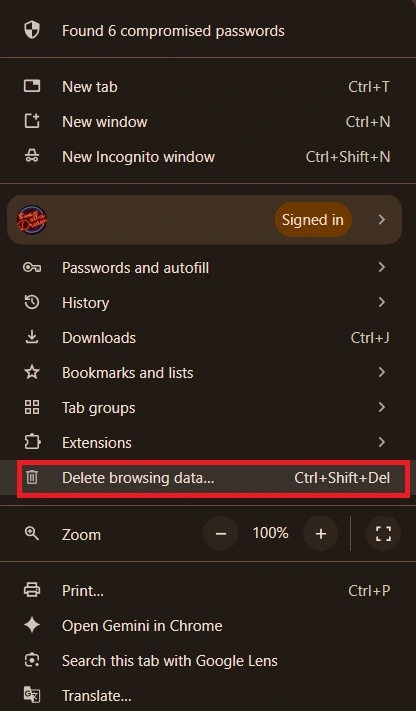
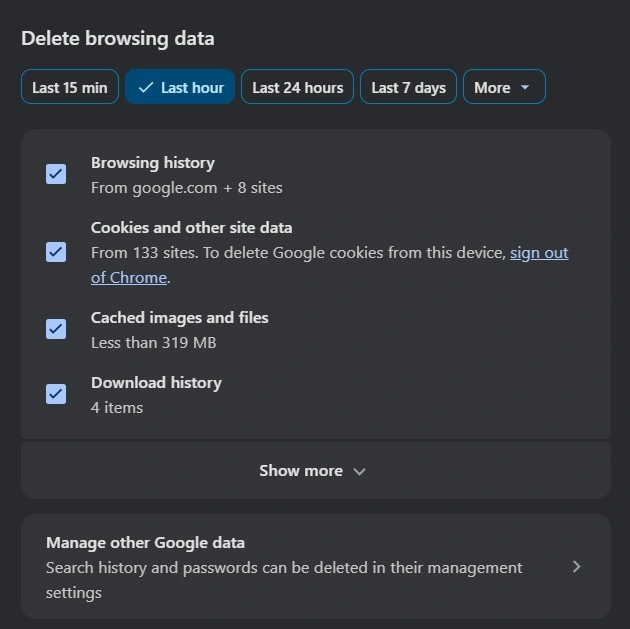
Step 2: In the window that opens, select the time range from the dropdown at the top. Choose “All time” if you want to delete everything. Check the boxes next to Browsing history, Cookies and other site data, and Cached images and files. Once you have selected what you need, click the blue Clear data button. Chrome will delete the selected data right away.
Microsoft Edge
Microsoft Edge is built into Windows 10 and Windows 11. It is fast, clean, and easy to use. Like Chrome, Edge saves your visit history, cookies, and cached files. If you want to clear browsing history in Edge, you can do it in just a few clicks. Edge also gives you a handy option to automatically clear data every time you close the browser.
Step 1: Open Microsoft Edge on your PC. Click the three horizontal dots in the top-right corner. From the menu, select Settings. On the left side panel, click on Privacy, search, and services. Under the section called Clear browsing data, click the button that says Choose what to clear.
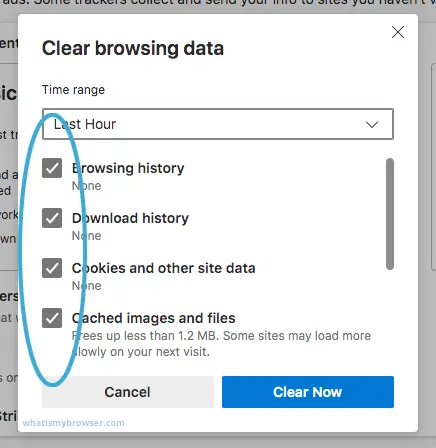
Step 2: A panel will appear on the right side. Use the dropdown menu to pick your time range. Select all the data types you wish to remove, such as browsing history, cookies, and cached images. Then click the Clear now button. Edge will immediately remove the selected data from your browser.
Mozilla Firefox
Firefox is a well-known browser that puts privacy first. It gives you strong control over your data. Firefox lets you clear browsing history quickly from the menu or with a keyboard shortcut. You can also choose to clear only specific types of data. Firefox users often appreciate how transparent the browser is about what it stores and what it deletes.
Step 1: Open Firefox on your PC. Click the three horizontal lines in the top-right corner. This is called the hamburger menu. From the options, click on History. Then select Clear Recent History from the list. You can also open this window fast by pressing Ctrl + Shift + Delete on your keyboard.
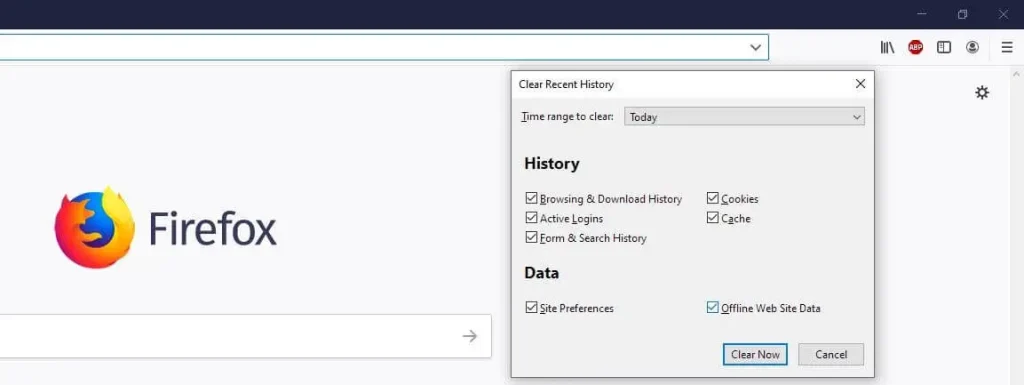
Step 2: A small window will pop up. At the top, choose the time range you want to clear. Options include last hour, last two hours, last four hours, today, or everything. Check the boxes for the data you want to remove. Then click the OK button. Firefox will delete the selected data and close the window automatically.
Opera
Opera is a lesser-known but feature-rich browser. It comes with a built-in VPN and ad blocker. Opera also stores browsing history and cookies just like other browsers. The steps to clear browsing history in Opera are very similar to Chrome. That is because Opera and Chrome are both built on the same engine. So if you know Chrome, you will feel right at home in Opera.
Step 1: Open Opera on your PC. Click the Opera logo in the top-left corner of the browser window. From the menu that appears, click on History. This will open a new tab showing all your recent browsing activity. At the top of the history page, click the Clear browsing data button.
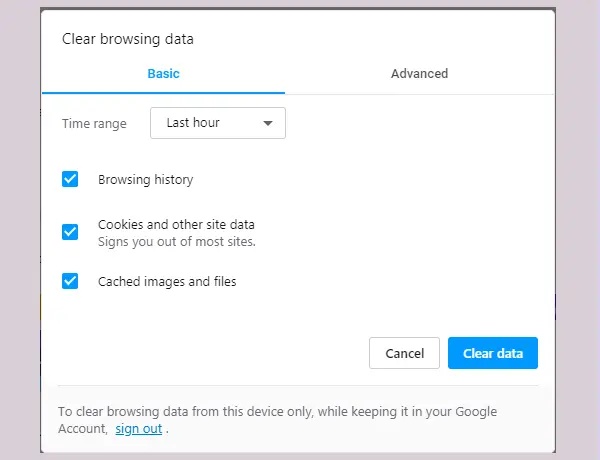
Step 2: A settings window will appear. Choose your preferred time range from the dropdown. Select the types of data you want to delete, like browsing history, cookies, cached files, or all three. Once you have made your selections, click the Clear data button. Opera will process the request and remove all selected data.
Does Clearing History Make You Untraceable?
This is a question many people ask. The short answer is no. When you clear browsing history, you only remove data that is stored on your own device. This means other people who use your computer will not see your activity. But it does not mean you disappear from the internet completely.
Your internet service provider can still see which websites you visit. If you use your browser while signed into a Google or Microsoft account, those companies may still have a record of your activity on their servers. Websites you visit also collect data through other tracking tools. If you want stronger privacy, you may want to combine history clearing with a VPN or use a private browsing mode.
Conclusion
Keeping your browser clean is a simple but effective habit. Whether you use Chrome, Edge, Firefox, or Opera, each browser makes it easy to clear browsing history in just a few steps. It helps your browser run better, protects your personal data, and keeps your device from getting cluttered with old files.
At the same time, it is important to remember what happens when you delete your data. You may lose saved passwords, autofill details, and website preferences. Always make sure you know your login credentials before clearing cookies. If you do it regularly and carefully, clearing your browsing data can make your online experience much smoother and more private.
FAQs
Q1. Will clearing my browsing history delete my bookmarks?
No, clearing your browsing history does not affect your bookmarks in any way. Bookmarks are stored separately in your browser and are not touched during the cleanup process. You can safely clear browsing history without worrying about losing your saved websites. Your bookmarks will remain exactly where you placed them.
Q2. How often should I clear my browsing history?
There is no strict rule, but many people clear browsing history once a week or once a month. If you share your computer with others or use public devices, you should do it after every session. If you mostly use your own private computer, once a month is usually enough to keep things running smoothly and protect your privacy.
Q3. Does clearing history remove viruses or malware?
No, clearing your browser history will not remove viruses or malware from your computer. History data and malware are completely different things. Malware lives in your system files, not your browser history. If you think your device is infected, you should use a trusted antivirus program to scan and clean your computer properly

Author Bio:
Dinesh Lakhwani, the entrepreneurial brain behind “TechCommuters,” achieved big things in the tech world. He started the company to make smart and user-friendly tech solutions. Thanks to his sharp thinking, focus on quality and the motto of never giving up, TechCommuters became a top player in the industry. His commitment to excellence has propelled the company to a leading position in the industry.
Popular Post


Recent Post
Outbyte PC Repair and Cleanup Tool: A Detailed Review
The laptop took nearly two minutes to open one folder. Chrome froze twice. The fan sounded like a tiny jet engine. Most of us have lived through a day like this. Right? Don’t worry! The machine is not dying. It is just tired and messy. A good cleanup can often bring back some of the […]
WMaster Cleanup PC Cleaner Tool: A Detailed Review
Your PC was fast on day one. Right? Every click felt instant, every app opened in a snap, and the fan barely made a sound. Then came the browser tabs, the half-finished downloads, and the apps you tried once and forgot to remove. Slowly, without any warning, that same machine started to feel tired. Boot-ups […]
BleachBit PC Cleaner Tool: Complete Review After Running Tests
A PC never stays clean on its own. Every app you open, every website you visit, and every file you download leaves something behind. Weeks turn into months, and suddenly your storage feels tight, and your PC feels slower, with no clear reason why. The usual fix is a cleaning tool. But the market is […]

Iolo System Mechanic Review: Full Breakdown and Honest Take
Iolo System Mechanic is designed for users who want their PC to feel fresh and responsive again. With just a few clicks, it digs into the system, clears out unnecessary clutter, and delivers noticeable speed improvements. The interface is straightforward and beginner‑friendly, making it easy to navigate without confusion. But this tool goes beyond simple […]

Clean Master for PC Tested: A Full Breakdown of Its Tools
A computer doesn’t slow down overnight. Right? It happens bit by bit. Extra downloads, leftover cache, startup apps piling up. Soon the fast machine you loved feels sluggish. Boot times drag, programs freeze, and even opening a browser tab feels heavy. This slow decline is common, caused by junk files, cluttered registries, and hidden tasks […]
How To Clean Your PC/Laptop: Guide for Beginners to Experts
A computer never announces that it needs help. Well, yes! It just gets slower, hotter, and noisier, one day at a time, until you finally stop and wonder what changed. Nothing changed overnight. What happened is dust and clutter, working quietly in the background for months. Dust settles inside fans and vents, trapping heat and […]

Wise Care 365 PC Cleaner Tool: A Hands-On Review
Every Windows user knows the feeling. Your computer runs fast on day one. Then months pass. Files pile up. The registry gets messy. Startup takes longer. Apps freeze more often. This slow decline is normal, but it is also annoying. Most people just live with it. Some restart their PC often, hoping it helps. It […]

Glary Utilities PC Cleaner: Complete Review [Tested and Trusted]
Glary Utilities is one of the most popular PC optimization tools available today. It combines cleaning, repair, and performance‑boosting features into a single suite. The goal is simple: keep your computer running fast and stable without needing multiple separate programs. In this review, we’ll look at how Glary Utilities performs in real use, what features […]

Microsoft PC Manager: Complete In-Depth Review
A slow computer can ruin your whole day. Files pile up. Startup apps multiply. Before you know it, your once fast machine feels sluggish and tired. Most people search for a fix, but many tools out there are bloated, pushy, or full of ads. Microsoft PC Manager was built to solve this exact problem. It […]

AVG TuneUp Guide: Features, Pros, Cons, and Pricing
PC performance often drops with time. Junk files build up. Startup programs increase. Storage fills up. As a result, your computer may take longer to boot, feel sluggish, or run out of space. The good news is that these problems are usually easy to fix. AVG TuneUp is a PC optimization tool for Windows. It […]
