Here’s How to Change Taskbar Color in Windows 11
Windows 11 is a stylish operating system. It already has stunning graphics and an intuitive color palette to enhance the user experience.
But if you want to customize your Windows 11 system, it is also easy. You can easily change the Taskbar color in Windows 11 to personalize your desktop. Besides color, you can also change the size and position of the Taskbar.
Sounds cool?
So, let’s follow this guide to know all about Taskbar customization in Windows 11.
How to Change Taskbar Color in Windows 11
By default, Windows 11 uses a light-colored theme. As a result, your Taskbar and Start menu appear in white. But if white is not your color and you want to add bright colors to your desktop, Windows 11 lets you customize the Taskbar in several ways.
So, let’s first check out how you can change the Taskbar color in Windows 11:
Step 1. Go to the Settings app > Click on Personalization from the left pane > Select Colors on the right side.
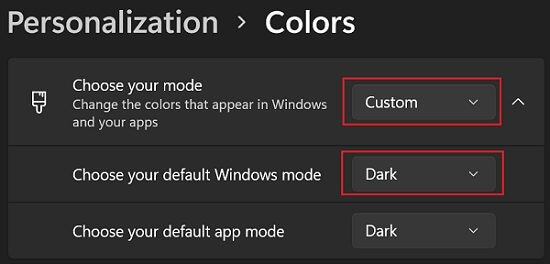
Step 2. Expand the Choose your mode dropdown menu and click on the Custom option.
Step 3. Select Dark in the dropdown menu located next to the Choose your default Windows more. After that, choose the Light option from the dropdown menu next to the Choose your default app mode option.
Step 4. Click on the Accent color to expand the menu.
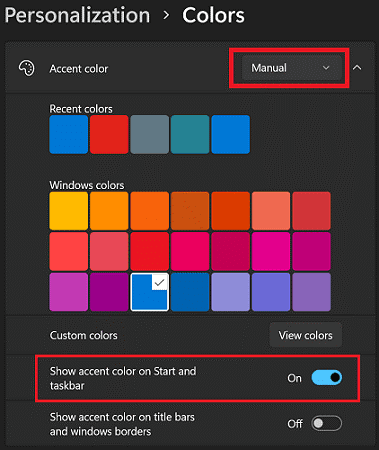
Step 5. You have to first configure Windows 11 to display accent color on the Taskbar to change colors. With default settings, Windows 11 does not show accent color for Taskbar and Start menu.
To do so, turn on the toggle next to the Show accent color on Startup and Taskbar option. Your current color accent will now appear that you can easily change to something else.
If the Show accent color on the Start and Taskbar option is grayed out, it is because you have not set the right Windows and app modes. So, refer to Steps 2 and 3 to fix the issue.
Step 6. Now, select the Manual option from the dropdown menu next to the Accent color to change the Taskbar color in Windows 11. After that, select the color title you want to apply. If you want to choose a color other than present on the list, click on the View colors button. You can tweak around the color mixer to find the perfect shade for your Taskbar.
Step 7. Once you are satisfied with your color choice, click the Done button and your work is done.
Important Note:
- It is impossible to set separate colors for Taskbar and Start menu in Windows 11. Thus, when you choose a color for the Taskbar, it will also automatically appear on the Start menu.
- Always set the Accent color to manual so you can change the Taskbar color in Windows 11. If you set it to Automatic, Windows 11 will pick colors from your desktop wallpaper for the Taskbar and Start menu.
How to Change Taskbar Size
After changing the Taskbar color, you have to tweak your Registry settings for that if you want to change its size. So, if you are comfortable enough to work with the Registry Editor, follow these instructions carefully to change your Taskbar color:
Step 1. Press Windows + R keys to launch the Run command box and type Regedit in the search field.
Step 2. Press Enter to launch the Registry Editor app.
Step 3. Follow this path on the Registry Editor window—
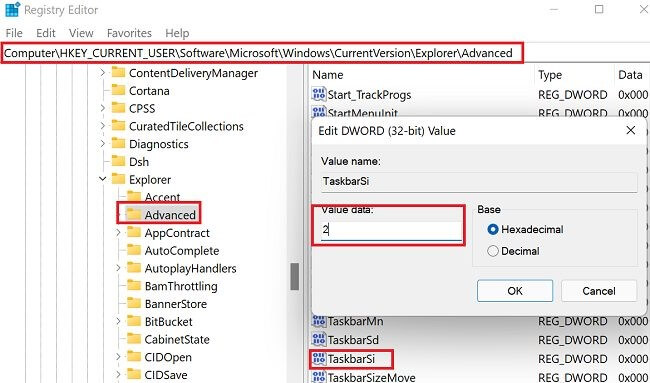
HKEY_CURRENT_USER\Software\Microsoft\Windows\CurrentVersion\Explorer\Advanced.
Step 4. Right-click on the Advanced option and then choose New > DWORD (32-bit) Value.
Step 5. Give a name to the new Value key, let’s say TaskbarSi.
Step 6. Double-click on TaskbarSi and type 2 in the Value field to enlarge your Taskbar. However, if you want to make the Taskbar smaller, you change the value to 0. You can also delete the TaskbarSi key to undo the changes.
Step 7. Save the settings and restart your Windows 11 PC to implement the changes.
How to Change Taskbar Position
You can change the Taskbar position to any direction on your screen. Here’s how you can change your Taskbar position:
Step 1. Go to Settings > Personalization > Taskbar.
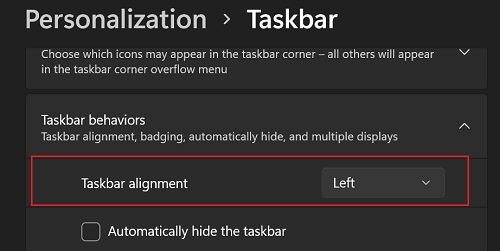
Step 2. Scroll down to the Taskbar behaviors.
Step 3. Navigate to Taskbar alignment and select a position from the dropdown menu.
Step 4. Restart your PC to apply your changes.
Why Are You Unable to Change the Color on Your Taskbar in Windows 11?
There might be a situation when you are unable to change the Taskbar colors despite following all the right steps. This happened because Windows 11 is using Light Mode. Thus, you need to change Windows Mode to Dark and select an accent color for the Start menu and Taskbar. You can also use the theme to automatically change the color.
Why Does Your Taskbar Color Change Automatically?
If you have set Accent Color to Automatic, Windows 11 will automatically change your Taskbar color whenever you change your screen background. Thus, go to Settings > Personalization > Accent Color > Manual. This way, you can select your Taskbar colors and fix them instead of changing your wallpaper.
How Can You Change Font Color on the Taskbar?
After changing the Taskbar color, you might also need to change the font color to easily read the information displayed on the Taskbar. If you choose dark blue for the Taskbar, the default black font will make it harder for you to read.
Thus, go to Settings > Personalization > Colors > Custom Color > View colors. Here you can check which font color best goes against your Taskbar background. You can select the best contrasting color for the fonts.
Let’s Customize Your Taskbar Now!
There you go, Windows 11 users! You now know how to change Taskbar color, size and position. In addition, we also shared some helpful troubleshooting tips to seamlessly customize your Windows 11 taskbar.
So, let’s bid a farewell now, but if you have any questions about changing the Taskbar colors, fonts, position or anything else, shout out in the comments.
Meanwhile, don’t forget to share this post with your pals.

Author Bio:
Dinesh Lakhwani, the entrepreneurial brain behind “TechCommuters,” achieved big things in the tech world. He started the company to make smart and user-friendly tech solutions. Thanks to his sharp thinking, focus on quality and the motto of never giving up, TechCommuters became a top player in the industry. His commitment to excellence has propelled the company to a leading position in the industry.
Popular Post
Recent Post
BleachBit PC Cleaner Tool: Complete Review After Running Tests
A PC never stays clean on its own. Every app you open, every website you visit, and every file you download leaves something behind. Weeks turn into months, and suddenly your storage feels tight, and your PC feels slower, with no clear reason why. The usual fix is a cleaning tool. But the market is […]

Iolo System Mechanic Review: Full Breakdown and Honest Take
Iolo System Mechanic is designed for users who want their PC to feel fresh and responsive again. With just a few clicks, it digs into the system, clears out unnecessary clutter, and delivers noticeable speed improvements. The interface is straightforward and beginner‑friendly, making it easy to navigate without confusion. But this tool goes beyond simple […]

Clean Master for PC Tested: A Full Breakdown of Its Tools
A computer doesn’t slow down overnight. Right? It happens bit by bit. Extra downloads, leftover cache, startup apps piling up. Soon the fast machine you loved feels sluggish. Boot times drag, programs freeze, and even opening a browser tab feels heavy. This slow decline is common, caused by junk files, cluttered registries, and hidden tasks […]
How To Clean Your PC/Laptop: Guide for Beginners to Experts
A computer never announces that it needs help. Well, yes! It just gets slower, hotter, and noisier, one day at a time, until you finally stop and wonder what changed. Nothing changed overnight. What happened is dust and clutter, working quietly in the background for months. Dust settles inside fans and vents, trapping heat and […]

Wise Care 365 PC Cleaner Tool: A Hands-On Review
Every Windows user knows the feeling. Your computer runs fast on day one. Then months pass. Files pile up. The registry gets messy. Startup takes longer. Apps freeze more often. This slow decline is normal, but it is also annoying. Most people just live with it. Some restart their PC often, hoping it helps. It […]

Glary Utilities PC Cleaner: Complete Review [Tested and Trusted]
Glary Utilities is one of the most popular PC optimization tools available today. It combines cleaning, repair, and performance‑boosting features into a single suite. The goal is simple: keep your computer running fast and stable without needing multiple separate programs. In this review, we’ll look at how Glary Utilities performs in real use, what features […]

Microsoft PC Manager: Complete In-Depth Review
A slow computer can ruin your whole day. Files pile up. Startup apps multiply. Before you know it, your once fast machine feels sluggish and tired. Most people search for a fix, but many tools out there are bloated, pushy, or full of ads. Microsoft PC Manager was built to solve this exact problem. It […]

AVG TuneUp Guide: Features, Pros, Cons, and Pricing
PC performance often drops with time. Junk files build up. Startup programs increase. Storage fills up. As a result, your computer may take longer to boot, feel sluggish, or run out of space. The good news is that these problems are usually easy to fix. AVG TuneUp is a PC optimization tool for Windows. It […]

Ashampoo WinOptimizer: Features and Process [Complete Guide]
Ashampoo WinOptimizer is built for users who want a faster, cleaner, and safer PC. In this review, I’ll walk through its features and how the optimization process works. The software promises one‑click fixes, smart automation, and tools that go beyond basic cleanup. The PC cleaning and optimization tool covers performance tuning, privacy protection, and system […]

Top 10 PC Cleaning and Optimization Tools For Windows 11/10 [2026]
Discover the best PC cleaning and optimization tools for Windows 11 and 10. Remove junk files, improve speed, and keep your PC healthy with trusted cleaners.
