Advanced Guide: How You Can Protect Your Home Computer With Top 5+ Methods
With cyber threats and attacks reaching alarming levels, there’s no doubt that protecting your home computer is the need of the hour. As per the cobalt security statistics report, more than 2K+ cyberattacks happen every day, which translates to nearly one attack occurring every 39 seconds. Shocking, right? Whether it’s identity theft or financial fraud, the consequence of handling a compromised device can be devastating. That’s why, you must consider investing a dedicated amount of time and effort into securing your home computer.
In this comprehensive guide, we will be covering basic to advanced security measures that ensure robust protection for your home personal computer. So, keep scrolling and check out the list of workarounds that you can implement to enjoy robust protection. Let’s get started!
Best Ways To Secure Home Computers In 2024
It’s quite imperative that securing your home computer will not only ensure that you safeguard your private information and data stored on your device but also ensure a smoother digital experience like never before. Some of our most preferred methods to protect your computers are listed below:
METHOD 1: Enable Multi-Factor Authentication
Enabling Multi-Factor Authentication is pretty self-explanatory. By doing so, you simply add an extra layer of security to your device by adding two or more verification methods. This means, that to log into your computer, you could protect it by using a password, or adding a protection layer to unlock your computer from a smartphone, and even email. This will prevent all the potential risks of unauthorized access to your home computers.

METHOD 2: Use Windows Password Management Software
One of the most effective and solid ways to keep your home computer secured is to lock it with strong, unique and complex passwords for all your accounts. Consider taking the help of a reliable third-party password manager tool that can help you generate and store all your passwords in a secure place. Some of the preferred password managers that we consider using all the time are NordPass and Dashlane.
Both utilities are known for their premium and best security functionalities. They provide a slick, well-organized and neat dashboard to store, manage and access all your passwords via desktop, mobile app, and even through the web version.

Their comprehensive set of features, including detailed breach reports, auto-filling, secure data sharing options, and scans of your accounts or weak and compromised passwords, make these password management programs top choices for both novice and pro users.
METHOD 3: Update Your Operating System & All The Installed Applications On Your PC
Well, rolling out regular updates to your OS and installed software is essential to keep your computers’ security intact. These updates come with security patches for all the exploits and vulnerabilities that attackers could take advantage of.
Hence, we strongly recommend our readers to enable automatic updates on their personal computers, which will ensure that your home PCs will constantly receive all the necessary and latest security patches without fail.

Besides keeping your operating system and installed programs up-to-date, we also advise our readers to keep their browsers and plugins updated to their latest versions. We need to make sure that no cybercriminals can use any loopholes to target your personal computer with malicious attacks.
METHOD 4: Take the Help of A Trustworthy Antivirus Software
Make sure you consider using a reliable antivirus application on your home computer and ensure it acts as the first line of defense against all kinds of malware and cyber threats. It’s worth investing in premium computer security software that provides a comprehensive list of features that provide 360-degree protection for your PC.

Some of our favorite antivirus software includes Bitdefender, Norton, and Kaspersky. All of these applications are known for their excellent malware detection rates with minimal impact on system performance. Additionally, these programs offer real-time scanning and additional security features like VPN and Password Manager to provide complete protection on your home computer.
METHOD 5: Create Regular Backups
Well, taking backups at regular intervals ensures that all your stored data is protected from all types of mishaps. Whether it’s hardware failure, ransomware, or any other cyber-attack, backing up your files locally or on the cloud is the most comprehensive protection solution.

If you are considering using the Local Backup option, you can get help by using an external hard drive or USB drive to store your important files and folders. Alternatively, if you are considering the latter option, which is Cloud Backup, we advise you to use services like Google Drive, Dropbox, or OneDrive to store your important data a secure cloud storage.
METHOD 6: Consider Encrypting Your Data
Data encryption is another effective workaround for protecting your sensitive and crucial information and files on your home computer. There are different types of encryption methods, like Full Disk Encryption(which allows users to lock and protect all their data on their hard drive, including their OS, applications, and personal files.
This will certainly make it impossible to access your data without the correct password or encryption key). Additionally, you can take the help of popular third-party file encryption tools like VeraCrypt, 7-Zip, or GnuPG (which provides a targeted approach to secure all types of backups, external drives, and even files stored on your email or cloud services).

By following any of the file encryption methods, you can significantly enhance data security and even secure your home computer from all types of breaches.
METHOD 7: Enable VPN Protection On Your Computer
Last but not least, utilizing the best virtual private network on your home computer will flawlessly encrypt your Internet connection, mask your original IP address, and protect all your digital activities from prying eyes. With the help of the right VPN service, you can conveniently route your web traffic through a secure tunnel and make it super difficult for cybercriminals to intercept your data.

One of the most ideal choices when it comes to choosing a reputable VPN software for Windows is ExpressVPN. The application comes packed with advanced security features to stay safe digitally, hosts 3000+ no-logs servers in more than 106 countries and supports anonymous torrenting and a restriction-free gaming experience.
Conclusion | What’s Your Go-To Method For Securing Home Computers?
We hope you liked today’s guide on how you can protect your home computer by applying these advanced tips to secure your devices in a few clicks.
Additionally, maintaining digital hygiene is super important in today’s data-driven world. By following practices like using complex passwords, being vigilant while surfing online, avoiding clicking on suspicious links, and refraining from downloading unknown attachments to your device, you can easily reduce the risks of all types of cyberattacks.
If you know any other impactful ways to secure home computers, feel free to share your suggestions in the comments section below!

Author Bio:
Dinesh Lakhwani, the entrepreneurial brain behind “TechCommuters,” achieved big things in the tech world. He started the company to make smart and user-friendly tech solutions. Thanks to his sharp thinking, focus on quality and the motto of never giving up, TechCommuters became a top player in the industry. His commitment to excellence has propelled the company to a leading position in the industry.
Popular Post
Recent Post
BleachBit PC Cleaner Tool: Complete Review After Running Tests
A PC never stays clean on its own. Every app you open, every website you visit, and every file you download leaves something behind. Weeks turn into months, and suddenly your storage feels tight, and your PC feels slower, with no clear reason why. The usual fix is a cleaning tool. But the market is […]

Iolo System Mechanic Review: Full Breakdown and Honest Take
Iolo System Mechanic is designed for users who want their PC to feel fresh and responsive again. With just a few clicks, it digs into the system, clears out unnecessary clutter, and delivers noticeable speed improvements. The interface is straightforward and beginner‑friendly, making it easy to navigate without confusion. But this tool goes beyond simple […]
Clean Master for PC Tested: A Full Breakdown of Its Tools
A computer doesn’t slow down overnight. Right? It happens bit by bit. Extra downloads, leftover cache, startup apps piling up. Soon the fast machine you loved feels sluggish. Boot times drag, programs freeze, and even opening a browser tab feels heavy. This slow decline is common, caused by junk files, cluttered registries, and hidden tasks […]
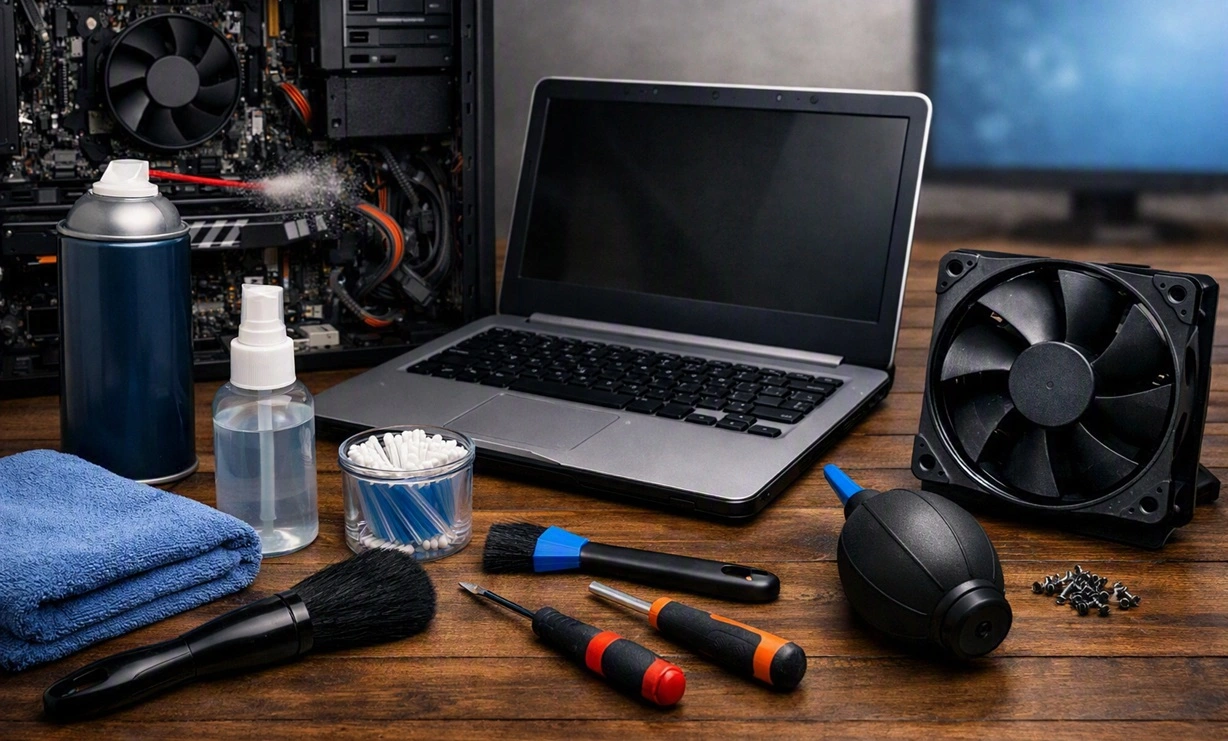
How To Clean Your PC/Laptop: Guide for Beginners to Experts
A computer never announces that it needs help. Well, yes! It just gets slower, hotter, and noisier, one day at a time, until you finally stop and wonder what changed. Nothing changed overnight. What happened is dust and clutter, working quietly in the background for months. Dust settles inside fans and vents, trapping heat and […]

Wise Care 365 PC Cleaner Tool: A Hands-On Review
Every Windows user knows the feeling. Your computer runs fast on day one. Then months pass. Files pile up. The registry gets messy. Startup takes longer. Apps freeze more often. This slow decline is normal, but it is also annoying. Most people just live with it. Some restart their PC often, hoping it helps. It […]

Glary Utilities PC Cleaner: Complete Review [Tested and Trusted]
Glary Utilities is one of the most popular PC optimization tools available today. It combines cleaning, repair, and performance‑boosting features into a single suite. The goal is simple: keep your computer running fast and stable without needing multiple separate programs. In this review, we’ll look at how Glary Utilities performs in real use, what features […]

Microsoft PC Manager: Complete In-Depth Review
A slow computer can ruin your whole day. Files pile up. Startup apps multiply. Before you know it, your once fast machine feels sluggish and tired. Most people search for a fix, but many tools out there are bloated, pushy, or full of ads. Microsoft PC Manager was built to solve this exact problem. It […]

AVG TuneUp Guide: Features, Pros, Cons, and Pricing
PC performance often drops with time. Junk files build up. Startup programs increase. Storage fills up. As a result, your computer may take longer to boot, feel sluggish, or run out of space. The good news is that these problems are usually easy to fix. AVG TuneUp is a PC optimization tool for Windows. It […]

Ashampoo WinOptimizer: Features and Process [Complete Guide]
Ashampoo WinOptimizer is built for users who want a faster, cleaner, and safer PC. In this review, I’ll walk through its features and how the optimization process works. The software promises one‑click fixes, smart automation, and tools that go beyond basic cleanup. The PC cleaning and optimization tool covers performance tuning, privacy protection, and system […]

Top 10 PC Cleaning and Optimization Tools For Windows 11/10 [2026]
Discover the best PC cleaning and optimization tools for Windows 11 and 10. Remove junk files, improve speed, and keep your PC healthy with trusted cleaners.
