Disk Cleanup This PC: A Complete Guide
Your computer gets slower over time. Isn’t it? Well, yes! Files pile up. Storage space disappears. This happens to everyone.
The good news? Windows has a built-in tool to fix this problem. It’s called Disk Cleanup. This free tool removes junk files from your computer. It makes your PC faster and frees up valuable space.
Many people don’t know about this tool. Or they’re not sure how to use it. This guide will show you everything you need to know about Disk Cleanup PC operations.
You’ll learn what Disk Cleanup does, how to use it, and when to run it. We’ll also cover advanced tips to get the best results. By the end, you’ll be able to keep your computer running smoothly.
Let’s start with the basics.
Part 1: What Is Disk Cleanup?
Disk Cleanup is a Windows utility. It comes pre-installed on every Windows computer. The tool scans your hard drive for unnecessary files. Then it safely removes them.
Think of it like cleaning your house. You throw away trash, old papers, and things you don’t need. Disk Cleanup does the same for your computer.
What Files Does It Remove?
Disk Cleanup targets specific types of files:
- Temporary Files: Your computer creates temporary files when you use programs. These files should be deleted automatically. But they often stick around. They can take up gigabytes of space.
- Downloaded Program Files: These are small files from websites. They help certain web features work. Most are outdated and safe to remove.
- Recycle Bin: When you delete files, they go to the Recycle Bin first. They still take up space until you empty them. Disk Cleanup can empty it for you.
- Thumbnails: Windows creates small preview images of your pictures. These thumbnails speed up browsing. But they can be recreated if deleted.
- System Error Memory Dump Files: When Windows crashes, it creates dump files. These help troubleshoot problems. But they’re huge and rarely needed.
- Windows Update Cleanup: Old Windows update files stay on your PC. They’re kept in case you need to uninstall an update. After a while, they’re just wasting space.
- Delivery Optimization Files: Windows shares update files with other computers. These cached files can be removed safely.
All these files are safe to delete. Windows won’t let you remove anything critical. That’s what makes Disk Cleanup PC tools so reliable.
Part 2: How to Run Disk Cleanup on This PC
Running Disk Cleanup is simple. There are several ways to start it. We’ll cover the easiest methods.
Method 1: Using the Start Menu
This is the quickest way to run Disk Cleanup on this PC.
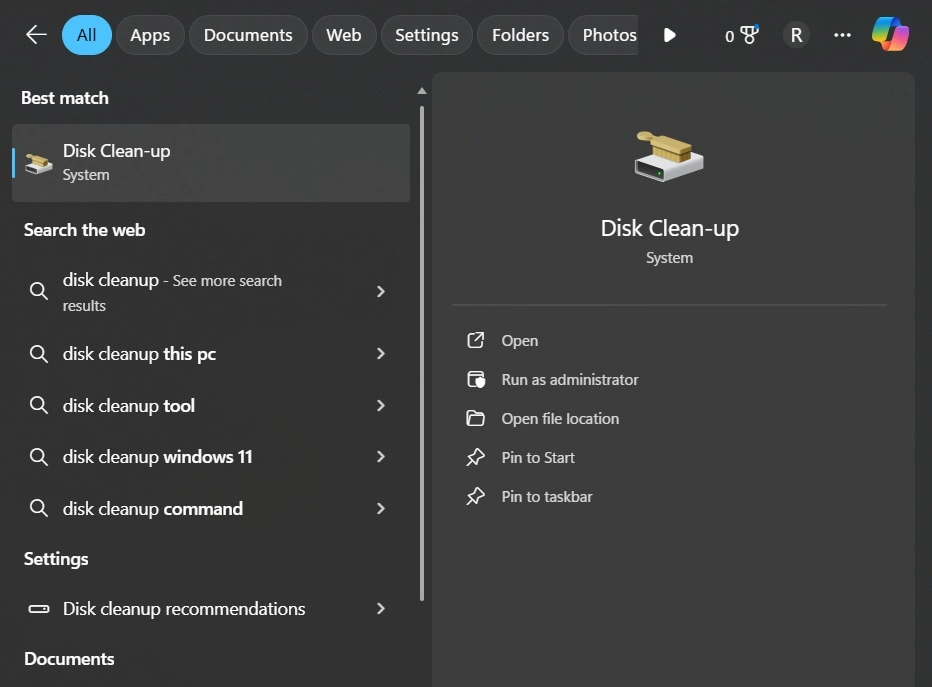
- Click the Start button (Windows icon). Type “Disk Cleanup” in the search box. Click on “Disk Cleanup” from the results.
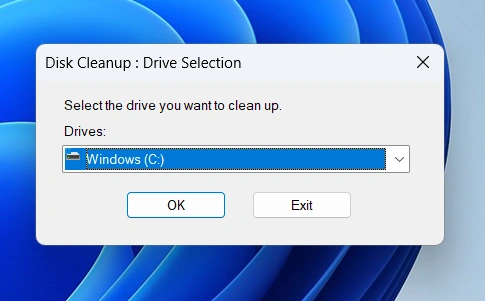
- Choose the drive you want to clean (usually C:). Click OK.
The tool will scan your drive. This takes a minute or two. Then you’ll see a list of file types.
Method 2: Through File Explorer
You can also start Disk Cleanup from File Explorer.
- Open File Explorer (Windows key + E). Click on “This PC” in the left sidebar. Right-click on your C: drive. Select “Properties”.
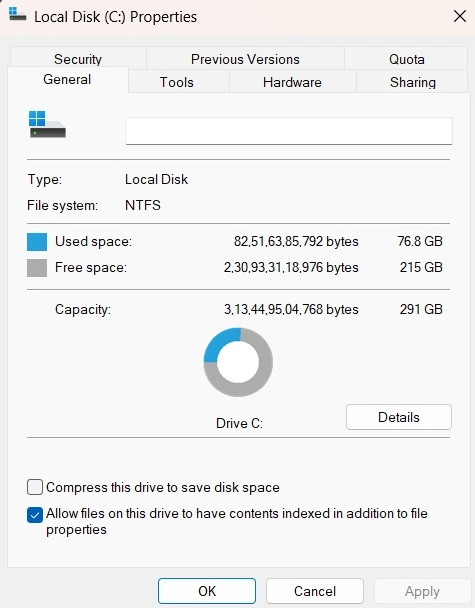
- Click the “Disk Cleanup” button. Wait for the scan to complete.
This method is useful when you’re already browsing files.
Method 3: Using the Run Dialog
Power users prefer this method.
- Press Windows key + R. Type “cleanmgr” and press Enter.
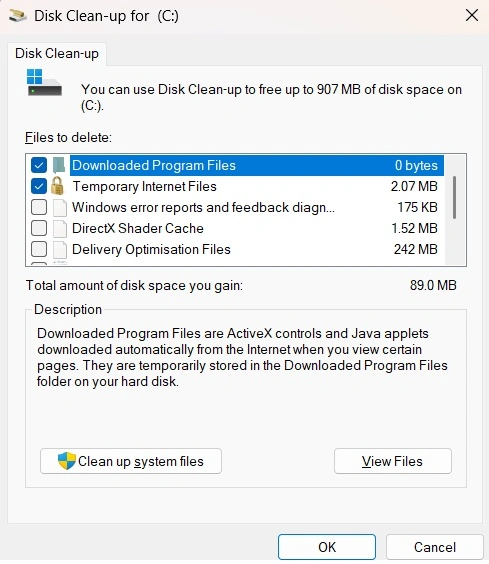
- Select your drive. Click OK
“Cleanmgr” is the technical name for Disk Cleanup. It’s faster to type than to search through menus.
Choosing What to Delete
After the scan, you’ll see checkboxes next to different file types. Each one shows how much space you’ll free up.
Check the boxes for files you want to remove. Don’t worry about making a mistake. All options are safe. Windows won’t let you delete essential files.
Some items won’t have checkboxes. This means they can’t be removed right now. That’s normal.
Click OK when you’re ready. Windows will ask you to confirm. Click “Delete Files” to proceed.
The cleanup process begins. It might take several minutes. Don’t turn off your computer during this time.
When it’s done, you’ll see more free space on your drive. Your Disk Cleanup PC task is complete.
Part 3: Advanced Disk Cleanup Options
There’s more to Disk Cleanup than meets the eye. The tool has advanced features that free up even more space.
Using “Clean up system files”
The basic Disk Cleanup scan misses some large files. These are system files that require administrator access.
To access them, run Disk Cleanup normally. Then look for a button at the bottom that says “Clean up system files.”
Click this button. The tool will restart with elevated permissions. It scans again and finds more files.
You’ll see new options appear:
Previous Windows installations: If you recently upgraded Windows, the old version is saved. This backup lets you roll back if needed. But it takes up 10-20 GB of space. After a month, you probably don’t need it.
Windows Update Cleanup: This option appears after system file cleanup. It removes old update files. You can free up several gigabytes here.
System error minidump files: These are smaller versions of crash reports. They’re useful for troubleshooting. But most people never need them.
These options free up much more space than the basic cleanup. Always check “Clean up system files” for the best results.
Running Disk Cleanup on Other Drives
You can clean any drive on your computer. This includes external hard drives and additional internal drives.
Just select a different drive when Disk Cleanup starts. The tool works the same way.
This is helpful if you store lots of files on a D: or E: drive. Those drives accumulate temporary files too.
Scheduling Automatic Cleanup
You can set Disk Cleanup to run automatically. This keeps your PC clean without manual effort.
Windows 10 and 11 have a feature called Storage Sense. It’s like automatic Disk Cleanup.
To enable it:
- Open Settings (Windows key + I). Click on “System”. Click on “Storage”. Turn on “Storage Sense”.
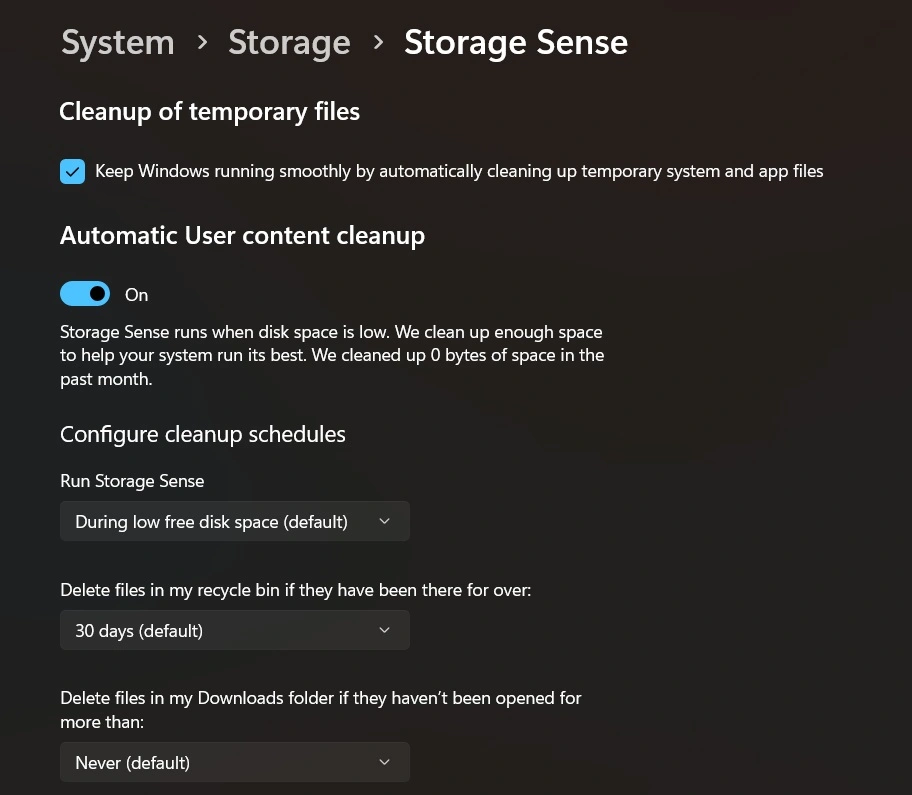
- Click “Configure Storage Sense or run it now”. Choose how often to run it
Storage Sense deletes temporary files automatically. You can customize what it removes and when.
This feature works alongside manual Disk Cleanup PC operations. Use both for best results.
Part 4: How Often Should You Run Disk Cleanup?
Regular maintenance keeps your computer healthy. But how often should you run Disk Cleanup on this PC?
Recommended Schedule
Weekly: If you use your computer heavily every day. Download lots of files, install programs frequently, or browse the web extensively.
Monthly: For average users. This is a good balance between maintenance and convenience.
Quarterly: If you barely use your computer. Or if you have lots of free storage space.
After major events: Run Disk Cleanup after big Windows updates, after uninstalling large programs, or when you notice slow performance.
There’s no harm in running it more often. The tool is safe to use as frequently as you want.
Signs You Need to Run Disk Cleanup
Your computer gives hints when it needs cleaning:
Low disk space warnings: Windows alerts you when storage runs low. This is an obvious sign.
Slow performance: Your PC takes longer to start up or open programs. Junk files might be slowing it down.
Programs crash frequently: Sometimes, corrupted temporary files cause problems.
Updates fail to install: Windows updates need free space. Cleanup might fix installation errors.
Your C: drive is almost full: Check your drive capacity in File Explorer. If it’s over 80% full, run a cleanup.
Listen to these warning signs. Regular cleaning prevents bigger problems later.
Part 5: Tips for Maximum Storage Space
Want to free up even more space? Here are additional tips beyond basic Disk Cleanup.
Review Large Files Manually
Some files are too big and important for automatic cleanup. You should review them yourself.
Find large files:
- Open File Explorer
- Click in the search box
- Go to the “Search” tab
- Click “Size” and select “Gigantic (>128 MB)”
This shows all huge files. Review them and delete what you don’t need.
Clean Your Downloads Folder
The Downloads folder fills up fast. Most files there are no longer needed.
Sort by date and delete old files. Or sort by size to find space hogs.
Remove Unused Programs
Programs take up much more space than temporary files.
Uninstall unused programs:
- Open Settings. Click “Apps”.
- Click “Apps & features”. Browse the list. Click on programs you don’t use and select “Uninstall”
Be honest about what you actually use. That game you haven’t played in two years? Uninstall it.
Use Cloud Storage
Move files to cloud services like OneDrive, Google Drive, or Dropbox. Keep only frequently used files on your PC.
This is especially good for photos and documents.
Compress Old Files
Windows can compress files to save space.
Right-click a folder, choose Properties, click Advanced, and enable “Compress contents to save disk space.”
This works well for old documents you rarely access.
Clear Browser Cache
Web browsers store lots of temporary files. Clear them periodically.
Chrome: Settings > Privacy and security > Clear browsing data
Edge: Settings > Privacy, search, and services > Clear browsing data
Firefox: Settings > Privacy & Security > Cookies and Site Data > Clear Data
This can free several gigabytes.
If you constantly run out of space, consider upgrading. External hard drives are inexpensive. Or upgrade to a larger internal drive.
Sometimes, more storage is the real solution.
Conclusion: Keep Your PC Running Smoothly
Disk Cleanup is a powerful tool. It’s free, safe, and easy to use. Regular use keeps your computer fast and responsive.
Remember these key points:
- Run Disk Cleanup on this PC at least monthly
- Always use “Clean up system files” for best results
- Enable Storage Sense for automatic maintenance
- Combine cleanup with manual file management
- Address low disk space warnings promptly
Taking care of your computer doesn’t require technical expertise. Just a few minutes each month makes a huge difference.

Author Bio:
Dinesh Lakhwani, the entrepreneurial brain behind “TechCommuters,” achieved big things in the tech world. He started the company to make smart and user-friendly tech solutions. Thanks to his sharp thinking, focus on quality and the motto of never giving up, TechCommuters became a top player in the industry. His commitment to excellence has propelled the company to a leading position in the industry.
Popular Post
Recent Post
BleachBit PC Cleaner Tool: Complete Review After Running Tests
A PC never stays clean on its own. Every app you open, every website you visit, and every file you download leaves something behind. Weeks turn into months, and suddenly your storage feels tight, and your PC feels slower, with no clear reason why. The usual fix is a cleaning tool. But the market is […]

Iolo System Mechanic Review: Full Breakdown and Honest Take
Iolo System Mechanic is designed for users who want their PC to feel fresh and responsive again. With just a few clicks, it digs into the system, clears out unnecessary clutter, and delivers noticeable speed improvements. The interface is straightforward and beginner‑friendly, making it easy to navigate without confusion. But this tool goes beyond simple […]

Clean Master for PC Tested: A Full Breakdown of Its Tools
A computer doesn’t slow down overnight. Right? It happens bit by bit. Extra downloads, leftover cache, startup apps piling up. Soon the fast machine you loved feels sluggish. Boot times drag, programs freeze, and even opening a browser tab feels heavy. This slow decline is common, caused by junk files, cluttered registries, and hidden tasks […]
How To Clean Your PC/Laptop: Guide for Beginners to Experts
A computer never announces that it needs help. Well, yes! It just gets slower, hotter, and noisier, one day at a time, until you finally stop and wonder what changed. Nothing changed overnight. What happened is dust and clutter, working quietly in the background for months. Dust settles inside fans and vents, trapping heat and […]

Wise Care 365 PC Cleaner Tool: A Hands-On Review
Every Windows user knows the feeling. Your computer runs fast on day one. Then months pass. Files pile up. The registry gets messy. Startup takes longer. Apps freeze more often. This slow decline is normal, but it is also annoying. Most people just live with it. Some restart their PC often, hoping it helps. It […]

Glary Utilities PC Cleaner: Complete Review [Tested and Trusted]
Glary Utilities is one of the most popular PC optimization tools available today. It combines cleaning, repair, and performance‑boosting features into a single suite. The goal is simple: keep your computer running fast and stable without needing multiple separate programs. In this review, we’ll look at how Glary Utilities performs in real use, what features […]

Microsoft PC Manager: Complete In-Depth Review
A slow computer can ruin your whole day. Files pile up. Startup apps multiply. Before you know it, your once fast machine feels sluggish and tired. Most people search for a fix, but many tools out there are bloated, pushy, or full of ads. Microsoft PC Manager was built to solve this exact problem. It […]

AVG TuneUp Guide: Features, Pros, Cons, and Pricing
PC performance often drops with time. Junk files build up. Startup programs increase. Storage fills up. As a result, your computer may take longer to boot, feel sluggish, or run out of space. The good news is that these problems are usually easy to fix. AVG TuneUp is a PC optimization tool for Windows. It […]

Ashampoo WinOptimizer: Features and Process [Complete Guide]
Ashampoo WinOptimizer is built for users who want a faster, cleaner, and safer PC. In this review, I’ll walk through its features and how the optimization process works. The software promises one‑click fixes, smart automation, and tools that go beyond basic cleanup. The PC cleaning and optimization tool covers performance tuning, privacy protection, and system […]

Top 10 PC Cleaning and Optimization Tools For Windows 11/10 [2026]
Discover the best PC cleaning and optimization tools for Windows 11 and 10. Remove junk files, improve speed, and keep your PC healthy with trusted cleaners.
