Top 15 Questions About PC Cleaning and Their Answers
A clean computer works better and stays healthy for a longer time. Dust, heat, and unused data slow down even a strong machine. When you take regular care of your system, it runs smoothly and feels lighter during daily tasks. Your PC also stays safe from small problems that can grow into larger issues.
Many people want to clean their PC but feel unsure about the right methods. Some fear that they might damage a part. Others feel confused by the number of tools available. The purpose of this guide is to clear that confusion. It covers the most common questions and provides simple answers you can trust.
Precautions Before You Start: Stay Safe Before Any Cleaning
It is important to take a moment and prepare yourself before you touch any part of the machine. Every step becomes easier when you follow a few basic safety habits. These small habits protect the PC and also help you finish the job without trouble.
- Unplug the PC: Turn off the system and remove the power cable. This stops any chance of a short circuit. It also keeps your hands safe while you clean.
- Let the system cool down: Parts inside a computer can get warm. Wait for a few minutes before opening the case. This reduces the chance of accidental burns.
- Use the right tools: A soft brush, a clean cloth, and compressed air are enough for most jobs. These gentle tools protect sensitive parts.
- Work in a dry place: Moisture can harm the system. Pick a table that is dry and well-lit. This helps you see the dust clearly and keeps the parts safe.
- Avoid strong cleaners: Household cleaners are harsh. They leave marks and may damage surfaces. Use a mild cleaning liquid that is made for electronics.
- Handle cables with care: Cables can tear fast. Pull them softly and do not bend them sharply. This prevents small breaks inside the wire.
- Touch the frame first: Touching the metal frame removes static from your hands. This protects small chips inside the PC.
- Keep screws in one place: Use a small box or cup for screws. This avoids losing any essential part when you open the case.
Before You Start, Let’s Discuss These Questions
Why does dust build up so fast?
Dust gathers because of airflow. Fans pull air inside the system to keep parts cool. The same air carries tiny particles. These particles stick to surfaces over time and reduce airflow. Regular cleaning slows this buildup.
Why does my PC feel slow even after cleaning?
Physical cleaning helps the machine stay cool. A slow PC may also need digital cleaning. Removing junk files, cache, and unused programs frees memory and makes the system run better.
Is cleaning inside the PC risky for beginners?
It is safe when you follow simple rules. Use the right tools, avoid pressure, and disconnect power. If a part feels too delicate, you can leave it for an expert.
Top 15 Questions About PC Cleaning and Their Answers
Cleaning your PC is a mix of simple habits and careful steps. People often feel unsure because computers look complex from the inside. Yet most tasks are easy once you understand the basics. A clean machine stays cool, runs faster, and avoids small faults that appear over time.
The questions below cover both physical cleaning and digital cleaning. Each answer gives clear guidance that you can follow at home.
1. Should I wash PC parts
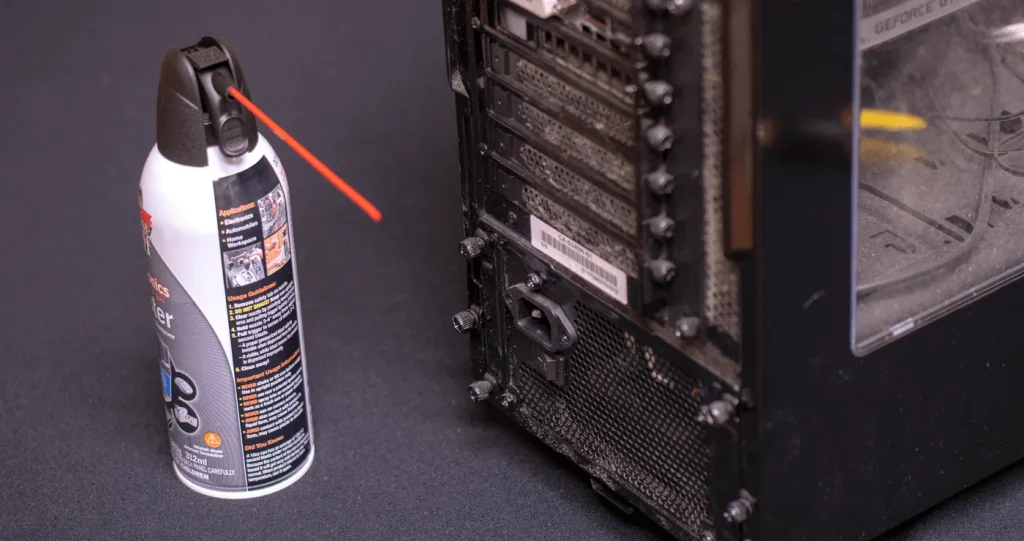
Water should never touch any internal part. Washing parts can cause serious damage. Use compressed air, a soft brush, or a dry cloth for safe cleaning.
2. How often should I clean my PC
Most systems stay healthy with light cleaning every two or three months. If you live in a dusty place or keep the PC on the floor, you may clean it every month.
3. Should I clean my PC fans
Yes. Fans gather dust faster than any other part. Clean fans help air move freely. This reduces heat and prevents loud noise from the system.
4. Do I need an expert to clean the PC
You can handle basic cleaning on your own. An expert is helpful when you want deep internal cleaning or when you are unsure about opening certain sections.
5. What parts need an expert’s help for cleaning
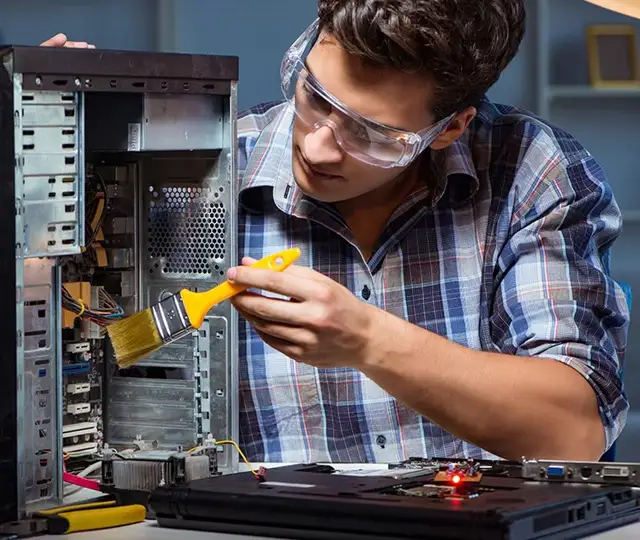
The power supply unit, liquid cooling parts, and some graphics cards have delicate sections. These require steady hands and special care. It is safer to let an expert handle them.
6. Can I clean a computer or laptop screen at home
Yes. A microfiber cloth works well on most screens. Move it gently in straight lines. Use only a small amount of screen-safe cleaner when needed. Read this guide on cleaning PC screens.
7. Can I clean the Windows Registry
You can clean the Windows registry with trusted software. Always back up your system before you make changes. The registry holds important settings and should be handled carefully.
8. Can I clean junk files
Yes. Junk files build up over time and slow your machine. Tools like Disk Cleanup or Storage Sense remove these unwanted items safely.
9. Can I clean temp files on PC
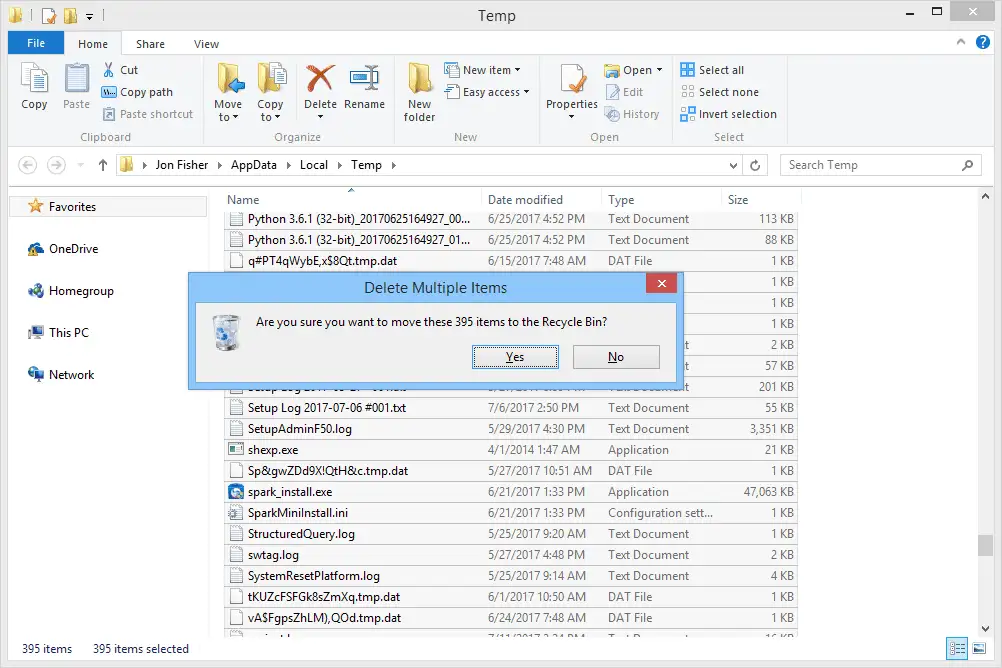
Yes. Temp files are created by apps and Windows during daily tasks. Removing them frees space and improves performance.
10. Can I clean the PC cache
You can clean the PC cache when the system feels sluggish. Cache helps speed up tasks, but an old cache may cause errors. Clearing it gives the system a fresh start.
11. Can I clean a laptop keyboard at home
Yes. Turn the laptop off. Hold the laptop at an angle and tap lightly. Use compressed air between the keys. A soft cotton swab can remove marks on the surface. Read this guide on cleaning the keyboard
12. Can I clean a mouse sensor

Yes. Dust under the sensor interferes with movement. A soft cloth or cotton swab is enough to clear the area. Read this guide on cleaning the mouse.
13. Can I clean the back vents of a laptop
Yes. Use short bursts of compressed air. Do not push the nozzle too close. Vents play a major role in cooling, so clear vents help the laptop breathe better.
14. Can I clean a PC case filter
Yes. Many filters slide out easily. Wash them with water and allow full drying time. A dry filter improves airflow and keeps dust from entering the case.
15. Can I clean old folders that I do not use
Yes. Removing old or unused folders creates space. Always check the content before deleting. Keep only the files you truly need.
Author’s Tip
A PC stays healthy when you balance both physical cleaning and digital cleaning. Many people focus only on dust and forget the digital side. Old files, leftover software data, and scattered items on the desktop slow down the machine as much as dust in the vents. Make both tasks a part of your monthly routine.
It also helps to keep a small cleaning kit ready. A soft brush, a clean cloth, and compressed air are enough for most jobs. When these items stay in one place, cleaning never feels like a big task. You pick up the kit, spend a few minutes, and the system feels lighter again.
Advanced Tips: For a Deeper and Safer Clean
These ideas help when you want to go beyond the basics. They do not require expert skills. They only need care and a bit of patience.
- Update drivers after cleaning: A fresh system works better when its drivers are current. New drivers fix bugs and improve performance.
- Check fan speeds: A fan may rotate more slowly due to dust. After cleaning, check the speed with a simple tool to confirm that it works well.
- Organize cables inside the case: Good cable management improves airflow. Use small ties to hold cables neatly.
- Clean the storage drive digitally: Old programs leave small files behind. Use safe tools to remove these traces.
- Check airflow direction: Make sure intake and exhaust fans face the correct direction. This improves cooling.
- Reapply thermal paste once every two years: Thermal paste sits between the processor and the cooler. Old paste becomes dry. Fresh paste improves heat transfer.
- Remove unused startup programs: Fewer programs at startup help the system load faster.
- Back up important data before any deep cleaning: Even though cleaning is safe, backing up your data gives peace of mind.
Conclusion
A clean PC is easier to use and lasts longer. Dust and messy files build up over time, but you can manage both with simple habits. Once you follow a pattern, cleaning stops feeling like a task and becomes a part of regular care. This keeps the system cool, fast, and stable.
The more you understand your computer, the easier cleaning becomes. Start with basic steps and move to deeper ones only when you feel ready. With the right methods, anyone can take good care of their PC and maintain strong performance without stress.
FAQs:
Is it safe to clean my PC every month
Yes. Monthly cleaning keeps dust away and helps the PC stay cool. It is safe as long as you use gentle tools.
Does cleaning the PC improve gaming performance
A cleaner system stays cooler. This prevents frame drops and small lags. You may notice smoother performance during long sessions.
Should I clean the registry often
No. Cleaning the Windows registry should be done only when needed. It helps when there are errors, but frequent cleaning is not required.
Cover Image Attribution: Image by rawpixel.com on Freepik

Author Bio:
Dinesh Lakhwani, the entrepreneurial brain behind “TechCommuters,” achieved big things in the tech world. He started the company to make smart and user-friendly tech solutions. Thanks to his sharp thinking, focus on quality and the motto of never giving up, TechCommuters became a top player in the industry. His commitment to excellence has propelled the company to a leading position in the industry.
Popular Post
Recent Post
BleachBit PC Cleaner Tool: Complete Review After Running Tests
A PC never stays clean on its own. Every app you open, every website you visit, and every file you download leaves something behind. Weeks turn into months, and suddenly your storage feels tight, and your PC feels slower, with no clear reason why. The usual fix is a cleaning tool. But the market is […]

Iolo System Mechanic Review: Full Breakdown and Honest Take
Iolo System Mechanic is designed for users who want their PC to feel fresh and responsive again. With just a few clicks, it digs into the system, clears out unnecessary clutter, and delivers noticeable speed improvements. The interface is straightforward and beginner‑friendly, making it easy to navigate without confusion. But this tool goes beyond simple […]
Clean Master for PC Tested: A Full Breakdown of Its Tools
A computer doesn’t slow down overnight. Right? It happens bit by bit. Extra downloads, leftover cache, startup apps piling up. Soon the fast machine you loved feels sluggish. Boot times drag, programs freeze, and even opening a browser tab feels heavy. This slow decline is common, caused by junk files, cluttered registries, and hidden tasks […]
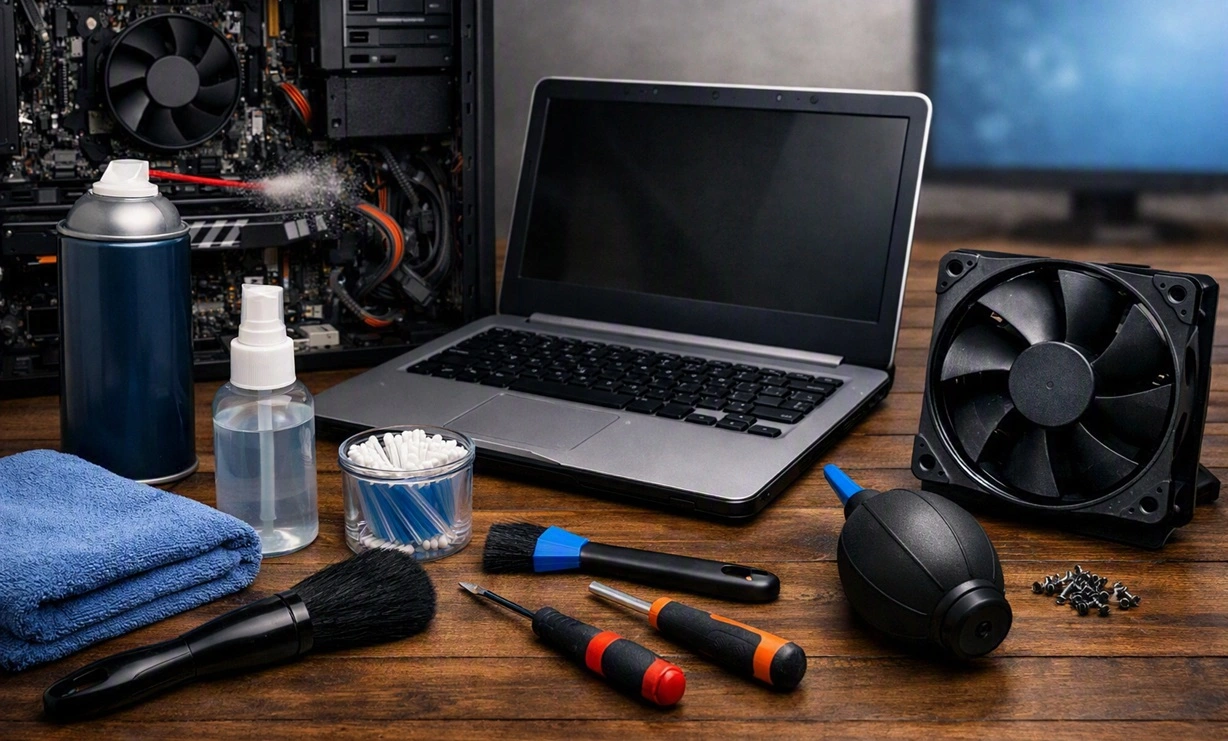
How To Clean Your PC/Laptop: Guide for Beginners to Experts
A computer never announces that it needs help. Well, yes! It just gets slower, hotter, and noisier, one day at a time, until you finally stop and wonder what changed. Nothing changed overnight. What happened is dust and clutter, working quietly in the background for months. Dust settles inside fans and vents, trapping heat and […]

Wise Care 365 PC Cleaner Tool: A Hands-On Review
Every Windows user knows the feeling. Your computer runs fast on day one. Then months pass. Files pile up. The registry gets messy. Startup takes longer. Apps freeze more often. This slow decline is normal, but it is also annoying. Most people just live with it. Some restart their PC often, hoping it helps. It […]

Glary Utilities PC Cleaner: Complete Review [Tested and Trusted]
Glary Utilities is one of the most popular PC optimization tools available today. It combines cleaning, repair, and performance‑boosting features into a single suite. The goal is simple: keep your computer running fast and stable without needing multiple separate programs. In this review, we’ll look at how Glary Utilities performs in real use, what features […]

Microsoft PC Manager: Complete In-Depth Review
A slow computer can ruin your whole day. Files pile up. Startup apps multiply. Before you know it, your once fast machine feels sluggish and tired. Most people search for a fix, but many tools out there are bloated, pushy, or full of ads. Microsoft PC Manager was built to solve this exact problem. It […]

AVG TuneUp Guide: Features, Pros, Cons, and Pricing
PC performance often drops with time. Junk files build up. Startup programs increase. Storage fills up. As a result, your computer may take longer to boot, feel sluggish, or run out of space. The good news is that these problems are usually easy to fix. AVG TuneUp is a PC optimization tool for Windows. It […]

Ashampoo WinOptimizer: Features and Process [Complete Guide]
Ashampoo WinOptimizer is built for users who want a faster, cleaner, and safer PC. In this review, I’ll walk through its features and how the optimization process works. The software promises one‑click fixes, smart automation, and tools that go beyond basic cleanup. The PC cleaning and optimization tool covers performance tuning, privacy protection, and system […]

Top 10 PC Cleaning and Optimization Tools For Windows 11/10 [2026]
Discover the best PC cleaning and optimization tools for Windows 11 and 10. Remove junk files, improve speed, and keep your PC healthy with trusted cleaners.
