How To Clean PC Trackpad/Touchpad Without Damaging It
Introduction:
A laptop trackpad is one of the most used parts of your computer. You touch it many times every day. Over time, dust, oil, and tiny particles build up on the surface. This layer may not be visible at first, but it slowly affects how the trackpad works. It can start to feel rough or sticky. Sometimes, the cursor may not move smoothly. This is why it is important to clean PC touchpad on a regular basis. A clean surface improves both comfort and control.
Many users avoid cleaning because they are unsure about the process. They worry that they may damage the surface or affect the internal parts. This concern is understandable, especially with delicate electronics. However, cleaning is safe when done correctly. You do not need strong chemicals or complex tools. With the right method, you can clean PC trackpad without any risk. This guide explains everything in simple steps so that you can maintain your device with confidence.
_________________________________________________________________________________
Why Clean PC Trackpad?
A clean trackpad also improves hygiene. Your hands carry natural oils and dirt. These get transferred to the trackpad every time you use it. Over time, this creates a thin layer that attracts more dust. Regular cleaning keeps your device fresh and more pleasant to use. It also reduces wear and tear on the surface.
Another important point is long-term performance. A dirty trackpad may start to lose sensitivity. This can affect your work, especially if you rely on gestures. Cleaning helps restore proper response. It ensures that your device continues to function as expected.
Is it Safe to Clean the CPU Trackpad?
Cleaning computer parts can be tricky. Many people mix up internal and external components. The CPU is an internal part and needs careful handling. The trackpad is external and built for daily use. That makes it safer to clean.
It’s safe to clean your trackpad if you do it properly. Be gentle and take your time. Always power off your laptop first. This avoids accidental clicks and keeps the system protected. It also helps you focus on cleaning calmly.
Using the correct materials is also important. A soft microfiber cloth is the best option. It does not scratch the surface and removes dirt easily. Avoid using rough cloths or paper towels. These can damage the finish over time. Always choose tools that are made for delicate surfaces.
Moisture control is another important factor. Never pour liquid directly on the trackpad. This can cause serious damage. Instead, use a slightly damp cloth. Make sure it is not dripping. This helps remove stubborn dirt without letting moisture enter the device.
Cleaning also helps prevent long-term issues. Dirt buildup can affect sensitivity. It may cause uneven tracking or missed gestures. Regular cleaning keeps the surface smooth and responsive. When done properly, it supports the overall health of your device.
Benefits and Drawbacks of Trackpad Cleaning
Cleaning your trackpad offers several benefits. At the same time, there are a few risks if done incorrectly. Understanding both sides helps you take the right approach.
Cleaning your trackpad improves daily use and keeps your device in better condition. However, it should always be done with care and attention.
Advantages:
- Better responsiveness
A clean surface allows smoother finger movement. The cursor responds more accurately. - Improved hygiene
Regular cleaning removes dirt, oil, and bacteria. This keeps your device safe to use. - Longer lifespan
- Comfortable usage
A smooth trackpad feels better under your fingers. It reduces friction. - Reduced errors
A dirty trackpad may cause incorrect gestures. Cleaning improves accuracy. - Professional appearance
A clean laptop looks well-maintained. This is useful in work settings. - Prevents buildup
Frequent cleaning stops dirt from becoming hard to remove later. - Supports performance
A clean trackpad ensures consistent performance during use.
Disadvantages:
- Risk of scratches
Using rough materials may damage the surface. - Moisture damage
Too much liquid can enter the edges and harm internal parts. - Accidental pressure
Pressing too hard while cleaning may affect sensitivity. - Wrong cleaning agents
Harsh chemicals can damage the coating. - Over-cleaning
Cleaning too often may wear out the surface. - Improper tools
Using sharp objects can cause permanent marks. - Lack of care
Rushing the process may lead to mistakes. - Ignoring instructions
Not following safe methods increases the risk of damage.
Essential Precautions Before You Start Cleaning PC Trackpad
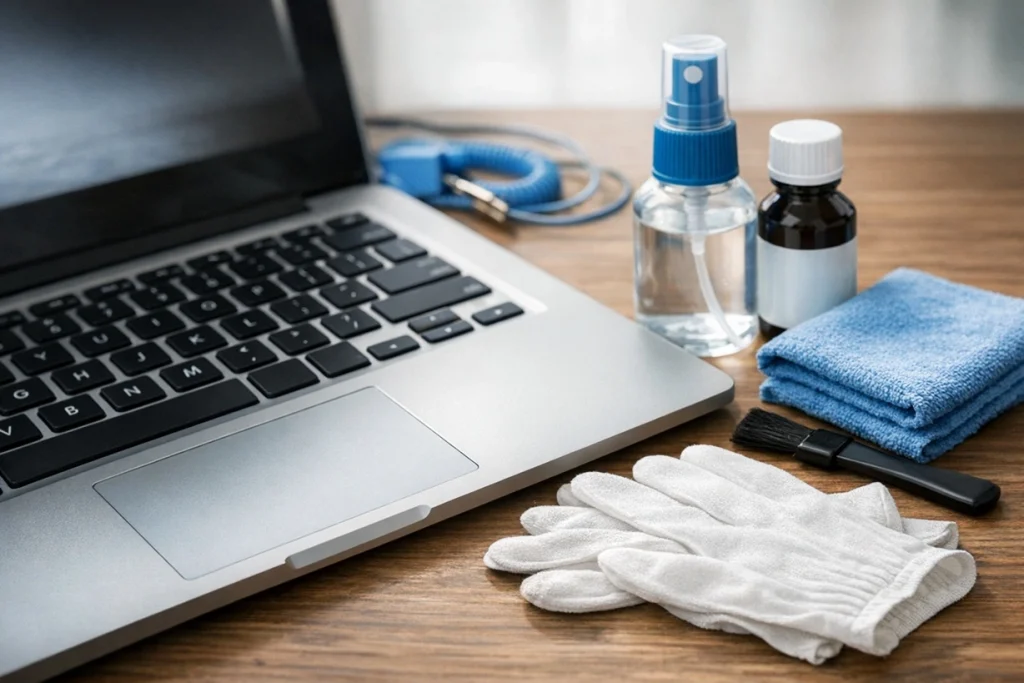
Before you begin cleaning, it is important to take a few precautions. These steps help you avoid damage and ensure safe cleaning.
Cleaning may seem simple, but small mistakes can cause problems. Taking a few minutes to prepare makes a big difference.
- Turn off the device
Always shut down your laptop before cleaning. This step protects both you and the device. It prevents accidental clicks and avoids any electrical risk. Wait a few seconds after shutdown before you begin. - Unplug all connections
Remove the charger, USB devices, and any other accessories. This keeps the laptop fully disconnected from power. It also gives you more space to clean without obstruction. - Use soft materials
Use a microfiber cloth for cleaning. It’s soft and won’t scratch the trackpad. Skip paper towels or rough fabrics, since they can leave marks over time. - Avoid excess liquid
Never use a soaked cloth on the trackpad. Excess moisture can slip into the edges and cause harm. Stick to a lightly damp cloth, and always squeeze out extra water before cleaning. - Do not spray directly
Do not spray any liquid directly on the trackpad. This can let moisture enter internal components. Always apply the liquid to the cloth first, then clean the surface. - Clean gently
Use light pressure while wiping the trackpad. Pressing too hard may affect sensitivity or damage the surface. Gentle and slow movements give better results. - Test cleaning solution
If you plan to use any liquid cleaner, test it on a small corner first. This helps you check if it is safe for your device. It also prevents damage to the coating. - Work in a clean area
Choose a clean and dust-free space for cleaning. This prevents new dirt from settling on the trackpad. A tidy workspace also makes the process easier and more effective.
Quick Methods to Try: How To Clean a PC Trackpad
Cleaning a trackpad is simple when you follow the right method. Each method works for different levels of dirt and usage. Choose the one that suits your situation. Always start with the gentlest option and move to stronger methods only if needed.
Method 1: Dry Cleaning the PC Trackpad
This is the safest and easiest method. It works well for light dust and daily maintenance. You do not need any liquid for this step.
Start by observing the surface. Look for visible dust or smudges. A dry microfiber cloth can remove most of these particles. Move your fingers lightly across the trackpad to check its condition.
Hold the cloth gently and wipe the surface in small circles. Do not rush the process. Slow and steady movement ensures better results. Focus on the edges where dirt often collects.
Step 1: Take a clean microfiber cloth and gently wipe the trackpad surface in a circular motion.
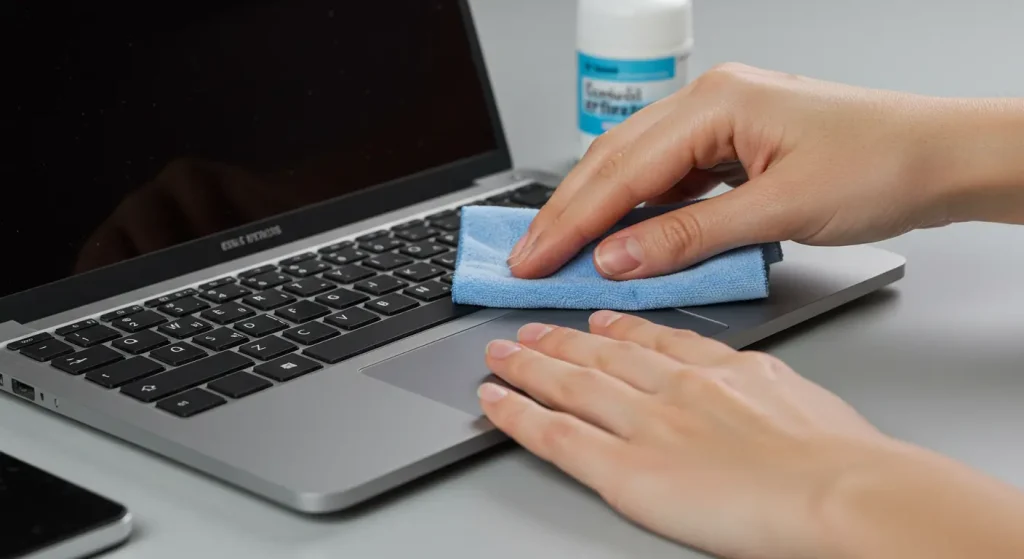
Step 2: Check for any remaining dust and repeat the process if needed.
Method 2: Slightly Damp Cleaning
This method is useful when the surface has oil or sticky residue. It adds a small amount of moisture for deeper cleaning.
First, prepare your cloth. Dampen it slightly with water. Make sure it is not wet. Squeeze out any excess liquid before use. This step is very important.
Gently wipe the trackpad using light pressure. Move in one direction first, then switch to circular motion. This helps lift dirt without spreading it.
After cleaning, use a dry cloth to remove any remaining moisture. This prevents water from staying on the surface.
Step 1: Lightly dampen a microfiber cloth and wipe the trackpad surface gently.
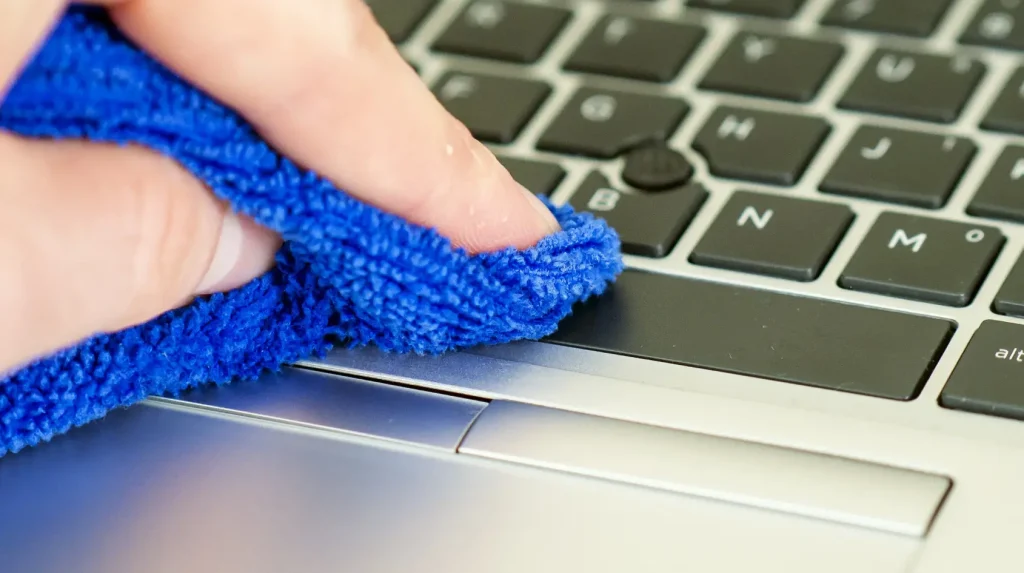
Step 2: Use a dry cloth to remove moisture and allow the surface to air dry.
Method 3: Mild Cleaning Solution
Use this method for stubborn stains or heavy buildup. It should not be used frequently. Only apply it when needed.
Choose a safe cleaning solution. A mix of water and a small amount of mild soap works well. Avoid strong chemicals. They can damage the coating.
Apply the solution to a cloth, not directly on the trackpad. Wipe gently and focus on stained areas. Do not scrub aggressively. This can harm the surface.
Once done, wipe again with a damp cloth to remove residue. Finish with a dry cloth for best results.
Step 1: Apply a small amount of mild cleaning solution to a cloth and wipe gently.
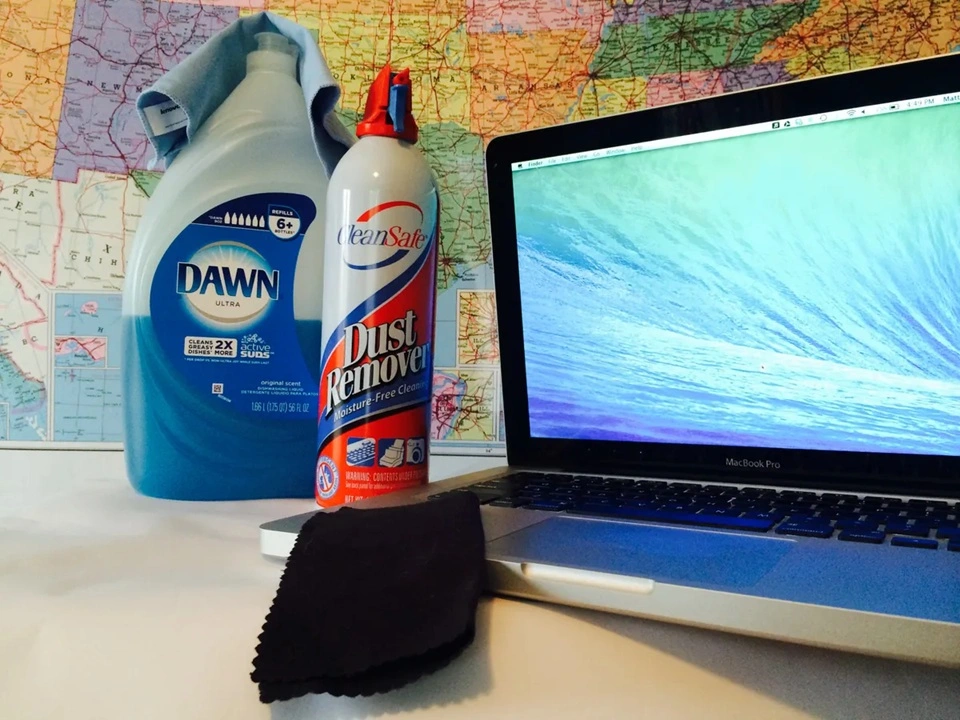
Step 2: Clean again with a damp cloth and dry the surface completely.
Author’s Tip
Always follow a simple routine when cleaning your trackpad. Do not wait until it becomes very dirty. Light and regular cleaning is more effective than deep cleaning. It also reduces the risk of damage.
Keep a microfiber cloth near your workspace. This makes it easy to clean your device whenever needed. A quick wipe at the end of the day helps maintain cleanliness. It takes only a few seconds but makes a big difference.
Avoid using random cleaning products. Many household cleaners are too strong for electronic surfaces. Stick to safe and tested methods. This ensures that your trackpad remains in good condition for a long time.
Conclusion
Cleaning your trackpad is an important part of laptop care. It improves both performance and comfort. A clean surface responds better and feels smoother during use. It also gives your device a neat appearance.
The process is simple when done correctly. You only need basic tools and a little care. Avoid rushing and follow each step properly. This reduces the risk of mistakes and keeps your device safe.
Regular cleaning also helps in the long run. It prevents dirt buildup and protects the surface. With consistent care, your trackpad will remain smooth and responsive for years.
FAQs:
How often should I clean my trackpad?
You should clean your trackpad once every one to two weeks for regular use. If your hands are often oily or your environment is dusty, you may need to clean it more often. Light, frequent cleaning is better than waiting for heavy buildup. It helps maintain smooth movement and keeps the surface in good condition over time.
Can I use alcohol to clean my trackpad?
Yes, you can use a small amount of diluted alcohol, but it must be handled with care. Always apply it to a microfiber cloth first instead of pouring it directly on the trackpad. Use it only when needed for stubborn marks. Frequent use may wear down the surface coating, so it is best to use it occasionally.
What should I avoid while cleaning my trackpad?
You should avoid using too much water, as moisture can enter the edges and damage internal parts. Do not use rough cloths or paper towels, as they may scratch the surface. Strong cleaning chemicals should also be avoided, as they can harm the finish. Always clean gently and never use sharp objects, as they can cause permanent damage.
Popular Post
Recent Post

Iolo System Mechanic Review: Full Breakdown and Honest Take
Iolo System Mechanic is designed for users who want their PC to feel fresh and responsive again. With just a few clicks, it digs into the system, clears out unnecessary clutter, and delivers noticeable speed improvements. The interface is straightforward and beginner‑friendly, making it easy to navigate without confusion. But this tool goes beyond simple […]

Clean Master for PC Tested: A Full Breakdown of Its Tools
A computer doesn’t slow down overnight. Right? It happens bit by bit. Extra downloads, leftover cache, startup apps piling up. Soon the fast machine you loved feels sluggish. Boot times drag, programs freeze, and even opening a browser tab feels heavy. This slow decline is common, caused by junk files, cluttered registries, and hidden tasks […]
How To Clean Your PC/Laptop: Guide for Beginners to Experts
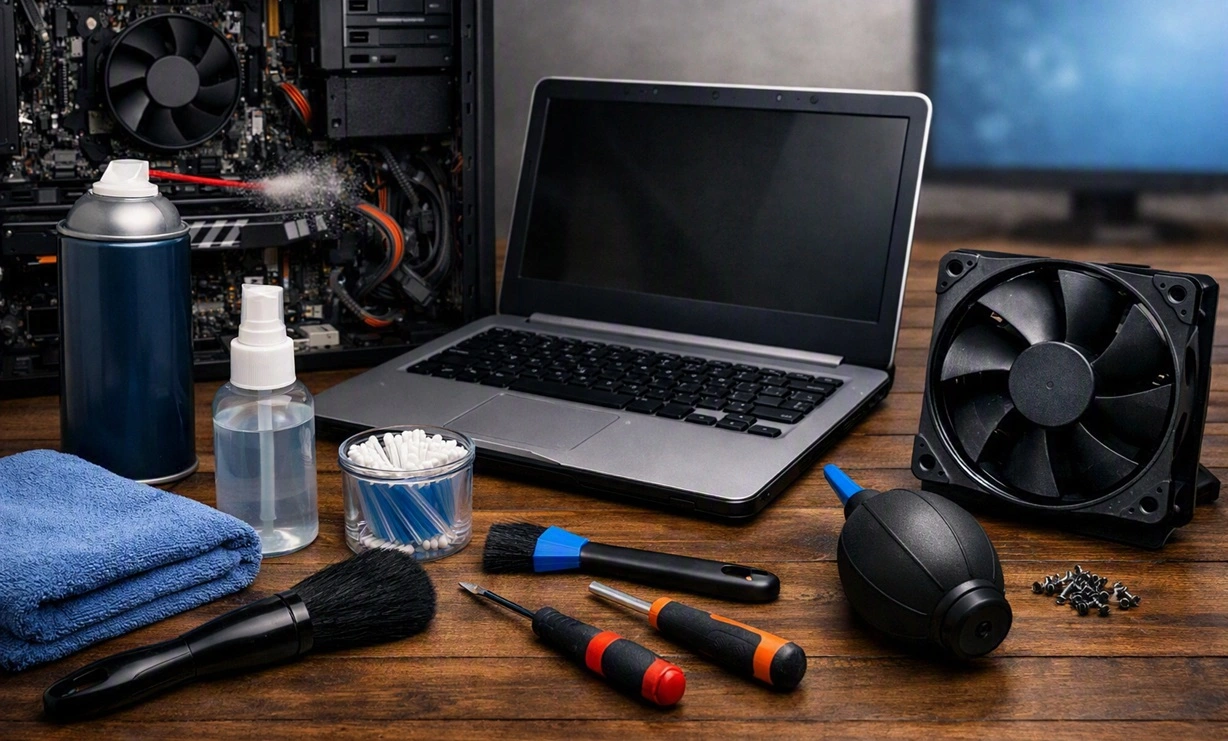
A computer never announces that it needs help. Well, yes! It just gets slower, hotter, and noisier, one day at a time, until you finally stop and wonder what changed. Nothing changed overnight. What happened is dust and clutter, working quietly in the background for months. Dust settles inside fans and vents, trapping heat and […]

Wise Care 365 PC Cleaner Tool: A Hands-On Review
Every Windows user knows the feeling. Your computer runs fast on day one. Then months pass. Files pile up. The registry gets messy. Startup takes longer. Apps freeze more often. This slow decline is normal, but it is also annoying. Most people just live with it. Some restart their PC often, hoping it helps. It […]

Glary Utilities PC Cleaner: Complete Review [Tested and Trusted]
Glary Utilities is one of the most popular PC optimization tools available today. It combines cleaning, repair, and performance‑boosting features into a single suite. The goal is simple: keep your computer running fast and stable without needing multiple separate programs. In this review, we’ll look at how Glary Utilities performs in real use, what features […]

Microsoft PC Manager: Complete In-Depth Review
A slow computer can ruin your whole day. Files pile up. Startup apps multiply. Before you know it, your once fast machine feels sluggish and tired. Most people search for a fix, but many tools out there are bloated, pushy, or full of ads. Microsoft PC Manager was built to solve this exact problem. It […]

AVG TuneUp Guide: Features, Pros, Cons, and Pricing
PC performance often drops with time. Junk files build up. Startup programs increase. Storage fills up. As a result, your computer may take longer to boot, feel sluggish, or run out of space. The good news is that these problems are usually easy to fix. AVG TuneUp is a PC optimization tool for Windows. It […]

Ashampoo WinOptimizer: Features and Process [Complete Guide]
Ashampoo WinOptimizer is built for users who want a faster, cleaner, and safer PC. In this review, I’ll walk through its features and how the optimization process works. The software promises one‑click fixes, smart automation, and tools that go beyond basic cleanup. The PC cleaning and optimization tool covers performance tuning, privacy protection, and system […]

Top 10 PC Cleaning and Optimization Tools For Windows 11/10 [2026]
Discover the best PC cleaning and optimization tools for Windows 11 and 10. Remove junk files, improve speed, and keep your PC healthy with trusted cleaners.
Clear Microsoft Teams Cache On Windows PC [Complete Guide]
Learn how to clear Teams cache on Windows PC with 3 easy methods. Fix slowdowns, glitches, and errors fast. A simple guide for every Windows 11 user.
