PrivaZer PC Cleaning Tool: An In-Depth Review
Deleting a file in Windows does less than most people think. The system removes the file’s entry from its index and marks the space as free. The actual data often stays on the disk until something else overwrites it. That is why recovery tools can bring back files long after they were deleted.
Files are only part of the picture. Windows also records what you opened, searched, and visited. Recent file lists, jump lists, thumbnails, browser history, registry lists, and temporary data all keep small traces. Many leave the rest behind, along with the free space where old data still sits.
PrivaZer helps remove unwanted files and traces of past activity that can remain on a Windows PC. The free version combines system cleanup, privacy protection, and secure data erasure in one tool. This review covers its main features, how the software works, the extra benefits offered by the paid version, and the limitations worth knowing before you use it.
Alt title: PrivaZer Reviewed: Features, Pricing, and Real Results
Part 1: Introduction: PrivaZer PC Cleaning Tool
PrivaZer is a PC cleanup tool made by Goversoft. It removes junk files, clears traces of your activity, and can overwrite free space so deleted data cannot be recovered. It is available as a normal installer and as a portable app. A free edition covers the core job, and a PRO edition adds extras.
PrivaZer is designed for users who want to keep their computers clean while protecting their privacy. According to Softpedia, the software can find traces of activity stored in Windows history, RAM, Start menu entries, jump lists, and indexing data. It also removes temporary files, system logs, and items sitting in the Recycle Bin. Users can choose between normal, quick, and turbo cleaning modes, depending on how thoroughly they want to scan their system and how much time they have.
Using PrivaZer is fairly straightforward. Run a scan, check the items it identifies, and decide which ones you want to remove. This approach lets you review the results before making changes to your system.
PrivaZer focuses mainly on removing leftover data and activity traces rather than delivering an instant boost in PC speed. It is particularly useful for people who want greater control over the information their computers retain.
Key features at a glance:
- Basic and Advanced modes chosen at first run
- Normal, quick, and turbo cleanup options
- Cleaning of Windows history, jump lists, and registry lists
- Free space cleaning with secure overwriting
- Smart overwriting that adapts to SSD or magnetic disks
- Browser history and cookie cleanup
- Disk space usage view
- Portable version and automatic restore point creation
Quick Info About PrivaZer
- Latest Version: 4.0.127
- Release Date: October 4 to 5, 2026 (as listed by MajorGeeks and FileHorse)
- File Size: About 28 MB
- Developer: Goversoft
- Supported OS: Windows 7, 8, 10, and 11. Older builds also list XP and Vista.
- Formats: Installer and portable app
- License: Freemium, with a PRO edition (formerly called the Donors version)
Notable Points in Recent Releases
- Version 4.0.62, from January 2022, renamed the Donors version to PRO and improved restore point creation.
- Version 4.0.127 is the latest build listed on major download sites in October 2026.
- MajorGeeks hosts an official mirror and lists PrivaZer among its top drive cleaners.
- Smart overwriting recognizes the storage type and adjusts its erasing method.
Part 2: Top Reasons to Give PrivaZer a Try
Below are the strongest reasons why users pick PrivaZer.
- Free to use: The main edition costs nothing. Reviewers on SourceForge praise how much the free edition includes.
- Privacy focus: Most cleaners stop at junk files. PrivaZer also goes after traces of your activity.
- Free space cleaning: It can overwrite unused disk space, so previously deleted data becomes much harder to recover.
- Smart overwriting: It recognizes whether a drive is a magnetic disk or an SSD and adapts its method. That matters for drive health.
- Basic or Advanced mode: New users get a short list of options. Experts get a full list.
- Restore point support: It can create a restore point before cleaning, which gives you a safe way back.
Part 3: Key Features Explained: PrivaZer Tool
PrivaZer offers many tools in one window. Below, we explain the seven that matter most in daily use.
Basic and Advanced Mode
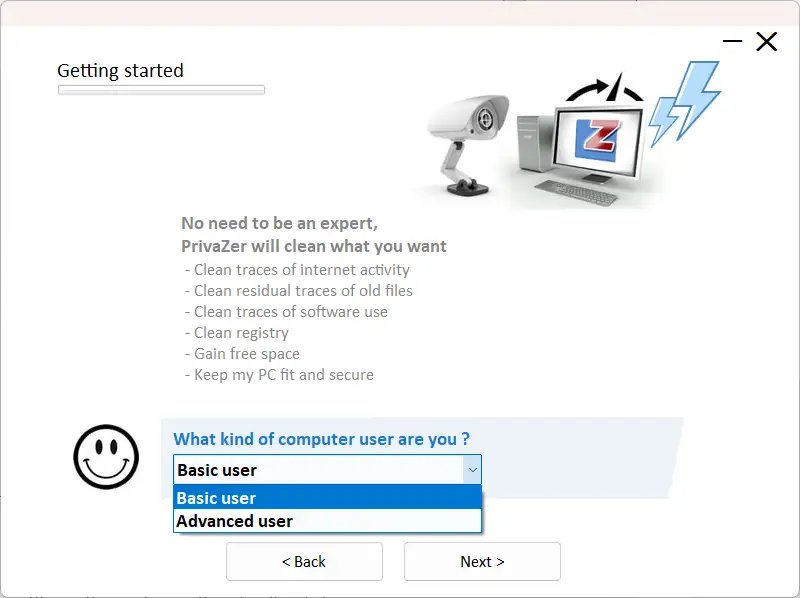
After installation, PrivaZer asks a short series of questions. You choose between a basic mode and an advanced mode. Basic mode shows a shorter list of options and suits beginners. Advanced mode shows everything and gives you finer control. One long-term user on SourceForge says this first-run setup was a pleasant surprise. It lets the tool match your comfort level.
Normal, Quick, and Turbo Scans
You can start cleanup in three ways. Normal cleanup is the most thorough. Quick cleanup skips the deepest checks and finishes faster. Turbo cleanup is the fastest option. This gives you a clear trade-off between depth and time. For a weekly tidy-up, quick or turbo is usually enough. For a deep privacy sweep, use the normal mode.
Trace and History Cleaning
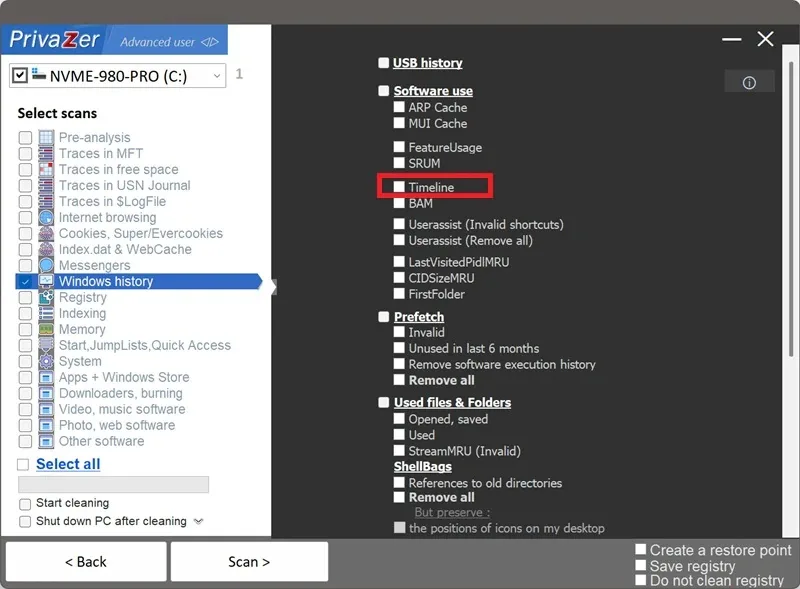
This is where PrivaZer stands apart. SaaSworthy lists a wide range of targets, including browser history, cookies, download records, cached images, thumbnails, recent document lists, prefetch files, registry MRU lists, jump lists, clipboard remnants, and temporary files. It also checks the pagefile and RAM-related traces. Reviewers say this is the main reason to choose it over basic junk cleaners.
Free Space Cleaning and Secure Overwriting
When you delete a file normally, the data often stays on the disk. PrivaZer can overwrite that free space so old data is harder to recover. The overwrite options range from a simple one-pass method to the Gutmann method, according to a user review on Trustpilot. Smart overwriting adapts to your drive type. Be aware that deep overwriting can take a long time on large drives, and the process is permanent.
Browser and Cookie Cleaner
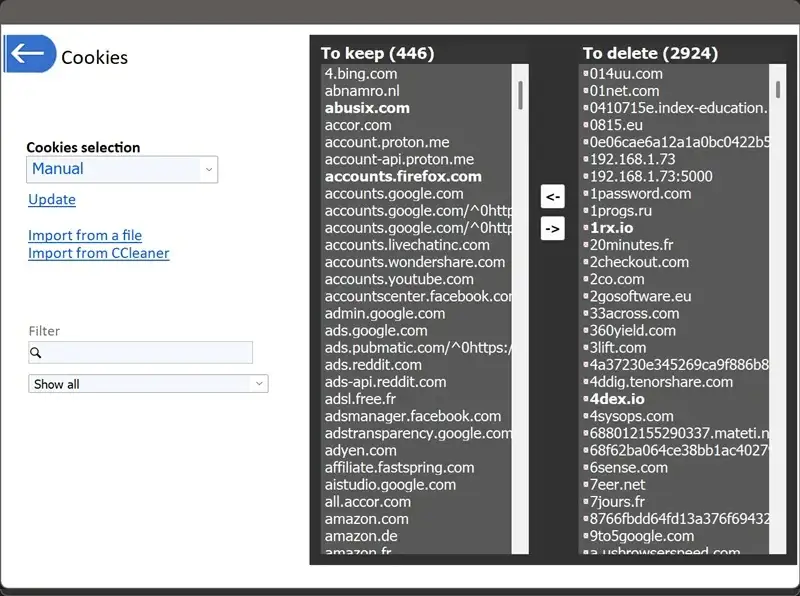
Web browsers collect a lot of traces. History, cookies, cached images, and download records pile up over time. PrivaZer clears these and includes a dedicated cookie view, as shown in its screenshots on SaaSworthy. This helps on a shared PC. Note that clearing cookies can sign you out of websites, so review the list before you confirm.
Portable Version and Restore Points
PrivaZer is available as a portable app, so you can run it from a USB drive and leave no installation behind. That suits technicians and people who use more than one PC. The tool can also create a restore point before it cleans. Together, these two features make deep cleaning feel safer and more flexible.
Part 4: How to Use PrivaZer Tool: Step-by-Step Guide
Using PrivaZer is easy, but it asks for more attention than a basic cleaner. A first scan can take a while, depending on your drive size and the mode you choose. Set aside some time before you begin.
Before you start, remember that secure overwriting is permanent. Anything you erase this way cannot be recovered. Back up files you may need later. Also create a Windows restore point, or let PrivaZer do it for you. Then follow these three steps.
Step 1: Download and Install
Go to the official PrivaZer website and download the free edition. On the first run, PrivaZer asks a few questions. Choose basic mode if you are new, or advanced mode if you want full control. Select the “Scan in-depth” option.
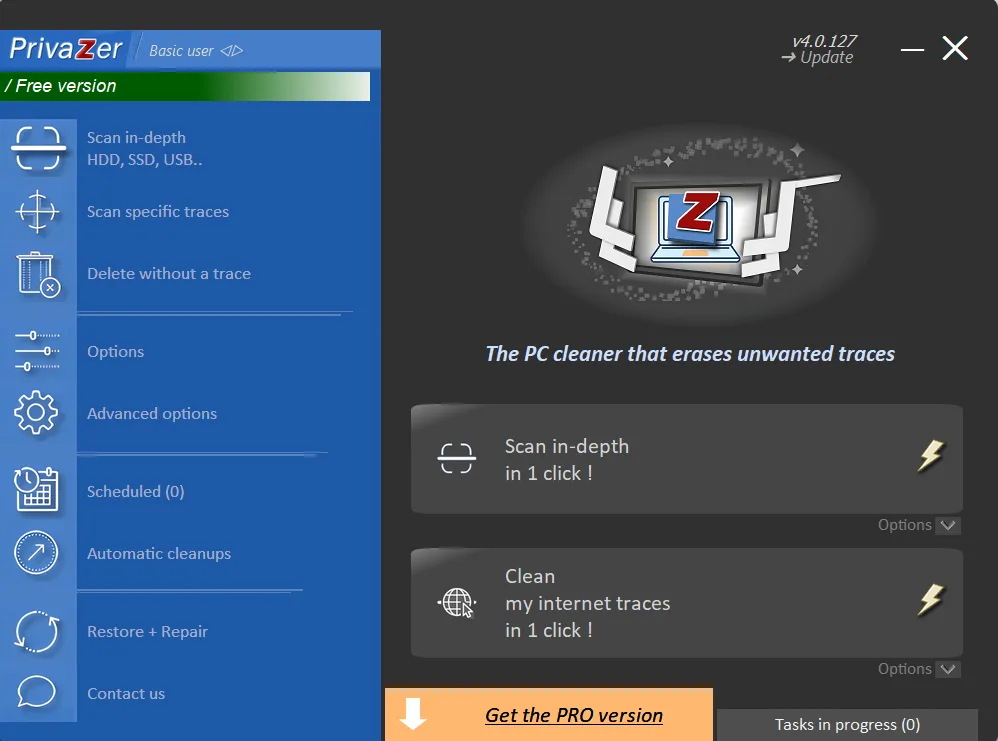
Step 2: Choose a Mode and Start the Scan
Pick the drive you want to scan. Start the scan and let it finish. Close heavy apps while it works.
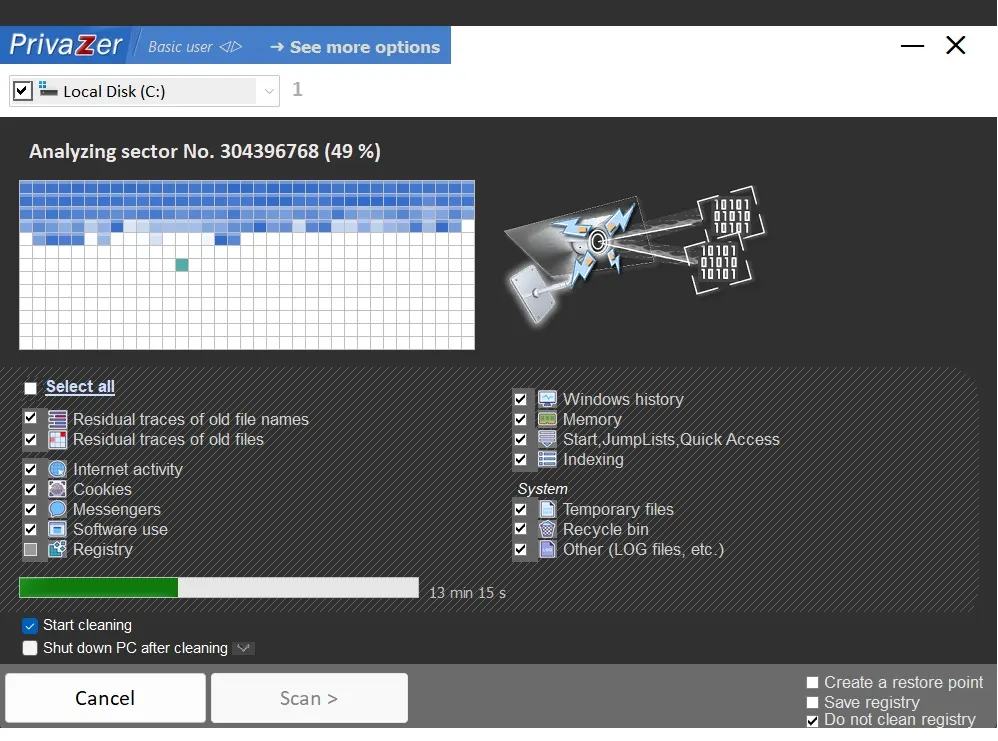
Step 3: Review and Clean
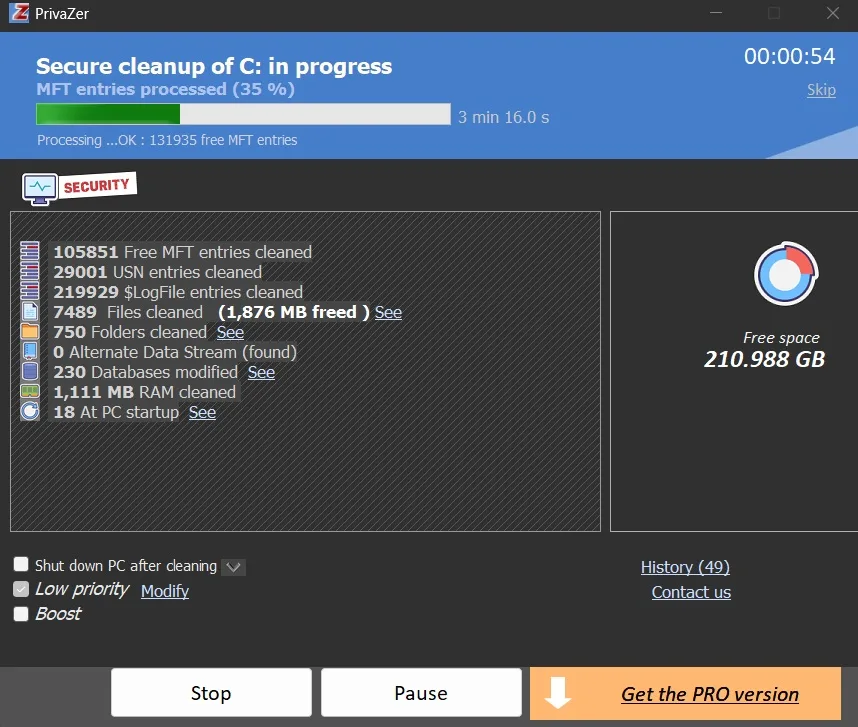
When the scan ends, PrivaZer lists the traces and junk it found. Read the list before you act. Uncheck anything you want to keep, such as recent file lists you still use. Then start the cleanup. If you choose free space overwriting, allow extra time. When it finishes, restart your PC. If something looks wrong, use your restore point.
Part 5: Pros and Cons of PrivaZer Software
No software is perfect. Being honest about weak points matters as much as praising strong ones. Below is a clear list of pros and cons, based on our use and on common patterns in reviews.
Pros
- Free edition: The core tool costs nothing, and user reviews call it generous.
- Deep privacy cleaning: It covers traces that many cleaners skip.
- Smart overwriting: It adapts to SSD and magnetic drives.
- Full control: You review the results and choose what to remove.
- Portable option: It runs from a USB drive without installation.
- Few upsells: A 2026 SourceForge reviewer notes that it only promotes its own PRO edition.
Cons
- Slow deep scans: Free space overwriting can take a long time on large drives.
- Permanent results: Secure erasure cannot be undone, so careless clicks can cause loss.
- Not a speed booster: It frees space and clears traces, but it does not tune startup or memory.
- Busy options: Advanced mode shows many settings that may confuse new users.
- Unclear PRO details: Sources disagree on pricing and on exactly what PRO adds. One Trustpilot reviewer also reports trouble getting a renewed PRO license after donating.
Part 6: Pricing Plans: PrivaZer Tool
PrivaZer uses a donation-based model. The main edition is free. A PRO edition, which used to be called the Donors version, adds extra features. MajorGeeks states that donations start at only $10. Other listings show different figures, so check the official site before you pay.
- Free Edition: No cost. It includes core scanning, cleanup, free space overwriting, and the portable app.
- PRO Edition: Available through a donation. MajorGeeks says donations start at $10. FileHorse lists a PRO price of $49, so the amount may vary by offer. Confirm on the official site.
- PRO Extras: An older review lists additional privacy protection, automatic cleanup, automatic update downloads, command line operations, and priority support.
- Free Trial: None needed. The free edition has no time limit.
Here is a side-by-side look at the free and PRO editions, based on what reviewers report.
| Feature | Free Edition | PRO Edition |
| Scanning and cleanup | Yes | Yes |
| Free space overwriting | Yes | Yes |
| Portable version | Yes | Yes |
| Additional privacy protection | No | Yes |
| Automatic cleanup | Not confirmed | Yes |
| Automatic update downloads | No | Yes |
| Command line operations | No | Yes |
| Priority support | No | Yes |
| Price | Free | Donation, from $10 per MajorGeeks |
Summary: The free edition is enough for most home users. PRO suits people who want automation, command line use, and extra privacy options. Because the donation amount varies by source, check the official page before you pay.
Part 7: Performance in Practice: How the Tool Handled My PC
I tried PrivaZer on my Windows 11 laptop. I downloaded the free installer from the official site and finished setup in a minute or two.
On the first run, I picked basic mode. The questions were short and clear, and the layout felt calmer than I expected from a privacy tool.
I started with a normal scan of my system drive. It took longer than most cleaners do, since it looks deeper. The results listed junk files, browser traces, and recent activity data. I read the list and unchecked a few recent file entries that I still use. Then I ran the cleanup. Afterward, I had more free space, and the system felt tidy. I did not notice a speed boost, which is normal for this kind of tool.
There were some drawbacks. The deep scan needed patience. I also felt the weight of the permanent overwrite options, so I tried them only on a small test drive first. Still, PrivaZer never froze, and it did not push upgrades on me. For privacy-minded cleanup, I found it more thorough than the basic cleaners I have used. I would run it every few weeks on a busy PC.
Part 8: A Look at PrivaZer’s Global Reputation
PrivaZer has a strong reputation among privacy-focused users. Most reviewers praise its free edition and its depth. Criticism centers on scan time and the unclear PRO details.
Global Trust and Reputation
- Long-running product: PrivaZer has been updated for years, and version 4.0.127 was released in October 2026.
- Wide download base: Softpedia lists it as a freemium tool with a clean rating, and MajorGeeks hosts an official mirror.
- Expert caution: Reviewers advise you to back up files, review each scan, and treat secure overwriting as permanent.
Reviews and Ratings
| Source | Rating | Highlights | Concerns |
| SourceForge (2026) | Positive user reviews, no score seen | Free, portable, no nagware, helpful support | Mostly small user samples |
| G2 | Positive user reviews, no score seen | Seen as a strong alternative to mainstream cleaners | Product profile is partly vendor supplied |
| Trustpilot | Positive user reviews, no score seen | Many long-term users, free edition praised | One user reports trouble with a renewed PRO license |
| Softpedia | Listed as clean, no score | Cleans history, jump lists, RAM traces, and more | Freemium model with extras in PRO |
| MajorGeeks | No score | Official mirror, donations from $10 | Donation amount differs from other listings |
Strengths Noted Worldwide
- Depth: It clears traces that many cleaners miss.
- Value: The free edition includes a lot.
- Control: You review the results before cleaning.
Limitations Affecting Trust
- Scan time: Deep options can take hours on large drives.
- Irreversible actions: Secure erasure cannot be undone.
- PRO details: Sources disagree on price and features.
- Not a tuner: It does not manage startup items or memory.
Conclusion
PrivaZer is a deep cleaning tool with a strong privacy focus. It clears junk, history, and traces of your activity. It can overwrite free space so deleted data is harder to recover. It offers basic and advanced modes, a portable version, and a free edition that has no time limit.
The weak points are easy to name. Deep scans take time. Secure overwriting is permanent. It will not speed up a slow PC by itself. Sources also disagree on the cost of PRO, so check before you donate.
For people who want a thorough, free privacy cleaner, PrivaZer is worth a try. Start with the free edition, use basic mode, and create a restore point. Review each scan before you clean. If you later want automation and command-line use, PRO may be worth a small donation. For general speed tuning, you may want to pair it with other tools.
FAQs
1. Is PrivaZer free and safe to use?
Yes, there is a free edition with no time limit, and it covers the core cleanup features. Softpedia lists the file as clean, and MajorGeeks hosts an official mirror. Download it only from the official site or a trusted mirror. Because secure overwriting is permanent, back up important files first, review each scan, and create a restore point before you clean.
2. What is the difference between the free edition and PRO?
The free edition handles scanning, cleanup, free space overwriting, and the portable app. PRO adds extras such as additional privacy protection, automatic cleanup, automatic update downloads, command line operations, and priority support, according to an older review. PRO is funded by donations, and MajorGeeks says they start at $10. Other listings show different prices, so confirm on the official page.
3. Does PrivaZer make my PC faster?
Not directly. It frees disk space and clears traces, which can help a crowded drive. But it does not manage startup items, memory, or background apps. If your PC is slow, check startup programs and storage first. Use PrivaZer when your goal is privacy and deep cleanup, not raw speed.

Author Bio:
Dinesh Lakhwani, the entrepreneurial brain behind “TechCommuters,” achieved big things in the tech world. He started the company to make smart and user-friendly tech solutions. Thanks to his sharp thinking, focus on quality and the motto of never giving up, TechCommuters became a top player in the industry. His commitment to excellence has propelled the company to a leading position in the industry.
Popular Post






Recent Post
PrivaZer PC Cleaning Tool: An In-Depth Review
Deleting a file in Windows does less than most people think. The system removes the file’s entry from its index and marks the space as free. The actual data often stays on the disk until something else overwrites it. That is why recovery tools can bring back files long after they were deleted. Files are […]
Windows Disk Cleanup Review: Features, Steps, and Real Results
Storage space does not disappear overnight. Tiny pieces of data accumulate little by little while Windows performs routine tasks. Old update files, temporary program data, and other unused items often remain saved on the drive. Eventually, these forgotten files can take up room that could be used for something more important. Disk Cleanup is a […]

JetClean Junk File Cleaner and PC Cleaning Tool: A Complete Review
Heads up before you read further: JetClean (made by BlueSprig) is discontinued. Its last version dates to 2016, and several listings say the official download is gone. Let’s begin our review article! Few Windows utilities stay in circulation for more than a decade without a major update. JetClean is one of them. The tool first […]

Defencebyte Computer Optimizer: An In-Depth Review
Slow startup, delayed app launches, and freezing windows are among the most common complaints from Windows users. In many cases, the cause is not failing hardware. It is the gradual buildup of leftover data. Uninstalled programs leave registry entries behind. Temporary files and logs collect in system folders. Broken file paths and unused extensions stay […]

Windows Storage Sense For PC Cleaning: Everything You Need To Know
The low disk space warning always shows up at the worst time. A big update is waiting to install. A file refuses to save. The storage bar in Settings has turned red, and nobody remembers what filled it. Most people react by hunting for a cleaner to download. Many never notice that Windows already has […]

EaseUS CleanGenius Reviewed: Features, Pricing, and Real Results
Nobody notices the first temporary file. Nobody notices the hundredth either. Then one day the drive is almost full, the browser drags, and Windows takes ages to start. Clutter builds in quiet ways. Installers leave leftovers. Browsers store cache and cookies. Apps write logs that nobody reads. Programs add themselves to startup without asking. None […]

Advanced SystemCare: Tool To Clean Your PC [Complete Review]
The first thing I notice is how the startup screen hangs. The fan kicks in fast and stays loud. If I open a simple folder, the whole system pauses for a moment. It does not look like a clear hard failure, yet the PC feels heavy and slow. This is not usually one big problem. […]

CCleaner PC Cleaning Tool: An In-Depth Review
Learn how to clean your PC with CCleaner. This complete guide covers features, step-by-step instructions, pros, cons, pricing, and FAQs to help you decide.

Avira PC Speed Up Tool: Is It Actually Worth It?
A fresh Windows install feels like a different world. Isn’t it? Everything opens fast. Menus snap into place. Then a year passes, sometimes less, and that same machine starts to feel heavy for no clear reason. Nothing dramatic happened. No single event caused it. It was just months of small leftovers stacking up quietly in […]
Avast PC Cleanup Tool: A Detailed Review
Computers do not slow down overnight. Well, yes! That’s right! It happens in small steps. A temporary file here. A leftover installer there. A browser cache that quietly grows for months without anyone noticing. Add a few startup programs that load automatically, and soon your once fast machine feels like it is wading through mud. […]
