Your Organization’s Data Cannot Be Pasted Here: 7 Ways to Fix It
Data sharing and collaboration are essential for the smooth functioning of any organization. However, encountering issues while copying and pasting data can be frustrating and hinder productivity. One common error message that users often come across is “Your organization’s data cannot be pasted here.” Here, we will explore seven effective ways to fix this issue and get your data flowing seamlessly.
Potential Causes of the Error
There are several potential reasons why the error “Your Organization’s Data Cannot Be Pasted Here” may occur. Understanding these underlying causes is essential for effectively troubleshooting and resolving the issue. Some common reasons for encountering this error include:
1. Data Security Policies
Many organizations implement strict data security policies to safeguard sensitive information. These policies may restrict the copying and pasting of data between different applications or platforms to prevent unauthorized access or data breaches.
2. Clipboard Restrictions
Some software applications and network configurations impose limitations on the types of data that can be copied and pasted within the organizational environment. This may be enforced through clipboard management tools or group policies that control data transfer capabilities.
3. Data Formatting Issues
Incompatibilities in data formatting between the source and destination locations can lead to the “Your Organization’s Data Cannot Be Pasted Here” error. Differences in file types, encoding, or structure may hinder the seamless transfer of data.
4. Application Integration Constraints
When working with interconnected software systems or enterprise applications, integration constraints may prevent certain types of data from being pasted across platforms. This can be attributed to interoperability issues and incompatible data formats.
5. Network Permissions and Access Controls
In networked environments, access controls and permissions play a crucial role in governing data transfer activities. Insufficient privileges or restrictive access settings can result in the inability to paste data across organizational boundaries.
Best Practices for Data Transfer Within Organizations
It is important for organizations to establish best practices for data transfer to promote seamless collaboration and productivity. Some best practices include:
1. Educating Users
Providing comprehensive training and guidelines to users regarding data transfer protocols and organizational policies can mitigate inadvertent errors and promote responsible data handling.
2. Implementing Secure Data Transfer Mechanisms
Leveraging secure data transfer mechanisms, such as encrypted file-sharing platforms or secure enterprise collaboration tools, can enhance data security while facilitating controlled data exchange within the organization.
3. Regularly Updating Policies and Procedures
Organizations should periodically review and update their data transfer policies and procedures to adapt to evolving technological landscapes and regulatory requirements. This ensures that data transfer practices remain aligned with organizational goals and compliance standards.
4. Leveraging Data Integration Solutions
Investing in robust data integration solutions that facilitate seamless data exchange and transformation across disparate systems can streamline data transfer processes while mitigating compatibility issues.
5. Conducting Regular Audits
Performing regular audits of data transfer activities and access controls can help identify potential vulnerabilities and areas for improvement. This proactive approach can strengthen data governance and compliance within the organization.
Your Organization’s Data Cannot Be Pasted Here: 7 Ways to Fix It
Addressing the “Your Organization’s Data Cannot Be Pasted Here” error requires a systematic approach to troubleshooting and implementing appropriate solutions. The following methods can be employed to resolve the issue:
Method 1: Check for Compatibility Issues

Sometimes, the “Your organization’s data cannot be pasted here” error occurs due to compatibility issues between different applications or versions. To resolve this, ensure that you are using compatible software versions, especially when copying from one program to another. Additionally, confirm that both the source and destination applications support the specific data format you’re trying to copy.
Method 2: Clear Clipboard
The clipboard is a temporary storage area that holds the data you copy or cut until you paste it elsewhere. If the clipboard is full or contains corrupted data, it can cause the “Your organization’s data cannot be pasted here” error. To clear the clipboard, follow these steps:
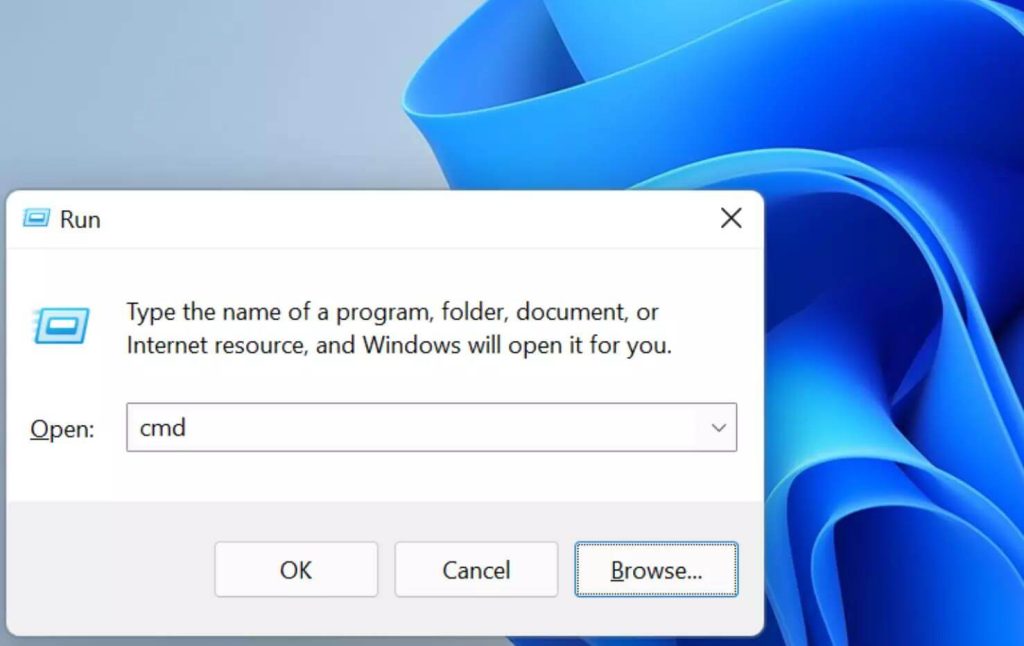
Step 1: Press Windows key + R to open the Run dialog box.
Step 2: Type “cmd” and press Enter to open the Command Prompt.
Step 3: In the Command Prompt, type “echo off | clip” and press Enter.
Step 4: Close the Command Prompt and try copying and pasting the data again.
Method 3: Use Paste Special
If you are copying data from a source that contains formatting or formulas, using the Paste Special option can help overcome the “Your organization’s data cannot be pasted here” error. Follow these steps to use Paste Special:
Step 1: Copy the data as usual.
Step 2: Right-click on the destination cell where you want to paste the data.
Step 3: Select the “Paste Special” option from the context menu.
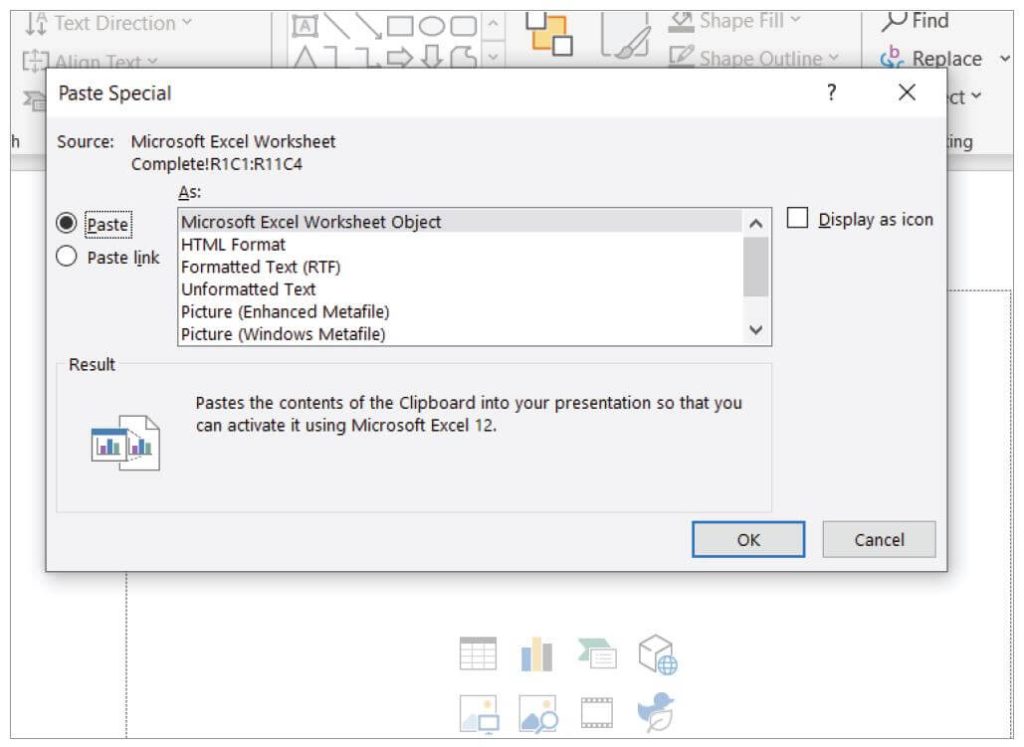
Step 4: Choose the appropriate paste option (e.g., Values, Formulas, Formats) based on your needs.
Step 5: Click OK to complete the paste operation.
Method 4: Disable Protected View
Protected View is a security feature in applications like Microsoft Office that helps protect your computer from potentially harmful files. However, it can sometimes interfere with copying and pasting data. To disable Protected View, follow these steps in Microsoft Office applications:
Step 1: Open any Office application.
Step 2: Click on “File” in the top left corner.
Step 3: Select “Options” from the dropdown menu.
Step 4: In the Options window, click on “Trust Center” in the left-hand pane.
Step 5: Click on the “Trust Center Settings” button on the right.
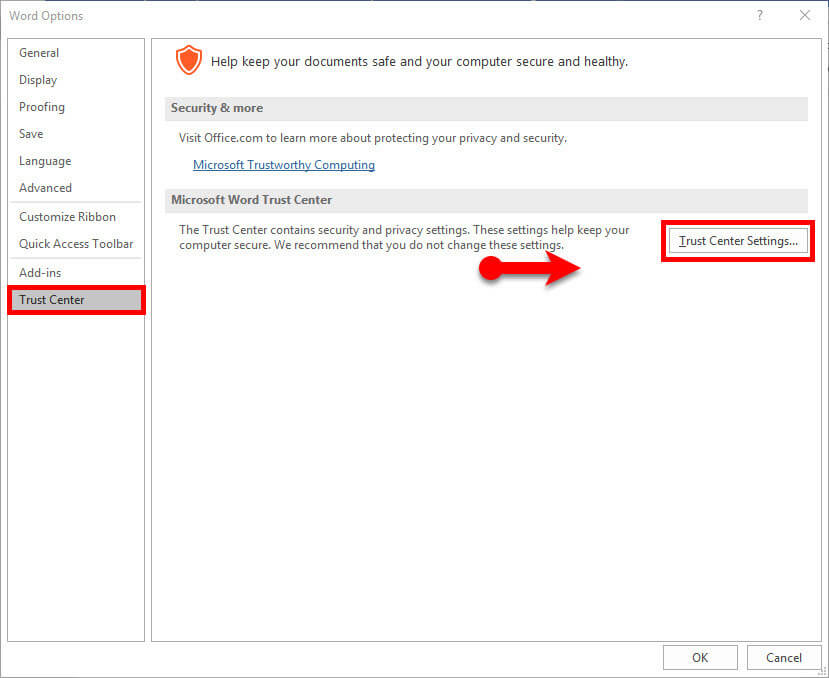
Step 6: In the Trust Center window, select “Protected View” from the left-hand pane.
Step 7: Uncheck the options under “Protected View” that apply to your situation.
Step 8: Click OK to save the changes.
Method 5: Check Security Settings

Sometimes, security settings within your organization’s network or firewall can prevent data from being copied and pasted. If you encounter the “Your organization’s data cannot be pasted here” error, reach out to your IT department or network administrator to ensure that the necessary permissions and firewall settings are in place to allow data transfer.
Method 6: Update Software

Outdated software can often lead to compatibility issues and errors like “Your organization’s data cannot be pasted here.” Ensure that both the source and destination applications are up to date with the latest patches and updates. Regularly check for software updates and install them promptly to avoid potential conflicts.
Method 7: Consult IT Support

If all else fails, it’s always a good idea to seek assistance from your organization’s IT support team. They have the expertise to diagnose and troubleshoot complex issues related to data transfer and can provide tailored solutions based on your specific environment.IT support teams are there to help and support you in resolving any technical challenges you encounter. Don’t hesitate to reach out to them for guidance and assistance.
Conclusion
Encountering the “Your organization’s data cannot be pasted here” error can be frustrating, but armed with the right knowledge and troubleshooting steps, you can quickly overcome this hurdle. Remember, efficient data sharing is vital for productivity, collaboration, and the overall success of your organization.
FAQs
1. What does the error message “Your Organization’s Data Cannot Be Pasted Here” indicate?
The error message typically indicates that the application or platform being used has restrictions in place that prevent the pasting of data from external sources, particularly from other organizations or domains. This restriction is often implemented as a security measure to prevent unauthorized data access or potential security risks.
2. When does the error message occur?
The error message may occur when attempting to paste data from external sources, such as a different organization’s document or a web-based application, into the current application or platform. It is commonly encountered in environments where data sharing and integration between different organizational entities are restricted or controlled.
3. How do security restrictions contribute to the occurrence of the error message?
Security restrictions, such as access control policies and data protection measures, play a significant role in triggering the error message. These restrictions are designed to safeguard sensitive information and prevent unauthorized data transfers across organizational boundaries, thereby leading to the prevention of pasting data from external sources.
4. What impact does the error message have on workflow and productivity?
The occurrence of this error message can disrupt workflow and hinder productivity, especially when individuals or teams are unable to seamlessly integrate data from external sources into their work environment. It may lead to manual data entry, delays in information sharing, and increased complexity in data management processes.

Author Bio:
Dinesh Lakhwani, the entrepreneurial brain behind “TechCommuters,” achieved big things in the tech world. He started the company to make smart and user-friendly tech solutions. Thanks to his sharp thinking, focus on quality and the motto of never giving up, TechCommuters became a top player in the industry. His commitment to excellence has propelled the company to a leading position in the industry.
Popular Post






Recent Post

Total PC Cleaner: Clean Disk, Antivirus for Windows (An Honest Review)
Simply type “PC cleaner” into the Microsoft Store search box and a long list appears. Well, yes! The icons look alike. The names overlap, and almost every description promises a faster, cleaner, safer computer. Many also use the word antivirus, which adds to the confusion. Total PC Cleaner: Clean Disk, Antivirus is one of the […]

PrivaZer PC Cleaning Tool: An In-Depth Review
Deleting a file in Windows does less than most people think. The system removes the file’s entry from its index and marks the space as free. The actual data often stays on the disk until something else overwrites it. That is why recovery tools can bring back files long after they were deleted. Files are […]
Windows Disk Cleanup Review: Features, Steps, and Real Results
Storage space does not disappear overnight. Tiny pieces of data accumulate little by little while Windows performs routine tasks. Old update files, temporary program data, and other unused items often remain saved on the drive. Eventually, these forgotten files can take up room that could be used for something more important. Disk Cleanup is a […]

JetClean Junk File Cleaner and PC Cleaning Tool: A Complete Review
Heads up before you read further: JetClean (made by BlueSprig) is discontinued. Its last version dates to 2016, and several listings say the official download is gone. Let’s begin our review article! Few Windows utilities stay in circulation for more than a decade without a major update. JetClean is one of them. The tool first […]

Defencebyte Computer Optimizer: An In-Depth Review
Slow startup, delayed app launches, and freezing windows are among the most common complaints from Windows users. In many cases, the cause is not failing hardware. It is the gradual buildup of leftover data. Uninstalled programs leave registry entries behind. Temporary files and logs collect in system folders. Broken file paths and unused extensions stay […]

Windows Storage Sense For PC Cleaning: Everything You Need To Know
The low disk space warning always shows up at the worst time. A big update is waiting to install. A file refuses to save. The storage bar in Settings has turned red, and nobody remembers what filled it. Most people react by hunting for a cleaner to download. Many never notice that Windows already has […]

EaseUS CleanGenius Reviewed: Features, Pricing, and Real Results
Nobody notices the first temporary file. Nobody notices the hundredth either. Then one day the drive is almost full, the browser drags, and Windows takes ages to start. Clutter builds in quiet ways. Installers leave leftovers. Browsers store cache and cookies. Apps write logs that nobody reads. Programs add themselves to startup without asking. None […]

Advanced SystemCare: Tool To Clean Your PC [Complete Review]
The first thing I notice is how the startup screen hangs. The fan kicks in fast and stays loud. If I open a simple folder, the whole system pauses for a moment. It does not look like a clear hard failure, yet the PC feels heavy and slow. This is not usually one big problem. […]

CCleaner PC Cleaning Tool: An In-Depth Review
Learn how to clean your PC with CCleaner. This complete guide covers features, step-by-step instructions, pros, cons, pricing, and FAQs to help you decide.

Avira PC Speed Up Tool: Is It Actually Worth It?
A fresh Windows install feels like a different world. Isn’t it? Everything opens fast. Menus snap into place. Then a year passes, sometimes less, and that same machine starts to feel heavy for no clear reason. Nothing dramatic happened. No single event caused it. It was just months of small leftovers stacking up quietly in […]
