Windows Disk Cleanup Review: Features, Steps, and Real Results
Storage space does not disappear overnight. Tiny pieces of data accumulate little by little while Windows performs routine tasks. Old update files, temporary program data, and other unused items often remain saved on the drive. Eventually, these forgotten files can take up room that could be used for something more important.
Disk Cleanup is a built-in Windows tool designed to remove this digital clutter. It scans different areas of your computer and shows files that can be safely deleted. A quick cleanup can often recover space instantly.
If you are just getting started, it offers a simple way to tidy your PC. If you know your way around Windows, you can use it to clear larger groups of system files and manage storage more efficiently.
This guide explains each feature of the Disk Cleanup utility.
Windows Disk Cleanup Utility Guide for Beginners and Advanced Users
Part 1: Quick Info: Windows Disk Cleanup Utility
Disk Cleanup is a storage management feature that comes as part of Windows. Its purpose is to help reduce unnecessary file buildup on your computer. When you run the tool, it reviews the selected drive, identifies data that can often be removed safely, and estimates how much space could be recovered. You can then decide which categories of files should be cleared from the system.
Windows includes Disk Cleanup as a built-in maintenance feature. It operates through cleanmgr.exe and is ready to use from the moment Windows is installed. There are no downloads to manage, no registrations to complete, and no fees involved.
The idea is simple. You pick a drive, tick the categories you want, and click OK. For deeper cleanup, an option called Clean up system files unlocks more categories. Advanced users can also run it from the command line and save cleanup profiles for repeat use.
Key features at a glance:
- Space estimate before any file is deleted
- Deletes temporary files, junk files, thumbnails, update files, etc.
- Removal of Windows Update leftovers and old installation files
- Clean up system files option for deeper cleaning
- More Options tab for programs and restore points
- Command line switches for saved profiles and automation
- No cost and no installation
Quick Info About Windows Disk Cleanup
- Developer: Microsoft
- Program File: cleanmgr.exe
- Availability: Windows 11 and Windows 10, plus supported Windows Server versions
- Cost: Free, built into Windows
- Command Line Syntax: cleanmgr [/d driveletter] [/sageset:n] [/sagerun:n] [/tuneup:n] [/lowdisk] [/verylowdisk]
Notable Points in Current Windows
- Disk Cleanup remains available beside those newer tools.
- Some categories appear only on certain systems, depending on the Windows version and your setup.
Part 2: Why This Tool Deserves a Spot on Your PC: Top Reasons
Many cleanup options exist, and the choice can feel confusing. Below are the strongest reasons why Disk Cleanup still earns its place.
- No Installation Required: There is no setup file, no background service, and no extra app to update.
- Completely free: No trial, no premium tier, and no upgrade prompts. Every option is open to every user.
- Shows the savings first: Before it deletes anything, it calculates how much space each category could free.
- Reaches system files: The Clean up system files option clears items that simple cleaners miss, such as old update files and previous Windows installations.
- Easy to schedule: A saved profile can run through Task Scheduler, so upkeep needs no manual work.
Part 3: Key Features Explained: Windows Disk Cleanup Tool
Below, we explain the seven features that matter most, from beginner options to advanced controls.
Drive Selection and Space Estimate
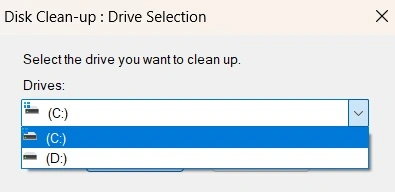
Start by selecting the drive. Most users choose the C: drive since it usually holds Windows and related system data. After you make a selection, the utility reviews the drive and calculates the amount of space that could be freed.
Once the process finishes, you will see a breakdown of removable data along with the amount of storage linked to each category. Secondary drives often provide fewer cleanup opportunities since they generally do not contain many Windows-related files.
Temporary Files and Internet Files
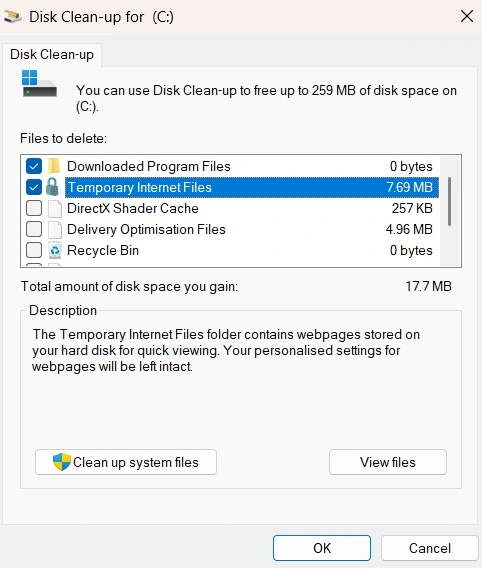
If you are using Disk Cleanup for the first time, these entries are usually the easiest to manage. They consist of background files generated by Windows and various applications while performing routine tasks. Once those tasks are completed, much of this data becomes unnecessary but may still occupy storage space. Deleting these files is generally considered
Recycle Bin, Thumbnails, and Caches
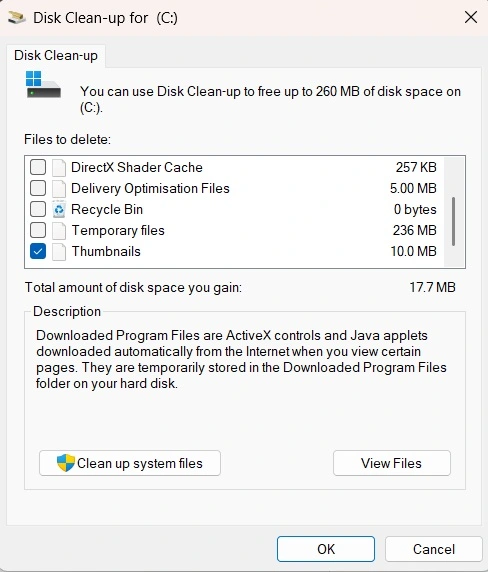
Selecting the Recycle Bin option permanently removes files that are currently stored there, so it is a good idea to review its contents before proceeding. The Thumbnails category deletes cached preview images that Windows uses to display file and folder previews. These previews are generated again automatically when needed, although image-heavy folders may take a little longer to load the first time. Other entries, such as DirectX Shader Cache and Delivery Optimization Files, remove temporary cache data created for performance and update delivery. Applications and games can recreate this information automatically, but the first launch afterward may take slightly more time than usual.
Clean Up System Files
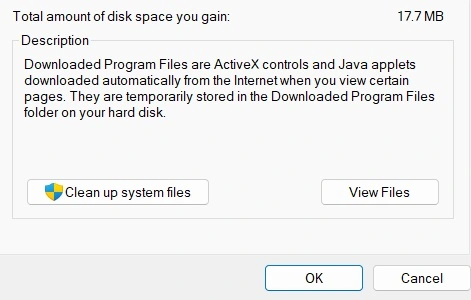
This option provides access to advanced cleanup features. Once activated, Windows performs another scan with administrator privileges to locate extra files that can be removed. Running the scan on the system drive typically reveals more categories than a standard cleanup. Depending on your PC, you may see entries for outdated update files, installation logs, backup driver data, language packs, diagnostic files, and Microsoft Defender-related content.
Windows Update Cleanup and Previous Windows Installations
The Windows Update Cleanup category can remove outdated update files that have been replaced by newer releases. This often helps recover storage space on systems that receive regular updates. Before removing these files, make sure your computer is running properly, since doing so can limit your ability to uninstall certain updates later.
The Previous Windows Installation(s) option targets files left behind after a major Windows upgrade. These backup files can consume a significant amount of disk space. Deleting them can free up storage, but it also removes the option to return to the earlier Windows version. It is best to remove them only after you are confident that the upgraded system is stable and meeting your needs. You may also see an entry called Windows ESD Installation Files. These files can be useful for certain recovery or reset operations. If you think you might reset or reinstall Windows in the future, consider leaving this category untouched. “
More Options Tab
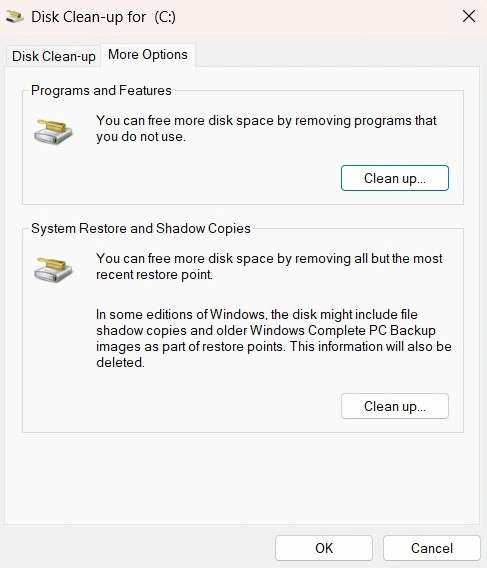
After you click Clean up system files, a More Options tab appears. It has two sections. Programs and Features opens the list of installed apps, so you can remove ones you no longer use. System Restore and Shadow Copies have a Clean up button. It deletes all restore points except the most recent one. This can recover a lot of space, but old recovery points will no longer be available. Windows also needs enough room to create at least one new restore point.
Part 4: How to Use Windows Disk Cleanup Tool: Step-by-Step Guide
Using Disk Cleanup is simple. A basic cleanup takes about five minutes. The advanced options add a few more steps.
Before you begin, close other apps and save your work. Check your free space in File Explorer under This PC. Also create a restore point if you plan to remove update or setup files. Then follow these three steps.
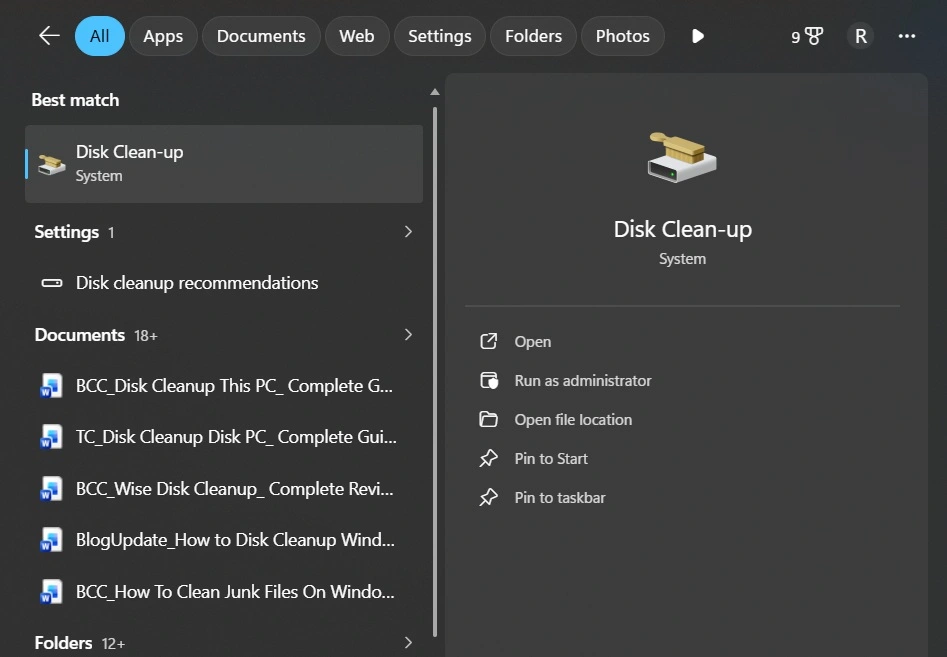
Step 1: Click the search box, type Disk Cleanup, and open the app. You can also press Windows + R, type cleanmgr, and press Enter.
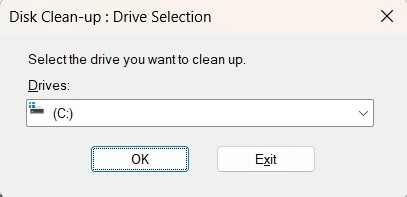
Step 2: Select the drive you want to clean, usually C:, and click OK. Wait while Windows calculates how much space you can free.
Step 3: In the list, tick the categories you want to remove. Good starting points are Temporary files, Temporary Internet Files, Thumbnails, and Windows error reports. Click a category to read its description. Check the Recycle Bin before you tick it, since emptying it is permanent. Click OK, then click Delete Files to confirm. Wait for the process to finish.
Part 5: Strengths and Weaknesses of Windows Disk Cleanup Software
No tool is perfect. Being honest about weak points matters as much as praising strong ones. Below is a clear list of pros and cons, based on our use and on common patterns in reviews.
Pros
- Free and built-in: There is nothing to buy, install, or update.
- Clear list with sizes: You see how much space each category could free before you act.
- Deep system cleanup: It reaches update leftovers, upgrade files, and old restore points.
- Beginner-friendly: The checkbox layout needs no technical knowledge.
- Advanced options: Saved profiles and command line switches suit power users.
- Trusted source: It is made and documented by Microsoft.
Cons
- Older design: The interface looks dated, and Microsoft now points people toward Settings tools.
- Narrow reach: It does not clean third-party app caches, browser caches from modern browsers, the registry, or startup items.
- Some deletions cannot be undone: Removing Windows.old, update files, or restore points limits your ability to roll back.
- Category-level control only: Command line profiles pick categories, not individual files.
- Manual by default: It will not run on its own unless you build a saved profile and schedule it.
Part 6: Cost and Availability: Windows Disk Cleanup Tool
Disk Cleanup has no pricing plans. It ships with Windows at no extra cost. There is no trial, no license key, and no subscription. Every option is open to every user.
- Cost: Free. Included with Windows.
- Availability: Windows 11, Windows 10, and supported Windows Server versions.
- Requirements: Standard user rights for basic cleanup. Administrator rights for system file cleanup and for saving profiles with sageset.
- Status: Still present in Windows 11, besides Storage Sense and Cleanup recommendations.
Here is a side-by-side look at the two ways to use the tool: basic mode for beginners and advanced mode for experienced users.
| Feature | Basic Mode (Beginners) | Advanced Mode |
| How to open | Search for Disk Cleanup | Command Prompt with cleanmgr switches |
| Admin rights | Not needed for user files | Needed for system files and sageset |
| Categories | Temp files, thumbnails, Recycle Bin, and more | All categories, including system files |
| System files | Optional, through a button | Included in saved profiles |
| Restore points | Through More Options | Same, or by command line |
| Automation | None | sageset, sagerun, and Task Scheduler |
| Best for | Occasional cleanups | Repeat cleanups and admin tasks |
| Cost | Free | Free |
Summary: Basic mode is best for a quick, safe cleanup. Advanced mode suits people who want to repeat the same cleanup on a schedule or on many PCs.
Part 7: Performance in Practice: How the Tool Handled My PC
I ran Disk Cleanup on my Windows 11 laptop because the system drive was getting full. I searched for the tool and opened it from the results. Windows spent a minute calculating the space. The window felt old, but it was easy to read, and I did not need any help.
I started with the basics. I ticked temporary files, thumbnails, and error reports, and I left the Recycle Bin for later. The first cleanup finished in a few minutes. Then I tried Clean up system files. After the admin prompt, more categories appeared, including Windows Update Cleanup. I read each description before I ticked anything. I skipped the previous Windows installation, since I wanted the option to roll back. I also looked at the More Options tab, but I kept my restore points.
The result was useful but not dramatic. The drive had more room afterward, yet the laptop did not feel much faster. That is what I expected, since Disk Cleanup frees space and does not tune speed. I liked the clear sizes and the lack of ads. I disliked the dated layout and the slow scan. For a safe, free cleanup of system clutter, it did its job.
Part 8: Global Trust and Reviews for Windows Disk Cleanup Tool
Disk Cleanup is widely trusted because it is made by Microsoft and has been part of Windows for years. Reviewers agree that it works well for system clutter. They also agree that you should read each category before you delete it.
Global Trust and Reputation
- First-party tool: Microsoft documents its commands and lists it for Windows 11.
- Long track record: It has been part of Windows for more than two decades.
- Expert view: Guides say most categories are safe to clear, but they warn about items that remove rollback options.
Reviews and Ratings
| Source | Rating | Highlights | Concerns |
| Microsoft Learn | No rating | Official command syntax and saved profile steps | Command line profiles run on all drives |
| HP Tech Takes | Positive, no score | Calls it safe and built-in, explains categories | Advises checking that updates work before deleting update files |
| How-To Geek | Positive, no score | Shows how to recover space from old restore points | Windows needs room for at least one restore point |
| MangoDisk (2026) | Positive, no score | Rates thumbnails, shader cache, and update cleanup as usually safe | Review Downloads, Recycle Bin, and previous Windows installations first |
Strengths Noted Worldwide
- Safety: Most categories are low risk and rebuild on their own.
- Value: It is free and has no locked features.
- Depth: System file cleanup reaches items that basic tools miss.
Limitations Affecting Trust
- Older design: Newer Windows tools are simpler to use.
- Rollback loss: Some deletions remove your way back.
- Limited scope: It does not clean browsers, apps, or the registry.
- Manual effort: Without a saved profile, you must run it yourself.
Part 9: When You Need a Third Party Tool Beyond Disk Cleanup
Disk Cleanup does one job well. It clears system leftovers and gives you the sizes before you delete. But its reach is narrow. Some clutter sits outside the categories it can see.
Below are the situations where a separate tool starts to make sense.
- Third-party app caches: Disk Cleanup does not clear cache folders created by outside apps, such as editors, chat apps, and launchers. These can grow to several gigabytes.
- Modern browser data: The Temporary Internet Files category does not cover the cache, cookies, and history of today’s browsers. A browser cleaner or each browser’s own settings handles that.
- Duplicate files: It cannot find copies of the same photo, video, or document. That job needs a duplicate finder.
- Large file hunting: It lists categories, not your biggest files. A disk usage analyzer shows what is really taking space. Windows 11 Cleanup recommendations also list large or unused files.
- Startup control: It does not manage startup programs. Task Manager covers the basics, and some tools add more detail.
- Registry cleaning: It does not touch the registry. Gains from registry cleaners are small, and reviewers advise caution, so treat this as a low priority.
- Secure deletion: It deletes files normally. If you plan to give away a PC and need files wiped beyond recovery, you need a shredder or a drive wipe tool.
- Many PCs at once: Saved profiles work, but managing them across a large office takes effort. IT teams often prefer central management tools.
Part 10: When You Do Not Need a Third Party Tool
Many people install extra cleaners out of habit. In a lot of cases, Windows already covers the job. If your goal is simply to free space and keep the system tidy, Disk Cleanup and its newer Settings companions are often enough. Here is when you can skip the extras.
- Your drive is low on space: Temporary files, update leftovers, and old installation files are often the biggest items. Disk Cleanup targets exactly these.
- You just upgraded Windows: The Previous Windows installation(s) option clears the old Windows.old folder once you no longer need to roll back.
- Restore points are eating space: The More Options tab removes all but the most recent restore point without any extra software.
- You want automation: A saved sageset profile plus Task Scheduler gives you a scheduled cleanup at no cost.
- You prefer hands-off cleanup: Storage Sense can clear temporary files and the Recycle Bin automatically.
- You use a modern PC: On a recent PC with an SSD, small clutter rarely causes a visible slowdown. Freeing space matters more than chasing tweaks.
- You want to avoid risk: Disk Cleanup removes only categories that Windows itself lists. Third-party tools may offer deeper options that carry more risk.
- You dislike upsells: Disk Cleanup has no ads, no trial limits, and no locked features.
Part 11: How Often Should You Use Disk Cleanup?
There is no official schedule from Microsoft, so frequency depends on how you use your PC. A heavy user who installs apps, downloads files, and updates often will need it more than someone who browses and writes documents. The guidance below is a practical starting point, based on common advice from guides and community answers.
Start with a basic cleanup about once a month. Run a deeper system file cleanup only when you have a reason, such as a big update or a full drive. Keep in mind that Windows can also open Disk Cleanup on its own with the /lowdisk switch when space runs very low.
| Situation | Suggested Frequency |
| Basic cleanup (temp files, thumbnails, error reports) | Once a month |
| Scheduled profile through sageset and Task Scheduler | Weekly or monthly, based on your use |
| Windows Update Cleanup | After major updates, once the system runs normally |
| Previous Windows installation(s) | Once, after a feature upgrade, when you no longer need to roll back |
| DirectX Shader Cache | After a graphics driver update, or when games misbehave |
| Recycle Bin | When you have checked the contents and need space |
| Old restore points (More Options) | Only when space is tight, since only the latest point stays |
| Low disk space warning | Right away, then find the biggest space users |
Simple rules to follow:
- Do not run system file cleanup every week. Windows rebuilds many caches, and constant clearing gives little benefit.
- Check free space first. If you have plenty of room, skip the deeper options.
- Keep one saved profile for light, regular use and a second for heavier, occasional use.
- Always read the category descriptions again after a major Windows update, since options can change.
Conclusion
Windows Disk Cleanup is a simple, free utility that still does a useful job. Beginners can use it to clear temporary files, thumbnails, and error reports in a few clicks. Advanced users can go further with system file cleanup, restore point removal, and saved command line profiles. It shows the space you can save, and it comes from Microsoft.
The limits are clear. The interface looks old, and Microsoft now steers people toward Settings. It does not clean third-party caches, the registry, or startup items, and it will not speed up a slow PC. Some options, such as removing Windows.old or update files, cannot be undone.
For most people, the best plan is simple. Use the basic mode for a monthly cleanup. Use the system file options only when you need more space, and you know the system is stable. If you want automation, save a profile and run it on a schedule.
Windows also offers Storage Sense and Cleanup recommendations, so you can mix the tools as needed.
FAQs
1. Is Windows Disk Cleanup still available in Windows 11, and is it safe?
Yes. Microsoft still documents cleanmgr for Windows 11, and you can open it by searching for Disk Cleanup. It is safe when you read each category first. Most items, such as temporary files and thumbnails, rebuild on their own. Be careful with Previous Windows installation(s), Windows Update Cleanup, and restore points, because removing them limits your ability to roll back. Create a restore point before you clear those items.
2. What is the difference between Disk Cleanup, Storage Sense, and Cleanup recommendations?
Disk Cleanup is the older tool. You run it by hand or through the command line, and it can clear system files and old restore points. Storage Sense runs automatically and handles temporary files, the Recycle Bin, and cloud content. Cleanup recommendations is a Windows 11 page that suggests files and apps to remove. All three are free, and you can use them together.
3. How do I automate Disk Cleanup?
Open Command Prompt as administrator and run cleanmgr /sageset:1. Choose the categories you want and click OK. Then run cleanmgr /sagerun:1 whenever you want the same cleanup. To make it repeat, create a Task Scheduler task that runs that command. Remember that /sagerun covers all drives, and /d does not work with it. Test the profile by hand before you schedule it.

Author Bio:
Dinesh Lakhwani, the entrepreneurial brain behind “TechCommuters,” achieved big things in the tech world. He started the company to make smart and user-friendly tech solutions. Thanks to his sharp thinking, focus on quality and the motto of never giving up, TechCommuters became a top player in the industry. His commitment to excellence has propelled the company to a leading position in the industry.
Popular Post






Recent Post
Windows Disk Cleanup Review: Features, Steps, and Real Results
Storage space does not disappear overnight. Tiny pieces of data accumulate little by little while Windows performs routine tasks. Old update files, temporary program data, and other unused items often remain saved on the drive. Eventually, these forgotten files can take up room that could be used for something more important. Disk Cleanup is a […]

JetClean Junk File Cleaner and PC Cleaning Tool: A Complete Review
Heads up before you read further: JetClean (made by BlueSprig) is discontinued. Its last version dates to 2016, and several listings say the official download is gone. Let’s begin our review article! Few Windows utilities stay in circulation for more than a decade without a major update. JetClean is one of them. The tool first […]

Defencebyte Computer Optimizer: An In-Depth Review
Slow startup, delayed app launches, and freezing windows are among the most common complaints from Windows users. In many cases, the cause is not failing hardware. It is the gradual buildup of leftover data. Uninstalled programs leave registry entries behind. Temporary files and logs collect in system folders. Broken file paths and unused extensions stay […]

Windows Storage Sense For PC Cleaning: Everything You Need To Know
The low disk space warning always shows up at the worst time. A big update is waiting to install. A file refuses to save. The storage bar in Settings has turned red, and nobody remembers what filled it. Most people react by hunting for a cleaner to download. Many never notice that Windows already has […]

EaseUS CleanGenius Reviewed: Features, Pricing, and Real Results
Nobody notices the first temporary file. Nobody notices the hundredth either. Then one day the drive is almost full, the browser drags, and Windows takes ages to start. Clutter builds in quiet ways. Installers leave leftovers. Browsers store cache and cookies. Apps write logs that nobody reads. Programs add themselves to startup without asking. None […]

Advanced SystemCare: Tool To Clean Your PC [Complete Review]
The first thing I notice is how the startup screen hangs. The fan kicks in fast and stays loud. If I open a simple folder, the whole system pauses for a moment. It does not look like a clear hard failure, yet the PC feels heavy and slow. This is not usually one big problem. […]

CCleaner PC Cleaning Tool: An In-Depth Review
Learn how to clean your PC with CCleaner. This complete guide covers features, step-by-step instructions, pros, cons, pricing, and FAQs to help you decide.

Avira PC Speed Up Tool: Is It Actually Worth It?
A fresh Windows install feels like a different world. Isn’t it? Everything opens fast. Menus snap into place. Then a year passes, sometimes less, and that same machine starts to feel heavy for no clear reason. Nothing dramatic happened. No single event caused it. It was just months of small leftovers stacking up quietly in […]

Avast PC Cleanup Tool: A Detailed Review
Computers do not slow down overnight. Well, yes! That’s right! It happens in small steps. A temporary file here. A leftover installer there. A browser cache that quietly grows for months without anyone noticing. Add a few startup programs that load automatically, and soon your once fast machine feels like it is wading through mud. […]

Outbyte PC Repair and Cleanup Tool: A Detailed Review
The laptop took nearly two minutes to open one folder. Chrome froze twice. The fan sounded like a tiny jet engine. Most of us have lived through a day like this. Right? Don’t worry! The machine is not dying. It is just tired and messy. A good cleanup can often bring back some of the […]
