How to Enable Screen Saver on Windows 11?
The screen saver was once necessary to display slow animations to avoid burn-in on certain large cathode-ray tube (CRT) monitors. Burn-in, like other screensavers, has vanished as the LCD (liquid-crystal display) monitor gained popularity. In Windows 11, the screensaver feature is set to default as disabled.
If the computer is kept unattended for a long period, you can utilize this feature. Use it as an additional layer of security by showing the login screen. The functionality is still available in Windows 11. However, you must switch it on individually if you wish to utilize it. In this article, we will guide you with the best way to enable screen saver settings in Windows 11.
Why do People Prefer Using Screensavers?
The introduction of energy-saving displays and advancements in display technology have effectively removed the requirements for screensavers. People, nevertheless, continue to prefer to utilize them. The following are the key causes for this:
- Security: You may leave your desktop for a moment knowing that no one will be allowed to see any important information if you installed a screensaver using the password security.
- Entertainment: We utilize screensavers for a variety of reasons, the most popular of which is for entertainment.
- Consistent Look: Many firms mandate that all personnel use a specific screensaver. This guarantees that no unsuitable screensavers are presented and produces a standard and may be an appealing environment.
- Advertisement: Organizations with PCs in customer-accessible places, especially retail enterprises, will frequently have them advertise their brand or product.
- Information: Many animated wallpapers include both static and real-time information. It might play a series of pop quizzes. Another might take information from websites and display it on the monitor.
- Distributed computing: Another type of animation uses your computer’s idle time to digest information from a remote source.
Best Way to Turn on The Screen Saver Settings
You don’t need one if you’re using an LCD panel. On the other hand, some desktop owners still like visual stimulation and thus set excellent screensavers. Despite the fact that this function is not required anymore, Windows 11 has managed to keep these vintage configurations. So, if you wish to employ this feature in Windows 11, you can use it. Here are the best methods to configure screen saver settings.
Method 1: Turn on the Screensaver Through Settings
On Windows 11, switching on the screen saver from the windows setting is quite simple. Follow these procedures to enable it:
Step 1: By hitting the Windows + I button on the keypad, you may access the Settings app.
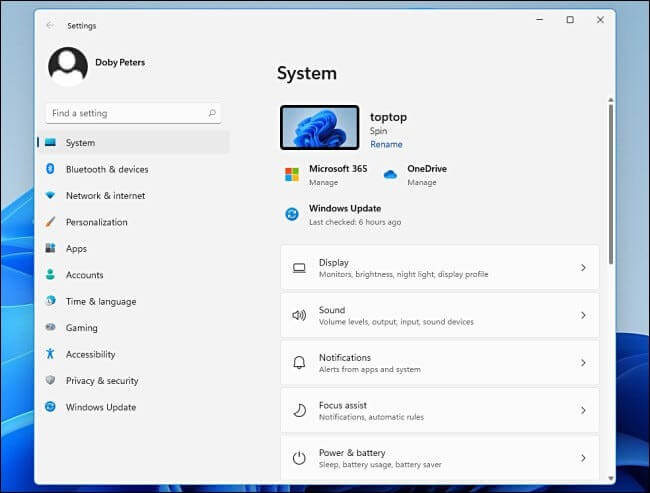
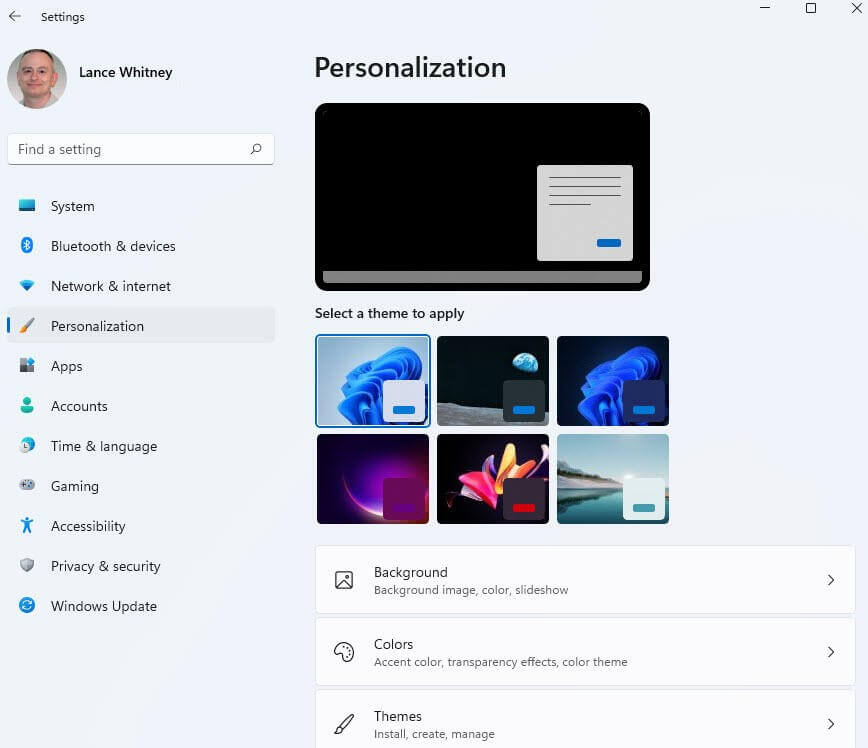
Step 2: From the left panel of the Options window that appears, select the Personalization section.
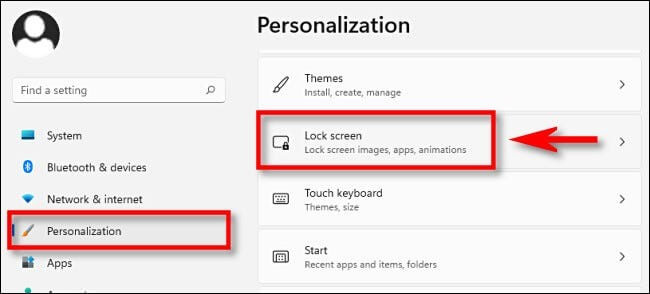
Step 3: Select Lock Screen from the Personalization menu on the right-hand side pane.
Step 4: Navigate to the bottom and select the Screen saver from the Related settings’ drop-down menu.
Step 5: The Screen Saver preferences window will pop up when you have completed the preceding steps. From the drop-down box, choose the screensaver you want.
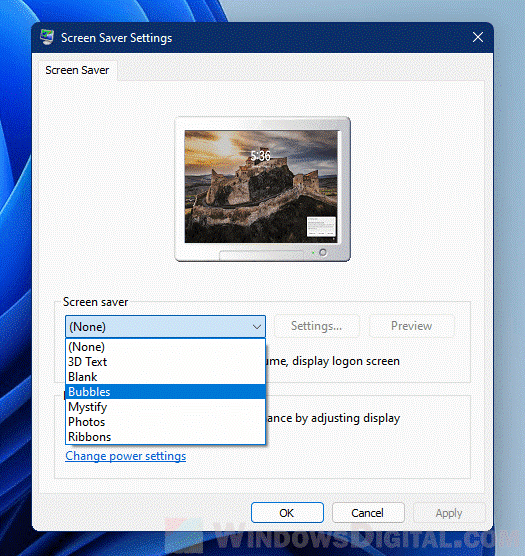
None, Bubbles, 3D Text, Images, Blank, Mystify, and Ribbons are some of the best options to select from the drop-down list. More fantastic and configurable options for Windows 11 can be found in a variety of third-party software and apps. So, if you’re tired of the usual Windows screen savers, hunt for them and download these apps.
Step 6: Following this, hit the Settings icon beside the chosen Screen saver if you want to customize it. If it could be customized, a current pop-up window would appear. Else, the message “This screen saver has no options that you can set” will appear.
Step 7: Select the Preview icon if you wish to see a preview prior to employing it. If a screen saver has been previewed, you can exit it by hitting any button.
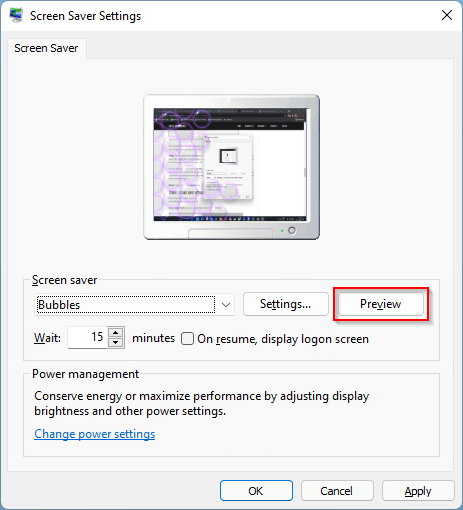
Step 8: Then, before launching it, specify the number of idle minutes if the wait option. The possible values are 1 min, so you can adjust it by selecting the up and down arrows or individually inputting a value from 1 to 9999.
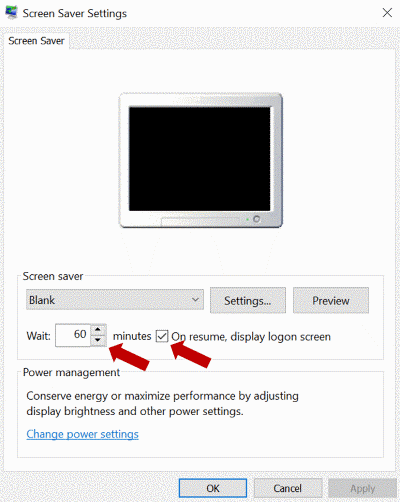
Step 9: Also, make sure the checkbox is checked. Showcase the logon screen when the computer is restarted. This function will password-protect the account once you are away from the computer. If you attempt to input the password after enabling your screensaver, you would be requested to provide the password or additional ways of authentication. Last but not least, hit the Apply and afterwards OK buttons.
When your computer is idle for the amount of time you specify, the screen saver will start automatically and secure your computer from unauthorized access.
Method 2: Use “Change Screen Saver” Option
If you do not even need to use the Settings app to configure the screen saver, access the Search menu by clicking the Start button on the taskbar or pressing the Windows and S keys simultaneously. Then, enter the change screen saver into the search field.
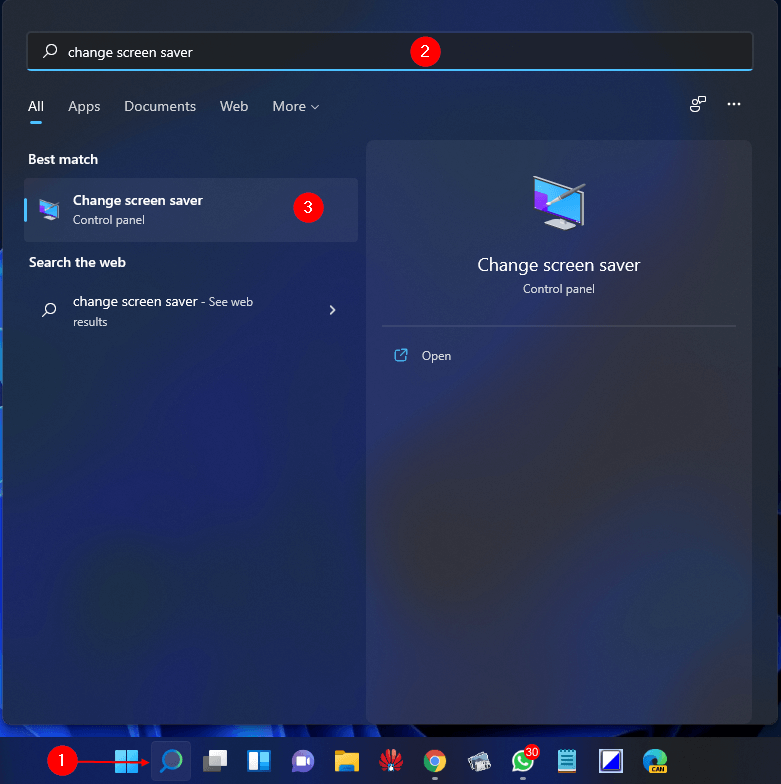
To access the settings window, select the change screen saver option. Then, to configure the screen saver setting, continue the instructions from step 5 as mentioned in the first method.
Bottom Line
Screensaver settings have been concealed in Windows 11. However, they still persist as a conventional Control Panel window. You can access it using the techniques indicated above in this article. Both solutions are comparable and will undoubtedly assist you in enabling the options.

Author Bio:
Dinesh Lakhwani, the entrepreneurial brain behind “TechCommuters,” achieved big things in the tech world. He started the company to make smart and user-friendly tech solutions. Thanks to his sharp thinking, focus on quality and the motto of never giving up, TechCommuters became a top player in the industry. His commitment to excellence has propelled the company to a leading position in the industry.
Popular Post
Recent Post

BleachBit PC Cleaner Tool: Complete Review After Running Tests
A PC never stays clean on its own. Every app you open, every website you visit, and every file you download leaves something behind. Weeks turn into months, and suddenly your storage feels tight, and your PC feels slower, with no clear reason why. The usual fix is a cleaning tool. But the market is […]

Iolo System Mechanic Review: Full Breakdown and Honest Take
Iolo System Mechanic is designed for users who want their PC to feel fresh and responsive again. With just a few clicks, it digs into the system, clears out unnecessary clutter, and delivers noticeable speed improvements. The interface is straightforward and beginner‑friendly, making it easy to navigate without confusion. But this tool goes beyond simple […]

Clean Master for PC Tested: A Full Breakdown of Its Tools
A computer doesn’t slow down overnight. Right? It happens bit by bit. Extra downloads, leftover cache, startup apps piling up. Soon the fast machine you loved feels sluggish. Boot times drag, programs freeze, and even opening a browser tab feels heavy. This slow decline is common, caused by junk files, cluttered registries, and hidden tasks […]
How To Clean Your PC/Laptop: Guide for Beginners to Experts
A computer never announces that it needs help. Well, yes! It just gets slower, hotter, and noisier, one day at a time, until you finally stop and wonder what changed. Nothing changed overnight. What happened is dust and clutter, working quietly in the background for months. Dust settles inside fans and vents, trapping heat and […]

Wise Care 365 PC Cleaner Tool: A Hands-On Review
Every Windows user knows the feeling. Your computer runs fast on day one. Then months pass. Files pile up. The registry gets messy. Startup takes longer. Apps freeze more often. This slow decline is normal, but it is also annoying. Most people just live with it. Some restart their PC often, hoping it helps. It […]

Glary Utilities PC Cleaner: Complete Review [Tested and Trusted]
Glary Utilities is one of the most popular PC optimization tools available today. It combines cleaning, repair, and performance‑boosting features into a single suite. The goal is simple: keep your computer running fast and stable without needing multiple separate programs. In this review, we’ll look at how Glary Utilities performs in real use, what features […]

Microsoft PC Manager: Complete In-Depth Review
A slow computer can ruin your whole day. Files pile up. Startup apps multiply. Before you know it, your once fast machine feels sluggish and tired. Most people search for a fix, but many tools out there are bloated, pushy, or full of ads. Microsoft PC Manager was built to solve this exact problem. It […]

AVG TuneUp Guide: Features, Pros, Cons, and Pricing
PC performance often drops with time. Junk files build up. Startup programs increase. Storage fills up. As a result, your computer may take longer to boot, feel sluggish, or run out of space. The good news is that these problems are usually easy to fix. AVG TuneUp is a PC optimization tool for Windows. It […]

Ashampoo WinOptimizer: Features and Process [Complete Guide]
Ashampoo WinOptimizer is built for users who want a faster, cleaner, and safer PC. In this review, I’ll walk through its features and how the optimization process works. The software promises one‑click fixes, smart automation, and tools that go beyond basic cleanup. The PC cleaning and optimization tool covers performance tuning, privacy protection, and system […]

Top 10 PC Cleaning and Optimization Tools For Windows 11/10 [2026]
Discover the best PC cleaning and optimization tools for Windows 11 and 10. Remove junk files, improve speed, and keep your PC healthy with trusted cleaners.
