How to use Open Shell in Windows 11?
Have you recently upgraded to Windows 11? You must have been trying hard to accustom yourself to the new sleeker design and advanced features. But are you facing issues in going through the icon-heavy taskbar of Windows 11?
What if we tell you that it is possible to bring back your favorite start menu on your new Windows 11 system? All you need is a program called Open Shell. Let us go through all the details about it and how to use Open Shell in Windows 11.
We’ll go through the detailed steps to download Open Shell and start using it on Windows 11 systems. Not to miss are the quick fixes if it is not working properly on your system. Starting with a quick definition to understand what Open Shell is all about.
Open Shell- An overview
Open Shell came as a replacement for the Classic Shell when it was discontinued in 2017. Open Shell has a pre-release beta available on GitHub, which is compatible with Windows 11. Hence, it allows seamless customization of the different user interface aspects of Windows 11.
Users can go for the simple start menu to launch programs, manage Windows settings, search files, and perform different functions on Windows 11 easily using Open Shell. Whether you want to bring the old Windows back to work and look, the Open Shell installer has already been downloaded by millions of Windows users. Let us now have a quick look at some of the top features of Open Shell.
Open Shell features
Some of the worthy features of Open Shell in Windows 11 include the following:
- It can change the Start menu look into Classic old, Classic two columns, and Windows 7 mode.
- It can replace the Start menu icon with any custom or already installed images on the system.
- It can change the Start menu behavior for left-click, right-click, and keyboard shortcuts.
- It can hide or unhide the Start menu items.
- It can apply a skin to the Start menu, change its transparency, reduce the glass color, and use small icons and large fonts for the menu.
- It can alter Taskbar’s color, text color, texture, look, and opacity.
- It can customize mouse behavior like left click, Shift + click, Windows key, Shift + Windows key, and Hover behaviors.
- It can define hotkeys for classic and Windows menus.
- It can change default shortcuts, power menu options, and Start menu behavior.
- It can toggle the power menu, jumplists, app shortcuts, recent programs, and suggestions.
Steps to download Open Shell in Windows 11
Before starting to use Open Shell, it is essential to download and install it in Windows 11 system. The quick steps for the same are:
Step 1: Go to the link- https://github.com/Open-Shell/Open-Shell-Menu
Step 2: Go to the “Downloads” option on the page and select the “Downloads” button.
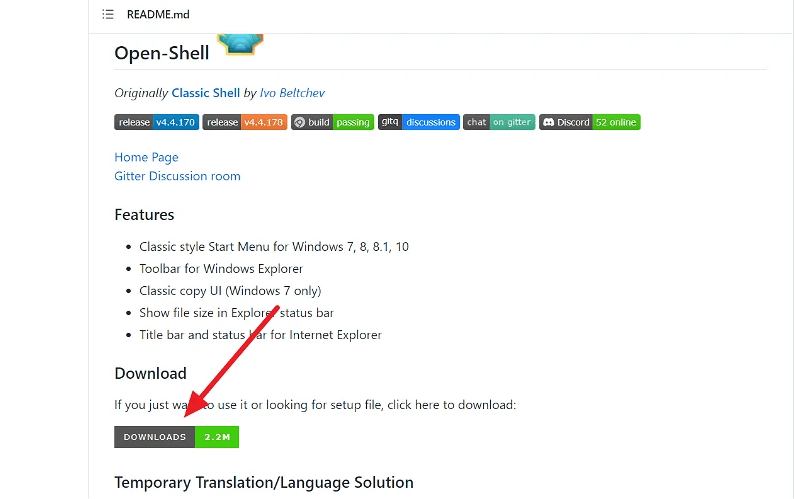
Step 3: You can see all the latest versions of the Open Shell, with the latest version at the top of the list.
Step 4: Select the “Assets” option of the latest version and click to reveal the download files.
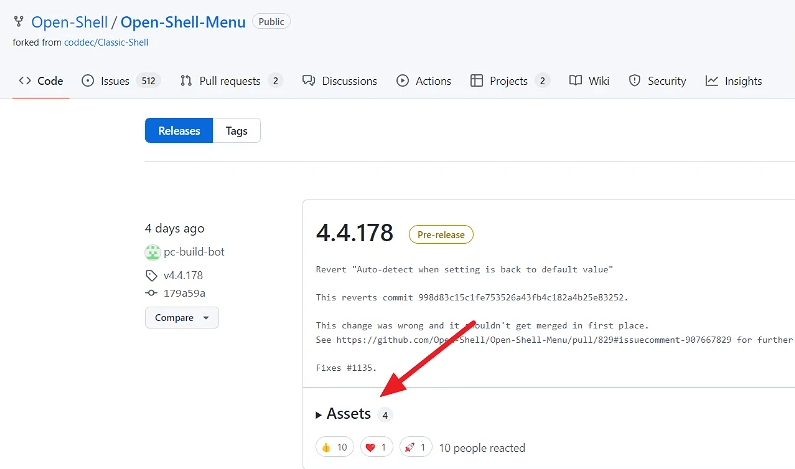
Step 5: Now click on the setup link to download the Open Shell installer.
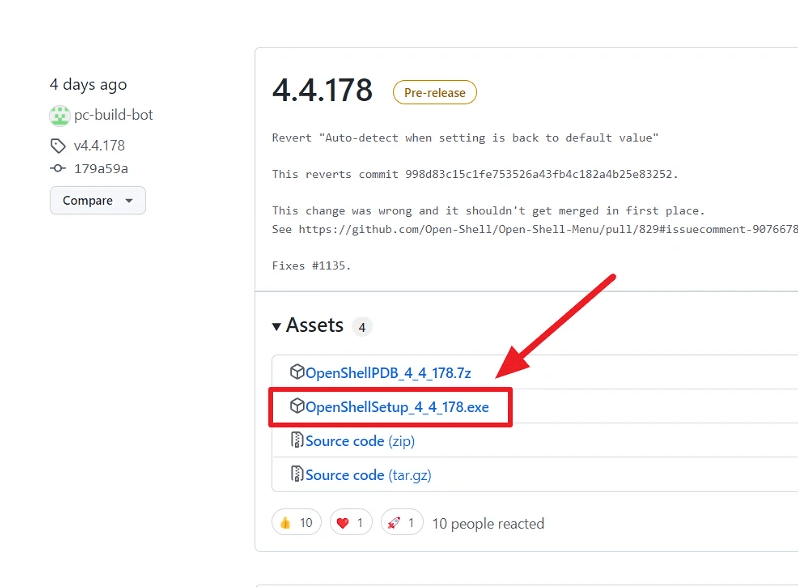
Step 6: Double-click on the EXE file to start the installation process.
Step 7: Click on the “More Info” option when the Windows 11 system gives the pop-up of “Windows protected your PC.”
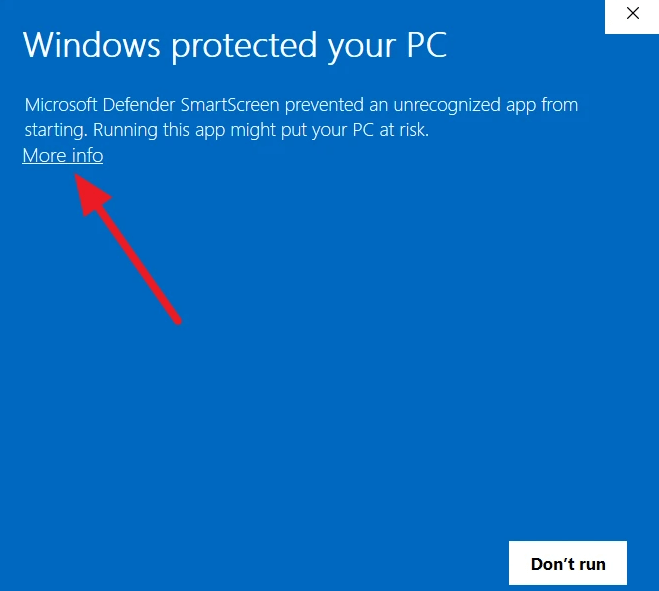
Step 8: Now, select the “Run anyway” option.
Step 9: Click on the “Next” option in the welcome wizard of Open Shell.
Step 10: Next, tick the box for the option “I accept the terms in the License Agreement.”
Step 11: Now, tick the box for the option “Create a start menu folder” and press “Next.”
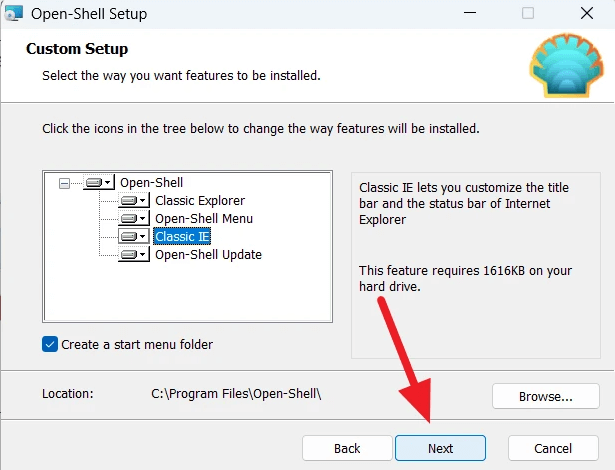
Step 12: Click on the “Install” option to start the Open Shell installation process.
Step 13: Complete the Open Shell installation process by selecting the “Finish” option.
Steps to use Open Shell in Windows 11
So, here you are at the detailed steps to use Open Shell in a Windows 11 system:
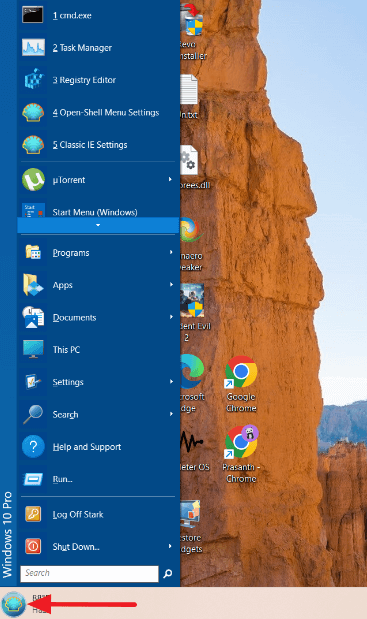
Step 1: Open the Start Menu on a Windows 11 system.
Step 2: Select the “Open Shell Menu Settings” option.
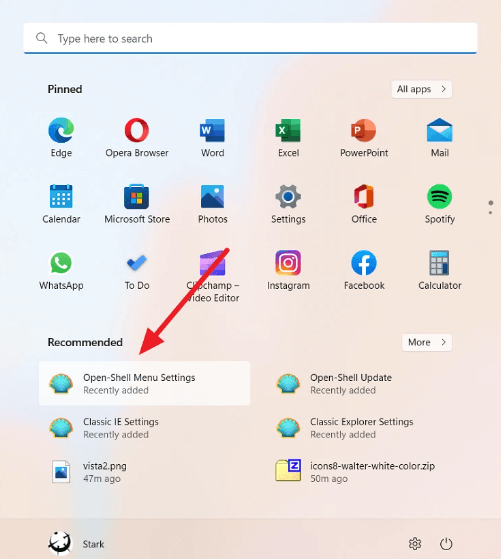
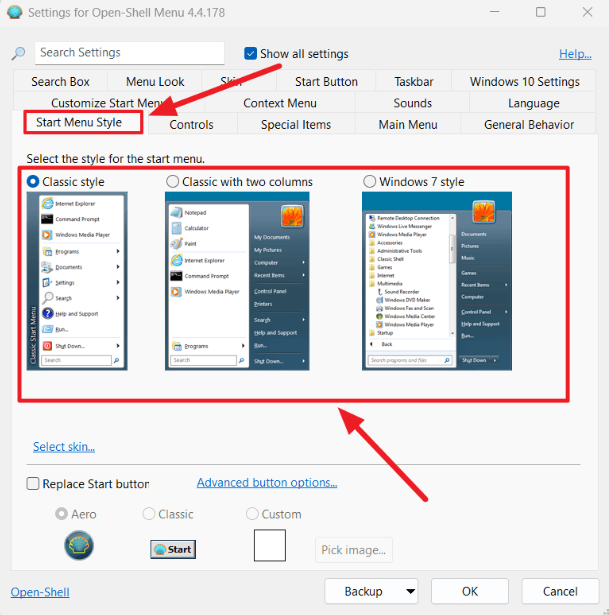
Step 3: The app will show different options for modifying, including the following:
- Search box
- Menu Look
- Skin
- Start Button
- Taskbar
- Windows 10 Settings
- Customize Start Menu
- Context Menu
- Sounds
- Language
- Start Menu Style
- Controls
- Special items
- Main Menu
- General Behavior
Step 4: We’ll select the “Start Menu Style” option and can select from the three available options- Classic style, Classic with two columns, and Windows 7 style.
Step 5: Now, tick the “Replace Start Button” option and then select from Aero, Classic, or Custom options. Once done, press “OK.”
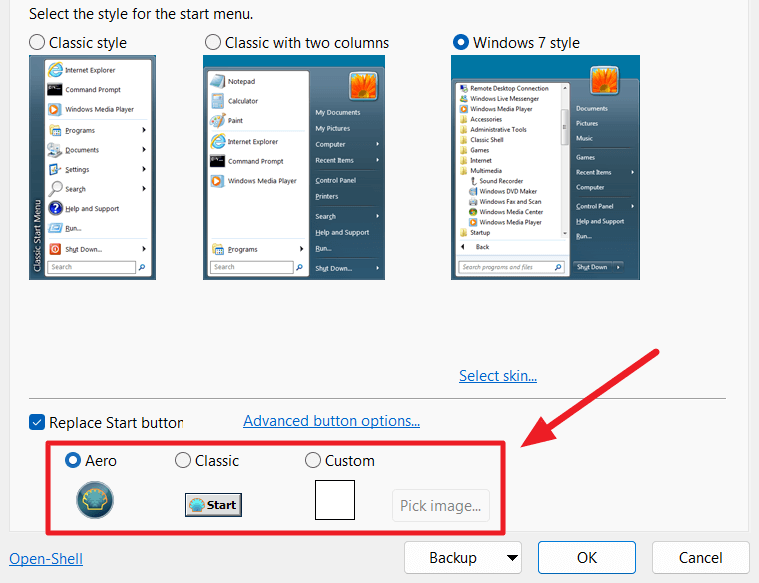
Step 6: The settings will be applied, and the selected Classic menu will start appearing on your Windows 11 system.
Open Shell is not working in Windows 11
After going through detailed steps to use Open Shell in Windows 11, the chances of unexpected problems can’t be ignored. There is no need to worry, as the following are the main solutions:
- Reinstall Open Shell
- Restart file explorer
- Update Windows
- Re-register the Shell experience
- Tweak registry settings
- Rebuild the Windows search index
Wrapping Up
Hope everything is clear to our readers about the detailed steps to use Open Shell in Windows 11. It allows users to bring back the custom start menu on Windows 11 systems. Users can go through the detailed guide mentioned above to use it on Windows 11. Further, the quick fixes can help solve the problems of Open Shell not working on your Windows 11.

Author Bio:
Dinesh Lakhwani, the entrepreneurial brain behind “TechCommuters,” achieved big things in the tech world. He started the company to make smart and user-friendly tech solutions. Thanks to his sharp thinking, focus on quality and the motto of never giving up, TechCommuters became a top player in the industry. His commitment to excellence has propelled the company to a leading position in the industry.
Popular Post






Recent Post

Total PC Cleaner: Clean Disk, Antivirus for Windows (An Honest Review)
Simply type “PC cleaner” into the Microsoft Store search box and a long list appears. Well, yes! The icons look alike. The names overlap, and almost every description promises a faster, cleaner, safer computer. Many also use the word antivirus, which adds to the confusion. Total PC Cleaner: Clean Disk, Antivirus is one of the […]
PrivaZer PC Cleaning Tool: An In-Depth Review
Deleting a file in Windows does less than most people think. The system removes the file’s entry from its index and marks the space as free. The actual data often stays on the disk until something else overwrites it. That is why recovery tools can bring back files long after they were deleted. Files are […]
Windows Disk Cleanup Review: Features, Steps, and Real Results
Storage space does not disappear overnight. Tiny pieces of data accumulate little by little while Windows performs routine tasks. Old update files, temporary program data, and other unused items often remain saved on the drive. Eventually, these forgotten files can take up room that could be used for something more important. Disk Cleanup is a […]

JetClean Junk File Cleaner and PC Cleaning Tool: A Complete Review
Heads up before you read further: JetClean (made by BlueSprig) is discontinued. Its last version dates to 2016, and several listings say the official download is gone. Let’s begin our review article! Few Windows utilities stay in circulation for more than a decade without a major update. JetClean is one of them. The tool first […]

Defencebyte Computer Optimizer: An In-Depth Review
Slow startup, delayed app launches, and freezing windows are among the most common complaints from Windows users. In many cases, the cause is not failing hardware. It is the gradual buildup of leftover data. Uninstalled programs leave registry entries behind. Temporary files and logs collect in system folders. Broken file paths and unused extensions stay […]

Windows Storage Sense For PC Cleaning: Everything You Need To Know
The low disk space warning always shows up at the worst time. A big update is waiting to install. A file refuses to save. The storage bar in Settings has turned red, and nobody remembers what filled it. Most people react by hunting for a cleaner to download. Many never notice that Windows already has […]

EaseUS CleanGenius Reviewed: Features, Pricing, and Real Results
Nobody notices the first temporary file. Nobody notices the hundredth either. Then one day the drive is almost full, the browser drags, and Windows takes ages to start. Clutter builds in quiet ways. Installers leave leftovers. Browsers store cache and cookies. Apps write logs that nobody reads. Programs add themselves to startup without asking. None […]

Advanced SystemCare: Tool To Clean Your PC [Complete Review]
The first thing I notice is how the startup screen hangs. The fan kicks in fast and stays loud. If I open a simple folder, the whole system pauses for a moment. It does not look like a clear hard failure, yet the PC feels heavy and slow. This is not usually one big problem. […]

CCleaner PC Cleaning Tool: An In-Depth Review
Learn how to clean your PC with CCleaner. This complete guide covers features, step-by-step instructions, pros, cons, pricing, and FAQs to help you decide.

Avira PC Speed Up Tool: Is It Actually Worth It?
A fresh Windows install feels like a different world. Isn’t it? Everything opens fast. Menus snap into place. Then a year passes, sometimes less, and that same machine starts to feel heavy for no clear reason. Nothing dramatic happened. No single event caused it. It was just months of small leftovers stacking up quietly in […]
