How to Prevent Data Corruption in Windows PC
Does your Windows system run slowly or behave strangely? And you have no clue what’s happening with your PC?
In most cases, corrupted system files can be a problem. However, sometimes malware or a virus infection attacks your files and corrupts them.
This slows your PC and prevents you from accessing your important files. In addition, you can lose your work files and other personal data when your files get corrupted.
So, the best solution is to prevent your files from getting corrupted rather than being sorry.
Here, we will discuss how to prevent data corruption on Windows PC in detail.
What is a Corrupted File?
A corrupted file is a file that is tampered with or not working properly. This can happen to any file, including documents, media, or system files.
In most cases, a simple PC reboot is enough to fix the problem. But occasionally, situations get serious where you might have to take some advanced steps.
Usually, all computer files have a specific structure and content. Therefore, there is no issue when all files are arranged the way they should be.
But when the wrong content is written in a file or the correct content is added in the wrong location, it can cause a problem.
Corrupted files often don’t open at all or might appear in the wrong format. This doesn’t mean your program is corrupted.
For example, Word might not be able to open a certain document, but others without trouble.
How Do Windows Files Get Corrupted?
There is no particular reason behind files getting corrupted in Windows. However, several factors can cause file corruption on Windows, such as:
Malware or virus attacks. The most common reason behind file corruption is malware or virus attacks. When your PC gets a virus infection, it can change file settings and corrupt them.
Improper file saving. File corruption also happens when a glitch occurs during the file-saving process. For example, if the file crashes when you open it, this is likely happening because your file is not saved properly in the first place.
Incorrect file location. If you store files in the wrong location, it can cause trouble opening them. For example, if you store system files in Photos, you might not get the proper access.
Sudden unplugging of the storage devices. Often, people unplug USBs or other storage devices instantly from their PCs. Unfortunately, this can disturb the data transfer process, and corrupted files get stored on your computer. That’s why it is always recommended to follow a proper protocol to plug or unplug storage devices from/to computers.
Disk allocation. If your disk partition is not properly allocated, it can cause problems accessing some files. For instance, if your C drive has limited free space, it can prevent some system files from opening. That’s because large files need adequate RAM to process.
Updating errors. When your system updates are disturbed during the installation process, it can corrupt files. This happens because system updates are not installed accurately.
Power outage. Imagine you are transferring data from your USB drive, and suddenly the electricity goes off. This sudden power outage can corrupt your files.
Outdated versions. If your computer doesn’t support the file format, you can not access the file content properly. Thus, convert the file format to something that your computer supports.
How to Prevent Data Corruption in Windows PC?
File corruption is annoying. It can delay your work and slow down your PC.
But there is nothing to worry about. Following all the precautions, you never have to deal with a corrupted file.
Here’s how to prevent data corruption on a Windows PC with ease:
Solution 1. Never Open Files in Unsupported Format
A common reason for file opening in the Windows PC is opening files in unsupported software. When you force open a file with incompatible software, it can corrupt some of the file’s data.
Therefore, check out which software supports your file type and use it to access the file. Of course, you can also convert files to the software-supported format. But this can also damage the file quality.
So, whenever you have unknown software, create a file copy, so you don’t damage the original file content.
Solution 2. Make the File Transfer Process Smooth
Whether transferring files within your computer or from a portable storage device, ensure the process doesn’t get disturbed.
Here’s how to prevent data corruption on a Windows PC while transferring files:
- Ensure that your laptop has full power to prevent sudden power outages. Desktop users should connect their devices to an external power source like a UPS.
- Never take out your USB drive abruptly; it can disturb data transfer.
- Don’t simply copy or paste files. Instead, follow the proper process to move data from one location to another.
- Always move your files to the right location after checking the drive size.
Solution 3. Use an Antivirus Program
As we have already mentioned, viruses are the main reason behind data corruption. Thus, to prevent your data from being corrupted, install the best antivirus program on your computer.
The software will ensure that no virus or malware can enter your system and destroy your files. Moreover, if malware has already infected your data, the software can help you fix those corrupted files.
Some of the best Windows antivirus programs are McAfee, Norton, etc. If you want to use a third-party antivirus program, you can use Microsoft Windows Defender to scan your PC for viruses.
Solution 4. Use File Ejection Option
Make it your thumb rule to never suddenly pull out USB drives from your computer after the data transfer. It can be difficult to determine when the data transfer process is complete, and it is safe to unplug the USB drive.
Therefore, many people unplug USB drives at the wrong time. So, we recommend you follow the proper ejection process to remove the storage device from your computer.
Here’s how you can eject the external storage device from your computer:
Step 1. On the Taskbar, look for the Safely Remove Hardware icon. If you can’t see the icon, click on the Show hidden icon.
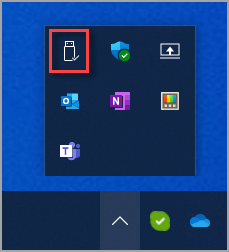
Step 2. Once you find the Safely Remove Hardware icon, turn on the Eject Media button.
If this doesn’t work, go to Start > Settings > Bluetooth & devices > Device > More > Select Remove device.
Solution 5. Protect Your Hard Disk from Physical Damage
The flaws in your hard drive can cause your files to become corrupted. Power surges, water drops, overheating, or dust inside the storage can damage your data.
So, here are some tips that you can follow to protect your hard disk:
- Frequently clean your laptop or desktop to keep it dust-free.
- Ensure your CPU never overheats. Shut down your computer at regular intervals.
- Always use the proper power plug and cable to supply electricity to your computer.
- Never press the power button to shut down your Windows computer. Always follow the proper shutdown of your machine.
- Use a linen cloth or a soft-bristle brush to clean your CPU parts.
Solution 6. Use the System File Checker Tool
The System File Checker (SFC) tool is a default tool available on Windows to scan your system files. It also helps to find and repair corrupted files. It can automatically replace or alter your corrupted files to a clean version.
To run the SFC tool, you have to open the Command Prompt from the Start menu and run it as an admin.
On the Command Prompt window, type this command and hit Enter:
sfc/scannow
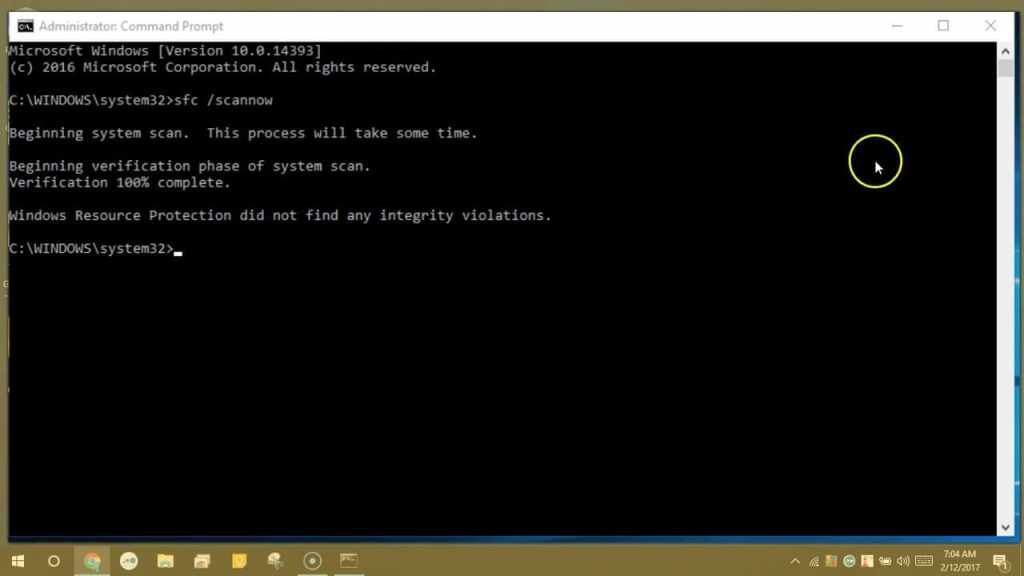
It might take some time to complete the entire scanning process. So, don’t close the command prompt window during the entire scanning process. Once the scan is complete, you will receive a message on your screen. After that, you can exit the window.
If the SFC couldn’t find any corrupted files, you can reboot your computer in safe mode. To do so, you can hold the Shift key down during the restart.
In safe mode, you can manually fix the broken files using the SFC tool. You need to access the CBS.Log to locate the corrupted files. You can follow this path to locate corrupted files:
C:\Windows\Logs\CBS\CBS.log
Now, open the log file and search for corrupted files. Scroll towards the bottom of the log and search for entries that start with cannot repair member file.
You can copy the message from the log and paste it into your web browser to find specific information to fix that particular file.
Conclusion: How to Prevent Data Corruption in Windows PC
There you go, people! You have learned how to prevent data corruption on a Windows PC. As you can see, file corruption is a common problem.
But if you follow the proper precautions, you can prevent data corruption. Just keep your data clean and well-organized. Also, make sure your disk is clean both from the inside and outside.
That’s it for now! For more Windows solutions, keep on following this blog site.

Author Bio:
Dinesh Lakhwani, the entrepreneurial brain behind “TechCommuters,” achieved big things in the tech world. He started the company to make smart and user-friendly tech solutions. Thanks to his sharp thinking, focus on quality and the motto of never giving up, TechCommuters became a top player in the industry. His commitment to excellence has propelled the company to a leading position in the industry.
Popular Post
Recent Post
BleachBit PC Cleaner Tool: Complete Review After Running Tests
A PC never stays clean on its own. Every app you open, every website you visit, and every file you download leaves something behind. Weeks turn into months, and suddenly your storage feels tight, and your PC feels slower, with no clear reason why. The usual fix is a cleaning tool. But the market is […]

Iolo System Mechanic Review: Full Breakdown and Honest Take
Iolo System Mechanic is designed for users who want their PC to feel fresh and responsive again. With just a few clicks, it digs into the system, clears out unnecessary clutter, and delivers noticeable speed improvements. The interface is straightforward and beginner‑friendly, making it easy to navigate without confusion. But this tool goes beyond simple […]

Clean Master for PC Tested: A Full Breakdown of Its Tools
A computer doesn’t slow down overnight. Right? It happens bit by bit. Extra downloads, leftover cache, startup apps piling up. Soon the fast machine you loved feels sluggish. Boot times drag, programs freeze, and even opening a browser tab feels heavy. This slow decline is common, caused by junk files, cluttered registries, and hidden tasks […]
How To Clean Your PC/Laptop: Guide for Beginners to Experts
A computer never announces that it needs help. Well, yes! It just gets slower, hotter, and noisier, one day at a time, until you finally stop and wonder what changed. Nothing changed overnight. What happened is dust and clutter, working quietly in the background for months. Dust settles inside fans and vents, trapping heat and […]

Wise Care 365 PC Cleaner Tool: A Hands-On Review
Every Windows user knows the feeling. Your computer runs fast on day one. Then months pass. Files pile up. The registry gets messy. Startup takes longer. Apps freeze more often. This slow decline is normal, but it is also annoying. Most people just live with it. Some restart their PC often, hoping it helps. It […]

Glary Utilities PC Cleaner: Complete Review [Tested and Trusted]
Glary Utilities is one of the most popular PC optimization tools available today. It combines cleaning, repair, and performance‑boosting features into a single suite. The goal is simple: keep your computer running fast and stable without needing multiple separate programs. In this review, we’ll look at how Glary Utilities performs in real use, what features […]

Microsoft PC Manager: Complete In-Depth Review
A slow computer can ruin your whole day. Files pile up. Startup apps multiply. Before you know it, your once fast machine feels sluggish and tired. Most people search for a fix, but many tools out there are bloated, pushy, or full of ads. Microsoft PC Manager was built to solve this exact problem. It […]

AVG TuneUp Guide: Features, Pros, Cons, and Pricing
PC performance often drops with time. Junk files build up. Startup programs increase. Storage fills up. As a result, your computer may take longer to boot, feel sluggish, or run out of space. The good news is that these problems are usually easy to fix. AVG TuneUp is a PC optimization tool for Windows. It […]

Ashampoo WinOptimizer: Features and Process [Complete Guide]
Ashampoo WinOptimizer is built for users who want a faster, cleaner, and safer PC. In this review, I’ll walk through its features and how the optimization process works. The software promises one‑click fixes, smart automation, and tools that go beyond basic cleanup. The PC cleaning and optimization tool covers performance tuning, privacy protection, and system […]

Top 10 PC Cleaning and Optimization Tools For Windows 11/10 [2026]
Discover the best PC cleaning and optimization tools for Windows 11 and 10. Remove junk files, improve speed, and keep your PC healthy with trusted cleaners.
