How to Fix ‘The File or Directory is Corrupted and Unreadable’ Error?
Is your Windows computer displaying the 0x80070570, or the file or directory is corrupted and unreadable error code? While the error is less standard in newer Windows versions such as 10 or 8, some users still experience it.
The error typically occurs when a file or a drive sector becomes corrupted. However, people also occasionally encounter the error 0x80070570 while installing Windows. Thus, we have devised not one but seven different solutions to assist you in overcoming this problem. So, let’s see how to fix the ‘file or directory is corrupted and unreadable’ error.
What causes the File or Directory is Corrupted and Unreadable Error?
Digital data is overwhelming today. According to a report, there are around 1,000 terabytes of data available. Now, what if something happens to hard drives? All your valuable data will vanish into thin air.
Thus, to avoid the file or directory being corrupted and unreadable error, pay close attention to the following error causes:
- Physical harm. You cannot access the stored data if the storage device is permanently damaged. Check the hardware connection’s integrity as well. Examine the USB ports and cables for any damage.
- MFT or FAT damage. The MFT (Master File Table) contains information such as file or directory type, size, creation or modification time, etc. As a result, if the MFT becomes damaged or corrupted, you will be unable to access your file. The FAT (File Allocation Table) is a system for hard drives similar to the MFT. If the FAT fails, this could result in the same error.
- Infection with a virus or malware. It’s no secret that downloading something from an unofficial source can infect your computer with viruses or malware. This can also lead to file corruption on your computer.
7 Solutions to Fix the ‘File or Directory is Corrupted and Unreadable’ Error
In the Microsoft community, few solutions are available to fix the ‘file or directory is corrupted and unreadable’ error. Therefore, we ran research to find solutions to fix the error, and our team found these solutions as the best contenders:
Solution 1. Restart Your Computer
If you’ve developed the routine of putting your computer into Sleep mode rather than shutting it down, you may experience various problems and slowdowns. So there’s a chance the “file or directory is corrupted and unreadable” error is a fluke that will disappear once you restart your computer.
If the error persists after restarting, proceed to the next solution.
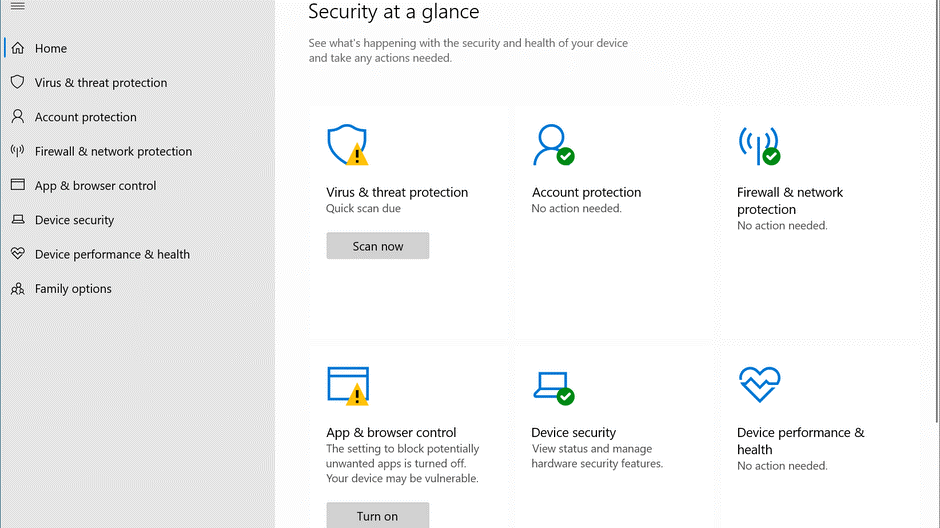
Solution 2. Turn Off Your Antivirus Program
If your antivirus software detects a potential threat on the external drive, it may prevent you from accessing it. You can disable the antivirus software for the time being while using the external drive if you are sure there are no threats on the drive.
Solution 3. Change Your Inaccessible Files Location
If you have the error “The file or directory is corrupted and unreadable,” this is the simplest method to try. You can open those inaccessible files normally by changing their location.
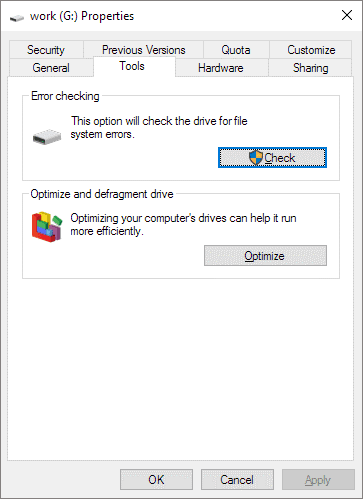
Solution 4. Scan Drive from Properties
This method is suitable for checking for errors on your hard drive. It can repair file system errors and scan for corrupted sectors. Let’s see how it goes.
Step 1. To open (My) Computer, double-click. Find the hard drive with the error “The file or directory is corrupted and unreadable.”
Step 2. Right-click it and select Properties.
Step 3. Select the Tools tab. There will be a Check button. To scan the hard drive, click on it.
Step 4. If an error is discovered on the hard drive, it will notify you, and you will have the option to repair the hard drive.
Solution 4. Use the Startup Repair to Fix Your Disk
The developers created a built-in tool to solve common PC problems to prevent various errors that may occur on Windows. For example, if the “The file or directory is corrupted, and unreadable” error persists, you can try the startup repair. You first must boot your PC into the Advanced Startup Options menu. On Windows 11/10, follow these steps:
Step 1. Go to the Start menu > Settings > Update & Security > Recovery > Restart Now.
Step 2. Your computer will enter an options menu, after which you must select Troubleshoot and Advanced Options.
Step 3. Now that your PC is in the Advanced Startup Options menu select Startup Repair.
When you’re finished, the system will repair everything.
Solution 5. Use the CMD Tool
When you get the “The file or directory is corrupted and unreadable” error, run a disk check to know if there are any fixable issues on the disk. You will need to run the chkdsk command to accomplish this. This command scans the drive for problems such as lost clusters, bad sectors, cross-linked files, directory errors, etc.
Follow the steps below:
Step 1. CMD can be accessed from the Start Menu on your Windows PC. To run it as an administrator, right-click on it.
Step 2. In the Command Prompt window, write chkdsk /f x: and press Enter to run the command. X represents the drive letter of the corrupted partition to be examined. Please substitute it with your drive letter.
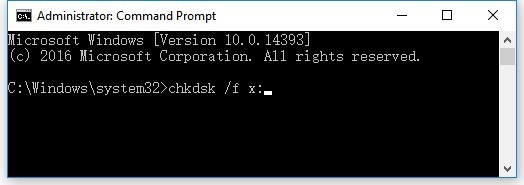
When you run the preceding command, Windows will scan the drive. It always has three stages, and the checking time depends entirely on the size of your data and the drive’s read speed. During the process, it will fix the error at the same time. When this is completed, the File Explorer will refresh, and the hard drive will be accessible.
Note
If you see a message like “Because another process is using the volume, Chkdsk cannot be run. Do you want this volume to be checked the next time the system restarts? (Y/N) “To complete the check, type Y and restart your computer. The disk will not be formatted.
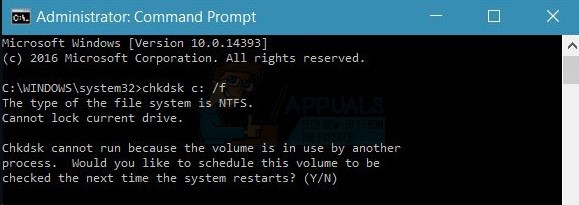
Following the execution of the command line, you may receive the following message: Cannot open volume for direct access. It means something is stopping you from repairing the errors. In that case, you can try restarting your computer.
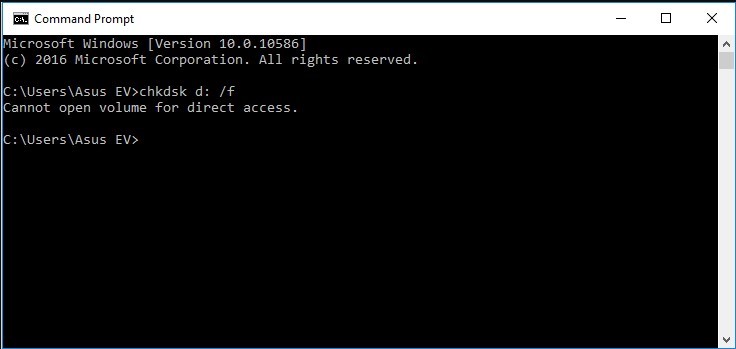
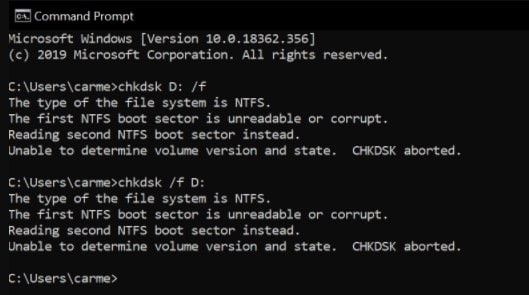
Another common error message is CHKDSK aborted. It indicates that the data contained within the volume has been corrupted. Again, the quickest way to solve this problem is to reformat the volume.
Solution 6. Format Your Device
If the above solutions fail, you can format the hard drive. Formatting the hard drive can solve the problem, but it can also delete all of your important files. You can use a tool here to extract or recover important files from your hard disk before and after formatting it.
There are 3 ways to format a hard drive to fix the “The file or directory is corrupted and unreadable” error.
Let’s dissect each method.
Way 1. Use the File Explorer
Step 1. Navigate to your damaged external hard drive by opening My Computer/This PC.
Step 2. Right-click on it and then select Format.
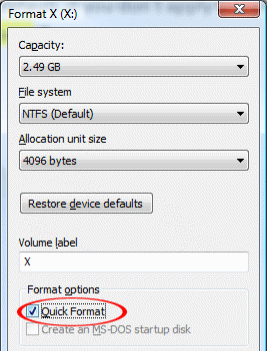
Step 3. Choose the file system and look for the Quick Format box under Format options. Then, click the Start button to start the process.
Way 2. Use the Disk Management
Step 1. Right-click on the Windows button > Properties. Select Disk Management from the menu.
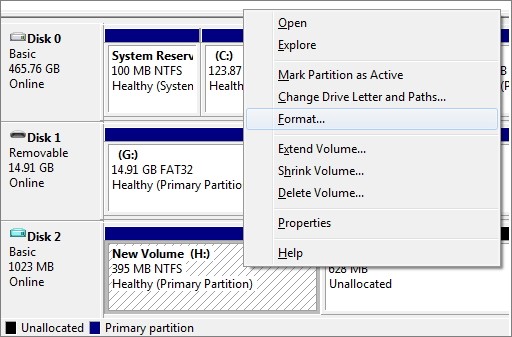
Step 2. Locate and right-click on your damaged disk. There will be a Format option.
Step 3. Now, the Format dialog box appears. Customize the settings and click OK to start the process.
Way 3. Use the Command Prompt
This method is a little time-consuming and complicated. And a mistake will harm your operating system or other essential data. So instead, follow these steps to use the Command Prompt to format your device:
Step 1. In the search bar, type Command Prompt. Then, go to it and run it as administrator.
Step 2. Enter diskpart into the search box.
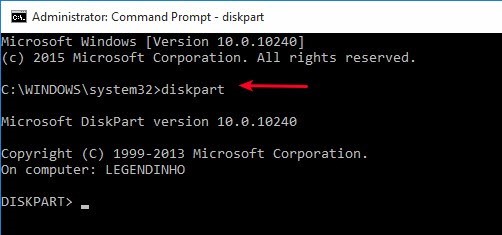
Step 3. Enter the command list disk.
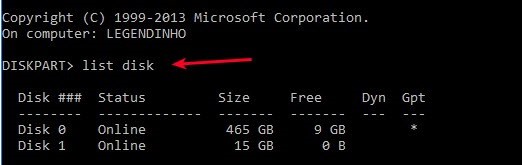
Step 4. A list of available hard disks will appear. Enter the command select disk x. Replace x with the actual disk number you want to format.
Step 5. Clean up your typing. Before pressing Enter, please double-check that you entered the correct disk number in the previous step.
Step 6. After that, you can create a new partition to make your hard disk accessible.
Step 7. Next, format your hard drive to a new file system now. The format fs=ntfs command must be entered here.
Step 8. Finally, press the assign to give the partition a drive letter.
Solution 7. Downgrade or Reinstall Your Windows OS
If your PC runs a version lower than Windows 11, your only option is to reinstall the current version. If it is currently running Windows 11, you can try downgrading it because the most recent system version can be buggy and vulnerable. All hidden issues can be effectively resolved by reinstalling or downgrading the system.
Parting Note
The problem “The file or directory is corrupted and unreadable” in Windows 11/10/8/7 is caused by physical damage to the hard disk, improper operations, and virus infection. Therefore, it’s crucial to safeguard your hard drive from physical harm and set up some antivirus software on your computer to routinely sanitize the disk.
We hope our solutions can assist you in resolving this issue. If not, you can comment below or check out our other Windows guides.

Author Bio:
Dinesh Lakhwani, the entrepreneurial brain behind “TechCommuters,” achieved big things in the tech world. He started the company to make smart and user-friendly tech solutions. Thanks to his sharp thinking, focus on quality and the motto of never giving up, TechCommuters became a top player in the industry. His commitment to excellence has propelled the company to a leading position in the industry.
Popular Post






Recent Post

Total PC Cleaner: Clean Disk, Antivirus for Windows (An Honest Review)
Simply type “PC cleaner” into the Microsoft Store search box and a long list appears. Well, yes! The icons look alike. The names overlap, and almost every description promises a faster, cleaner, safer computer. Many also use the word antivirus, which adds to the confusion. Total PC Cleaner: Clean Disk, Antivirus is one of the […]

PrivaZer PC Cleaning Tool: An In-Depth Review
Deleting a file in Windows does less than most people think. The system removes the file’s entry from its index and marks the space as free. The actual data often stays on the disk until something else overwrites it. That is why recovery tools can bring back files long after they were deleted. Files are […]
Windows Disk Cleanup Review: Features, Steps, and Real Results
Storage space does not disappear overnight. Tiny pieces of data accumulate little by little while Windows performs routine tasks. Old update files, temporary program data, and other unused items often remain saved on the drive. Eventually, these forgotten files can take up room that could be used for something more important. Disk Cleanup is a […]

JetClean Junk File Cleaner and PC Cleaning Tool: A Complete Review
Heads up before you read further: JetClean (made by BlueSprig) is discontinued. Its last version dates to 2016, and several listings say the official download is gone. Let’s begin our review article! Few Windows utilities stay in circulation for more than a decade without a major update. JetClean is one of them. The tool first […]

Defencebyte Computer Optimizer: An In-Depth Review
Slow startup, delayed app launches, and freezing windows are among the most common complaints from Windows users. In many cases, the cause is not failing hardware. It is the gradual buildup of leftover data. Uninstalled programs leave registry entries behind. Temporary files and logs collect in system folders. Broken file paths and unused extensions stay […]

Windows Storage Sense For PC Cleaning: Everything You Need To Know
The low disk space warning always shows up at the worst time. A big update is waiting to install. A file refuses to save. The storage bar in Settings has turned red, and nobody remembers what filled it. Most people react by hunting for a cleaner to download. Many never notice that Windows already has […]

EaseUS CleanGenius Reviewed: Features, Pricing, and Real Results
Nobody notices the first temporary file. Nobody notices the hundredth either. Then one day the drive is almost full, the browser drags, and Windows takes ages to start. Clutter builds in quiet ways. Installers leave leftovers. Browsers store cache and cookies. Apps write logs that nobody reads. Programs add themselves to startup without asking. None […]

Advanced SystemCare: Tool To Clean Your PC [Complete Review]
The first thing I notice is how the startup screen hangs. The fan kicks in fast and stays loud. If I open a simple folder, the whole system pauses for a moment. It does not look like a clear hard failure, yet the PC feels heavy and slow. This is not usually one big problem. […]

CCleaner PC Cleaning Tool: An In-Depth Review
Learn how to clean your PC with CCleaner. This complete guide covers features, step-by-step instructions, pros, cons, pricing, and FAQs to help you decide.

Avira PC Speed Up Tool: Is It Actually Worth It?
A fresh Windows install feels like a different world. Isn’t it? Everything opens fast. Menus snap into place. Then a year passes, sometimes less, and that same machine starts to feel heavy for no clear reason. Nothing dramatic happened. No single event caused it. It was just months of small leftovers stacking up quietly in […]
