How to Convert HEIC to JPG on Windows 11 and Windows 10
HEIC (High-Efficiency Image Format) has gained popularity as a high-quality image format that offers better compression than JPEG. However, compatibility issues arise when sharing HEIC images with devices or platforms that do not support this format. To address this problem, converting HEIC images to JPG is a practical solution. Here, we will explore some effective methods to convert HEIC to JPG on Windows 11 and Windows 10. So, if you want to learn how to convert HEIC to JPG on Windows, keep reading.
Benefits of Converting HEIC to JPG on Windows 11 and Windows 10
Converting HEIC to JPG on Windows 11 and Windows 10 offers numerous benefits. Some of these benefits are discussed here:
1. Compatibility and Accessibility
One of the primary benefits of converting HEIC to JPG on Windows 11 and Windows 10 is improved compatibility and accessibility. While HEIC is natively supported on Windows 11, earlier versions such as Windows 10 may require additional codecs or third-party software to view HEIC files. By converting HEIC to JPG, users can ensure that their images can be easily accessed and viewed across a wide range of devices and software applications without any compatibility issues.
2. Sharing and Distribution
When it comes to sharing and distributing images, compatibility plays a crucial role. While many modern devices and platforms support HEIC, there are still limitations when it comes to sharing these files with others who may not have compatible devices or software. Converting HEIC to JPG ensures that the images can be easily shared and distributed without the need for recipients to have specific software or devices that support HEIC.
3. Editing and Manipulation
Another significant benefit of converting HEIC to JPG is the ease of editing and manipulation. While there are many advanced editing tools that support HEIC, there are still some software applications that may have limitations when it comes to working with HEIC files. By converting to JPG, users can leverage a wider range of editing and manipulation tools without any compatibility issues, ensuring greater flexibility in the post-processing of images.
4. Archiving and Long-Term Storage
When considering long-term storage and archiving of images, the choice of file format becomes crucial. While HEIC offers superior compression and image quality, there may be concerns about long-term compatibility and support for this relatively new format. Converting HEIC to JPG provides a more universally accepted format for archiving images, ensuring that they can be accessed and viewed even in the distant future without any compatibility issues.
How to Convert HEIC to JPG on Windows 11 and Windows 10
There are many ways to convert HEIC to JPG on Windows 11 and Windows 10. Some of the most proven methods for those who want to learn how to convert HEIC to JPG on Windows are discussed here:
Method 1: Using Built-in Tools on Windows 11 and Windows 10
Both Windows 11 and Windows 10 have built-in tools that allow users to convert HEIC images to JPG without the need for additional software. Here’s how to convert HEIC to JPG on Windows using this method:
Step 1: Locate the HEIC image you want to convert on your computer.
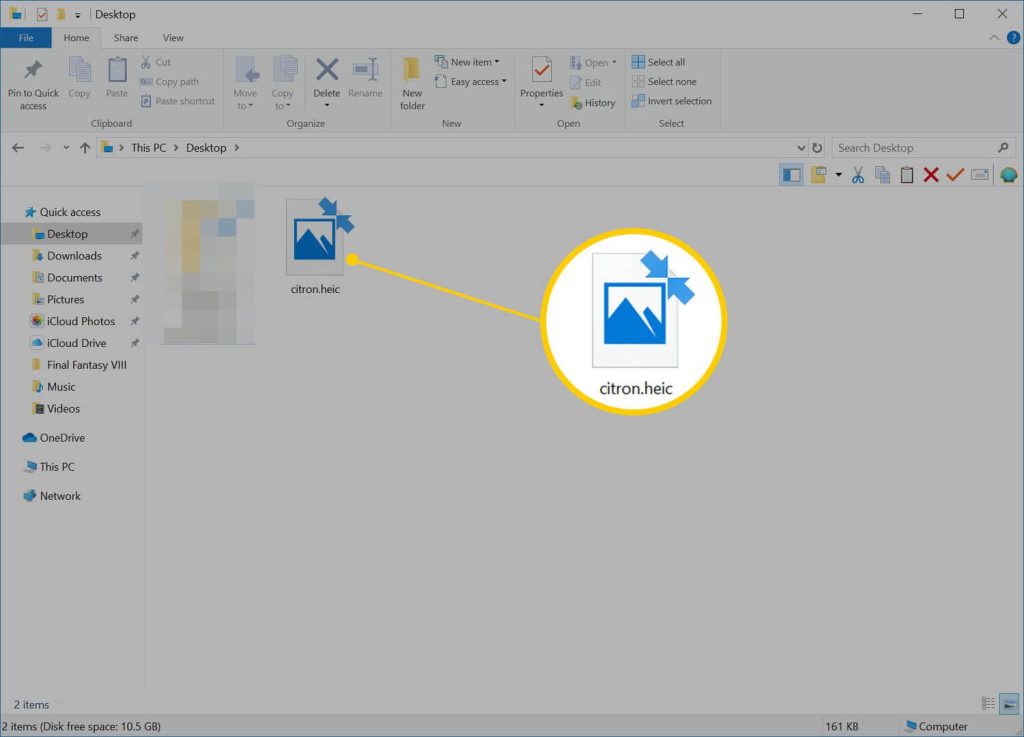
Step 2: Right-click on the image and select “Open with” from the context menu.
Step 3: Choose the “Photos” app from the list of available applications.
Step 4: Once the image is opened in the Photos app, click on the “Save as” option.
Step 5: Select JPG as the desired format and choose the destination folder to save the converted image.
Method 2: Using Online HEIC to JPG Converters
If you prefer a quick and convenient solution, online HEIC to JPG converters are a great option. These tools allow you to convert HEIC images to JPG format directly from your web browser. Some popular online converters include heictojpg.com, heictojpg.online, and convert-heic.com.
To convert HEIC to JPG using an online converter, follow these steps:
Step 1: Visit the website of your chosen HEIC to JPG converter.
Step 2: Upload the HEIC image you want to convert by clicking on the “Upload” or “Choose file” button.

Step 3: Select JPG as the output format.
Step 4: Click on the “Convert” or “Download” button to start the conversion process.
Step 5: Once the conversion is complete, download the JPG file to your computer.
Method 3: Using Microsoft Paint
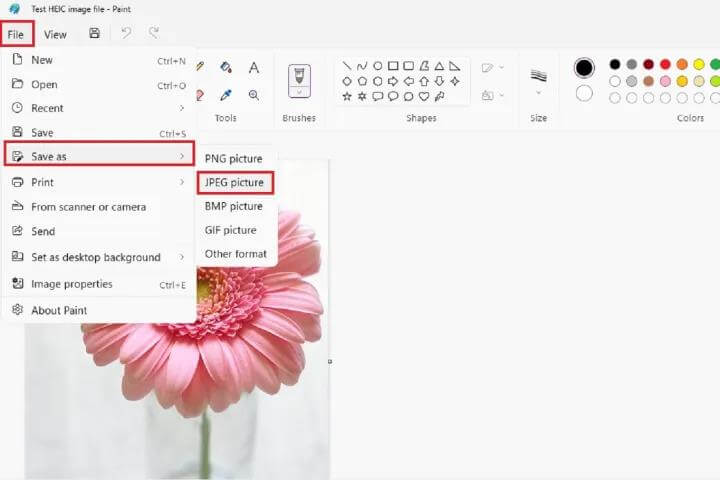
Microsoft Paint is a simple yet powerful tool that can be used to convert HEIC images to JPG format. Here’s how to how to convert HEIC to JPG on Windows using this method:
Step 1: Open the HEIC image in Microsoft Paint.
Step 2: Click on the “File” menu and select “Save as.”
Step 3: Choose JPG as the file format.
Step 4: Select the destination folder and click “Save” to convert the HEIC image to JPG.
Method 4: Using Third-Party Software
There are several third-party software options available that provide advanced features for converting HEIC images to JPG. Some popular choices include Adobe Photoshop and GIMP. Here’s how to convert HEIC to JPG using Adobe Photoshop:
Step 1: Open Adobe Photoshop on your Windows 11 or Windows 10 computer.
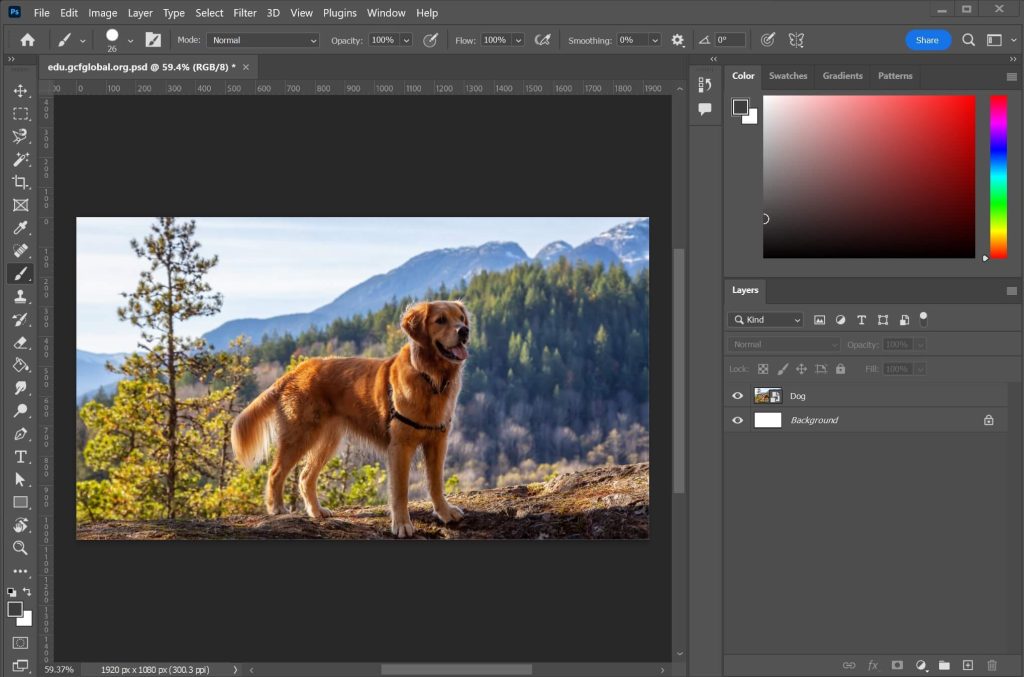
Step 2: Click on “File” and select “Open” to import the HEIC image.
Step 3: Once the image is open, click on “File” and choose “Save as.”
Step 4: Select JPG as the file format and adjust any desired settings.
Step 5: Click “Save” to convert the HEIC image to JPG.
Method 5: Using Command Line Tools
For users comfortable with command-line interfaces, tools like ImageMagick can be used to convert HEIC images to JPG format. Here’s how to do it:
Step 1: Download and install ImageMagick on your Windows 11 or Windows 10 computer.
Step 2: Open the command prompt and navigate to the folder containing the HEIC image.
Step 3: Enter the following command to convert the HEIC image to JPG: `magickinput.heic output.jpg`
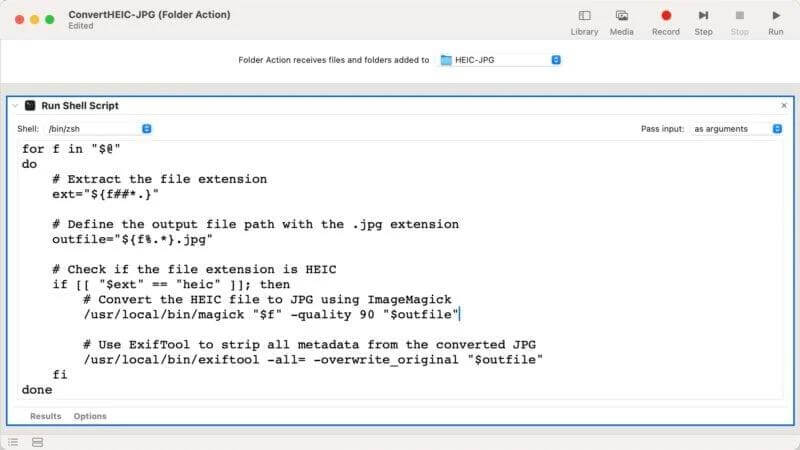
Step 4: Press Enter to execute the command and convert the image.
Conclusion
Converting HEIC images to JPG format on Windows 11 and Windows 10 can be achieved through various methods. By following the steps discussed here, you can easily convert HEIC images to JPG and ensure compatibility when sharing or viewing your photos on different devices and platforms. Hopefully, you have now understood how to convert HEIC to JPG on Windows.
FAQs
1. What is HEIC and Why Convert it to JPG?
HEIC, or High-Efficiency Image Format, is a file format developed by the Moving Picture Experts Group (MPEG) as a more efficient alternative to the traditional JPG format. It offers higher compression and better image quality, making it an attractive option for Apple users.
2. What Are the Advantages of Using Third-Party Apps for HEIC to JPG Conversion on Windows?
Utilizing third-party apps for HEIC to JPG conversion on Windows offers several advantages, including enhanced customization options, batch processing capabilities, and integration with other file management features.
3. How Does the Lack of Native HEIC to JPG Conversion in Windows Impact User Experience?
The absence of native HEIC to JPG conversion in Windows 11 and Windows 10 can impact the user experience in various ways. Users may encounter challenges when attempting to share HEIC files with individuals using non-Appledevices or older Windows versions, leading to compatibility issues and the need for manual conversion steps.

Author Bio:
Dinesh Lakhwani, the entrepreneurial brain behind “TechCommuters,” achieved big things in the tech world. He started the company to make smart and user-friendly tech solutions. Thanks to his sharp thinking, focus on quality and the motto of never giving up, TechCommuters became a top player in the industry. His commitment to excellence has propelled the company to a leading position in the industry.
Popular Post
Recent Post
BleachBit PC Cleaner Tool: Complete Review After Running Tests
A PC never stays clean on its own. Every app you open, every website you visit, and every file you download leaves something behind. Weeks turn into months, and suddenly your storage feels tight, and your PC feels slower, with no clear reason why. The usual fix is a cleaning tool. But the market is […]

Iolo System Mechanic Review: Full Breakdown and Honest Take
Iolo System Mechanic is designed for users who want their PC to feel fresh and responsive again. With just a few clicks, it digs into the system, clears out unnecessary clutter, and delivers noticeable speed improvements. The interface is straightforward and beginner‑friendly, making it easy to navigate without confusion. But this tool goes beyond simple […]

Clean Master for PC Tested: A Full Breakdown of Its Tools
A computer doesn’t slow down overnight. Right? It happens bit by bit. Extra downloads, leftover cache, startup apps piling up. Soon the fast machine you loved feels sluggish. Boot times drag, programs freeze, and even opening a browser tab feels heavy. This slow decline is common, caused by junk files, cluttered registries, and hidden tasks […]
How To Clean Your PC/Laptop: Guide for Beginners to Experts
A computer never announces that it needs help. Well, yes! It just gets slower, hotter, and noisier, one day at a time, until you finally stop and wonder what changed. Nothing changed overnight. What happened is dust and clutter, working quietly in the background for months. Dust settles inside fans and vents, trapping heat and […]

Wise Care 365 PC Cleaner Tool: A Hands-On Review
Every Windows user knows the feeling. Your computer runs fast on day one. Then months pass. Files pile up. The registry gets messy. Startup takes longer. Apps freeze more often. This slow decline is normal, but it is also annoying. Most people just live with it. Some restart their PC often, hoping it helps. It […]

Glary Utilities PC Cleaner: Complete Review [Tested and Trusted]
Glary Utilities is one of the most popular PC optimization tools available today. It combines cleaning, repair, and performance‑boosting features into a single suite. The goal is simple: keep your computer running fast and stable without needing multiple separate programs. In this review, we’ll look at how Glary Utilities performs in real use, what features […]

Microsoft PC Manager: Complete In-Depth Review
A slow computer can ruin your whole day. Files pile up. Startup apps multiply. Before you know it, your once fast machine feels sluggish and tired. Most people search for a fix, but many tools out there are bloated, pushy, or full of ads. Microsoft PC Manager was built to solve this exact problem. It […]

AVG TuneUp Guide: Features, Pros, Cons, and Pricing
PC performance often drops with time. Junk files build up. Startup programs increase. Storage fills up. As a result, your computer may take longer to boot, feel sluggish, or run out of space. The good news is that these problems are usually easy to fix. AVG TuneUp is a PC optimization tool for Windows. It […]

Ashampoo WinOptimizer: Features and Process [Complete Guide]
Ashampoo WinOptimizer is built for users who want a faster, cleaner, and safer PC. In this review, I’ll walk through its features and how the optimization process works. The software promises one‑click fixes, smart automation, and tools that go beyond basic cleanup. The PC cleaning and optimization tool covers performance tuning, privacy protection, and system […]

Top 10 PC Cleaning and Optimization Tools For Windows 11/10 [2026]
Discover the best PC cleaning and optimization tools for Windows 11 and 10. Remove junk files, improve speed, and keep your PC healthy with trusted cleaners.
