How to Enable Secure Boot in Windows 11 and Windows 10
One of the key features that can significantly enhance the security of your Windows operating system is Secure Boot. By enabling Secure Boot on your Windows 11 or Windows 10 system, you can protect your device against malware and unauthorized operating systems.
Benefits of Enabling Secure Boot in Windows 11 And 10
1. Protection Against Rootkits and Bootkits
Enabling secure boot in Windows 11 and 10 helps protect the system against rootkits and bootkits. Rootkits and bootkits are malicious software that can compromise the boot process of a computer, allowing attackers to gain control of the system before the operating system fully loads. Secure boot helps prevent these types of attacks by ensuring that only trusted software components are allowed to run during the boot process.
2. Enhanced System Integrity
Secure boot helps to ensure the integrity of the operating system by verifying the digital signatures of bootloader and kernel components before allowing them to execute. This verification process helps to prevent unauthorized or malicious code from running during the boot process, thereby enhancing the overall security and trustworthiness of the system.
3. Protection Against Malware
By enforcing the use of digitally signed bootloaders and kernel components, secure boot helps protect the system against malware that attempts to tamper with the boot process. This can significantly reduce the risk of malware infections and unauthorized system modifications, thereby enhancing the overall security posture of the system.
4. Hardware Compatibility and Driver Verification
Enabling secure boot in Windows 11 and 10 encourages the use of digitally signed hardware drivers, which can help improve system stability and compatibility. Secure boot verifies the digital signatures of device drivers during the boot process, ensuring that only trusted and properly signed drivers are loaded into the operating system. This can help prevent the installation of incompatible or malicious drivers that could compromise system stability and security.
How to Enable Secure Boot on Windows 11 and Windows 10
Method 1: Enabling Secure Boot through UEFI Firmware Settings
Here’s how to enable secure boot of Windows 11 and 10 using this method:
Step 1: Restart your computer and enter the UEFI firmware settings by pressing the designated key during the boot process.
Step 2: Navigate to the “Security” or “Boot” tab in the UEFI settings.
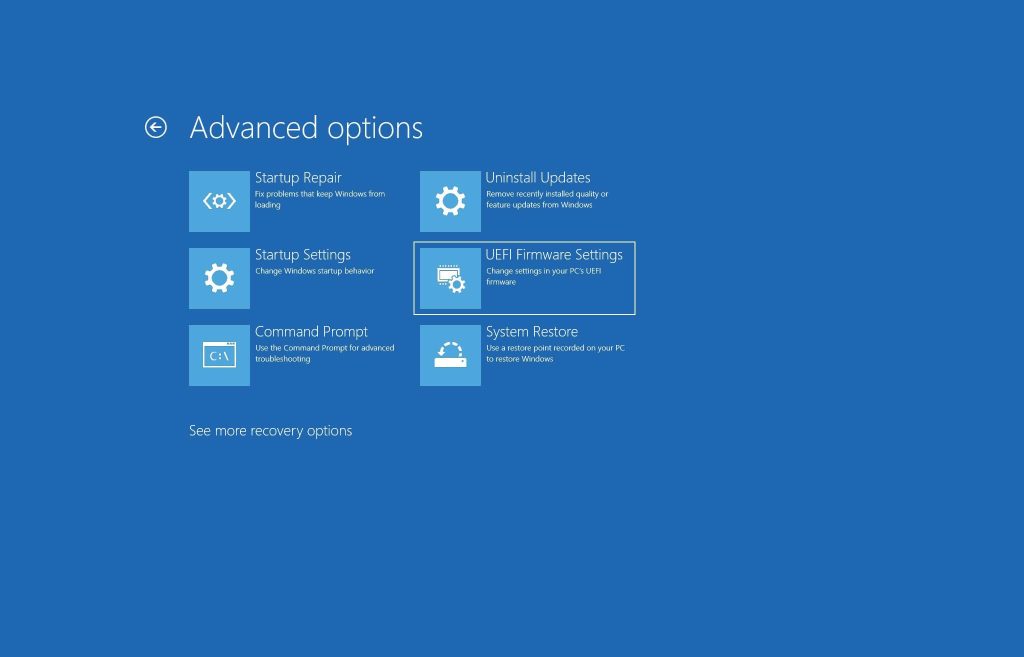
Step 3: Locate the Secure Boot option and set it to “Enabled.”
Step 4: Save the changes and exit the UEFI settings.
Step 5: Your system will now boot with Secure Boot enabled, ensuring that only trusted software is loaded during the boot process.
Method 2: Using the System Configuration Utility (msconfig)
Another method to enable Secure Boot on Windows 11 and Windows 10 is through the System Configuration Utility (msconfig). Here’s how to use this method:
Step 1: Press the Windows key + R to open the Run dialog box.
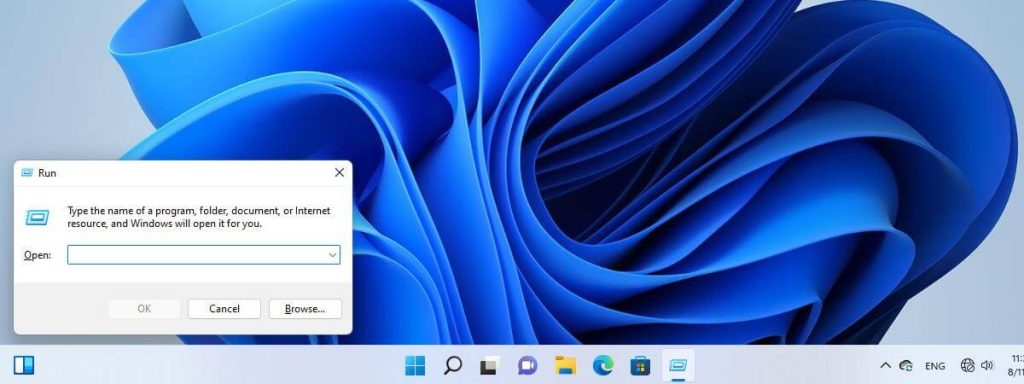
Step 2: Type “msconfig” and press Enter to open the System Configuration Utility.
Step 3: Navigate to the “Boot” tab in the System Configuration Utility.
Step 4: Check the “Secure Boot” option under Boot Options.
Step 5: Click Apply and then OK to save the changes.
Step 6: Restart your computer to enable Secure Boot.
Method 3: Using Group Policy Editor
If you are using Windows 10 Pro, Enterprise, or Education editions, you can enable Secure Boot using the Group Policy Editor. Here’s how you can do it:
Step 1: Press the Windows key + R to open the Run dialog box.
Step 2: Type “gpedit.msc” and press Enter to open the Group Policy Editor.
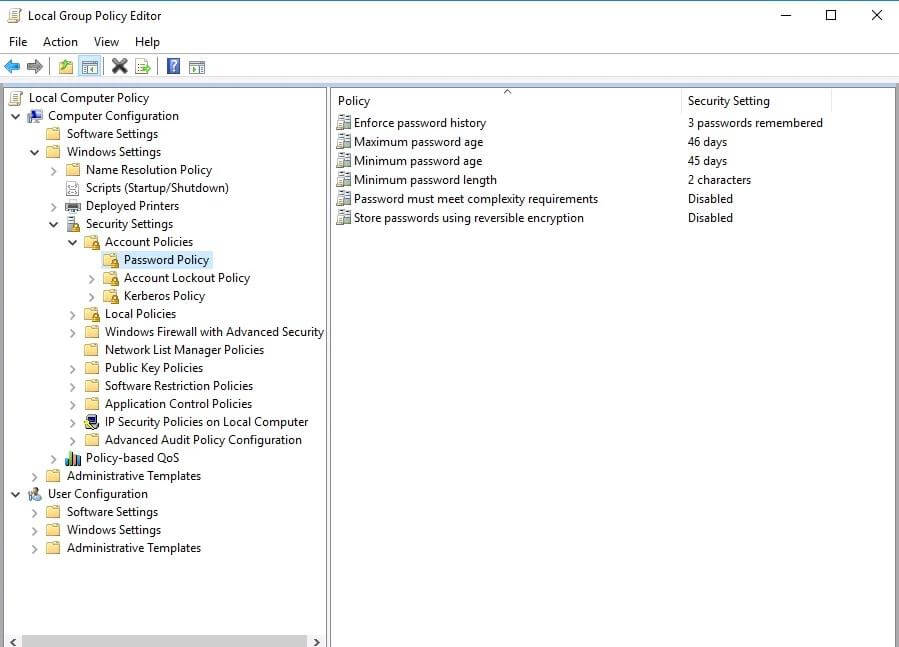
Step 3: Navigate to Computer Configuration > Administrative Templates > System > Early Launch Anti-Malware.
Step 4: Double-click on “Use Secure Boot for integrity validation.”
Step 5: Select “Enabled” and click Apply, then OK.
Step 6: Restart your computer to apply the changes.
Method 4: Using Command Prompt
You can also enable Secure Boot on Windows 11 and Windows 10 using Command Prompt. Follow these steps:
Step 1: Right-click on the Start menu and select “Windows PowerShell (Admin)” or “Command Prompt (Admin).”

Step 2: In the Command Prompt window, type the following command and press Enter:
bcdedit /set {default} bootmenupolicy standard
Step 3: Restart your computer to apply the changes.
Method 5: Using Windows Defender System Guard
Windows Defender System Guard is a security feature in Windows 10 that provides advanced security capabilities, including Secure Boot. Here’s how you can enable Secure Boot using Windows Defender System Guard:
Step 1: Open Windows Security by clicking on the shield icon in the taskbar.
Step 2: Click on Device Security.
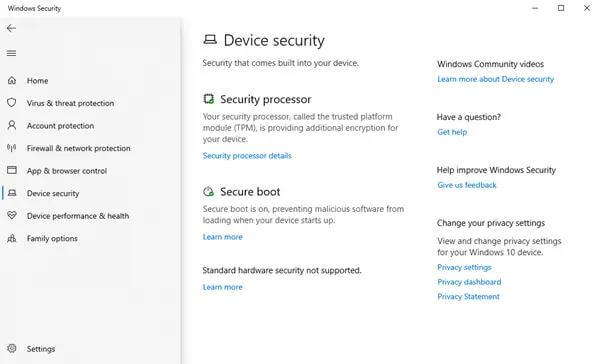
Step 3: Under Core isolation, click on “Core isolation details.”
Step 4: Toggle on “Memory integrity” to enable Secure Boot.
Step 5: Restart your computer to apply the changes.
Method 6: Using Windows Registry Editor
If you are comfortable working with the Windows Registry, you can enable Secure Boot using the Registry Editor. Here’s how you can do it:
Step 1: Press the Windows key + R to open the Run dialog box.
Step 2: Type “regedit” and press Enter to open the Registry Editor.
Step 3: Navigate to the following key:
HKEY_LOCAL_MACHINE\SYSTEM\CurrentControlSet\Control\SecureBoot\State
Step 4: Double-click on the “UEFISecureBootEnabled” entry and set its value to 1.
Step 5: Restart your computer to enable Secure Boot.

Conclusion
By following the methods discussed here, you can easily enable secure boot of Windows 10 and 11, thereby enhancing the security of your device and protecting it against malware and unauthorized software.
FAQs
1. What is Secure Boot?
Secure Boot is a security feature integrated into the Unified Extensible Firmware Interface firmware. It ensures that only digitally signed operating system components are loaded during the boot process. This prevents the loading of unauthorized or malicious software that could compromise the system’s security.
2. Why is Secure Boot Important?
Secure Boot is important because it helps protect the system against bootkits, rootkits, and other types of malware that attempt to tamper with the boot process. By verifying the digital signatures of the boot components, Secure Boot helps ensure the integrity of the operating system and enhances the overall security posture of the system.
3. How to check if Secure Boot is enabled?
To check if Secure Boot is enabled on a Windows 11 or Windows 10 system, you can access the UEFI firmware settings during the system boot process. The exact method for accessing the UEFI settings may vary depending on the hardware manufacturer. Once in the UEFI settings, navigate to the SecureBoot configuration section to verify if it is enabled.

Author Bio:
Dinesh Lakhwani, the entrepreneurial brain behind “TechCommuters,” achieved big things in the tech world. He started the company to make smart and user-friendly tech solutions. Thanks to his sharp thinking, focus on quality and the motto of never giving up, TechCommuters became a top player in the industry. His commitment to excellence has propelled the company to a leading position in the industry.
Popular Post
Recent Post

BleachBit PC Cleaner Tool: Complete Review After Running Tests
A PC never stays clean on its own. Every app you open, every website you visit, and every file you download leaves something behind. Weeks turn into months, and suddenly your storage feels tight, and your PC feels slower, with no clear reason why. The usual fix is a cleaning tool. But the market is […]

Iolo System Mechanic Review: Full Breakdown and Honest Take
Iolo System Mechanic is designed for users who want their PC to feel fresh and responsive again. With just a few clicks, it digs into the system, clears out unnecessary clutter, and delivers noticeable speed improvements. The interface is straightforward and beginner‑friendly, making it easy to navigate without confusion. But this tool goes beyond simple […]

Clean Master for PC Tested: A Full Breakdown of Its Tools
A computer doesn’t slow down overnight. Right? It happens bit by bit. Extra downloads, leftover cache, startup apps piling up. Soon the fast machine you loved feels sluggish. Boot times drag, programs freeze, and even opening a browser tab feels heavy. This slow decline is common, caused by junk files, cluttered registries, and hidden tasks […]
How To Clean Your PC/Laptop: Guide for Beginners to Experts
A computer never announces that it needs help. Well, yes! It just gets slower, hotter, and noisier, one day at a time, until you finally stop and wonder what changed. Nothing changed overnight. What happened is dust and clutter, working quietly in the background for months. Dust settles inside fans and vents, trapping heat and […]

Wise Care 365 PC Cleaner Tool: A Hands-On Review
Every Windows user knows the feeling. Your computer runs fast on day one. Then months pass. Files pile up. The registry gets messy. Startup takes longer. Apps freeze more often. This slow decline is normal, but it is also annoying. Most people just live with it. Some restart their PC often, hoping it helps. It […]

Glary Utilities PC Cleaner: Complete Review [Tested and Trusted]
Glary Utilities is one of the most popular PC optimization tools available today. It combines cleaning, repair, and performance‑boosting features into a single suite. The goal is simple: keep your computer running fast and stable without needing multiple separate programs. In this review, we’ll look at how Glary Utilities performs in real use, what features […]

Microsoft PC Manager: Complete In-Depth Review
A slow computer can ruin your whole day. Files pile up. Startup apps multiply. Before you know it, your once fast machine feels sluggish and tired. Most people search for a fix, but many tools out there are bloated, pushy, or full of ads. Microsoft PC Manager was built to solve this exact problem. It […]

AVG TuneUp Guide: Features, Pros, Cons, and Pricing
PC performance often drops with time. Junk files build up. Startup programs increase. Storage fills up. As a result, your computer may take longer to boot, feel sluggish, or run out of space. The good news is that these problems are usually easy to fix. AVG TuneUp is a PC optimization tool for Windows. It […]

Ashampoo WinOptimizer: Features and Process [Complete Guide]
Ashampoo WinOptimizer is built for users who want a faster, cleaner, and safer PC. In this review, I’ll walk through its features and how the optimization process works. The software promises one‑click fixes, smart automation, and tools that go beyond basic cleanup. The PC cleaning and optimization tool covers performance tuning, privacy protection, and system […]

Top 10 PC Cleaning and Optimization Tools For Windows 11/10 [2026]
Discover the best PC cleaning and optimization tools for Windows 11 and 10. Remove junk files, improve speed, and keep your PC healthy with trusted cleaners.
