CCleaner PC Cleaning Tool: An In-Depth Review
A slow PC costs more than patience. Well, that’s true. It costs time, focus, and often money. As Windows ages, junk files build up in the background. Temporary files, browser cache, and leftover app data fill the drive. Startup lists grow longer. Outdated software and drivers add risk. Over time, these small issues add up to a big drop in performance.
PC cleaning software exists to fix this problem. Among the many options, CCleaner is one of the oldest and most widely known. Piriform launched it in 2004, and it is now owned by Gen Digital. This review examines the CCleaner PC Cleaning Tool in detail. We cover its features, pricing, pros and cons, and real user ratings, so the facts are clear before any download.
The goal is simple. We want to show what the software does well and where it falls short. We will also share hands-on feedback from using it on a Windows PC. Whether the need is more storage, faster startup, or better privacy, this guide will help decide if CCleaner PC Cleaning Tool is the right fit.
Is CCleaner Good? A Simple Review With Real User Feedback
Part 1: Brief Overview: CCleaner PC Cleaning Tool
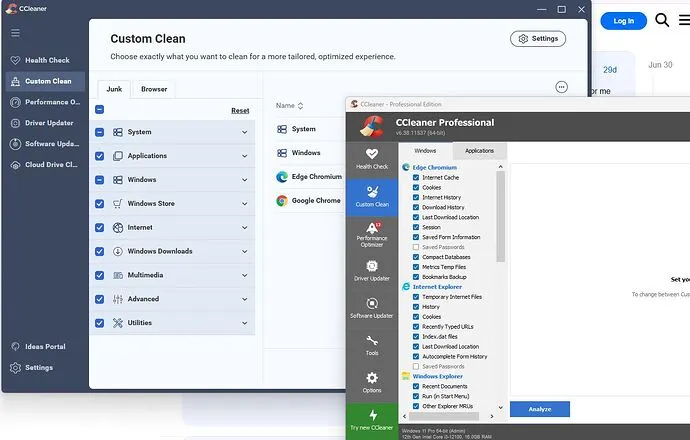
CCleaner is a system care program made by Piriform. It first came out in 2004. Today it is owned by Gen Digital, the company behind Norton and Avast. In simple terms, the CCleaner PC Cleaning Tool removes junk that Windows leaves behind. That means temporary files, cache, cookies, and old logs. It also helps with startup programs, old software, and drivers. There is a free plan and a few paid ones.
Here is a quick look at what it offers:
- Health Check that scans and fixes common issues in one go
- Custom Clean for Windows files and browser data
- Registry Cleaner for broken or old entries
- Startup and browser plugin manager
- Software Updater and Driver Updater on paid plans
- Duplicate Finder and Disk Analyzer
- Drive Wiper for safe file deletion
- Scheduled cleaning on paid plans.
Here’s the quick info for the CCleaner PC Cleaning Tool
- Developer: Piriform (a Gen Digital company)
- Latest Version: 6.20.10897 (as of September 2026)
- File Size: Around 60 MB (Windows installer)
- Supported OS: Windows 10, 11, macOS, Android
- License Type: Free and Professional (paid)
- Release Date: September 2026 update
- Key Features: Junk file cleanup, registry repair, startup manager, privacy cleaner, software updater
- Languages Supported: 40+ languages
- Installer Type: Online and offline setup available
Part 2: Top Reasons to Use CCleaner PC Cleaning Tool
8 Solid Reasons This Old Favorite Still Earns a Spot on Your PC:
Why do so many people keep choosing this program? The answer is simple. It is easy, quick, and familiar. Here is what stands out about the CCleaner PC Cleaning Tool in daily use. Each reason below comes from how the program actually works.
- Easy to use. The layout is clean, and the buttons are big. Health Check runs in a few clicks.
- Frees up space fast. It clears temp files, cache, and the Recycle Bin. A PC with low storage can get breathing room in minutes.
- Protects privacy. It removes browsing history, cookies, and saved form data. This is handy on a shared or family computer.
- Faster startup. You can switch off apps that launch at boot. Fewer startup apps often mean a quicker start.
- Small and light. The installer is tiny, and the program does not hog resources. It does not need a strong PC to run.
- Useful free plan. Standard cleaning, standard privacy protection, and a Basic Health Check in free version.
- Works on more than one device. There are versions for Windows, Mac, and Android. One familiar brand can look after all your devices.
Part 3: Key Features Explained: CCleaner PC Cleaning Tool
CCleaner packs many tools under one roof. Some are free. Some need a paid plan.
Each one is explained in plain words, so you know what to expect from CCleaner PC Cleaning before you install it.
1. Health Check
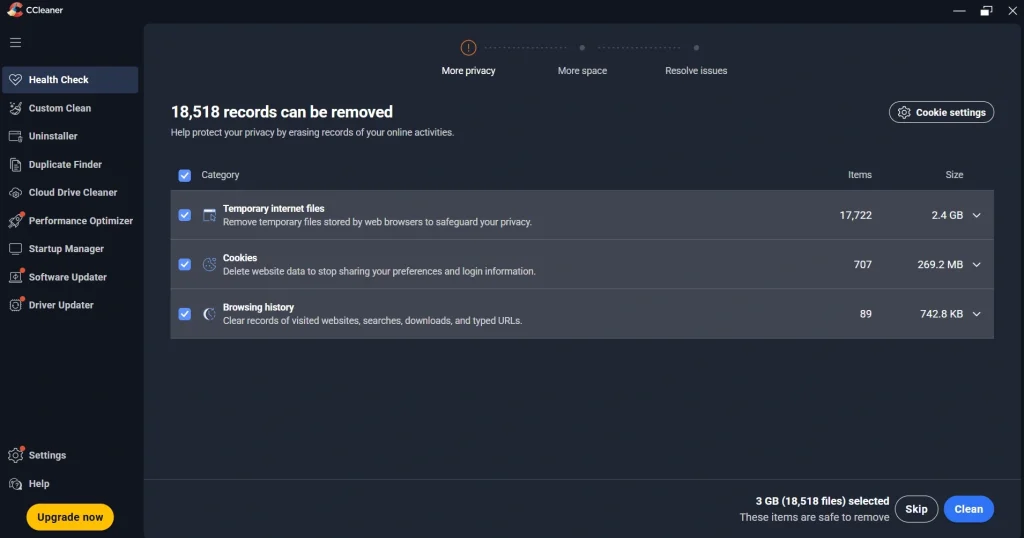
Health Check is the star of the show. It scans your PC in one go and shows a simple report. The scan looks at junk files, privacy traces, and startup items. Then it lets you fix everything with one button. This is perfect for people who do not want to pick settings.
The free plan gives a Basic Health Check. Paid plans give the Complete version. It goes deeper and adds update and speed tips. Think of it as a quick checkup for your computer.
2. Custom Clean
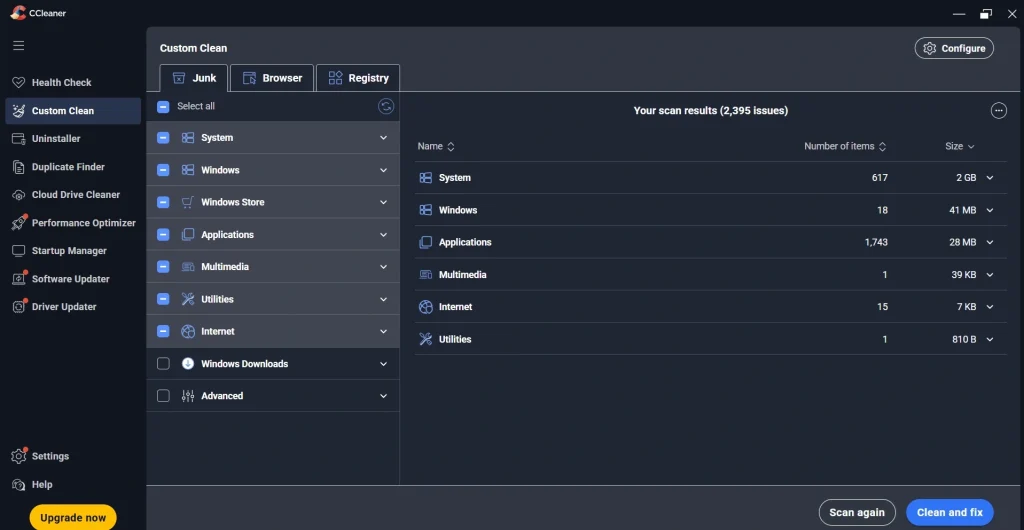
Custom Clean gives you full control. It organizes cleanup into two sections — one focused on Windows, and the other dedicated to apps and browsers.
You can tick or untick each item. For example, you can clear cache but keep saved passwords. Click Analyze first. It shows how much space each item will free. This tool suits people who like to know what is going away. It also gives the biggest space wins, since browsers and Windows hold a lot of temporary data.
3. Registry Cleaner
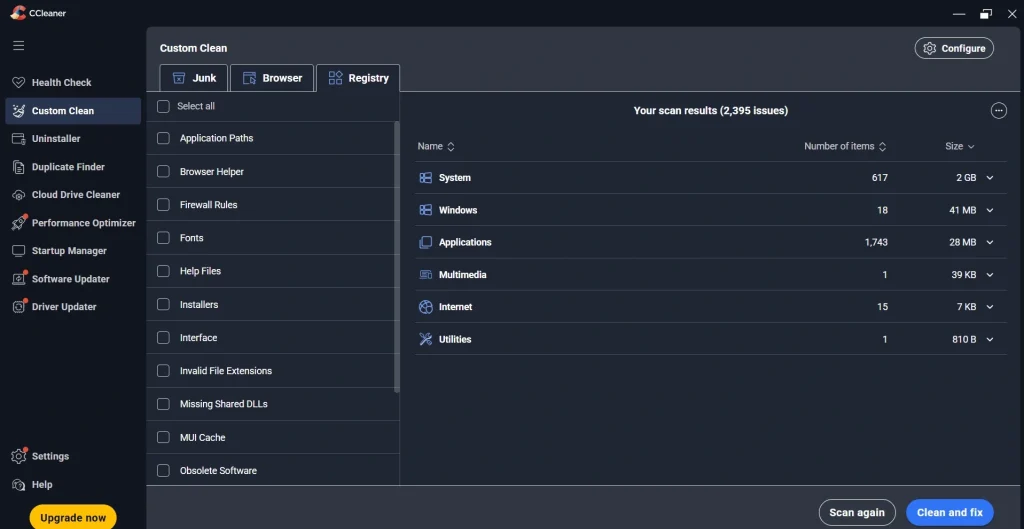
The Windows registry is a huge database that stores system and app settings. Over time, it fills up with broken or leftover entries from uninstalls and failed installs. CCleaner scans for these and lets you fix them, but it always asks to save a backup first — and you should say yes. In my experience, cleaning the registry doesn’t make a PC dramatically faster, but it does clear out clutter. Use it carefully and not too often.
4. Performance Optimizer and Startup Manager
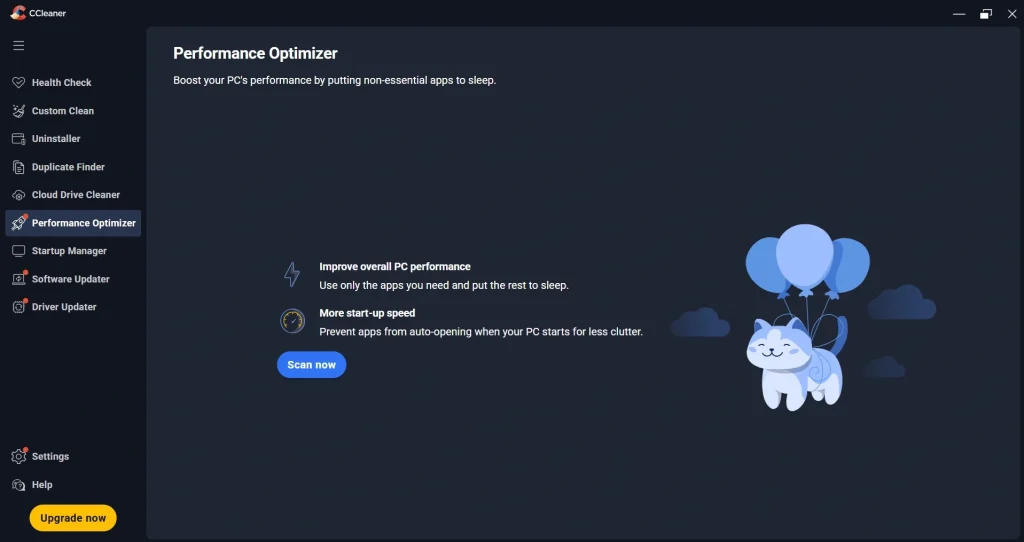
Some apps run in the background even when you do not use them. They eat memory and slow the PC. The Performance Optimizer finds such apps and puts them to sleep. They wake up when you open them. It is part of the paid plans. Alongside it, the Startup manager in the Tools menu lets you switch off programs that launch at boot. That part is easy to reach and simple to use. A shorter startup list is one of the best ways to speed up an older PC.
5. Software Updater
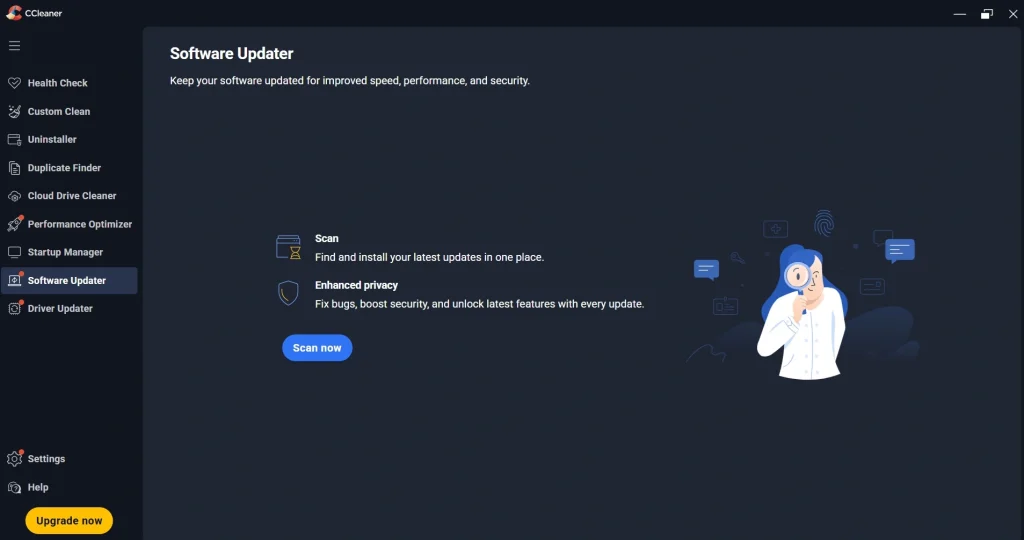
Old software is a risk. Bugs and security holes hide in outdated apps. The Software Updater checks your installed programs and shows which ones need a new version. On paid plans, it can update many of them for you. This saves time, as you do not have to visit each website. It is handy for people who install a lot of apps. Just read the list first, and skip anything you do not use or trust.
6. Driver Updater

Drivers help Windows talk to your hardware. Think of graphics cards, printers, and network cards. The Driver Updater scans for old drivers and offers newer ones. It also makes a Windows restore point before it installs anything. That is a smart safety step. Still, drivers can cause trouble if a new one does not suit your device. Some users have shared bad stories online. So keep the restore point ready, and update only what you need. This feature is on the paid plans.
7. Duplicate Finder and Disk Analyzer
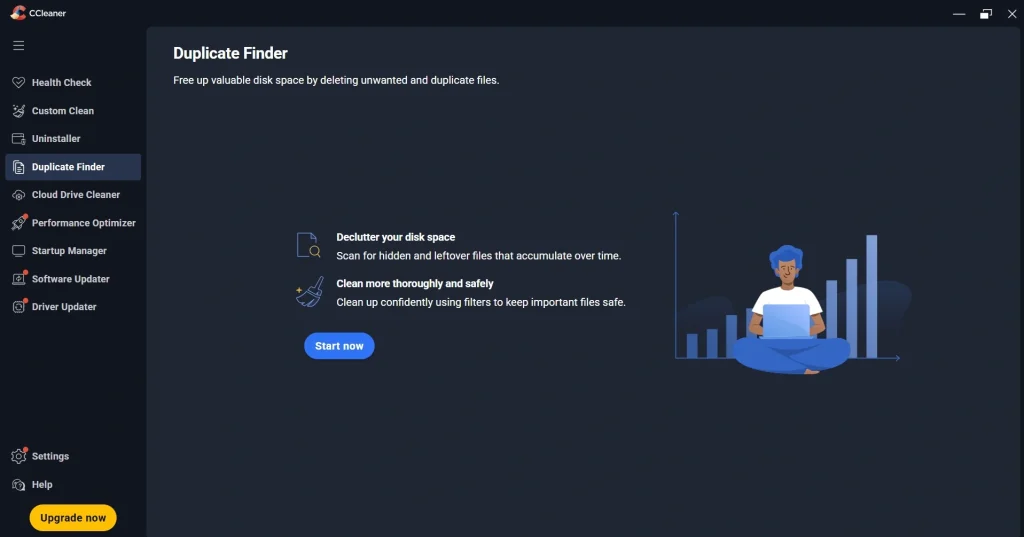
Storage fills up because of copies and big forgotten files. The Duplicate Finder hunts for files with the same content. It lists them so you can delete the extras. The Disk Analyzer shows which file types eat the most space, like videos or installers. Both tools live under the Tools menu. Newer versions also have a Cloud Drive Cleaner. It helps find old or large files in Google Drive, OneDrive, and Dropbox. Always review the list before you delete anything.
8. Cloud Drive Cleaner
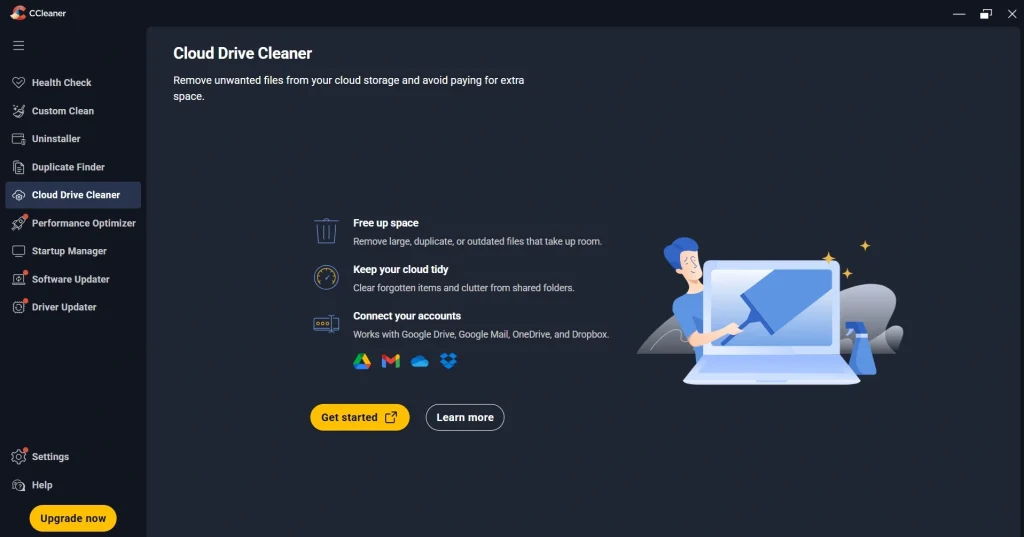
Junk does not only live on your PC. It also builds up online. Old uploads, repeated files, and large forgotten items can fill your cloud space fast. The Cloud Drive Cleaner helps here. It can look through Google Drive, Microsoft OneDrive, and Dropbox. It helps you find duplicated, large, or old files. Then you can decide what to remove. This is useful when a cloud plan is close to full and you want to avoid paying for more space. As always, check each file before you delete it.
9. App Uninstaller
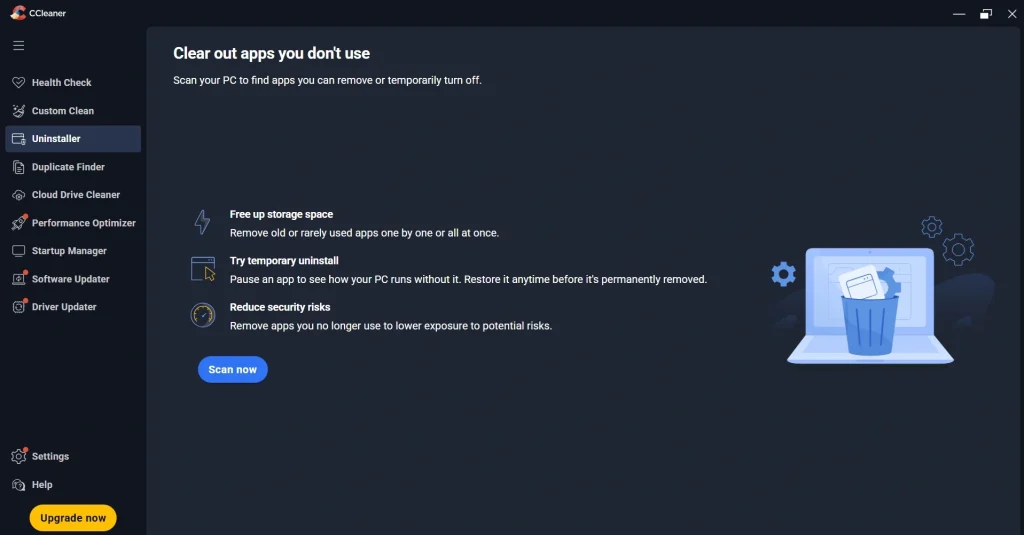
Apps pile up over the years. Trial software, old games, and tools used only once all take space. The App Uninstaller lists the programs installed on your PC in one place. You can pick the ones you no longer need and remove them. It is easier than digging through Windows settings. It is also a good partner for Custom Clean. First remove the app, then clean the leftovers. This two step habit keeps your drive lighter and your system tidier. It is available in the Tools menu, and it is free to use.
Part 4: How to Use CCleaner PC Cleaning Tool: Step-by-Step Guide
Using CCleaner is not hard. The steps are short. Even a first-timer can finish in about ten minutes. Before you begin, close your browsers and save your work. Cleaning can sign you out of some websites. That is normal, so do not worry.
Also, always download from the official site. Third-party sites may bundle extra software. A safe download keeps your PC safe. Now let us walk through the CCleaner PC Cleaning Tool step by step.
Step 1: Download and Install CCleaner
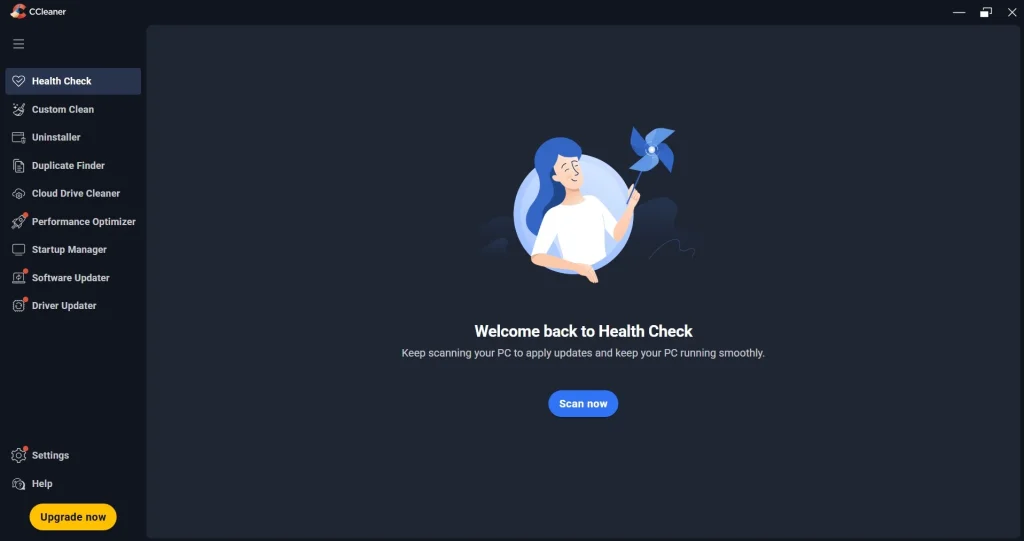
Go to the official CCleaner website. Download the Windows installer. It is a small file, so it downloads fast. Once setup ends, open CCleaner from the desktop or the Start menu. On the home screen, click Health Check and start the scan.
Step 2: Run Health Check
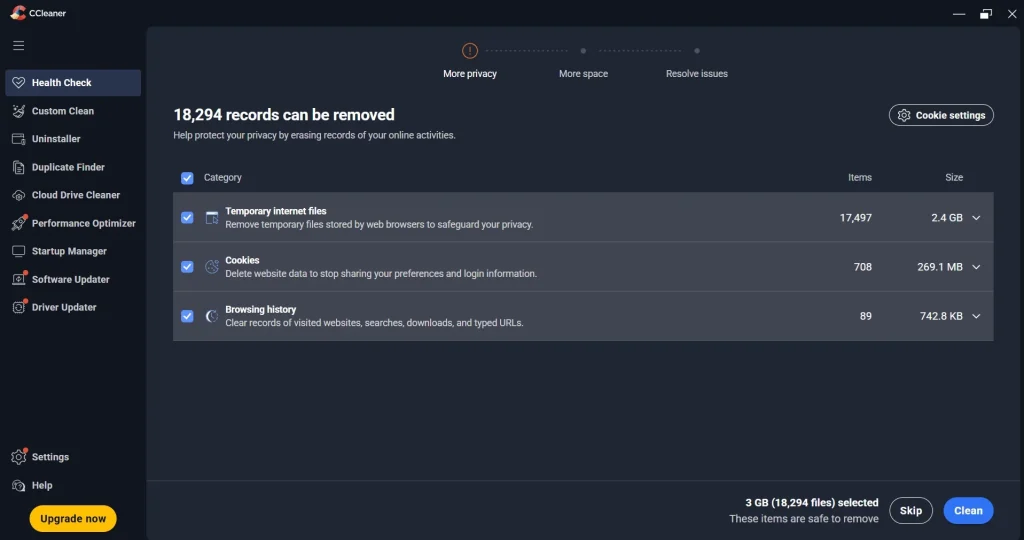
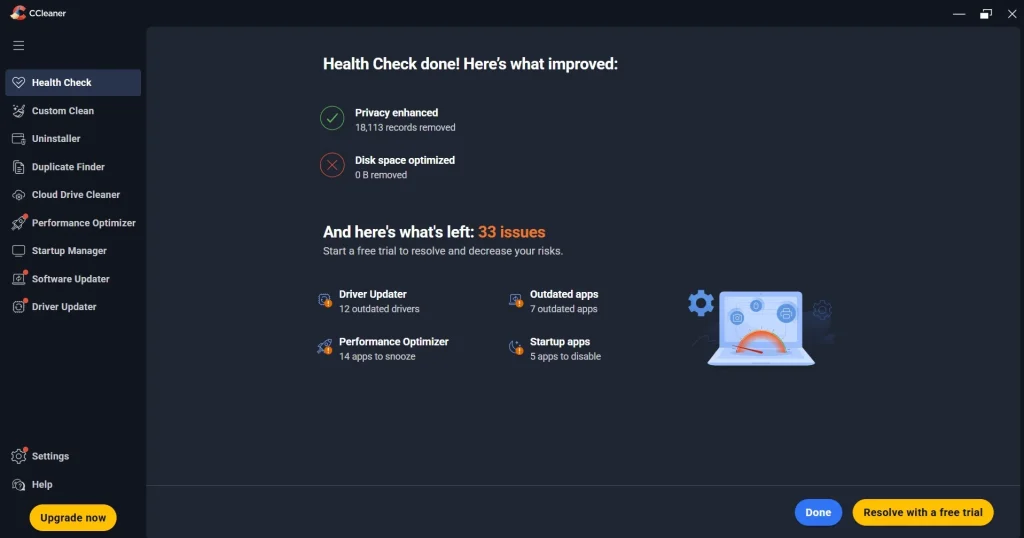
Wait a minute or two. The report shows what it found. You will see junk files, privacy items, and startup apps. Look at each group. Click the Clean button only after you read the list. The Basic Health Check works on the free plan.
Step 3: Fine-Tune With Custom Clean and Tools
For a deeper clean, open Custom Clean. Click Analyze first. Check the size next to each item. Untick things you want to keep, like saved passwords or login data. Then click Run Cleaner. After that, open the Tools menu. Visit Startup and switch off apps you never need at boot. Visit Uninstall to remove software you no longer use. Restart the PC at the end. Repeat this once a month for the best results.
Part 5: Pros and Cons Explained: CCleaner PC Cleaning
The Good, the Bad, and What Really Matters:
No tool is perfect, and CCleaner is no exception. It has real strengths. It also has a few weak spots that users often mention. Below is a fair split of both sides. Read them slowly. They will help you decide if this cleaner fits your needs and your budget.
Pros
- Quick Cleanup — I ran the cleaner, and within seconds it cleared out hundreds of MBs of junk files. My browser cache and temp files were gone, and I noticed Chrome opened faster afterward.
- Startup Manager — Disabled a couple of unnecessary apps that were slowing boot time. My PC now starts up noticeably quicker.
- Registry Cleaner — After cleaning, I didn’t face any crashes or errors. It removed leftover entries from uninstalled software without breaking anything.
- Software Updater — It flagged outdated apps like Zoom and VLC. Updating them directly from CCleaner saved me time.
- Lightweight Tool — The installer was small (around 60 MB), and it barely used system resources while running.
Cons
- Free Version Limitations — The free edition doesn’t have real-time monitoring. I had to remember to run scans manually.
- Aggressive Upgrade Prompts — Every time I finished a cleanup, it nudged me to buy the Pro version. It felt a bit pushy.
- RAM Spike During Scan — While cleaning large files, I noticed my system slowed down briefly. Not a dealbreaker, but worth noting.
- Interface Looks Dated — The design feels old-school compared to modern tools like CleanMyPC. It works fine, but visually it could use a refresh.
- Registry Cleaning Risk — Even though it worked for me, I was cautious. Registry cleaning always carries a small risk if something important gets removed.
Overall, CCleaner gave me a noticeable speed boost and freed up disk space, but the constant Pro upgrade prompts and dated interface stood out as downsides.
Part 6: Pricing Plans: CCleaner PC Cleaning Tool
CCleaner has one free plan and three paid ones. Paid plans are billed yearly. The prices below are the list prices I found on recent review pages. Sale prices are common, and some sites show different numbers. So check the official pricing page before you buy.
- Free: $0. Standard cleaning, standard privacy protection, and Basic Health Check.
- Professional: $44.95 per year for 1 PC. Adds Complete Health Check, Smart Cleaning, scheduled cleaning, Driver Updater, Software Updater, and Performance Optimizer.
- Professional Plus: $64.95 per year for up to 3 devices. Includes everything in Professional, plus Recuva Pro and Speccy Pro.
- Premium Bundle: $64.95 per year for up to 5 devices. Adds Kamo privacy protection and 24/7 premium support on top of the Plus features.
Here is a simple table to compare the free plan with the paid ones:
| Feature | Free | Professional | Professional Plus | Premium Bundle |
| Price per year | $0 | $44.95 | $64.95 | $64.95 |
| Devices covered | 1 | 1 PC | Up to 3 | Up to 5 |
| Standard cleaning | Yes | Yes | Yes | Yes |
| Standard privacy protection | Yes | Yes | Yes | Yes |
| Health Check | Basic | Complete | Complete | Complete |
| Smart Cleaning | No | Yes | Yes | Yes |
| Scheduled cleaning | No | Yes | Yes | Yes |
| Software Updater | No | Yes | Yes | Yes |
| Driver Updater | No | Yes | Yes | Yes |
| Performance Optimizer | No | Yes | Yes | Yes |
| Recuva Pro (file recovery) | No | No | Yes | Yes |
| Speccy Pro (system info) | No | No | Yes | Yes |
| Kamo privacy app | No | No | No | Yes |
| 24/7 premium support | No | No | No | Yes |
Part 7: Honest Feedback on Using CCleaner PC Cleaning Tool On My PC
I installed CCleaner on my Windows 11 laptop, which is about three years old. It had been slow lately, and storage was almost full. The installation took under a minute. The first thing I noticed was the clean layout. I ran Health Check right away. It found several gigabytes of junk, mostly browser cache and old Windows update files. I felt good seeing that number. I cleared it, and my free space grew by a few gigabytes. It was not dramatic, but it was real.
Next, I opened the startup list. I found five apps that launched with Windows for no good reason. I turned them off and restarted. The boot felt a little quicker. I would not call it a big jump. It was more like my PC took a deep breath. I also tried the registry cleaner. I saved the backup first, as advised. It found a bunch of small issues. After fixing them, I saw no change in speed. That part of CCleaner PC Cleaning felt more like a bonus than a need.
Now for the honest bit. The pop-ups for the paid plan came up more often than I liked. Almost every scan ended with a hint to upgrade. It is not a deal breaker, but it gets tiring. I also skipped the driver updater because my drivers were fine and I did not want the risk.
Overall, I liked the free version. It is simple and quick, and it does what it says. Would I pay for it? Only if I wanted scheduled cleaning and did not want to think about it.
Part 8: Trust, Reviews and Ratings of the CCleaner PC Cleaning Tool Worldwide
What the World Really Thinks About CCleaner
CCleaner remains one of the most trusted PC cleaning tools worldwide in 2026, holding average ratings between 4.5 and 4.6 stars across major review platforms. Users consistently praise its ease of use, fast cleanup, and reliability, though some note that the free version lacks advanced features found in the paid tier.
Global Ratings Snapshot
| Platform | Average Rating | Highlights |
| G2 | 4.5/5 (627 reviews) | Praised for quick cleaning, disk space recovery, and simple interface. Minor complaints about limited free features. |
| SoftwareSuggest | 4.6/5 (16 reviews) | High marks for ease of use (4.9/5) and value for money (4.8/5). Users appreciate real-time monitoring and automatic cleaning. |
| The High Tech Society | 4/5 (Expert review) | Reliable cleaner with solid performance; Pro version adds real-time monitoring and updaters. Safety concerns from 2017 now resolved. |
User Trust and Reputation
- Global Reach: Over 2 billion downloads worldwide, making CCleaner one of the most installed PC utilities ever.
- Ownership: Developed by Piriform, now part of Gen Digital (the parent company of Avast and Norton), adding corporate credibility.
- Regional Adoption:
- North America & Europe: Strong enterprise and personal use; praised for reliability.
- Asia & Latin America: Rapid adoption among small businesses and home users for affordability and simplicity.
- Middle East & Africa: Moderate presence, mainly through bundled software deals.
Strengths Reported by Users
- Ease of Use — Simple interface and one-click cleaning make it accessible for all skill levels.
- Performance Boost — Noticeable speed improvements after cleanup.
- Privacy Protection — Effectively removes browser history, cookies, and temporary files.
- Cross-Platform Support — Works on Windows, macOS, and Android.
Common Criticisms
- Free Version Limitations — Lacks real-time monitoring and automatic updates.
- Aggressive Upselling — Frequent prompts to upgrade to Pro.
- RAM Usage During Cleaning — Some users report temporary performance dips during scans.
- Interface Modernization — Requests for a more modern UI design.
Expert Verdict
CCleaner continues to earn trust as a safe, effective, and globally recognized PC optimization tool. The Professional version is ideal for users needing automation and real-time monitoring, while the Free version remains sufficient for routine cleanups.
Conclusion
CCleaner is an old name that still does its main job well. It clears junk fast and keeps privacy traces in check. The layout is simple. The free plan is enough for most home users. Paid plans add automation and extra tools. These are handy, but not a must for everyone.
It is not perfect. The upsell pop-ups can be annoying. Registry cleaning gives little gain. Driver updates need caution. And the 2017 event still makes some people wary. So a smart approach works best. Download from the official site. Make a restore point. Turn off telemetry. Then run a clean once a month.
So who should try it? Anyone with a cluttered Windows PC and low storage will benefit. Start with the free version. Judge it for a few weeks. If you miss automation, then think about a paid plan. It is a low-risk path. And it is exactly how I would suggest using CCleaner PC Cleaning for the long run.
FAQs
1. Is CCleaner safe to use in 2026?
Yes, if you download it from the official website. Reviewers in 2026 call the current version safe. A 2017 incident did hurt trust, but it was dealt with. To stay safe, avoid third-party download sites. Check the privacy settings, where you can turn off data sharing. Also make a restore point before you update drivers or clean the registry.
2. Is the free version of CCleaner enough?
For most home users, yes. It offers standard cleaning, standard privacy protection, and a Basic Health Check. That covers junk files, browser data, and startup control. You only need a paid plan if you want scheduled cleaning, the Software Updater, the Driver Updater, or the Performance Optimizer.
3. Will CCleaner make my PC much faster?
It can help a little. This is most true for PCs with full storage or many startup apps. Do not expect miracles. Clearing junk and trimming startup items may free space and speed up the boot. But slow hardware, an old hard drive, or low memory need other fixes. An SSD or more RAM would do far more.
Know About Some CCleaner Alternatives
BleachBit PC Cleaner Tool: Complete Review After Running Tests
WMaster Cleanup PC Cleaner Tool: A Detailed Review
Outbyte PC Repair and Cleanup Tool: A Detailed Review
Avast PC Cleanup Tool: A Detailed Review
Avira PC Speed Up Tool: Is It Actually Worth It?
Advanced SystemCare: Tool To Clean Your PC [Complete Review]
EaseUS CleanGenius Reviewed: Features, Pricing, and Real Results
Windows Storage Sense For PC Cleaning: Everything You Need To Know
Defencebyte Computer Optimizer: An In-Depth Review
JetClean Junk File Cleaner and PC Cleaning Tool: A Complete Review
Windows Disk Cleanup Review: Features, Steps, and Real Results
PrivaZer PC Cleaning Tool: An In-Depth Review
Total PC Cleaner: Clean Disk, Antivirus for Windows (An Honest Review)
Iolo System Mechanic Review: Full Breakdown and Honest Take
Clean Master for PC Tested: A Full Breakdown of Its Tools
Wise Care 365 PC Cleaner Tool: A Hands-On Review
Glary Utilities PC Cleaner: Complete Review [Tested and Trusted]
Microsoft PC Manager: Complete In-Depth Review
AVG TuneUp Guide: Features, Pros, Cons, and Pricing
Ashampoo WinOptimizer: Features and Process [Complete Guide]

Author Bio:
Dinesh Lakhwani, the entrepreneurial brain behind “TechCommuters,” achieved big things in the tech world. He started the company to make smart and user-friendly tech solutions. Thanks to his sharp thinking, focus on quality and the motto of never giving up, TechCommuters became a top player in the industry. His commitment to excellence has propelled the company to a leading position in the industry.
Popular Post






Recent Post
CCleaner vs. BleachBit: Complete Comparison Guide
Over time, every Windows PC accumulates unnecessary files that take up valuable storage space. Temporary files, browser caches, cookies, and forgotten installers can slowly build up on the system. While these files may seem harmless individually, their combined size can consume disk space and affect system performance. Cleaning utilities help remove this digital clutter, and […]
Total PC Cleaner: Clean Disk, Antivirus for Windows (An Honest Review)
Simply type “PC cleaner” into the Microsoft Store search box and a long list appears. Well, yes! The icons look alike. The names overlap, and almost every description promises a faster, cleaner, safer computer. Many also use the word antivirus, which adds to the confusion. Total PC Cleaner: Clean Disk, Antivirus is one of the […]
PrivaZer PC Cleaning Tool: An In-Depth Review
Deleting a file in Windows does less than most people think. The system removes the file’s entry from its index and marks the space as free. The actual data often stays on the disk until something else overwrites it. That is why recovery tools can bring back files long after they were deleted. Files are […]
Windows Disk Cleanup Review: Features, Steps, and Real Results
Storage space does not disappear overnight. Tiny pieces of data accumulate little by little while Windows performs routine tasks. Old update files, temporary program data, and other unused items often remain saved on the drive. Eventually, these forgotten files can take up room that could be used for something more important. Disk Cleanup is a […]

JetClean Junk File Cleaner and PC Cleaning Tool: A Complete Review
Heads up before you read further: JetClean (made by BlueSprig) is discontinued. Its last version dates to 2016, and several listings say the official download is gone. Let’s begin our review article! Few Windows utilities stay in circulation for more than a decade without a major update. JetClean is one of them. The tool first […]

Defencebyte Computer Optimizer: An In-Depth Review
Slow startup, delayed app launches, and freezing windows are among the most common complaints from Windows users. In many cases, the cause is not failing hardware. It is the gradual buildup of leftover data. Uninstalled programs leave registry entries behind. Temporary files and logs collect in system folders. Broken file paths and unused extensions stay […]

Windows Storage Sense For PC Cleaning: Everything You Need To Know
The low disk space warning always shows up at the worst time. A big update is waiting to install. A file refuses to save. The storage bar in Settings has turned red, and nobody remembers what filled it. Most people react by hunting for a cleaner to download. Many never notice that Windows already has […]

EaseUS CleanGenius Reviewed: Features, Pricing, and Real Results
Nobody notices the first temporary file. Nobody notices the hundredth either. Then one day the drive is almost full, the browser drags, and Windows takes ages to start. Clutter builds in quiet ways. Installers leave leftovers. Browsers store cache and cookies. Apps write logs that nobody reads. Programs add themselves to startup without asking. None […]

Advanced SystemCare: Tool To Clean Your PC [Complete Review]
The first thing I notice is how the startup screen hangs. The fan kicks in fast and stays loud. If I open a simple folder, the whole system pauses for a moment. It does not look like a clear hard failure, yet the PC feels heavy and slow. This is not usually one big problem. […]

CCleaner PC Cleaning Tool: An In-Depth Review
Learn how to clean your PC with CCleaner. This complete guide covers features, step-by-step instructions, pros, cons, pricing, and FAQs to help you decide.
