AVG TuneUp Guide: Features, Pros, Cons, and Pricing
PC performance often drops with time. Junk files build up. Startup programs increase. Storage fills up. As a result, your computer may take longer to boot, feel sluggish, or run out of space. The good news is that these problems are usually easy to fix.
AVG TuneUp is a PC optimization tool for Windows. It helps remove unnecessary files, manage startup apps, and free up storage. It also works in the background to keep your system running smoothly. You do not need advanced technical skills to use it.
In this guide, we will explore AVG TuneUp’s features, explain how to clean your PC with it, and review its advantages, drawbacks, pricing, and overall value. By the end, you will have a clear idea of whether it is the right tool for your needs.
Key Features of AVG TuneUp
AVG TuneUp comes packed with tools that cover almost every area of PC maintenance. Each feature targets a specific problem that slows down your computer. Whether it is disk clutter, unnecessary startup programs, or bloatware, AVG TuneUp has something for it. Let us take a closer look at what this software offers.
1. Sleep Mode
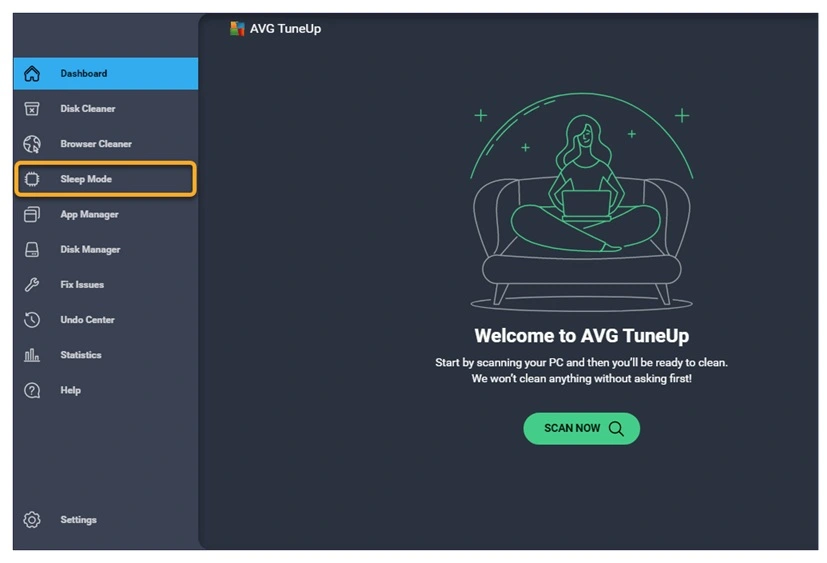
This is one of the standout features of AVG TuneUp. It puts background apps to sleep when you are not using them. These apps often run silently and consume CPU and RAM. Sleep Mode stops them without uninstalling them. When you open the app again, it wakes up instantly. This feature alone can make a big difference in system speed.
2. Disk Cleaner
Your PC collects junk over time. This includes temporary files, system logs, old Windows updates, and browser cache. The Disk Cleaner scans your entire system and removes these files safely. It helps free up gigabytes of storage in just a few clicks. A cleaner disk also means faster file access.
3. Registry Cleaner
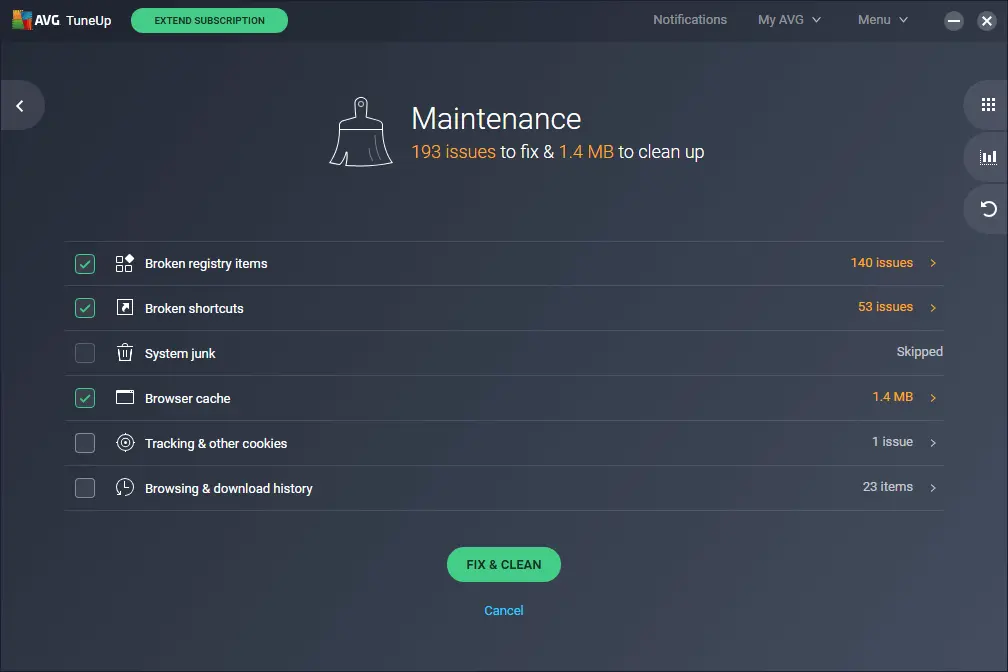
The Windows registry stores settings and configurations for your programs. Over time, it gets filled with broken or outdated entries. These can slow down your system or cause errors. The Registry Cleaner in AVG TuneUp scans and fixes these entries. It keeps your registry lean and organized.
4. Startup Manager
Many programs add themselves to the startup list without your knowledge. This makes your PC boot slowly. The Startup Manager shows you all programs that launch at startup. You can disable the ones you do not need. This leads to a faster boot time with minimal effort.
5. Automatic Maintenance
AVG TuneUp can run maintenance tasks on its own. You do not need to schedule anything manually. It cleans junk, fixes issues, and optimizes settings automatically. This is great for users who want a hands-off approach to PC care.
6. Software Uninstaller
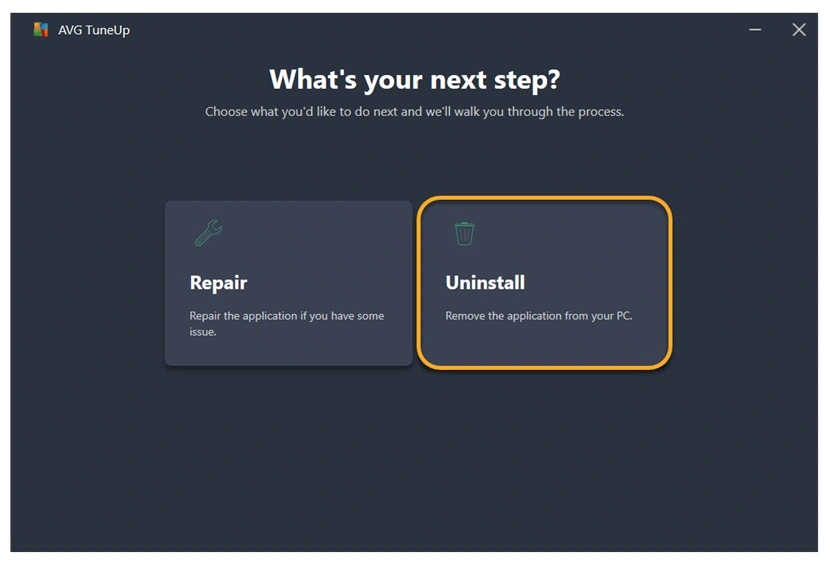
This feature helps you remove programs that you no longer use. It goes deeper than the default Windows uninstaller. It also removes leftover files and registry entries that remain after uninstallation. This gives you more free space and a cleaner system.
7. Duplicate Finder
Duplicate files waste a lot of space. Photos, documents, and downloads often get saved more than once. The Duplicate Finder scans your PC and identifies these copies. You can then delete the extras and recover valuable disk space.
8. Browser Cleaner
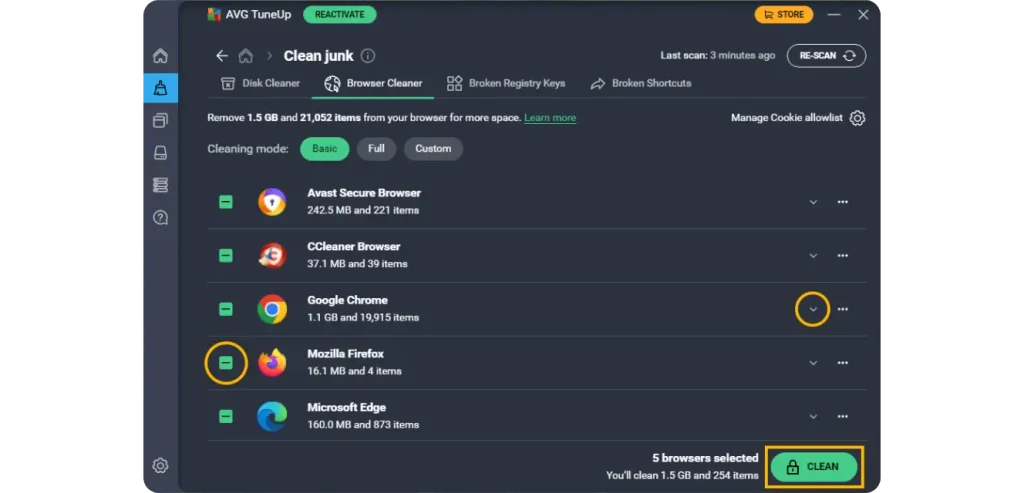
Your browser stores cookies, cache, and history. Over time, this data slows down your browsing experience. The Browser Cleaner removes this data from all major browsers. It supports Chrome, Firefox, Edge, and more. A cleaner browser also means better privacy.
How to Clean PC With AVG TuneUp
Cleaning your PC with AVG TuneUp is a straightforward process. The software is designed with everyday users in mind. You do not need technical knowledge to use it. The interface is clean and simple. Everything is labeled clearly so you know exactly what each tool does.
Before you start, make sure AVG TuneUp is installed and updated to the latest version. Open the software and take a moment to explore the dashboard. You will see options for cleaning, optimizing, and managing your PC. The one-click fix option at the top is the quickest way to clean everything at once. However, if you want more control, you can use each tool separately.
Step 1: Scan Your PC
Open AVG TuneUp. Click Scan Now. Start a full scan. It will check for junk files, startup issues, and other problems. When the scan finishes, review the results.
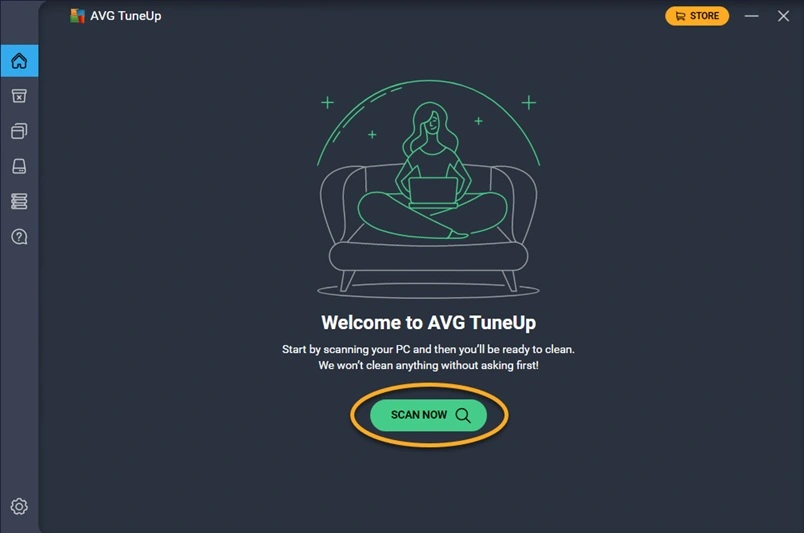
Step 2: Clean and Optimize
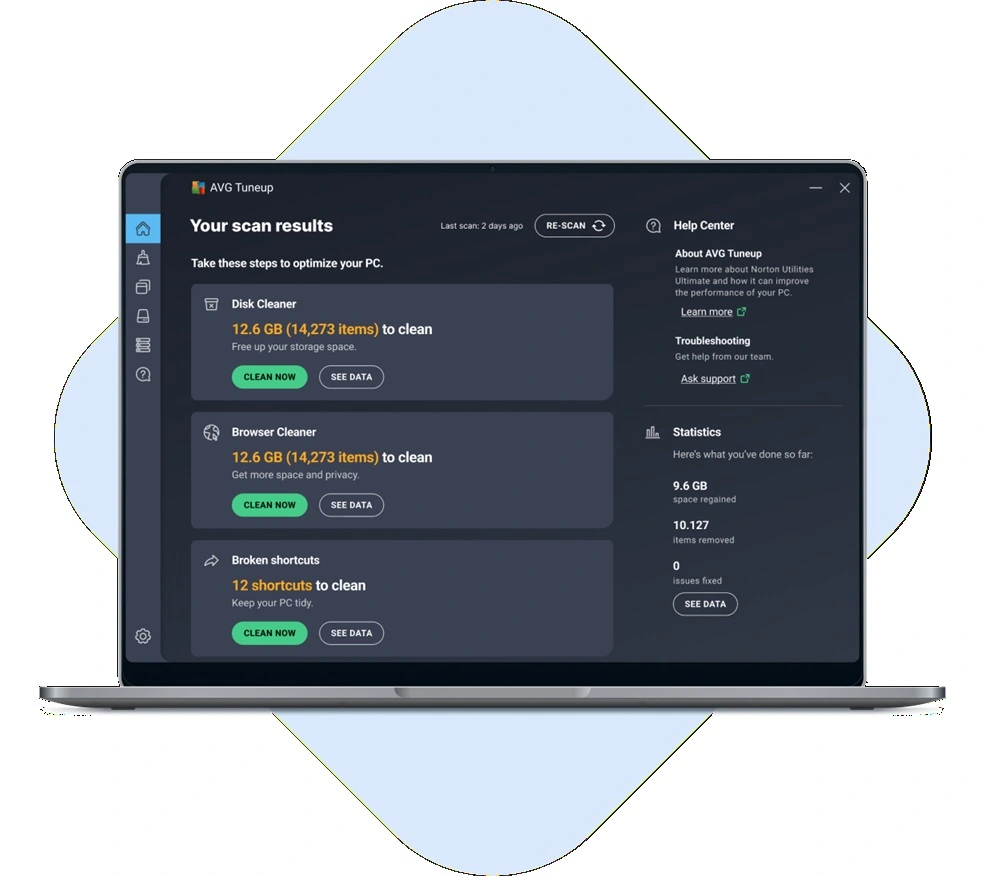
Click Clean Now to remove junk files and improve performance. Restart your PC after the process is complete to apply the changes.
The Good Side: What AVG TuneUp Does Well
Every tool has its strengths, and AVG TuneUp has plenty of them. If you are looking for a reliable PC cleaner that is easy to use, this software checks many boxes. Here is a closer look at why many users keep coming back to AVG TuneUp.
- Easy to Use Interface: The dashboard is clean and well-organized. Even first-time users can navigate it without confusion. Everything is labeled in plain language. There is no steep learning curve involved.
- Sleep Mode is Genuinely Useful: Background apps quietly drain your resources. Sleep Mode handles this smartly. It pauses these apps without removing them. Your PC runs faster without losing any functionality.
- Deep Cleaning Capability: AVG TuneUp does not just clean the surface. It goes into temporary files, logs, old update files, and registry clutter. This deep cleaning can recover several gigabytes of space on older systems.
- Automatic Maintenance Saves Time: You do not have to remember to clean your PC. AVG TuneUp does it for you. The automatic maintenance feature runs in the background and handles routine tasks without any input from you.
- Supports Multiple Browsers: The Browser Cleaner works with all popular browsers. This is a big plus for users who switch between Chrome, Firefox, and Edge. It cleans all of them in one go.
- Safe Uninstaller: The built-in uninstaller is more thorough than Windows’ default option. It removes leftover files and registry entries. This prevents program remnants from taking up space or causing errors.
- Good Performance Impact: Users often report a noticeable improvement in boot time and overall speed after using AVG TuneUp. The combination of startup management and junk file removal makes a real difference.
- Regular Updates: AVG updates the software regularly. This means new features, better cleaning algorithms, and improved compatibility with the latest Windows versions. You are always working with a current tool.
The Not-So-Good Side: Limitations of AVG TuneUp
No software is perfect. AVG TuneUp has a few drawbacks that are worth knowing before you commit to it. Being aware of these issues helps you make a smarter decision.
- Paid Software with Limited Free Version: AVG TuneUp is not free. The free trial has limited features. To get full access, you need to pay for a subscription. This may not suit users looking for a completely free solution.
- Can Be Aggressive with Cleaning: Sometimes AVG TuneUp flags files that you might want to keep. It may suggest deleting items that are not necessarily harmful. Users should review scan results before clicking “Fix All.”
- Heavy on System Resources During Scans: While the software improves performance overall, the scanning process itself can slow down your PC temporarily. Running a scan during work hours may cause brief slowdowns.
- Upselling Within the App: The software often promotes upgrades or additional AVG products. This can feel intrusive for users who just want to clean their PC without being sold other tools.
- Registry Cleaning Risks: Registry cleaners can sometimes cause issues if they remove entries that programs still need. While AVG TuneUp is generally safe, there is always a small risk with any registry cleaner.
- No Real-Time Threat Protection: AVG TuneUp is a PC optimizer, not an antivirus. It does not protect you from malware or online threats in real time. You will need a separate security tool for that.
- Duplicate Finder Can Be Slow: On PCs with large storage drives, the Duplicate Finder can take a very long time to complete its scan. This may frustrate users who want quick results.
- Customer Support Could Be Better: Some users have reported slow response times from AVG’s support team. If you run into a technical issue, getting help may take longer than expected.
Pricing: What Does AVG TuneUp Cost?
AVG TuneUp is a subscription-based product. The pricing is tiered based on the number of devices you want to cover. Here is a breakdown of what you can expect.
- 1 PC Plan: Covers one Windows PC. This is suitable for individual users who only need to optimize a single device.
- 3 PCs Plan: Covers up to three devices. Good for small families or users with multiple computers.
- 5 PCs Plan: Covers up to five devices. This is the best value option for households with several PCs.
- Free Trial Available: AVG TuneUp offers a limited free trial. You can test the basic features before committing to a paid plan.
- Annual Subscription Model: The software is billed yearly. Renewal rates may differ from introductory prices, so check before renewing.
- Bundled Deals: AVG sometimes offers bundles with other AVG products like AVG Antivirus. These bundles can save money if you need both tools.
Reputation: What Do Users and Experts Say?
AVG TuneUp has been around for a long time. It has built a solid reputation in the PC optimization space. Here is what users and reviewers generally say about it.
- Trusted Brand: AVG is a well-known name in the cybersecurity and PC tools industry. It has millions of users worldwide. This gives AVG TuneUp a level of credibility that newer tools may lack.
- Positive User Reviews on Major Platforms: On platforms like Trustpilot and the Microsoft Store, AVG TuneUp receives generally positive feedback. Users appreciate the ease of use and the visible performance improvements.
- Recommended by Tech Publications: Several tech review websites have listed AVG TuneUp among the top PC optimization tools. It often ranks well in comparisons with similar software.
- Long Track Record: AVG TuneUp has been updated and maintained for years. This consistency builds trust among users who have relied on it for a long time.
- Some Complaints About Pricing: A common theme in negative reviews is the subscription cost. Some users feel the price is too high for what the tool offers, especially when free alternatives exist.
- Generally Safe and Reliable: Security researchers and reviewers have not flagged AVG TuneUp as risky or bundled with unwanted software. It is considered a legitimate and safe tool.
Conclusion
AVG TuneUp is a well-built PC optimization tool that delivers on its promises. It cleans junk files, manages startup programs, improves boot time, and keeps your PC running smoothly. The interface is beginner-friendly. The features are practical and useful. For anyone who wants to maintain their PC without doing things manually, AVG TuneUp is worth considering.
That said, it is not a perfect tool. The subscription cost may be a concern for budget-conscious users. The aggressive cleaning suggestions require some attention. And it does not replace a proper antivirus. If you know these limitations going in, you can use AVG TuneUp effectively. Give the free trial a try and see how it works on your PC before making a purchase decision.
FAQs
Q1. Is AVG TuneUp safe to use?
Yes, AVG TuneUp is a safe and legitimate software. AVG Technologies, a well-established company in the cybersecurity space, develop it. The tool does not carry malware or unwanted programs. However, like any registry cleaner, it is a good idea to review scan results before applying all fixes. This helps avoid accidentally removing entries that some programs still rely on.
Q2. Can AVG TuneUp replace an antivirus?
No, AVG TuneUp cannot replace an antivirus program. It is a PC optimization tool, not a security product. It cleans junk files, manages startup items, and improves system performance. It does not detect or remove malware, viruses, or online threats. If you want complete protection, you should use AVG TuneUp alongside a dedicated antivirus like AVG Internet Security.
Q3. How often should I run AVG TuneUp?
For most users, running a full scan and cleanup once a week is enough to keep the PC in good shape. If you use your PC heavily for work or gaming, you might want to run it more frequently. The automatic maintenance feature in AVG TuneUp also handles routine tasks in the background. This means your PC stays clean even between manual scans.
Know About Some AVG Tuneup Guide Alternatives
BleachBit PC Cleaner Tool: Complete Review After Running Tests
WMaster Cleanup PC Cleaner Tool: A Detailed Review
Outbyte PC Repair and Cleanup Tool: A Detailed Review
Avast PC Cleanup Tool: A Detailed Review
Avira PC Speed Up Tool: Is It Actually Worth It?
CCleaner PC Cleaning Tool: An In-Depth Review
Advanced SystemCare: Tool To Clean Your PC [Complete Review]
EaseUS CleanGenius Reviewed: Features, Pricing, and Real Results
Windows Storage Sense For PC Cleaning: Everything You Need To Know
Defencebyte Computer Optimizer: An In-Depth Review
JetClean Junk File Cleaner and PC Cleaning Tool: A Complete Review
Windows Disk Cleanup Review: Features, Steps, and Real Results
PrivaZer PC Cleaning Tool: An In-Depth Review
Total PC Cleaner: Clean Disk, Antivirus for Windows (An Honest Review)
Iolo System Mechanic Review: Full Breakdown and Honest Take
Clean Master for PC Tested: A Full Breakdown of Its Tools
Wise Care 365 PC Cleaner Tool: A Hands-On Review
Glary Utilities PC Cleaner: Complete Review [Tested and Trusted]
Microsoft PC Manager: Complete In-Depth Review
Ashampoo WinOptimizer: Features and Process [Complete Guide]

Author Bio:
Dinesh Lakhwani, the entrepreneurial brain behind “TechCommuters,” achieved big things in the tech world. He started the company to make smart and user-friendly tech solutions. Thanks to his sharp thinking, focus on quality and the motto of never giving up, TechCommuters became a top player in the industry. His commitment to excellence has propelled the company to a leading position in the industry.
Popular Post






Recent Post

Total PC Cleaner: Clean Disk, Antivirus for Windows (An Honest Review)
Simply type “PC cleaner” into the Microsoft Store search box and a long list appears. Well, yes! The icons look alike. The names overlap, and almost every description promises a faster, cleaner, safer computer. Many also use the word antivirus, which adds to the confusion. Total PC Cleaner: Clean Disk, Antivirus is one of the […]

PrivaZer PC Cleaning Tool: An In-Depth Review
Deleting a file in Windows does less than most people think. The system removes the file’s entry from its index and marks the space as free. The actual data often stays on the disk until something else overwrites it. That is why recovery tools can bring back files long after they were deleted. Files are […]
Windows Disk Cleanup Review: Features, Steps, and Real Results
Storage space does not disappear overnight. Tiny pieces of data accumulate little by little while Windows performs routine tasks. Old update files, temporary program data, and other unused items often remain saved on the drive. Eventually, these forgotten files can take up room that could be used for something more important. Disk Cleanup is a […]

JetClean Junk File Cleaner and PC Cleaning Tool: A Complete Review
Heads up before you read further: JetClean (made by BlueSprig) is discontinued. Its last version dates to 2016, and several listings say the official download is gone. Let’s begin our review article! Few Windows utilities stay in circulation for more than a decade without a major update. JetClean is one of them. The tool first […]

Defencebyte Computer Optimizer: An In-Depth Review
Slow startup, delayed app launches, and freezing windows are among the most common complaints from Windows users. In many cases, the cause is not failing hardware. It is the gradual buildup of leftover data. Uninstalled programs leave registry entries behind. Temporary files and logs collect in system folders. Broken file paths and unused extensions stay […]

Windows Storage Sense For PC Cleaning: Everything You Need To Know
The low disk space warning always shows up at the worst time. A big update is waiting to install. A file refuses to save. The storage bar in Settings has turned red, and nobody remembers what filled it. Most people react by hunting for a cleaner to download. Many never notice that Windows already has […]

EaseUS CleanGenius Reviewed: Features, Pricing, and Real Results
Nobody notices the first temporary file. Nobody notices the hundredth either. Then one day the drive is almost full, the browser drags, and Windows takes ages to start. Clutter builds in quiet ways. Installers leave leftovers. Browsers store cache and cookies. Apps write logs that nobody reads. Programs add themselves to startup without asking. None […]

Advanced SystemCare: Tool To Clean Your PC [Complete Review]
The first thing I notice is how the startup screen hangs. The fan kicks in fast and stays loud. If I open a simple folder, the whole system pauses for a moment. It does not look like a clear hard failure, yet the PC feels heavy and slow. This is not usually one big problem. […]

CCleaner PC Cleaning Tool: An In-Depth Review
Learn how to clean your PC with CCleaner. This complete guide covers features, step-by-step instructions, pros, cons, pricing, and FAQs to help you decide.

Avira PC Speed Up Tool: Is It Actually Worth It?
A fresh Windows install feels like a different world. Isn’t it? Everything opens fast. Menus snap into place. Then a year passes, sometimes less, and that same machine starts to feel heavy for no clear reason. Nothing dramatic happened. No single event caused it. It was just months of small leftovers stacking up quietly in […]
