Microsoft PC Manager: Complete In-Depth Review
A slow computer can ruin your whole day. Files pile up. Startup apps multiply. Before you know it, your once fast machine feels sluggish and tired. Most people search for a fix, but many tools out there are bloated, pushy, or full of ads.
Microsoft PC Manager was built to solve this exact problem. It comes straight from Microsoft, so there is no guesswork about safety or trust. The app brings cleanup tools, memory boosts, startup control, and basic security checks into one simple window. You do not need technical skills to use it.
This guide walks through everything the tool offers. We will cover its features, how to clean your PC step by step, the pros and cons, pricing details, its reputation among users, and how it compares to other cleaners on the market. By the end, you will know if this app deserves a spot on your desktop.
Microsoft PC Manager: Powerful Tools Packed Into One Simple App
PC Manager is not just a junk file remover. It bundles several small utilities that used to live in different corners of Windows. The goal is to give you one dashboard for health, speed, and storage, so you spend less time hunting through menus and more time actually using your computer.
Quick cleanup
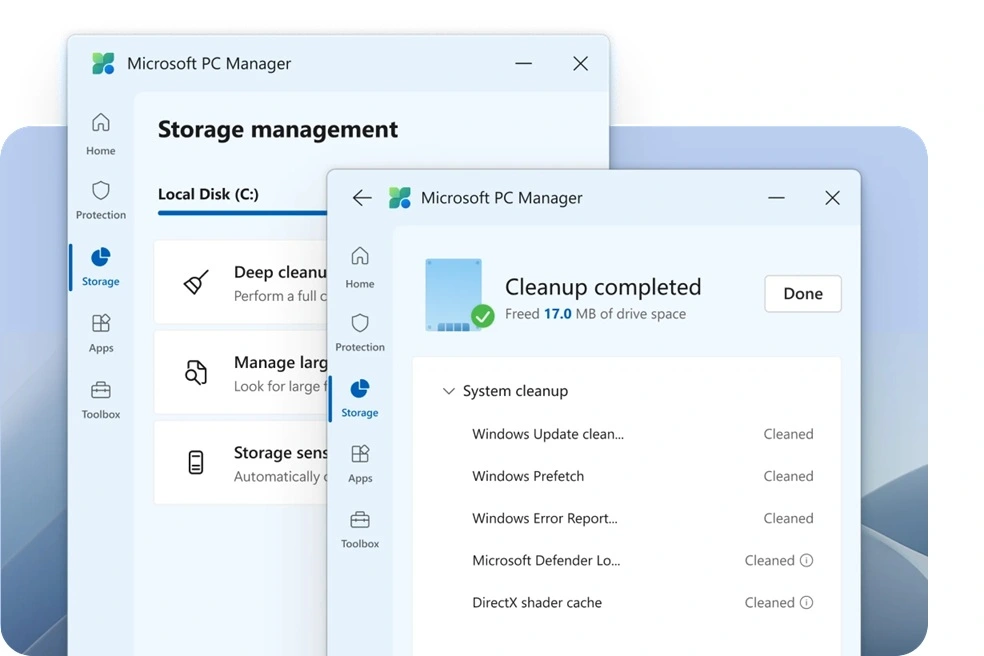
This clears out temporary files, cache data, and recycle bin clutter in one click. It targets low-risk items only, so nothing important gets touched. Over time, these small files build up without you noticing. Browsers save cache data, apps leave behind temp files, and the recycle bin quietly fills with old items. Quick cleanup finds all of this in seconds and clears it out safely. You do not need to review a long list or worry about deleting something you need. It is meant to be fast and worry-free, perfect for a quick tune-up between deeper cleaning sessions.
Memory boost
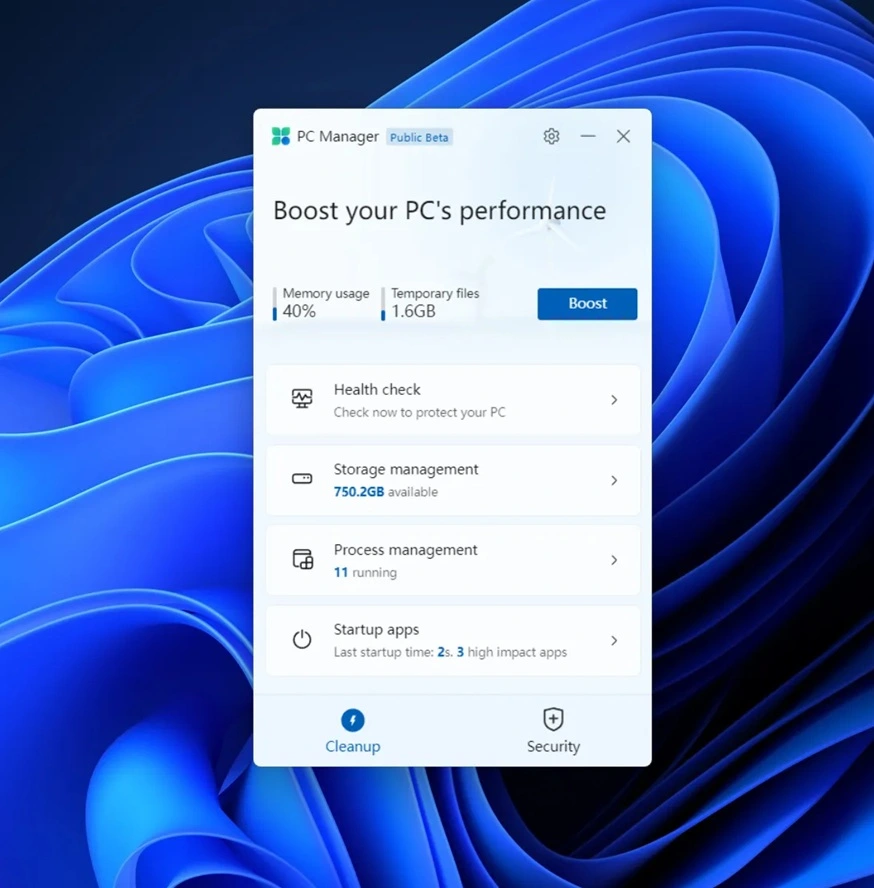
This frees up RAM by closing background processes you are not actively using. It can make your system feel snappier right away. Many apps keep running quietly in the background even after you close their windows. This eats up memory that your active programs could be using instead. Memory boost identifies these idle processes and shuts them down safely, without touching anything you are currently working on. The effect is often immediate, especially if you tend to keep many browser tabs or apps open at once. It works well as a quick fix before starting a demanding task.
Startup app manager
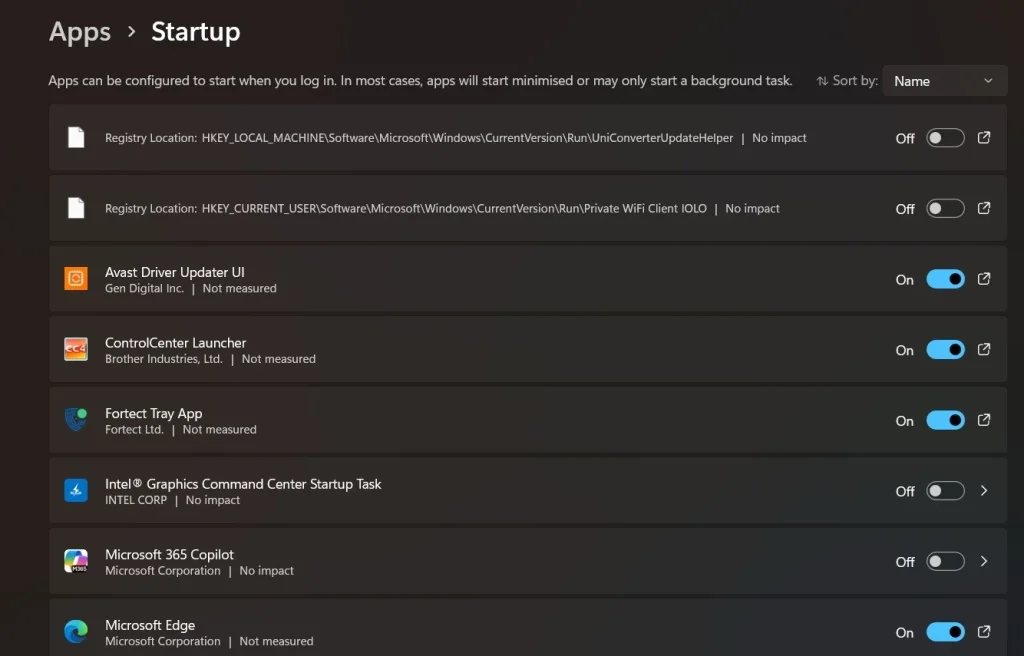
This shows every app that launches when Windows boots. You can disable the ones slowing your startup time. A lot of software quietly adds itself to your startup list during installation, and most people never notice. Over months, this list grows longer, and each new entry adds a few more seconds to your boot time. The startup app manager lays everything out clearly, showing which apps launch automatically and how much impact each one has. From there, turning off unnecessary ones takes just a click. It is one of the simplest ways to speed up how quickly your PC becomes usable after turning it on.
Deep cleanup scan
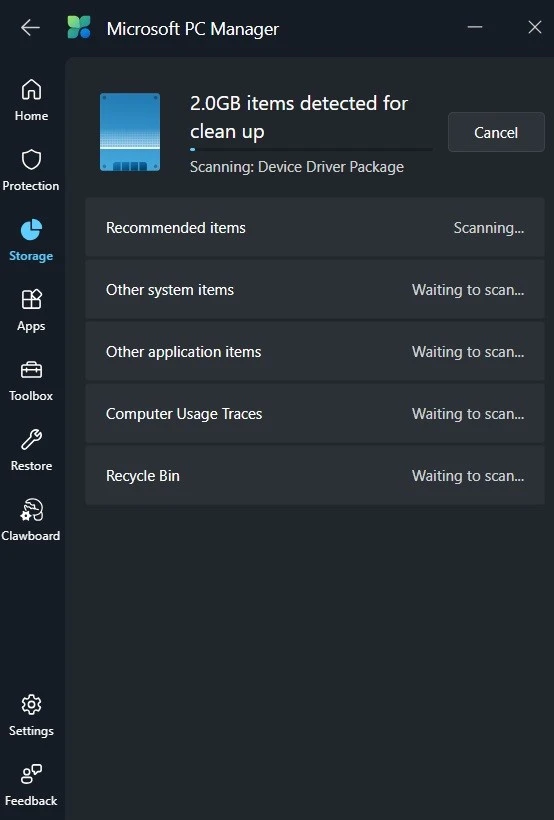
This digs deeper than quick cleanup and finds large hidden files, old installer leftovers, and browser cache buildup. Some clutter hides in places quick cleanup does not reach, like leftover files from old software updates or bulky browser cache folders. The deep cleanup scan searches these hidden corners of your system and reports back what it finds. Unlike quick cleanup, this scan often takes a bit longer, since it is checking more locations across your drive. The upside is that it can free up noticeably more storage space, especially on a PC that has not been cleaned in a long time.
Process management
This gives you a simple view of what is running and how much memory or CPU each item uses, similar to Task Manager but easier to read. Windows already has Task Manager, but its layout can feel cluttered and technical for casual users. Process management inside this app strips away the confusion and presents the same information in a cleaner, more approachable way. You can quickly see which apps are using the most resources at any given moment. This makes it easier to spot a program that is misbehaving or eating up more memory than it should, without needing to understand technical performance charts.
Health check
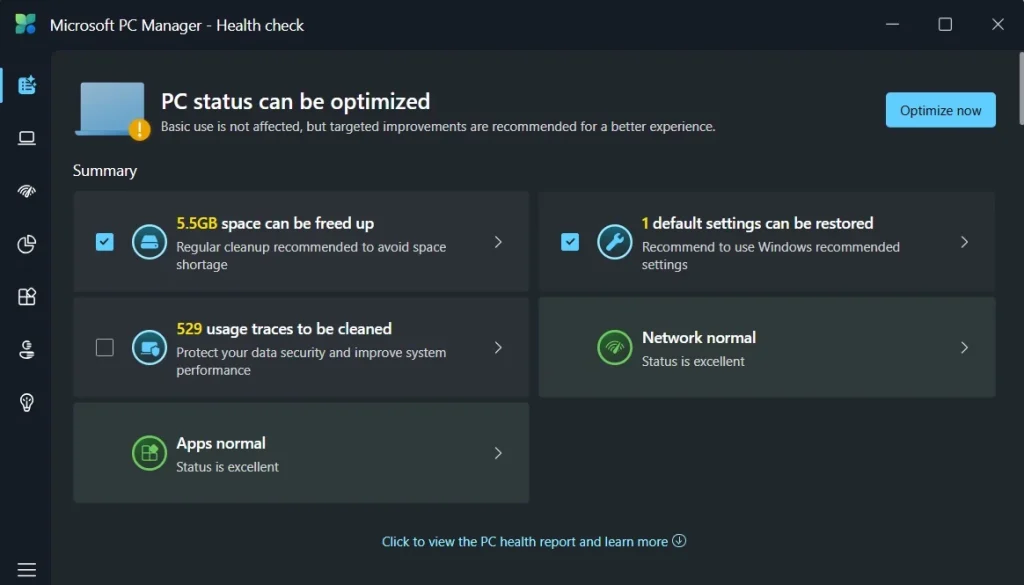
This runs a quick scan across storage, security, and startup items, then gives you a summary with suggested fixes. Instead of checking each area of your PC separately, health check bundles everything into one simple report. It looks at how much storage you have left, whether your security settings look normal, and how many startup apps might be slowing things down. Once the scan finishes, you get a short summary with clear suggestions on what to fix first. This is especially useful for users who want a general sense of their PC’s condition without digging through multiple menus themselves.
Storage Sense tools
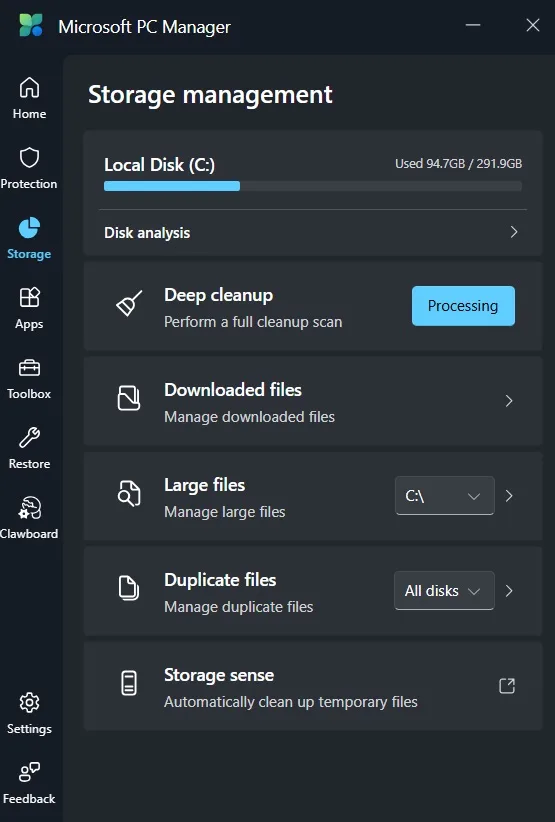
This helps you find large files, manage installed apps, and clear space without deleting anything by accident. Running low on storage is a common frustration, especially on smaller drives. Storage Sense tools make it easier to see exactly what is taking up space, from large individual files to installed apps you may have forgotten about. You get a clear view before anything gets removed, so there is little risk of deleting something important by mistake. This feature is particularly helpful when your drive is nearly full, and you need to make quick decisions about what to keep and what to let go.
How To Clean PC With Microsoft PC Manager
Cleaning your computer with this app does not require any special knowledge. The layout is simple, and every button tells you exactly what it does before you click it. There is no confusing jargon or hidden settings buried three menus deep.
Before you begin, make sure the app is downloaded from the official Microsoft source. This keeps you safe from fake versions that sometimes appear on shady download sites. Once installed, the whole cleaning process takes just a few minutes.
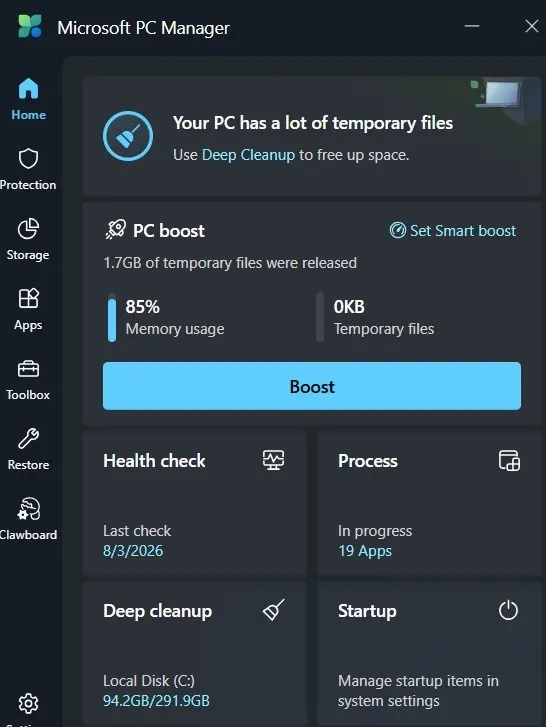
Step 1: Open the app. Click the Boost button on the main screen. PC Manager will remove junk files and release occupied RAM. You’ll see a confirmation once cleanup is complete.
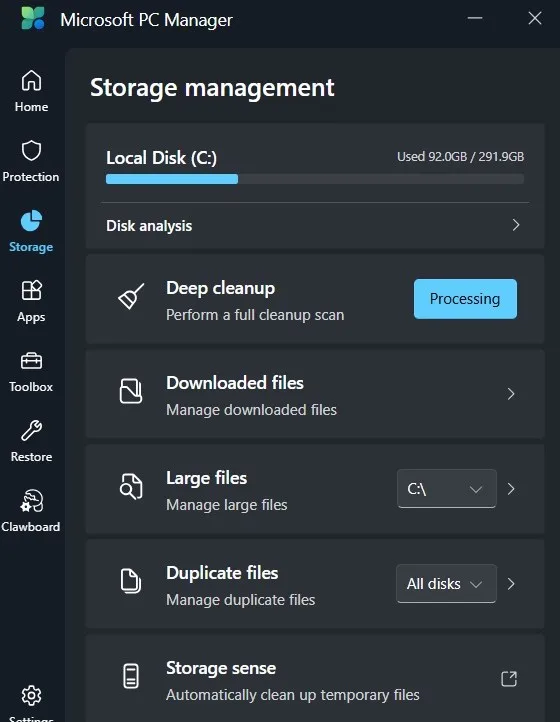
Step 2: Move to the Storage tab. Run a deep cleanup scan to find larger files you may not need anymore. Review the list before deleting anything, since some files may still be useful.
Step 3: Check the Startup Apps tab. Turn off any app you do not need running every time your PC boots. This alone can shave real time off your startup.
Pros: Why Users Like This Cleanup Tool
Every tool has strengths that make it worth trying. This one earns praise mainly for being simple, safe, and free. Since Microsoft built it directly, there are no sketchy third-party permissions or confusing installers to worry about.
- Comes from Microsoft: You know exactly who built it, so there is no mystery about who has access to your data.
- Completely free: There are no paywalls or premium unlocks blocking basic features.
- Clean and simple layout: Every tab is labeled clearly, so first-time users will not feel lost.
- Small file size: The app does not eat up much storage space itself, unlike some bulky competitors.
- Fast performance: Scans and cleanups run quickly, without long waiting screens.
- No annoying ads: Unlike many free cleaners, this app does not bombard you with pop-ups or upsells.
- Safe defaults: The cleanup targets low-risk files only, reducing the chance of deleting something important.
- Regular updates: Microsoft keeps pushing new versions, which means bugs get fixed, and features keep improving.
Cons: Where This Tool Falls Short
No app is perfect, and this one has a few gaps worth knowing before you rely on it fully. Some of these issues come from its simplicity, while others come from features that are still maturing.
- Limited advanced options: Power users who want deep customization may find the settings too basic.
- China and global version differences: Some features found in the China branch are missing from the global release.
- No scheduled deep scans: You have to run most scans manually instead of setting a recurring schedule.
- Basic security tools only: It shows Defender status but does not replace a full antivirus suite.
- Occasional false health warnings: The health check sometimes flags things that are not real problems.
- Limited third-party integration: It cannot manage or clean data from every browser or app on your system.
- Still evolving: Some features feel unfinished compared to long-established cleaners.
- Requires manual startup review: You need to check the startup list yourself, since the app will not auto-disable items for you.
My Experience With The Tool
I decided to test this app after noticing my laptop had grown noticeably slower over a few months. Startup took longer than it used to. Storage kept shrinking even though I had not installed much new software. It felt like the right moment to try an official Microsoft solution instead of another random cleaner from the internet.
I was able to free up 5.1 GB of storage space, which is great for performance and extra room.
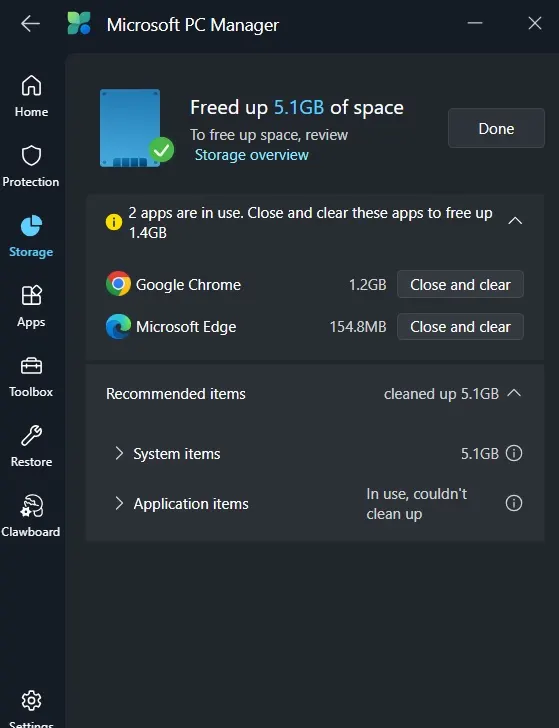
The first thing I noticed was how easy the install process was. There was no confusing setup wizard, no extra software bundled in, and no attempt to change my browser homepage. Within a minute, the dashboard was open and ready to use. That first impression mattered a lot, since I have tried other cleaners that felt cluttered from the very first screen.
Running the actual cleanup was where things got interesting. Here is what stood out during my testing:
- Startup time improved slightly after disabling a few unnecessary apps.
- Temporary file cleanup freed up more space than I expected.
- Memory boost made multitasking feel a little smoother during heavy browser use.
- The health check flagged one outdated setting that I had genuinely forgotten about.
Overall, the improvements were modest but noticeable. It did not turn my laptop into a brand new machine, but it did make daily use feel more comfortable. For a free tool with no ads and no pressure to upgrade, that felt like a fair trade.
Pricing Plans And What You Get
One of the best things about Microsoft PC Manager is how it handles cost. There is no premium tier hiding behind a paywall. Every feature inside the app, from quick cleanup to health checks, is available to all users at no charge. This makes it a rare exception in a market full of subscription-based cleaners.
- Free version: Includes cleanup tools, memory boost, startup management, storage tools, and basic security shortcuts.
- No premium tier: There is currently no paid upgrade path or locked feature set.
- No trial limits: You are not restricted by day counts or feature caps like many competitors.
- No hidden charges: The app does not push in-app purchases or subscription reminders.
Microsoft PC Manager: What Users And Reviewers Think
Most users and reviewers agree that Microsoft PC Manager is a convenient, free tool for basic cleanup and performance boosts, but it’s not a miracle solution. It’s praised for simplicity and trustworthiness as an official Microsoft product, yet criticized for being mostly a wrapper around existing Windows features and for pushing Edge/Bing defaults.
What Users Like
- Ease of use: One-click Boost and guided cleanup make it beginner-friendly.
- Free and official: Signed by Microsoft, available via the Store or official site, so users feel safer than with third-party cleaners.
- Convenience: Combines storage cleanup, startup management, and process control in one dashboard.
Common Criticisms
- Limited features: Functions overlap with built-in Windows tools like Storage Sense and Disk Cleanup. No advanced cleaning logic.
- Edge/Bing push: Health Check repeatedly tries to reset Edge as default browser and Bing as search engine.
- Situational benefits: Works well for casual users, but power users find it redundant compared to CCleaner or BleachBit.
- Regional rollout quirks: Originated in China, with staged releases and occasional availability issues.
Reviewer Verdicts
- Windows Forum (Jan 2026): “A convenient first-line maintenance tool, not a cure-all.”
- Swastiktechnology (June 2026): “Helpful for routine maintenance, but no miracles.”
- Independent Review (Apr 2026): “Good for casual users, but redundant if you already use CCleaner or Wintoys.”
Bottom Line
Microsoft PC Manager is best for casual Windows users who want a trusted, simple way to free memory and clean junk files. If you’re already using advanced tools like CCleaner, it won’t add much.
How It Compares To Other PC Cleaners
The PC cleaning market is full of choices, from long-running names like CCleaner to newer entrants built for speed. Each tool takes a slightly different approach, and comparing them side by side makes it easier to decide which one fits your needs.
Third-party cleaners often pack in extra features like registry cleaning or driver updates, but these extras sometimes come with a price tag or aggressive upselling. Microsoft’s own tool keeps things minimal by design, focusing on core cleanup tasks rather than trying to do everything at once.
| Feature | Microsoft PC Manager | CCleaner | Advanced SystemCare |
| Developer | Microsoft | Piriform | IObit |
| Price | Free | Free and paid tiers | Free and paid tiers |
| Ads in free version | None | Occasional prompts | Frequent prompts |
| Registry cleaning | Not included | Included | Included |
| Startup management | Included | Included | Included |
| System trust level | High, first party | Moderate | Moderate |
| Interface simplicity | Very simple | Moderate | Feature heavy |
Conclusion
Microsoft PC Manager fills a real gap for people who want a safe, simple way to clean up their computer. It does not try to do everything, and that restraint is actually one of its biggest strengths. You get the essentials without ads, upsells, or confusing menus getting in the way.
For casual users, the tool covers nearly everything needed for regular maintenance. Startup control, memory boosts, and cleanup scans handle most common slowdowns without any technical knowledge required. Since it comes straight from Microsoft, there is also less worry about hidden risks or shady permissions.
Power users who want deep customization or advanced scheduling may still prefer a dedicated third-party tool. But for everyday cleanup, this app is a reliable, no-cost option that gets the basic job done well.
FAQs
Is Microsoft PC Manager safe to use on my computer?
Yes, it is safe. Since Microsoft builds and maintains the app, it goes through the same security standards as other official Microsoft software. It does not bundle extra programs or push unwanted browser changes during installation.
Does this tool completely replace antivirus software?
No, it does not. It shows you the status of Microsoft Defender and other security settings, but it is not a full antivirus program on its own. You should still keep a dedicated security tool active alongside it.
Can I schedule automatic cleanups with this app?
Currently, most cleanup actions need to be run manually. There is no built in option for setting recurring scheduled scans, so you will need to open the app yourself whenever you want to run a cleanup.
Know About Some Microsoft PC Manager Alternatives
BleachBit PC Cleaner Tool: Complete Review After Running Tests
WMaster Cleanup PC Cleaner Tool: A Detailed Review
Outbyte PC Repair and Cleanup Tool: A Detailed Review
Avast PC Cleanup Tool: A Detailed Review
Avira PC Speed Up Tool: Is It Actually Worth It?
CCleaner PC Cleaning Tool: An In-Depth Review
Advanced SystemCare: Tool To Clean Your PC [Complete Review]
EaseUS CleanGenius Reviewed: Features, Pricing, and Real Results
Windows Storage Sense For PC Cleaning: Everything You Need To Know
Defencebyte Computer Optimizer: An In-Depth Review
JetClean Junk File Cleaner and PC Cleaning Tool: A Complete Review
Windows Disk Cleanup Review: Features, Steps, and Real Results
PrivaZer PC Cleaning Tool: An In-Depth Review
Total PC Cleaner: Clean Disk, Antivirus for Windows (An Honest Review)
Iolo System Mechanic Review: Full Breakdown and Honest Take
Clean Master for PC Tested: A Full Breakdown of Its Tools
Wise Care 365 PC Cleaner Tool: A Hands-On Review
Glary Utilities PC Cleaner: Complete Review [Tested and Trusted]
AVG TuneUp Guide: Features, Pros, Cons, and Pricing
Ashampoo WinOptimizer: Features and Process [Complete Guide]

Author Bio:
Dinesh Lakhwani, the entrepreneurial brain behind “TechCommuters,” achieved big things in the tech world. He started the company to make smart and user-friendly tech solutions. Thanks to his sharp thinking, focus on quality and the motto of never giving up, TechCommuters became a top player in the industry. His commitment to excellence has propelled the company to a leading position in the industry.
Popular Post






Recent Post
CCleaner vs. BleachBit: Complete Comparison Guide
Over time, every Windows PC accumulates unnecessary files that take up valuable storage space. Temporary files, browser caches, cookies, and forgotten installers can slowly build up on the system. While these files may seem harmless individually, their combined size can consume disk space and affect system performance. Cleaning utilities help remove this digital clutter, and […]

Total PC Cleaner: Clean Disk, Antivirus for Windows (An Honest Review)
Simply type “PC cleaner” into the Microsoft Store search box and a long list appears. Well, yes! The icons look alike. The names overlap, and almost every description promises a faster, cleaner, safer computer. Many also use the word antivirus, which adds to the confusion. Total PC Cleaner: Clean Disk, Antivirus is one of the […]
PrivaZer PC Cleaning Tool: An In-Depth Review
Deleting a file in Windows does less than most people think. The system removes the file’s entry from its index and marks the space as free. The actual data often stays on the disk until something else overwrites it. That is why recovery tools can bring back files long after they were deleted. Files are […]
Windows Disk Cleanup Review: Features, Steps, and Real Results
Storage space does not disappear overnight. Tiny pieces of data accumulate little by little while Windows performs routine tasks. Old update files, temporary program data, and other unused items often remain saved on the drive. Eventually, these forgotten files can take up room that could be used for something more important. Disk Cleanup is a […]

JetClean Junk File Cleaner and PC Cleaning Tool: A Complete Review
Heads up before you read further: JetClean (made by BlueSprig) is discontinued. Its last version dates to 2016, and several listings say the official download is gone. Let’s begin our review article! Few Windows utilities stay in circulation for more than a decade without a major update. JetClean is one of them. The tool first […]

Defencebyte Computer Optimizer: An In-Depth Review
Slow startup, delayed app launches, and freezing windows are among the most common complaints from Windows users. In many cases, the cause is not failing hardware. It is the gradual buildup of leftover data. Uninstalled programs leave registry entries behind. Temporary files and logs collect in system folders. Broken file paths and unused extensions stay […]

Windows Storage Sense For PC Cleaning: Everything You Need To Know
The low disk space warning always shows up at the worst time. A big update is waiting to install. A file refuses to save. The storage bar in Settings has turned red, and nobody remembers what filled it. Most people react by hunting for a cleaner to download. Many never notice that Windows already has […]

EaseUS CleanGenius Reviewed: Features, Pricing, and Real Results
Nobody notices the first temporary file. Nobody notices the hundredth either. Then one day the drive is almost full, the browser drags, and Windows takes ages to start. Clutter builds in quiet ways. Installers leave leftovers. Browsers store cache and cookies. Apps write logs that nobody reads. Programs add themselves to startup without asking. None […]

Advanced SystemCare: Tool To Clean Your PC [Complete Review]
The first thing I notice is how the startup screen hangs. The fan kicks in fast and stays loud. If I open a simple folder, the whole system pauses for a moment. It does not look like a clear hard failure, yet the PC feels heavy and slow. This is not usually one big problem. […]

CCleaner PC Cleaning Tool: An In-Depth Review
Learn how to clean your PC with CCleaner. This complete guide covers features, step-by-step instructions, pros, cons, pricing, and FAQs to help you decide.
