WMaster Cleanup PC Cleaner Tool: A Detailed Review
Your PC was fast on day one. Right? Every click felt instant, every app opened in a snap, and the fan barely made a sound. Then came the browser tabs, the half-finished downloads, and the apps you tried once and forgot to remove. Slowly, without any warning, that same machine started to feel tired. Boot-ups took longer. Programs froze for no clear reason.
Even simple tasks like opening a folder started to feel like a small chore. If this sounds familiar, you are not alone, because almost every laptop and desktop goes through this same slow decline over time.
That is where WMaster Cleanup PC Cleaner enters the picture. It promises to clear out the mess and speed up your machine. In this review, we will look closely at what it does, how it works, and whether it truly lives up to the promise it makes on its website.
WMaster Cleanup PC Cleaner Tested: Pros, Cons, and Honest Results
Part 1: Brief Overview: WMaster Cleanup PC Cleaner
WMaster Cleanup PC Cleaner is a system optimization tool built for Windows computers of almost every generation. Its main job is simple to describe. It finds junk files, leftover data, and general clutter, then removes them safely without touching the files you actually need.
The goal is to free up storage space and help your PC run smoother during everyday use, from browsing the web to opening heavier programs like editing software. It works well on older machines struggling to keep up, as well as newer ones that just need a bit of routine upkeep.
Key features at a glance:
- One-click scan and cleanup — clears clutter in a single pass
- Junk file and cache removal — frees up wasted storage
- Registry cleaning and repair — fixes broken leftover entries
- Startup program manager — trims what loads at boot
- Duplicate file finder — clears out repeated files
- Privacy cleaner — wipes browsing history and form data
- Real-time performance monitor — tracks CPU, memory, and disk use
- Large file finder — spots the biggest space hogs on your drive
Quick Info — WMaster Cleanup
- Latest Version: 6025.04.22.0165
- Release Date: April 29, 2025
- File Size: 35.6 MB
- Supported OS: Windows 7, 8, 10, 11 (32/64‑bit)
- Installer Name: win_master_for_clener_setup.exe
- Category: System Tweak / PC Cleaner
- Developer: Win Master
Key Functions
- Junk file cleanup
- Registry optimization
- Disk defragmentation
- File shredder for secure deletion
- Duplicate file finder
- Large file mover/cleanup
- Integrated uninstaller for apps
Why This Matters
- Lightweight installer (35.6 MB) makes it quick to download.
- Broad OS support ensures compatibility with older and newer Windows versions.
- All‑in‑one utilities mean you don’t need multiple separate tools for cleanup, defrag, and file shredding.
Part 2: The Real Reasons People Switch to This Cleaner
This section looks at the clearest reasons people choose to add this kind of tool to their system, based on common patterns among everyday users who eventually decide enough is enough.
- Faster boot times. The tool trims unnecessary startup programs, so your PC does not waste time loading things you rarely use right after you turn it on. Fewer background programs at startup means your desktop is ready sooner.
- Simple and clean interface. Every option is labeled in plain words, without technical shorthand. There are no confusing menus or hidden settings that only tech experts would understand, which lowers the barrier for new users.
- Safe cleaning process. Before deleting anything, the tool flags what it plans to remove and groups it by category. This gives you a chance to review the full list, so nothing important gets deleted by mistake during a routine cleanup.
- Frees up storage space. Junk files, temporary data, and old cache files can quietly eat up several gigabytes over time. Clearing them out on a regular basis gives your drive some much-needed breathing room.
- Better overall speed. With less clutter sitting on the drive and fewer background processes competing for resources, everyday tasks like opening apps or switching between windows tend to feel noticeably quicker.
- Regular updates. The developers keep releasing updates on a steady schedule, which means new junk file patterns and system quirks get covered as Windows itself continues to change with each new release.
- Privacy protection. Browsing history, cookies, and saved form data can reveal a surprising amount about you and your habits. The built-in privacy cleaner wipes this data so it does not sit around on your drive indefinitely.
- Works across skill levels. Whether you are a first-time user or someone who tinkers with system settings often, the tool offers a mode that fits your comfort level, from one-click cleanup to more detailed manual control.
Part 3: Key Features Explained: WMaster Cleanup PC Cleaner Tool
Beyond the basics covered so far, this software packs a set of features that go deeper into how your system actually runs day to day. Each one targets a different part of your PC, from storage space to background processes, and together they cover most of the common trouble spots that build up over months of regular use.
Below is a closer look at each one, along with what it actually does for your PC and why it matters over the long run.
1. Junk File Cleaner
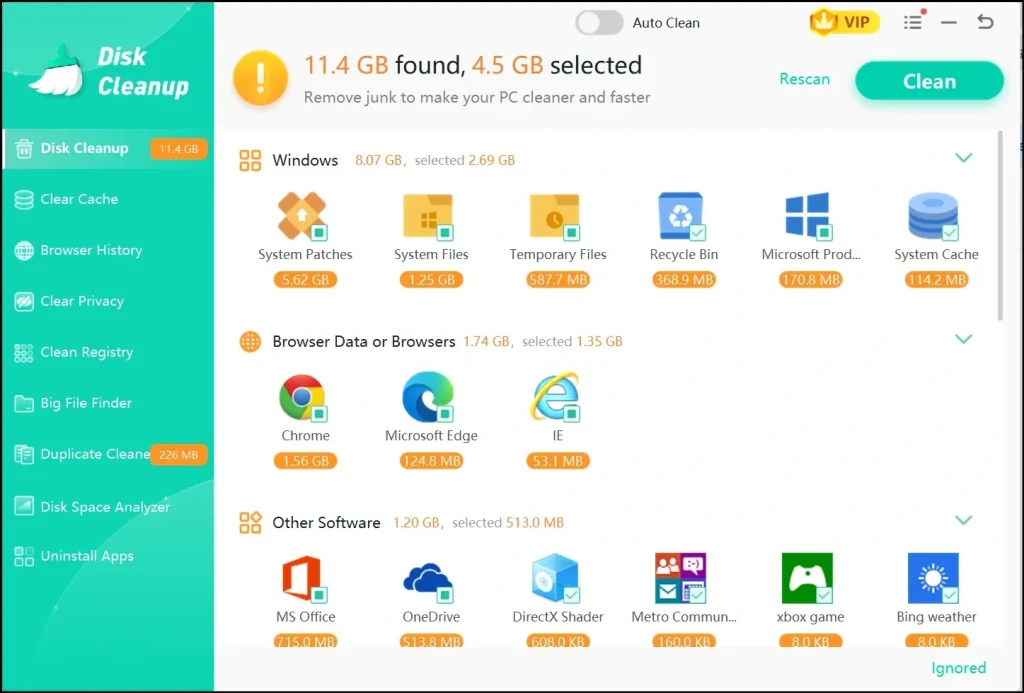
This feature scans your entire drive for temporary files, cache data, and leftover installation files that pile up during normal use. These items rarely serve any real purpose once they are created, yet they sit there quietly taking up space for months at a time. The cleaner removes them in a single batch, which usually frees up a good chunk of storage in just a few minutes without any manual sorting on your part.
2. Registry Cleaner and Repair
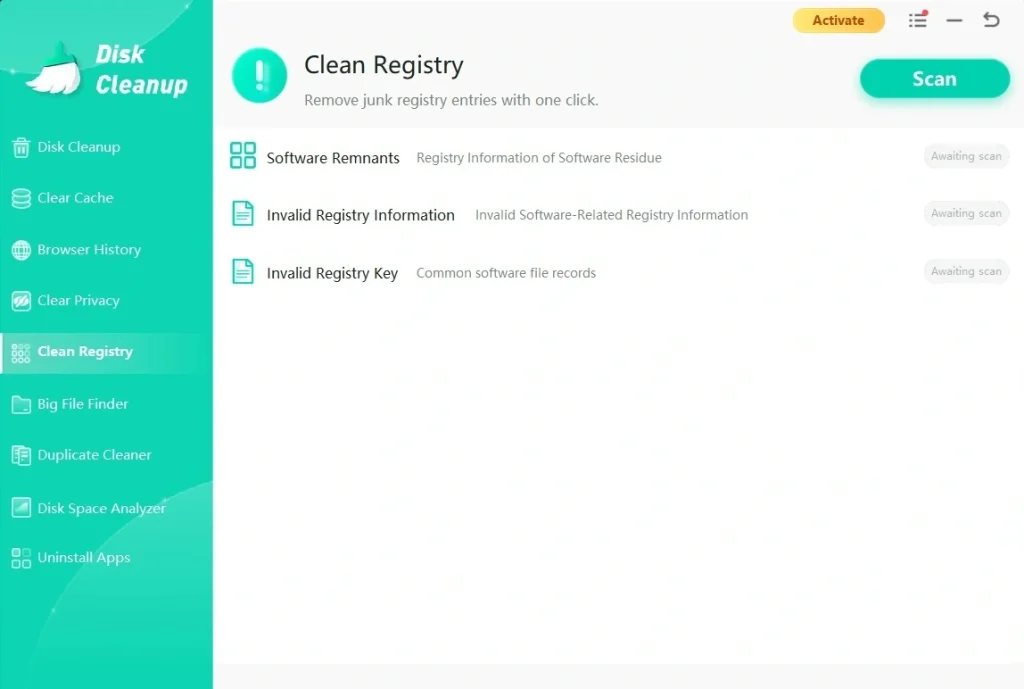
Over time, the Windows registry collects broken entries left behind by uninstalled programs, failed updates, and abandoned settings. These leftover entries can slow down how your system reads and writes data, especially on older drives. This tool scans the registry from top to bottom, flags broken keys, and repairs or removes them where it is safe to do so, which can reduce small system errors and unexpected crashes over time.
3. Duplicate File Finder
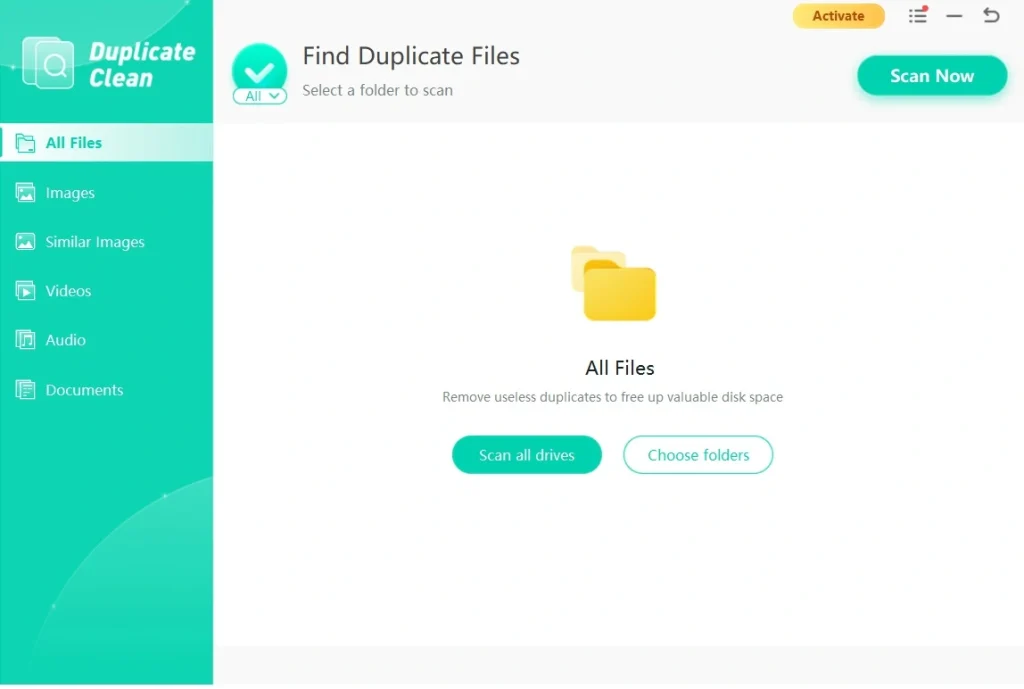
Photos, documents, and downloads often get copied more than once, especially if you move files between folders often or back things up in more than one place. This feature scans your drive, finds exact duplicate files, and lets you remove the extra copies in one pass, which can reclaim a surprising amount of storage space without you having to hunt through folders manually.
4. Privacy Cleaner
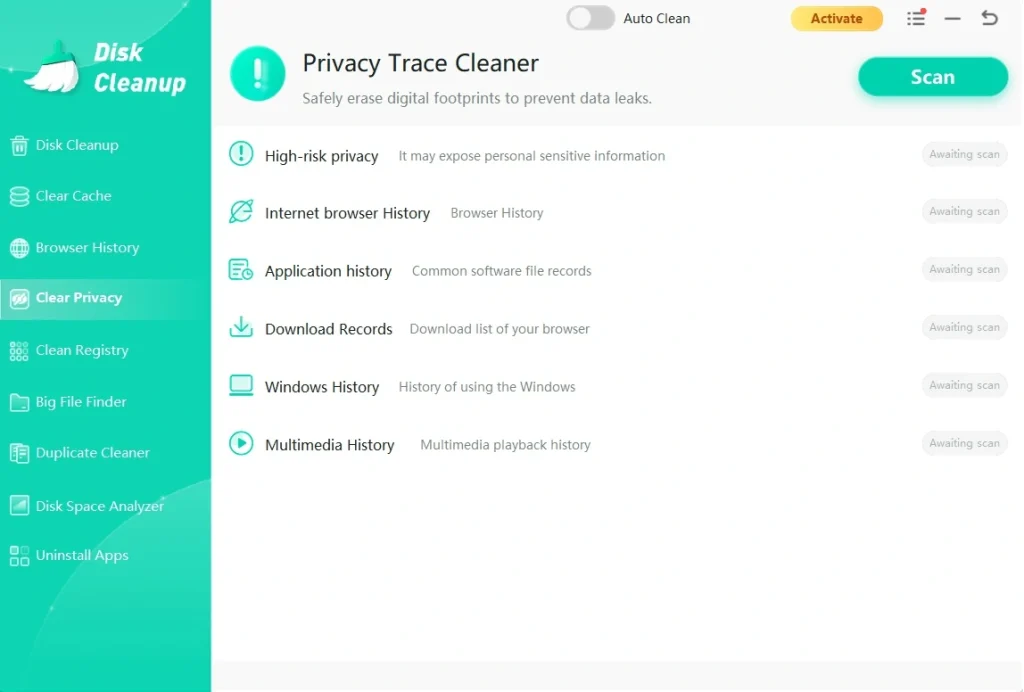
Your browser stores a lot more than most people realize, including saved passwords, autofill form data, and detailed browsing history stretching back weeks or months. The privacy cleaner clears this information across all major browsers in one step, helping keep your personal data off the drive where it could otherwise be found or recovered later.
5. Large File Finder
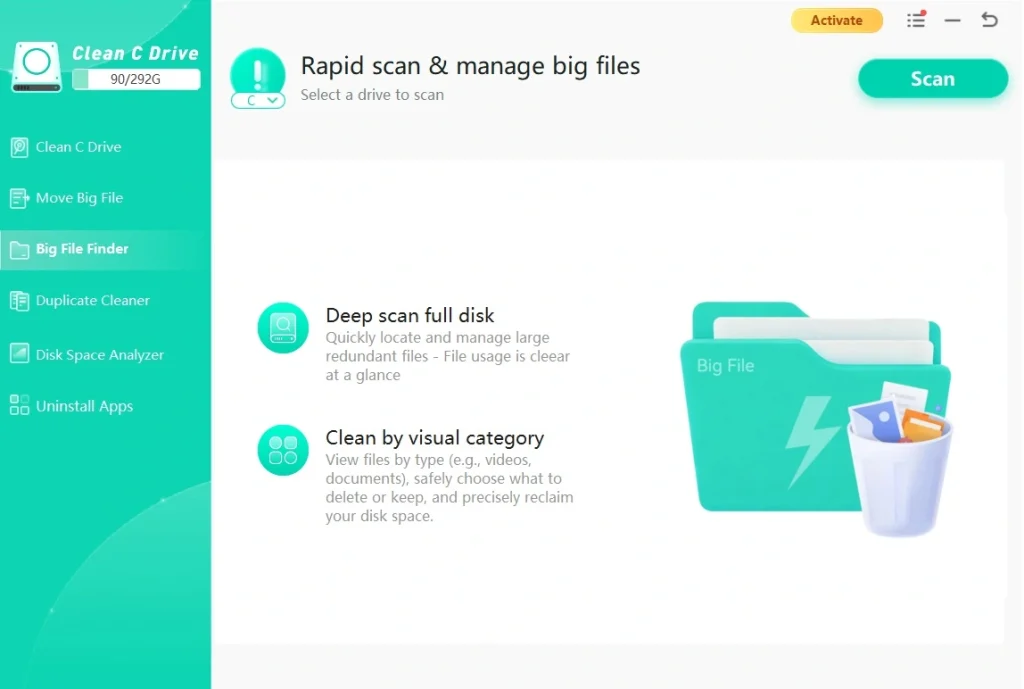
Sometimes the biggest space hogs on a drive are single large files that you simply forgot about, like old video exports, downloaded installers, or long-forgotten backups. This feature sorts your storage by file size from largest to smallest, so you can quickly spot and remove the biggest offenders instead of clearing out dozens of tiny files for a small gain.
Part 4: How to Use WMaster Cleanup PC Cleaner Tool: Step-by-Step Guide
Getting started with this tool does not take long, and the setup process is short compared to some other system utilities on the market. The interface guides you through each step without much guesswork, using plain instructions rather than technical jargon.
Even if this is your very first time using a cleaning tool of any kind, you should feel comfortable within just a few minutes of opening it.
NOTE: Before you begin, make sure your PC meets the basic system requirements listed on the developer’s website, and that you have a stable internet connection for the download itself. It also helps to close any heavy programs running in the background before you start, since this gives the scan a clearer view of your system. Once that is confirmed, you can move through the three main steps below to get your first scan running from start to finish.
Steps:
Step 1: Install and Launch
Download WMaster Cleanup from its official site. Run the installer, follow the setup prompts, and open the program once installed. Click the Scan Now button.
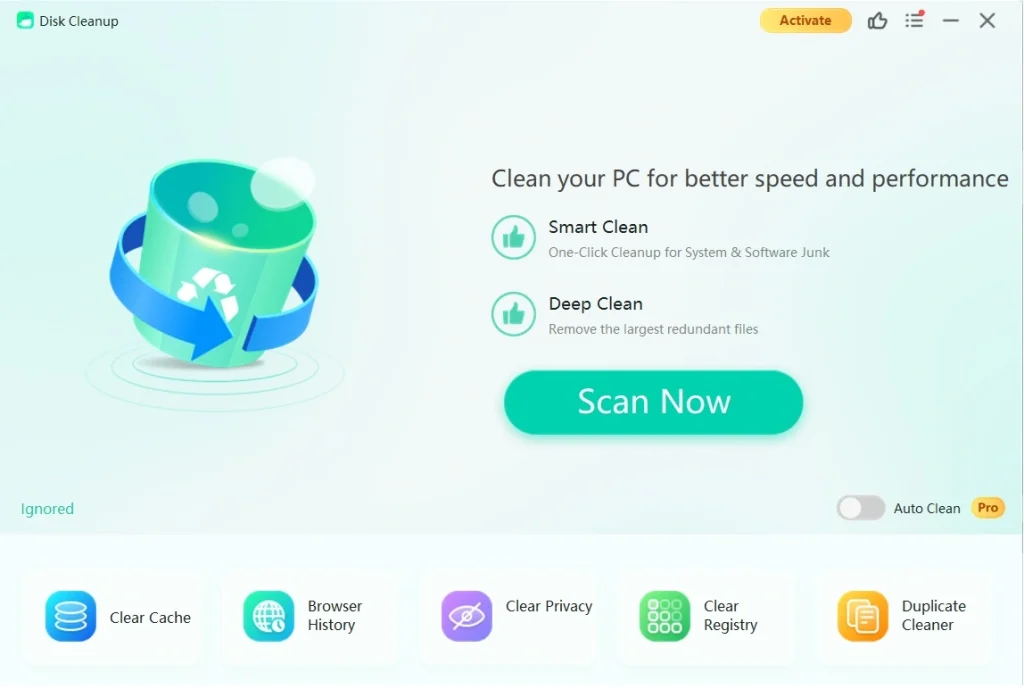
Step 2: Run a Full Scan
The tool checks junk files, cache, and system clutter. Wait for the scan to finish.
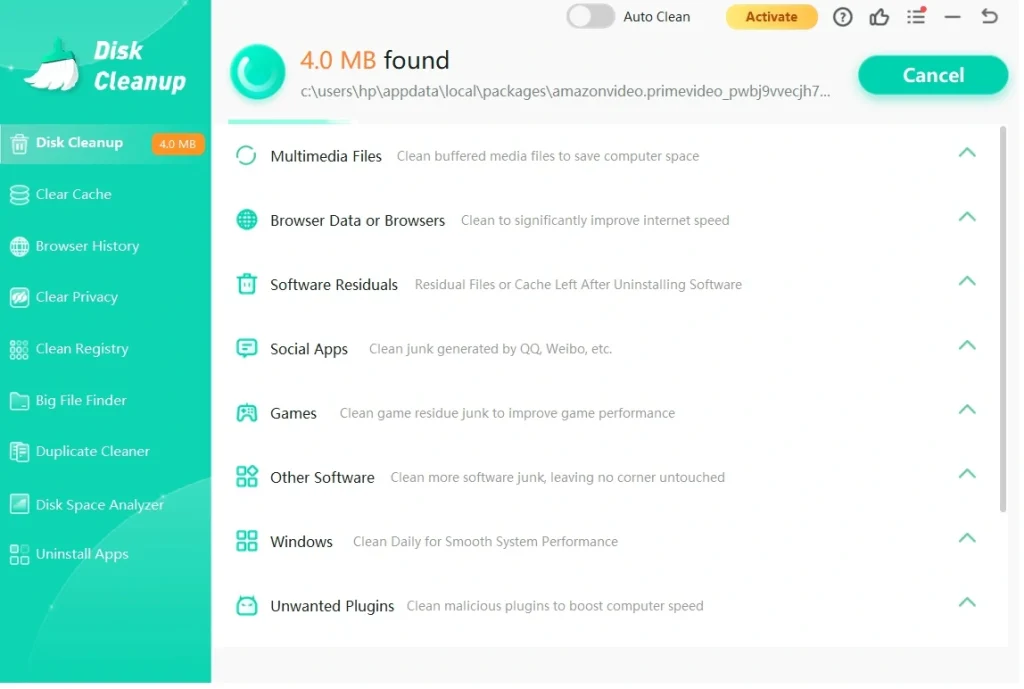
Image name: wmaster-cleanup-pc-cleaner-tool-detailed-review-09.jpg
Image alt:
Step 3: Review and Clean
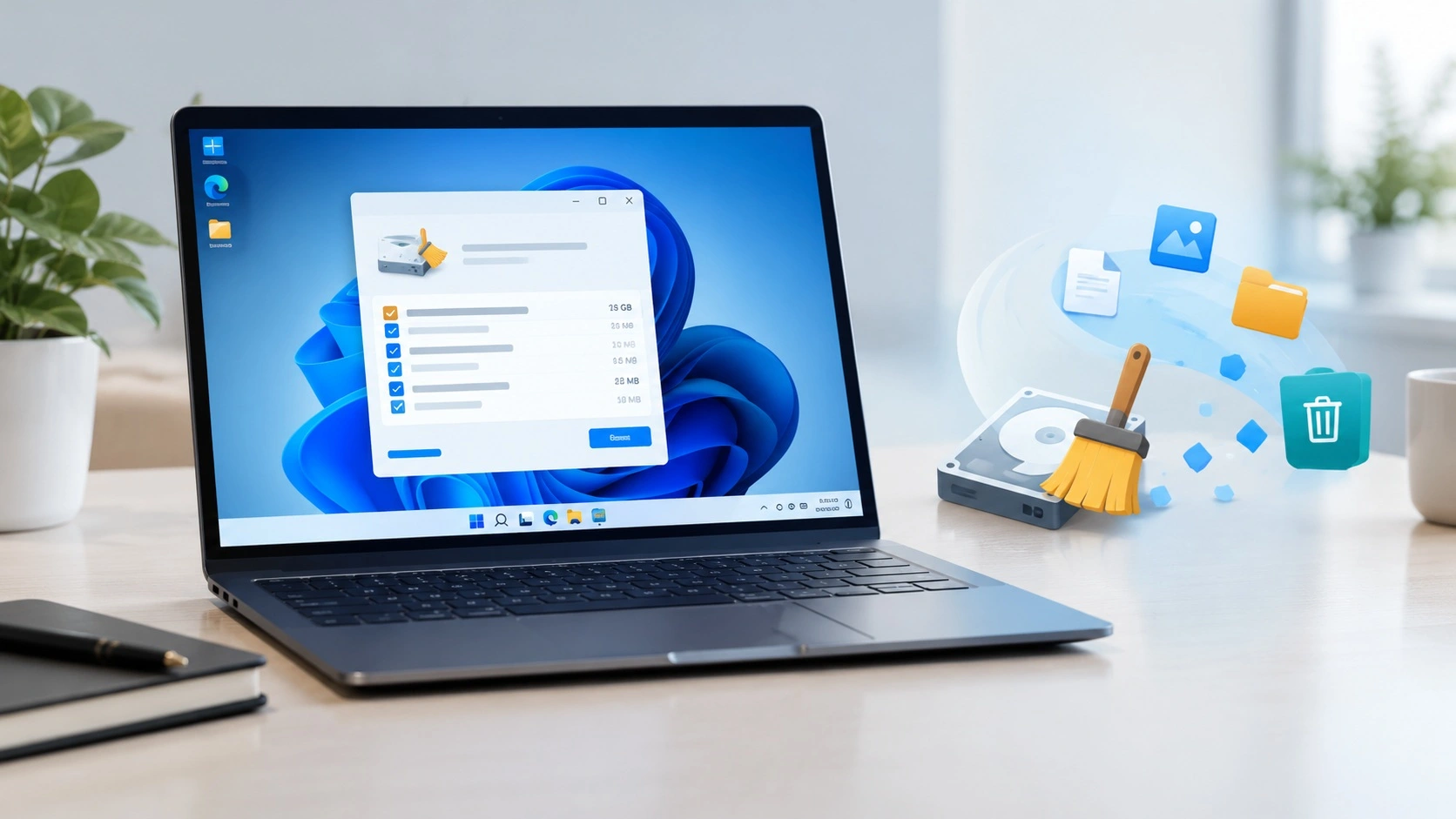
Look at the results. Select what you want to remove, then click Clean Now. The tool deletes unnecessary files and shows how much space you saved.
Part 5: Pros and Cons Explained: What Works and What Does Not
No tool is perfect, and this one is no exception to that rule. Being upfront about both sides of the picture gives you a fair, balanced view before you decide whether to install it on your own PC. It helps to weigh these points against what you actually need from a cleaning tool, since not every strength or weakness will matter equally for every user.
Here is an honest breakdown of the strengths and weaknesses, based on regular use and general feedback from other users.
Pros
- Easy setup: The installer was small (around 35 MB) and installed quickly without extra prompts.
- Clean interface: The dashboard was simple, with clear buttons for scan and clean. No clutter or confusing menus.
- Effective cleanup: It removed nearly 23 GB of junk files, including cache and leftover program data. My PC felt faster when opening apps.
- Extra tools included: Features like duplicate file finder and secure file shredder were handy. I didn’t need separate apps.
- Safe to use: It didn’t delete anything critical. I could review items before cleaning, which gave me confidence.
Cons
- Limited reviews worldwide: Trust levels are still developing, so it doesn’t have the same reputation as CCleaner.
- Basic design: The interface works, but it looks plain compared to more polished competitors.
- No deep registry repair: It cleaned basic entries but skipped advanced registry fixes that some tools offer.
- Few customization options: I couldn’t schedule scans or set automatic cleanups — everything had to be manual.
- Newer brand: Since it’s not widely known, updates and long‑term support are still uncertain.
It’s a lightweight, reliable cleaner that does the basics well. If you just want quick junk removal and a faster PC, it works fine. But if you’re looking for advanced features or a tool with a big global reputation, you might feel it’s a bit limited.
Part 6: Pricing Plans: WMaster Cleanup PC Cleaner Tool
The tool comes with a tiered pricing structure, giving users a choice between a free version and a few paid plans that unlock extra features and cover more devices. Below is a breakdown of what each plan typically includes, along with a side-by-side table comparing the free and paid experience in more detail.
- Free Plan — $0. Offers basic junk file scanning along with a limited cleanup allowance each month, mainly meant as a trial of the core scanning engine.
- 1 PC Plan — around $19.95 per year. Unlocks the full cleaning toolkit for a single computer, including the registry cleaner and duplicate file finder.
- 3 PC Plan — around $29.95 per year. Covers up to three devices under one single license, which suits small households or a couple with shared devices.
- 5 PC Plan — around $39.95 per year. Best suited for larger households with multiple computers, or users who also want to cover a couple of older backup machines.
Free vs. Paid: Feature Comparison
| Feature | Free Plan | Paid Plan |
| Junk file scan | Yes | Yes |
| Full cleanup | Limited monthly allowance | Unlimited |
| Registry cleaner | No | Yes |
| Startup manager | Basic view only | Full control |
| Duplicate file finder | No | Yes |
| Privacy cleaner | Limited browsers | Full access, all major browsers |
| Real-time monitor | No | Yes |
| Customer support | Community forum only | Priority email support |
| Devices covered | 1 | 1 to 5 depending on the plan chosen |
| Refund policy | Not applicable | Money-back guarantee within a set window |
Part 7: Real-World Results: My Honest Take After Running the Tool
After installing WMaster Cleanup, the interface looked neat and simple. I liked that it didn’t throw too many options at me right away. I ran the first full scan, and it quickly found a bunch of junk files and leftover cache from old programs. The speed was decent. It finished in a few minutes without slowing down my system.
When I hit “Scan Now,” the tool cleared almost 23 GB of space. The cleanup summary was clear, showing what was removed and how much space was freed. It gave me a sense of control instead of just deleting things silently.
After a few days of use, I can say WMaster Cleanup does what it promises. It’s not flashy, but it’s reliable. I didn’t face any crashes or weird pop‑ups. For regular maintenance, it’s a handy tool that keeps the system tidy without making things complicated.
Part 8: How Much Do People Trust This Tool Worldwide?
Worldwide trust in WMaster Cleanup is moderate: most reviews rate it between 3.7 and 3.8 out of 5, with users noting decent cleaning performance but limited feedback volume. Security checks show the website is low‑risk and legitimate, but the small number of reviews means global trust is not yet firmly established.
Expert & Security Assessments
- Gridinsoft Cybersecurity Review (2026): Rated low‑risk, with no malware or phishing detections. The domain has been active for 24+ years, backed by a valid SSL certificate and secure payment methods. This signals legitimacy and safety for downloads and transactions.
User Reviews (Trustpilot)
- Wmastercleanup.com (2025): Average rating 3.8/5 from 3 reviews. Users described it as “great,” but feedback volume is very small, so the reliability of the rating is limited.
- WMaster.com (2024): Average rating 3.7/5 from 1 review. The company is described as a new software provider focused on PC optimization tools.
Trust Comparison Table
| Source | Trust Level | Key Notes |
| Gridinsoft Security | High | Safe website, no malware/phishing, SSL verified |
| Trustpilot Wmastercleanup | Moderate (3.8/5) | Few reviews, generally positive |
| Trustpilot WMaster.com | Moderate (3.7/5) | Very limited feedback, new provider |
Limitations & Risks
- Low review volume: Only a handful of user reviews exist, making global trust hard to measure.
- Newer brand presence: Despite the domain’s age, the software itself is relatively new in the PC cleaner market.
- Unverified long‑term performance: No large‑scale independent benchmarks yet.
Bottom Line
WMaster Cleanup appears safe to download and use, with legitimacy confirmed by security checks. However, global trust is still developing, as user reviews are sparse compared to established cleaners like CCleaner or Iolo System Mechanic.
Conclusion
WMaster Cleanup PC Cleaner covers most of the basics you would expect from a modern system cleaning tool. It handles junk files, registry issues, startup clutter, and privacy cleanup without asking too much technical knowledge from the user. For anyone new to this kind of software, the simple, guided layout is a real advantage over more complex alternatives on the market.
That said, it is not without its small flaws. The free version feels a bit limited compared to the paid tiers, and a few users may run into occasional false positives during registry scans that need a careful second look. These are not deal breakers on their own, but they are worth knowing before you commit to a paid plan for the long term.
Overall, this tool is a reasonable pick for anyone dealing with a sluggish PC and looking for a straightforward, no-fuss fix. It will not turn an old, aging machine into a brand new one overnight, but it can clear out enough clutter to make daily use feel a little smoother, and that alone makes it worth a try for most everyday users.
If you decide to give it a shot, start with the free plan first, run a full scan, and see how much junk turns up before you decide whether a paid tier is worth the extra cost for your setup.
FAQs:
Is this software safe to use on my PC?
Yes, the software is generally considered safe for regular Windows PCs, and it does not touch personal files like photos or documents during a routine cleanup. It shows you a full list of items before deleting anything, which gives you real control over what gets removed and what stays untouched. As with any cleaning tool, it is a good habit to review the registry section carefully before confirming a cleanup, just to be safe, especially if you run specialized software that relies on older settings.
Will it slow down my PC while scanning?
There may be a small, temporary dip in performance during an active scan, since the tool is reading through your drives and registry at the same time as everything else running on your system. This is completely normal and only lasts for a few minutes, even on a fairly full drive. Once the scan finishes and the results are ready, your system should return to its usual speed right away without needing a restart or any extra steps on your part.
Do I need the paid plan to see real results?
The free plan gives you a taste of the basic cleaning features, which can still help a little on its own, especially for a first-time scan. However, many of the deeper tools, like the registry cleaner, duplicate file finder, and real-time monitor, are locked behind a paid plan and stay out of reach otherwise. If you want the full benefit and long-term upkeep, upgrading is generally worth the cost for most regular, everyday users who plan to keep using the tool.
Know About Some WMaster Cleanup Alternatives
BleachBit PC Cleaner Tool: Complete Review After Running Tests
WMaster Cleanup PC Cleaner Tool: A Detailed Review
Outbyte PC Repair and Cleanup Tool: A Detailed Review
Avast PC Cleanup Tool: A Detailed Review
Avira PC Speed Up Tool: Is It Actually Worth It?
CCleaner PC Cleaning Tool: An In-Depth Review
Advanced SystemCare: Tool To Clean Your PC [Complete Review]
EaseUS CleanGenius Reviewed: Features, Pricing, and Real Results
Windows Storage Sense For PC Cleaning: Everything You Need To Know
Defencebyte Computer Optimizer: An In-Depth Review
JetClean Junk File Cleaner and PC Cleaning Tool: A Complete Review
Windows Disk Cleanup Review: Features, Steps, and Real Results
PrivaZer PC Cleaning Tool: An In-Depth Review
Total PC Cleaner: Clean Disk, Antivirus for Windows (An Honest Review)
Iolo System Mechanic Review: Full Breakdown and Honest Take
Clean Master for PC Tested: A Full Breakdown of Its Tools
Wise Care 365 PC Cleaner Tool: A Hands-On Review
Glary Utilities PC Cleaner: Complete Review [Tested and Trusted]
Microsoft PC Manager: Complete In-Depth Review
AVG TuneUp Guide: Features, Pros, Cons, and Pricing
Ashampoo WinOptimizer: Features and Process [Complete Guide]

Author Bio:
Dinesh Lakhwani, the entrepreneurial brain behind “TechCommuters,” achieved big things in the tech world. He started the company to make smart and user-friendly tech solutions. Thanks to his sharp thinking, focus on quality and the motto of never giving up, TechCommuters became a top player in the industry. His commitment to excellence has propelled the company to a leading position in the industry.
Popular Post






Recent Post

Total PC Cleaner: Clean Disk, Antivirus for Windows (An Honest Review)
Simply type “PC cleaner” into the Microsoft Store search box and a long list appears. Well, yes! The icons look alike. The names overlap, and almost every description promises a faster, cleaner, safer computer. Many also use the word antivirus, which adds to the confusion. Total PC Cleaner: Clean Disk, Antivirus is one of the […]
PrivaZer PC Cleaning Tool: An In-Depth Review
Deleting a file in Windows does less than most people think. The system removes the file’s entry from its index and marks the space as free. The actual data often stays on the disk until something else overwrites it. That is why recovery tools can bring back files long after they were deleted. Files are […]
Windows Disk Cleanup Review: Features, Steps, and Real Results
Storage space does not disappear overnight. Tiny pieces of data accumulate little by little while Windows performs routine tasks. Old update files, temporary program data, and other unused items often remain saved on the drive. Eventually, these forgotten files can take up room that could be used for something more important. Disk Cleanup is a […]

JetClean Junk File Cleaner and PC Cleaning Tool: A Complete Review
Heads up before you read further: JetClean (made by BlueSprig) is discontinued. Its last version dates to 2016, and several listings say the official download is gone. Let’s begin our review article! Few Windows utilities stay in circulation for more than a decade without a major update. JetClean is one of them. The tool first […]

Defencebyte Computer Optimizer: An In-Depth Review
Slow startup, delayed app launches, and freezing windows are among the most common complaints from Windows users. In many cases, the cause is not failing hardware. It is the gradual buildup of leftover data. Uninstalled programs leave registry entries behind. Temporary files and logs collect in system folders. Broken file paths and unused extensions stay […]

Windows Storage Sense For PC Cleaning: Everything You Need To Know
The low disk space warning always shows up at the worst time. A big update is waiting to install. A file refuses to save. The storage bar in Settings has turned red, and nobody remembers what filled it. Most people react by hunting for a cleaner to download. Many never notice that Windows already has […]

EaseUS CleanGenius Reviewed: Features, Pricing, and Real Results
Nobody notices the first temporary file. Nobody notices the hundredth either. Then one day the drive is almost full, the browser drags, and Windows takes ages to start. Clutter builds in quiet ways. Installers leave leftovers. Browsers store cache and cookies. Apps write logs that nobody reads. Programs add themselves to startup without asking. None […]

Advanced SystemCare: Tool To Clean Your PC [Complete Review]
The first thing I notice is how the startup screen hangs. The fan kicks in fast and stays loud. If I open a simple folder, the whole system pauses for a moment. It does not look like a clear hard failure, yet the PC feels heavy and slow. This is not usually one big problem. […]

CCleaner PC Cleaning Tool: An In-Depth Review
Learn how to clean your PC with CCleaner. This complete guide covers features, step-by-step instructions, pros, cons, pricing, and FAQs to help you decide.

Avira PC Speed Up Tool: Is It Actually Worth It?
A fresh Windows install feels like a different world. Isn’t it? Everything opens fast. Menus snap into place. Then a year passes, sometimes less, and that same machine starts to feel heavy for no clear reason. Nothing dramatic happened. No single event caused it. It was just months of small leftovers stacking up quietly in […]
