Total PC Cleaner: Clean Disk, Antivirus for Windows (An Honest Review)
Simply type “PC cleaner” into the Microsoft Store search box and a long list appears. Well, yes! The icons look alike. The names overlap, and almost every description promises a faster, cleaner, safer computer. Many also use the word antivirus, which adds to the confusion.
Total PC Cleaner: Clean Disk, Antivirus is one of the apps in that list. Its name sounds official, and some websites even call it “Microsoft Total PC Cleaner.” That label leads many shoppers to assume it comes from Microsoft. Before you install any cleaner, it is worth checking who made it, what it does, and what the paid version really adds.
This review does that work. We look at the features, the setup process, the pricing, and what reviewers say. We also clear up two common questions: who made this app, and whether it contains an antivirus.
Total PC Cleaner Reviewed: Is This Microsoft Store Cleaner Worth Installing?
Part 1: What Is Total PC Cleaner? A Quick Introduction
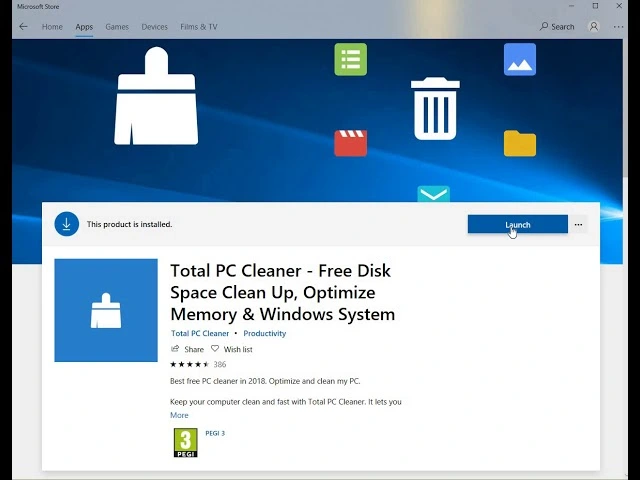
Total PC Cleaner: Clean Disk, Antivirus is a disk cleanup tool. You can easily install it from the Microsoft Store. It scans your Windows PC for caches, downloads, and large files, and it lets you remove them by category. The store description says the app can free disk space, optimize memory, and speed up the system.
An important point first. This is a third party app. It is not a Microsoft product, even though it is sold in the Microsoft Store and some sites call it “Microsoft Total PC Cleaner.” Microsoft’s own cleaning tool is called PC Manager. A Microsoft Q&A answer in 2026 also describes Total PC Cleaner Pro as a third party app.
The second point is the word antivirus in the name. The store’s feature list covers cleaning categories only. It does not describe a virus scanner or real time protection. Treat this as a disk cleaner, and keep Windows Security running for protection.
Key features at a glance:
- System cache cleaner
- Application cache cleaner and app uninstaller
- Mail and Office cache cleaner
- Browser cache cleaner
- Downloads folder cleanup
- Ads cleaner
- Large file cleaner
- Duplicate file cleaner (Pro)
Quick Info About Total PC Cleaner
- App Name: Total PC Cleaner: Clean Disk, Antivirus
- Source: Microsoft Store
- Developer: Third party. An older Softonic page lists Softuna.
- File Size: 369.3 MB.
- Supported OS: Windows 10 (version 1803 or newer) and Windows 11, 64 bit
- License: Free, with in app purchases for Pro
- Pro Price: $16.99 per year, or $9.99 for a lifetime license
- Last updated date: 1/16/2026
- Supported languages: Chinese (Simplified), Dutch, English, English (United States), French, German, and more.
Notable Points About the Listing
- The store page markets the app for Windows 11 and lists nine cleaning categories.
- Pro unlocks unlimited cleaning, duplicate removal, and large file removal.
- The listing does not describe a virus scan feature.
- Softpedia calls the program minimalistic.
Part 2: Why People Download Total PC Cleaner: The Real Appeal
Choosing a cleaner can feel confusing, since many apps promise the same results. Below are the a few reasons.
- Free to try: You can install the tool for free and scan your PC to see which files it identifies for cleanup before deciding whether to upgrade.
- Easy installation: It is available through the Microsoft Store, making installation, updates, and removal simple.
- Flexible cleanup options: You can select specific categories, including system cache, browser cache, and downloaded files. This gives you control over what gets deleted.
- Simple interface: The clean layout keeps things easy to navigate. New users can run their first scan without much guidance.
- Large file detection: The tool identifies files larger than 100 MB, helping you spot items that may be taking up valuable disk space.
- Downloads folder scanning: It checks the Downloads folder and helps identify older installers and other files you may no longer need.
- Affordable upgrade: The lifetime Pro license costs $9.99, making it a budget-friendly option for users who prefer a one-time payment over recurring subscriptions.
- Windows 10 and 11 compatibility: It supports both Windows versions, making it suitable for users running modern Windows PCs.
Part 3: Inside the App: Tools You Get With Total PC Cleaner
Total PC Cleaner is a focused app. It does not try to tune startup items or the registry. Below, we explain the seven tools that matter most.
System Cache Cleaner
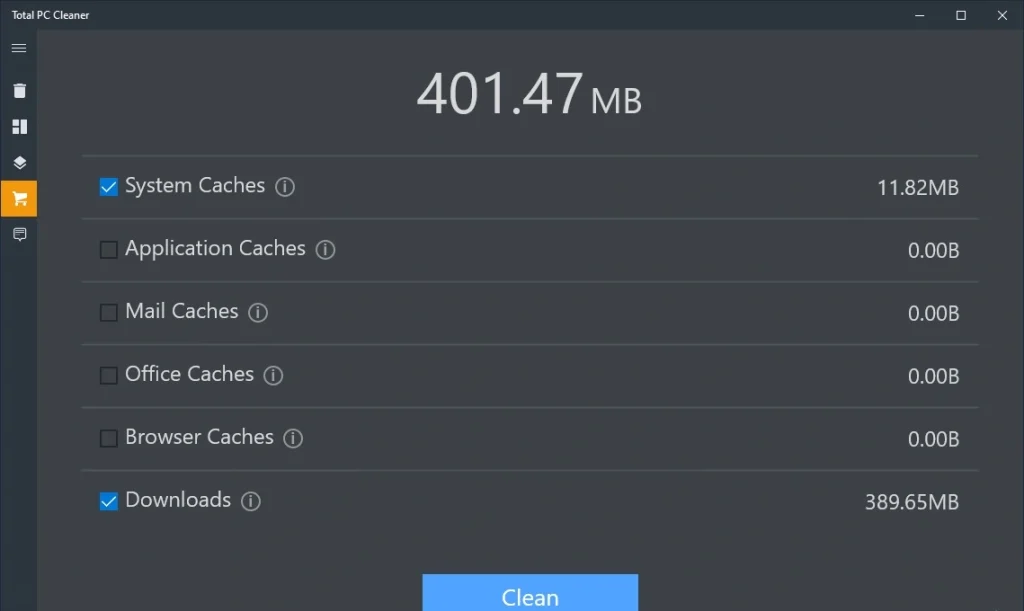
This tool targets cached data that Windows and its components keep on the disk. Caches speed up repeat tasks, but they grow over time and some become stale. The cleaner lists them with sizes, so you can see which ones are worth removing. Most caches rebuild on their own, so the risk is low. Review the default selection before you clean.
Application Cache Cleaner and App Uninstaller
Apps also store cached files, such as thumbnails, temporary data, and saved previews. The app cache cleaner removes these. The store lists an app uninstaller in the same category, which helps when a program you no longer use still occupies space. Clearing app caches may make some apps reload content the next time you open them.
The tool also offers three separate categories cover browsers, mail apps, and Office programs. Browser caches hold images and page data. Mail caches hold downloaded message data. Office caches hold temporary document files. Clearing them frees space, but you may be signed out of some sites, and mail apps may re sync. Check each item before you confirm.
Large File Cleaner
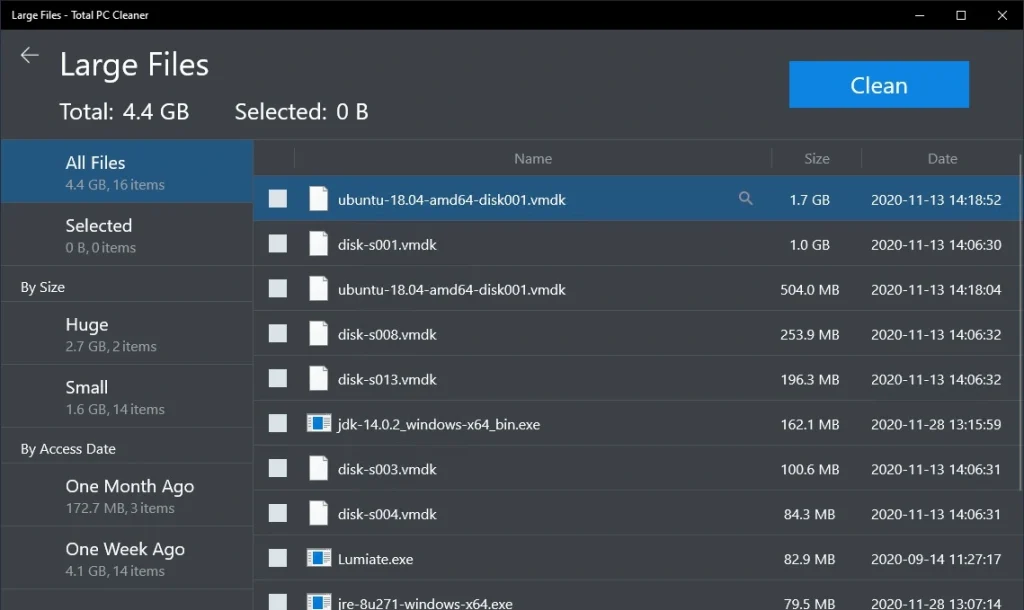
Softpedia states that the app finds files larger than 100 MB. These are often old videos, disk images, and setup packages. The tool lists them so you can decide what to delete. In the store listing, removing large files is part of the Pro features. Free users can look at the idea, but they may not be able to remove everything.
Duplicate File Cleaner
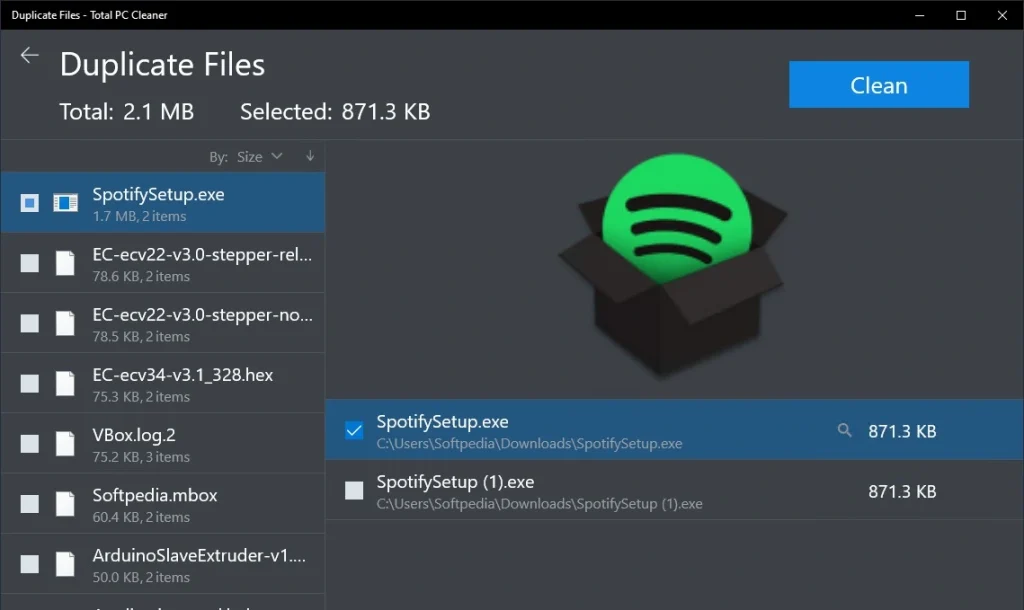
Duplicate files waste space in photo folders, downloads, and backups. This tool finds identical copies and helps you delete the extras. The store lists duplicate removal as a Pro feature. Always check which copy the app plans to keep. A dedicated duplicate finder may offer more controls, so treat this as a basic option.
Part 4: Getting Started: Your First Cleanup From Install to Done
Using Total PC Cleaner takes only a few minutes. The app is simple, and the steps are short. Even so, a little preparation makes the first run safer.
Before you begin, save your work and close other apps. Back up anything important in your Downloads folder, since that is where mistakes are most likely. It also helps to create a Windows restore point. Then follow these three steps.
Step 1: Get the Right App from the Microsoft Store
Open the Microsoft Store and search for the exact name: Total PC Cleaner: Clean Disk, Antivirus. Many look alike apps use similar names, so check the title and the developer before you click Get. Install the app and open it from the Start menu. Launch the app and start the scan.
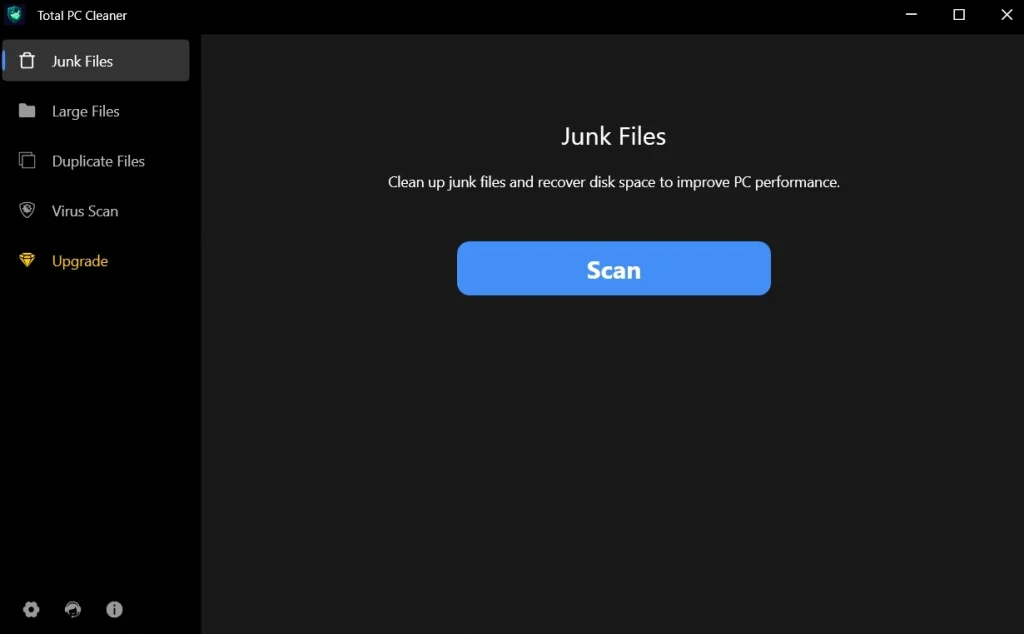
Step 2: Run the Scan
It checks your PC for unnecessary files and then lists them with their sizes. The first scan may take a little while, depending on your drive. Avoid heavy tasks while it runs.
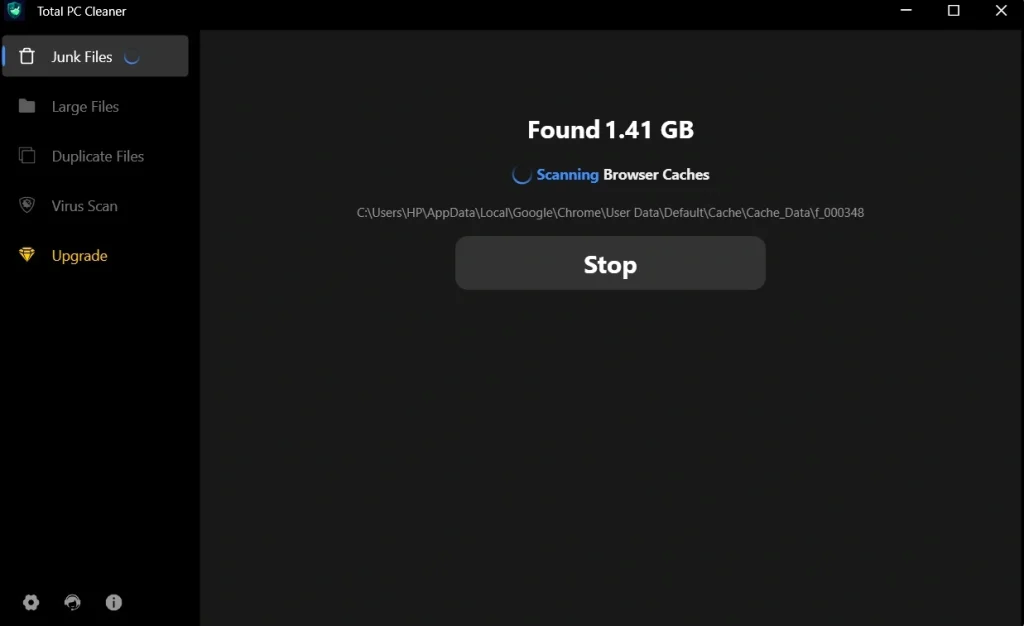
Step 3: Choose Categories and Clean
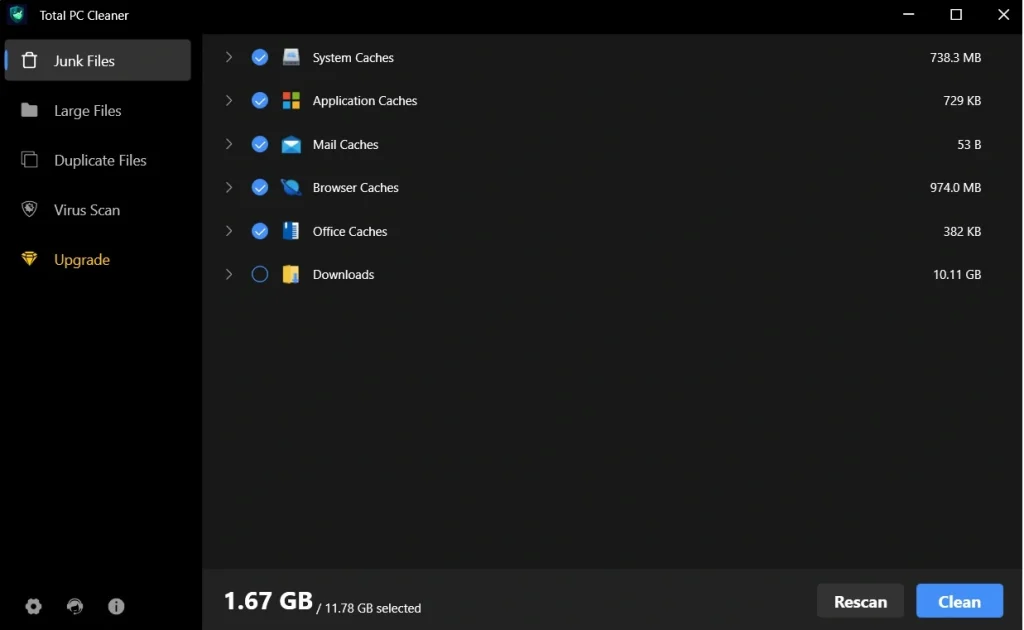
When the list appears, read it before you act. A guide from MiniTool says the default caches are selected, and you can click Clean to remove them. Uncheck anything you want to keep, especially items in Downloads. Click Clean and wait. Large cleanups may take some time. When it finishes, restart your PC if you see odd behavior.
Part 5: Where It Shines and Where It Struggles: Total PC Cleaner Tool
No app is perfect. Being honest about weak points matters as much as praising strong ones. Below is a clear list of pros and cons, based on our use and on reviews.
Pros
- Free to try: You can install it and scan without paying.
- Simple interface: Softpedia found it minimalistic and easy to follow.
- Selective cleaning: You choose which categories to remove.
- Large file finder: Big files are easy to spot.
- Cheap lifetime Pro: The $9.99 lifetime license costs less than many yearly plans.
- Store install: It installs and uninstalls like any Store app.
Cons
- Free version limits: Unlimited cleaning, duplicate removal, and large file removal need Pro. The free limit is not clearly stated in the listing.
- Name confusion: Some sites call it “Microsoft Total PC Cleaner,” but it is a third party app.
- Narrow toolset: It has no startup manager, registry cleaner, or privacy shredder. Softpedia calls it nothing revolutionary.
- User complaints: One Microsoft Q&A user says Pro did not recognize a license after a Windows reset. A reply in the same thread calls Pro a “well known PUP.” This is a user opinion, but it shows why caution is wise.
Part 6: What Does It Cost? Free Cleanup vs Pro Upgrade
Total PC Cleaner uses a freemium model. You can install and scan for free. Pro is an in app purchase that removes limits. Both prices below come from the Microsoft Store listing, which was live when we checked.
- Free Version: No cost. It scans and offers cleanup by category, with limits. The listing does not say exactly what the free limit is.
- Pro Subscription: $16.99, billed annually.
- Pro Lifetime License: $9.99 as a one time purchase.
- Pro Features: Unlimited Clean, Remove Duplicate Files, and Remove Large Files.
- Where You Buy: Inside the app, through the Microsoft Store. Check the Store’s refund rules before you pay.
Here is a side by side look at the free and Pro versions, based on the store listing.
| Feature | Free Version | Pro Version |
| Scan for junk files | Yes | Yes |
| Clean system, app, mail, Office, and browser caches | Limited, exact limit not stated | Unlimited |
| Downloads folder cleanup | Listed | Listed |
| Large file removal | No | Yes |
| Duplicate file removal | No | Yes |
| Ads Cleaner | Listed, tier not stated | Listed, tier not stated |
| Virus scanning | Not described | Not described |
| Price | Free | $16.99 per year, or $9.99 lifetime |
Summary: The free version is a good way to see what the app finds. Pro removes limits and adds duplicate and large file removal. If you only need to clear caches now and then, the free version may be enough.
Part 7: My Test Run: What Happened on a Real Windows PC
I installed Total PC Cleaner on my Windows 11 laptop. I searched for the exact name in the Microsoft Store and checked the title before I clicked Get. The install was quick, and the app opened without any setup questions. The window was plain, with a clear scan button and a list of categories.
I ran the scan and read the results before I cleaned anything. It listed caches for the system, apps, and browsers, plus items in my Downloads folder. I left the default caches selected and unchecked a few downloads I still wanted. After the cleanup, I had a little more free space. The laptop did not feel noticeably faster, which is normal for a cache cleaner.
For a free tool, it was simple and safe when I reviewed the list. I would use it for light cache cleanup, but I would not treat it as a complete maintenance suite.
Part 8: Reputation Check: Ratings, Trust, and Store Confusion
Total PC Cleaner has a mixed reputation. Some reviewers call it a decent, simple cleaner. Others warn about the name confusion, the free limits, and the Pro license.
Because the Microsoft Store holds many similar apps, check the developer name and read recent reviews before you buy.
Trust and Reputation Notes
- Third party app: It is not a Microsoft product, even though it appears in the Microsoft Store.
- Microsoft’s own tool: Microsoft PC Manager is the company’s own free cleanup app.
- Mixed feedback: Users praise the simple cleanup. A few raise questions about Pro licenses and about the app’s reputation.
Reviews and Ratings
| Source | Rating | Highlights | Concerns |
| Softpedia | 3.3 out of 5 from 32 votes. Editor score 4 out of 5. | Minimalistic, covers caches, downloads, and files over 100 MB | Version reviewed dates to 2020, and the app is nothing revolutionary |
| SoftwareTestingHelp (2026) | 4.5 out of 5 in its own list | Cleans caches and large files, sorts the Downloads folder | Roundup style review with limited testing detail |
| Softonic | No score seen | Called a cleaner that works well enough, with selective cleanup | Older listing |
| Microsoft Q&A (2026) | No score | Clarifies that it is a third party app | A user reports a Pro license problem, and another reply calls it a PUP |
Strengths Noted Worldwide
- Simplicity: The layout is easy for beginners.
- Selective control: You choose which categories to remove.
- Low upgrade price: Lifetime Pro costs $9.99.
Limitations Affecting Trust
- Name confusion: The “Microsoft” label some sites use is misleading.
- Antivirus claim: The name suggests protection, but the listed features are cleaning tools.
- Free limits: The listing does not spell out what free users can and cannot remove.
- Pro complaints: At least one user reports a license problem.
Part 9: Who Should Use Total PC Cleaner, and Who Should Skip It
Total PC Cleaner is a narrow tool, so it suits some people better than others. It clears caches, scans downloads, and flags large and duplicate files. It does not tune startup items, repair the registry, or scan for malware. The lists below show which side of the line you are likely to fall on.
It is a good fit if you:
- Want a free, simple cache cleaner that installs from the Microsoft Store
- Need to find large files quickly when your drive is almost full
- Prefer to choose cleanup categories yourself instead of running one big automatic fix
- Have a Downloads folder full of old installers and one time files
- Like a minimal layout with few menus and no setup steps
- Are comfortable reviewing each scan result before you click Clean
- Plan to use the app now and then, not every day
- Want a low cost lifetime license rather than a yearly subscription
You may want to skip it if you:
- Expect real antivirus protection, since the store’s feature list shows cleaning tools only
- Want a speed booster, startup manager, or registry cleaner in the same app
- Want automation, because the listing does not describe scheduled cleanups
- Prefer apps made directly by Microsoft
- Need a full duplicate finder with detailed controls
- Do not want prompts that point to a paid upgrade
- Run a work PC where a third party cleaner may not be allowed
- Feel uneasy about the user complaints on Pro licenses
Part 10: Free Windows Alternatives to Try Before You Pay
Windows already has several cleanup tools. Some do the same job as Total PC Cleaner at no cost, and they come directly from Microsoft. It makes sense to try them first. If they cover your needs, you may not need a third party app or the Pro upgrade.
- Storage Sense: This built in feature clears temporary files and Recycle Bin items on a schedule. It also turns unused OneDrive files into online only files. You find it under Start > Settings > System > Storage.
- Cleanup recommendations: In Windows 11, this page lists temporary files, large or unused files, files synced to the cloud, and unused apps. It covers the large file job that Total PC Cleaner offers in Pro.
- Disk Cleanup: This older tool clears system files, update leftovers, thumbnails, and old restore points. Advanced users can save a profile and run it on a schedule.
- Microsoft PC Manager: A Microsoft community answer points users to this free Microsoft tool as a safer choice than third party cleaners. Check its current features on Microsoft’s site before you install it.
Here is a side by side look at Total PC Cleaner and the two built in tools.
| Feature | Total PC Cleaner | Storage Sense | Disk Cleanup |
| Maker | Third party | Microsoft | Microsoft |
| Cost | Free, Pro at $16.99 per year or $9.99 lifetime | Free, built in | Free, built in |
| Automatic cleanup | Not listed | Yes, on a schedule | Only with a saved profile and Task Scheduler |
| Cache and temp file cleanup | System, app, mail, Office, and browser caches | Temporary system and app files | Temporary files, thumbnails, and system files |
| Large or unused files | Large files, removal in Pro | Through Cleanup recommendations in Windows 11 | No |
| Duplicate files | Yes, in Pro | No | No |
| Virus scanning | Not described | No | No |
Summary: If you only need to clear temporary files and watch your free space, Storage Sense and Disk Cleanup cover most of the job. Total PC Cleaner adds a simple duplicate finder and a category list in one window. For malware protection, use Windows Security.
Conclusion
Total PC Cleaner: Clean Disk, Antivirus is a simple Microsoft Store app for clearing caches, downloads, and large files. It is free to install, easy to understand, and offers a cheap lifetime upgrade. For a light cleanup of system and browser caches, it does the job.
The limits are clear. It is a third party app, not a Microsoft tool. The antivirus in its name is not backed by any listed feature. The free version has limits that the store page does not fully explain. Its toolset is narrow, and a few users raise concerns about Pro.
If you want to try it, install the exact app from the Microsoft Store, review each scan, and back up your Downloads folder first. Keep Windows Security turned on for protection.
If you want a trusted, free option from Microsoft itself, check PC Manager and Storage Sense before you pay for anything.
FAQs
1. Is Total PC Cleaner made by Microsoft, and is it safe?
No, it is a third party app that is sold in the Microsoft Store. Some websites call it “Microsoft Total PC Cleaner,” but Microsoft’s own cleaning tool is PC Manager. Install only the exact app from the Store and check the developer name. Review every scan, back up your Downloads folder, and create a restore point. Some users have raised concerns about the Pro version, so read recent reviews before you pay.
2. Does Total PC Cleaner include a real antivirus?
The app name includes antivirus, but the store’s feature list describes cleaning tools only. It lists caches, downloads, ads, large files, and duplicates. It does not describe virus scanning or real time protection. For protection, keep Windows Security turned on. Do not rely on this app to detect malware.
3. Is Total PC Cleaner free, and is Pro worth buying?
You can install and scan for free, but the free version has limits that the listing does not fully explain. Pro adds unlimited cleaning, duplicate removal, and large file removal. It costs $16.99 per year or $9.99 for a lifetime license. Try the free version first. If you only clear caches now and then, you may not need Pro.
Know About Some Total PC Cleaner Alternatives
BleachBit PC Cleaner Tool: Complete Review After Running Tests
WMaster Cleanup PC Cleaner Tool: A Detailed Review
Outbyte PC Repair and Cleanup Tool: A Detailed Review
Avast PC Cleanup Tool: A Detailed Review
Avira PC Speed Up Tool: Is It Actually Worth It?
CCleaner PC Cleaning Tool: An In-Depth Review
Advanced SystemCare: Tool To Clean Your PC [Complete Review]
EaseUS CleanGenius Reviewed: Features, Pricing, and Real Results
Windows Storage Sense For PC Cleaning: Everything You Need To Know
Defencebyte Computer Optimizer: An In-Depth Review
JetClean Junk File Cleaner and PC Cleaning Tool: A Complete Review
Windows Disk Cleanup Review: Features, Steps, and Real Results
PrivaZer PC Cleaning Tool: An In-Depth Review
Iolo System Mechanic Review: Full Breakdown and Honest Take
Clean Master for PC Tested: A Full Breakdown of Its Tools
Wise Care 365 PC Cleaner Tool: A Hands-On Review
Glary Utilities PC Cleaner: Complete Review [Tested and Trusted]
Microsoft PC Manager: Complete In-Depth Review
AVG TuneUp Guide: Features, Pros, Cons, and Pricing
Ashampoo WinOptimizer: Features and Process [Complete Guide]

Author Bio:
Dinesh Lakhwani, the entrepreneurial brain behind “TechCommuters,” achieved big things in the tech world. He started the company to make smart and user-friendly tech solutions. Thanks to his sharp thinking, focus on quality and the motto of never giving up, TechCommuters became a top player in the industry. His commitment to excellence has propelled the company to a leading position in the industry.
Popular Post






Recent Post

Total PC Cleaner: Clean Disk, Antivirus for Windows (An Honest Review)
Simply type “PC cleaner” into the Microsoft Store search box and a long list appears. Well, yes! The icons look alike. The names overlap, and almost every description promises a faster, cleaner, safer computer. Many also use the word antivirus, which adds to the confusion. Total PC Cleaner: Clean Disk, Antivirus is one of the […]
PrivaZer PC Cleaning Tool: An In-Depth Review
Deleting a file in Windows does less than most people think. The system removes the file’s entry from its index and marks the space as free. The actual data often stays on the disk until something else overwrites it. That is why recovery tools can bring back files long after they were deleted. Files are […]
Windows Disk Cleanup Review: Features, Steps, and Real Results
Storage space does not disappear overnight. Tiny pieces of data accumulate little by little while Windows performs routine tasks. Old update files, temporary program data, and other unused items often remain saved on the drive. Eventually, these forgotten files can take up room that could be used for something more important. Disk Cleanup is a […]

JetClean Junk File Cleaner and PC Cleaning Tool: A Complete Review
Heads up before you read further: JetClean (made by BlueSprig) is discontinued. Its last version dates to 2016, and several listings say the official download is gone. Let’s begin our review article! Few Windows utilities stay in circulation for more than a decade without a major update. JetClean is one of them. The tool first […]

Defencebyte Computer Optimizer: An In-Depth Review
Slow startup, delayed app launches, and freezing windows are among the most common complaints from Windows users. In many cases, the cause is not failing hardware. It is the gradual buildup of leftover data. Uninstalled programs leave registry entries behind. Temporary files and logs collect in system folders. Broken file paths and unused extensions stay […]

Windows Storage Sense For PC Cleaning: Everything You Need To Know
The low disk space warning always shows up at the worst time. A big update is waiting to install. A file refuses to save. The storage bar in Settings has turned red, and nobody remembers what filled it. Most people react by hunting for a cleaner to download. Many never notice that Windows already has […]

EaseUS CleanGenius Reviewed: Features, Pricing, and Real Results
Nobody notices the first temporary file. Nobody notices the hundredth either. Then one day the drive is almost full, the browser drags, and Windows takes ages to start. Clutter builds in quiet ways. Installers leave leftovers. Browsers store cache and cookies. Apps write logs that nobody reads. Programs add themselves to startup without asking. None […]

Advanced SystemCare: Tool To Clean Your PC [Complete Review]
The first thing I notice is how the startup screen hangs. The fan kicks in fast and stays loud. If I open a simple folder, the whole system pauses for a moment. It does not look like a clear hard failure, yet the PC feels heavy and slow. This is not usually one big problem. […]

CCleaner PC Cleaning Tool: An In-Depth Review
Learn how to clean your PC with CCleaner. This complete guide covers features, step-by-step instructions, pros, cons, pricing, and FAQs to help you decide.

Avira PC Speed Up Tool: Is It Actually Worth It?
A fresh Windows install feels like a different world. Isn’t it? Everything opens fast. Menus snap into place. Then a year passes, sometimes less, and that same machine starts to feel heavy for no clear reason. Nothing dramatic happened. No single event caused it. It was just months of small leftovers stacking up quietly in […]
