Wise Care 365 PC Cleaner Tool: A Hands-On Review
Every Windows user knows the feeling. Your computer runs fast on day one. Then months pass. Files pile up. The registry gets messy. Startup takes longer. Apps freeze more often. This slow decline is normal, but it is also annoying. Most people just live with it. Some restart their PC often, hoping it helps. It rarely does.
This is where PC optimization software comes in. These tools clean junk files, fix registry errors, and manage startup programs. They aim to bring back the speed you had on day one. There are many options in this space. Some are simple. Some are packed with extra features you never asked for. Picking the right one takes research.
This article looks closely at Wise Care 365 PC optimization tool. We will cover its features, pricing, pros, cons, and real world performance. By the end, you should know if this tool fits your needs.
Let’s get into it.
Wise Care 365 PC Cleaner Tool Review: Everything You Need to Know
Part 1: Brief Overview: Wise Care 365

Wise Care 365 is a PC optimization tool made by WiseCleaner. It works on Windows systems and focuses on cleaning, speeding up, and protecting your computer. The tool has been around for many years and has built a steady user base. It combines several utilities into one simple dashboard. This means you do not need five different apps to clean junk, fix the registry, and check disk health. One app handles most of it.
The tool is split into a few main parts. These include PC checkup, system cleaner, system tuneup, and privacy protector. Each part has a clear job. Together, they form a full maintenance kit for your PC. The interface is simple enough for beginners, yet it has settings for advanced users too.
Quick features at a glance:
- One click PC checkup and health score
- Junk file and registry cleaner
- Disk and registry defragmenter
- Startup manager to speed up boot time
- Privacy protector to erase browsing traces
- Real time system monitoring
- A set of small utility tools bundled in.
Tool Overview
- Developer: WiseCleaner
- Latest Version: 7.0.10 (as of mid‑2026)
- File Size: Around 36 MB installer
- Compatibility: Windows 11, 10, 8, 7, Vista, XP (32‑bit & 64‑bit)
- License Type: Free and Pro editions
- Languages Supported: 40+ languages including English, German, French, Japanese, Hindi
- Update Frequency: Monthly minor updates, major version yearly
- Installation Time: Under 1 minute on SSD
- Publisher Website: wise‑cleaner.com
- Digital Signature: Verified by WiseCleaner Co., Ltd.
- System Impact: Low CPU usage (<5%) during scans
Part 2: Top Reasons to Use Wise Care 365 for Your PC
This part looks at why so many users pick this tool over others. The reasons range from ease of use to real performance gains. Here are eight points worth knowing before you decide.
- Fast cleanup — Scans and removes junk files in seconds, freeing up gigabytes instantly.
- Deep registry repair — Fixes broken entries safely, improving system stability and app launch speed.
- Startup optimization — Cuts boot time by disabling unnecessary programs automatically.
- Privacy protection — Erases browser history, cookies, and traces from multiple browsers at once.
- Real‑time monitoring — Keeps an eye on CPU, RAM, and disk usage to prevent slowdowns.
- Lightweight performance — Uses minimal system resources, so you can clean while working.
- Automatic updates — Keeps the tool current without manual downloads or setup.
Affordable Pro upgrade — Offers lifetime and multi‑PC plans that cost less than most competitors.
Part 3: Key Features Explained: Wise Care 365 Tool
This part breaks down the main features in more detail. Knowing what each feature does will help you decide if the tool matches your needs. Below are seven key features worth a closer look.
System Cleaner
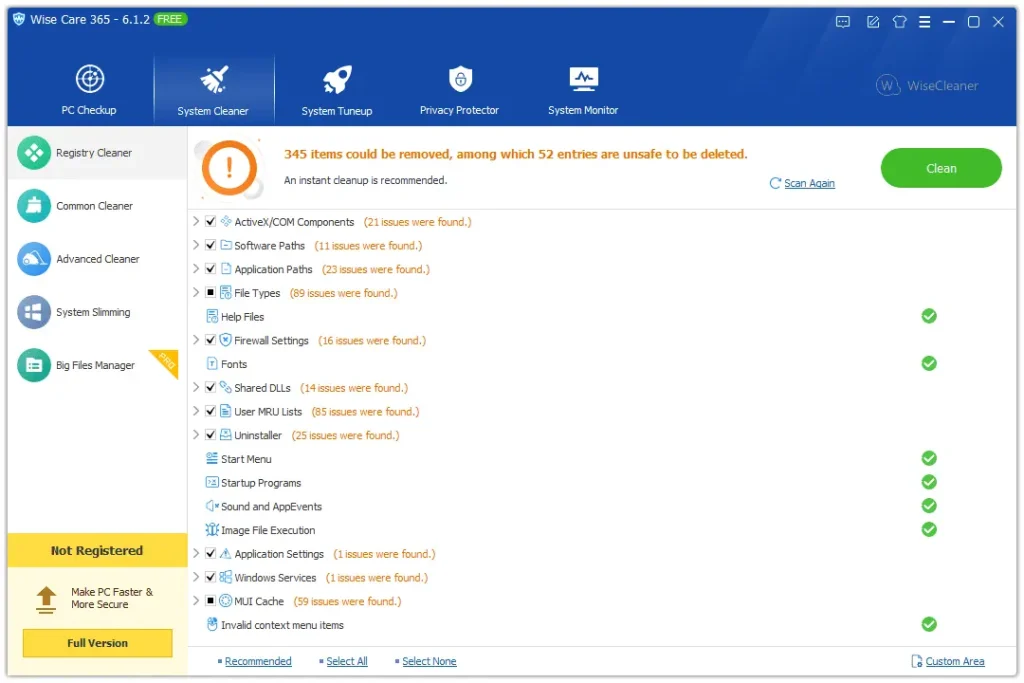
This feature scans your PC for junk files, temporary files, browser cache, and leftover data from uninstalled programs. It also checks the registry for invalid entries. Once the scan ends, you get a list of items you can remove. This frees up disk space and can reduce clutter that slows your system down over time.
Registry Fixer and Defrag
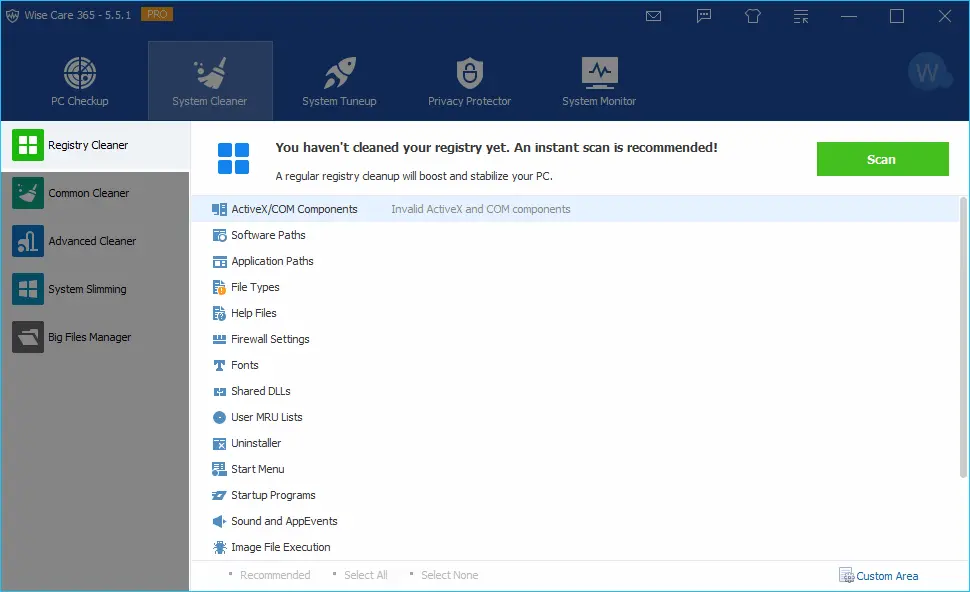
Wise Care 365 checks the Windows registry for broken or outdated entries. A messy registry can cause errors, crashes, or slow response times. The tool fixes these issues and can also defragment the registry, which organizes the data so your PC reads it faster.
System Tuneup
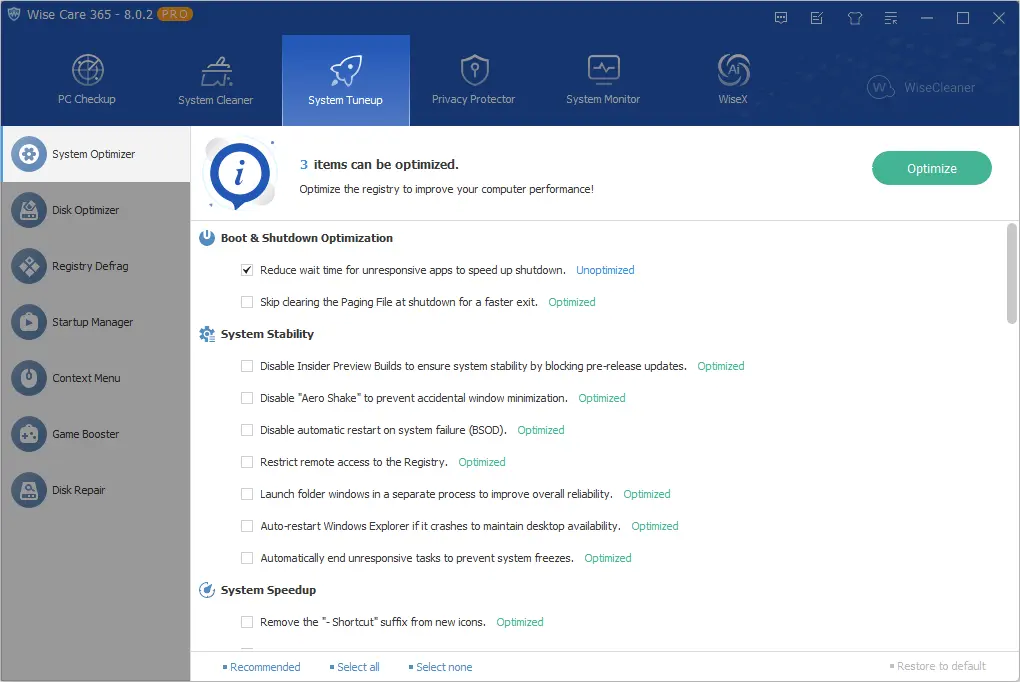
This part focuses on background settings that affect speed. It can disable unnecessary services, tweak system settings, and manage startup items. The goal is to reduce the load on your PC when it boots and while it runs in the background.
Privacy Protector
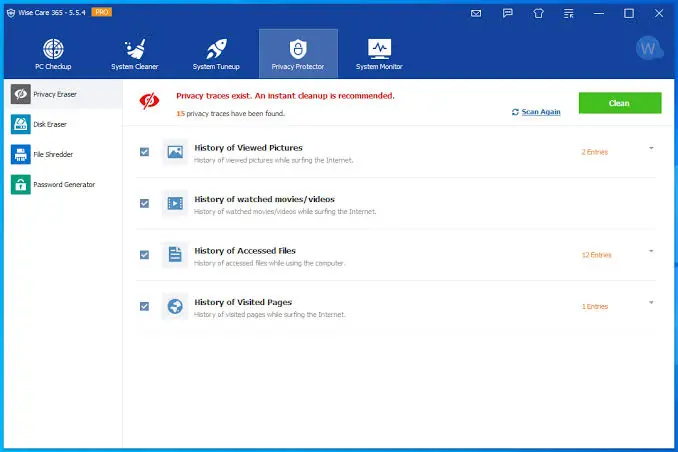
This feature clears traces of your online and offline activity. It removes browsing history, cookies, saved passwords, and recently used file lists. This matters if you share your PC with others or simply want fewer digital footprints left behind.
PC Checkup
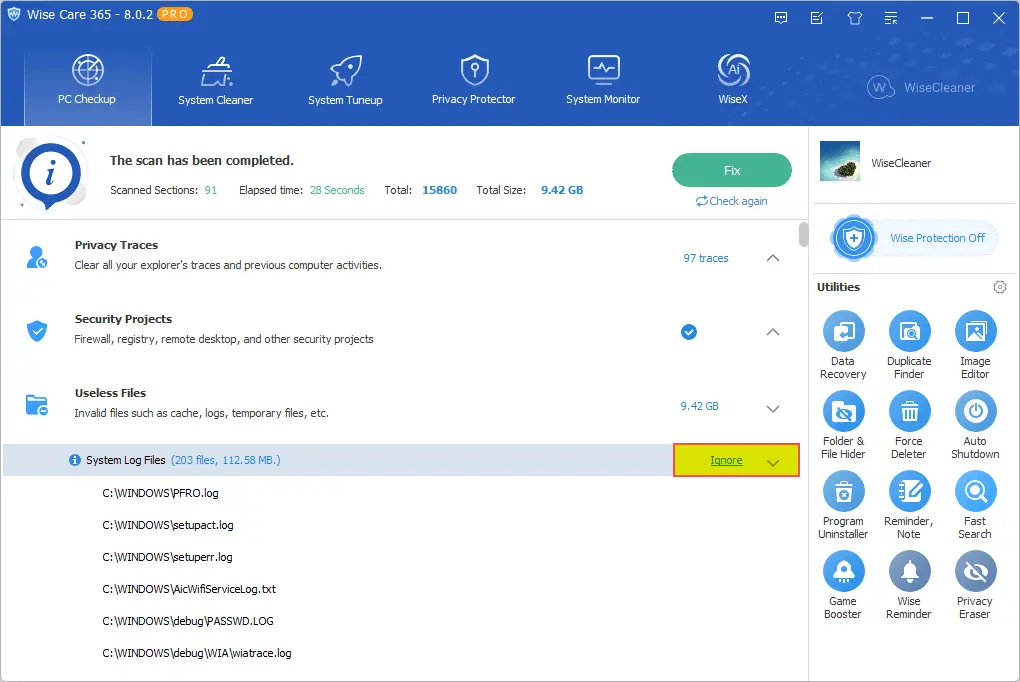
This is the first thing you see when you open the app. It runs a full scan and gives your PC a health score. Based on the result, it suggests fixes you can apply with a single click. This is useful for users who do not want to dig through settings manually.
Disk Analyzer
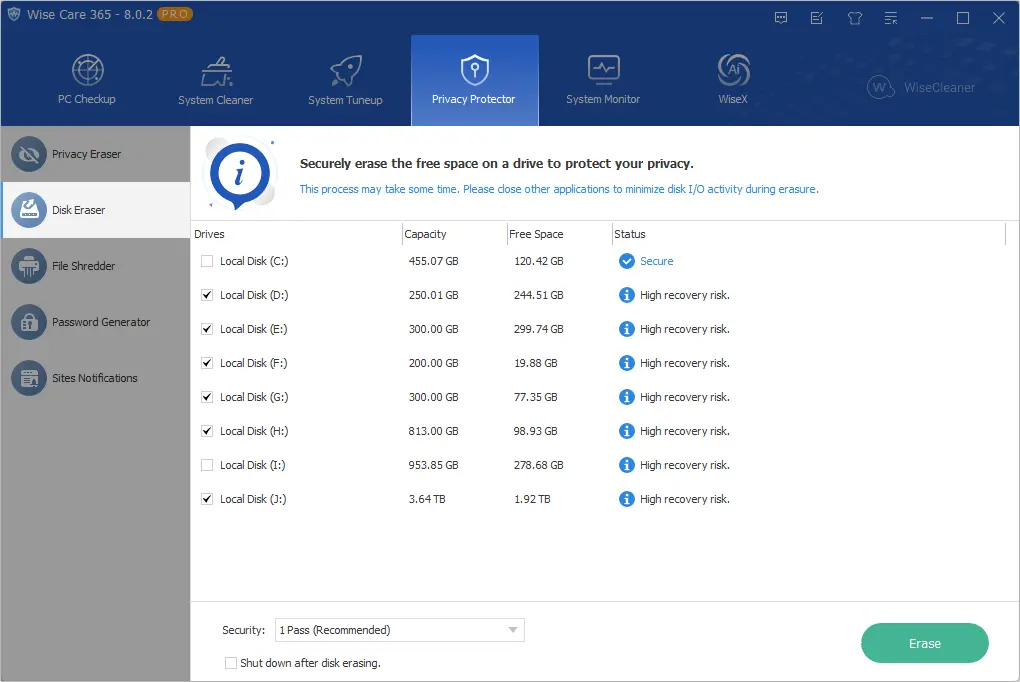
This tool shows you what is taking up space on your hard drive. It breaks files down by folder and type, so you can spot large or unnecessary files quickly. This is helpful when your disk space runs low and you are not sure why.
System Tools and Utilities
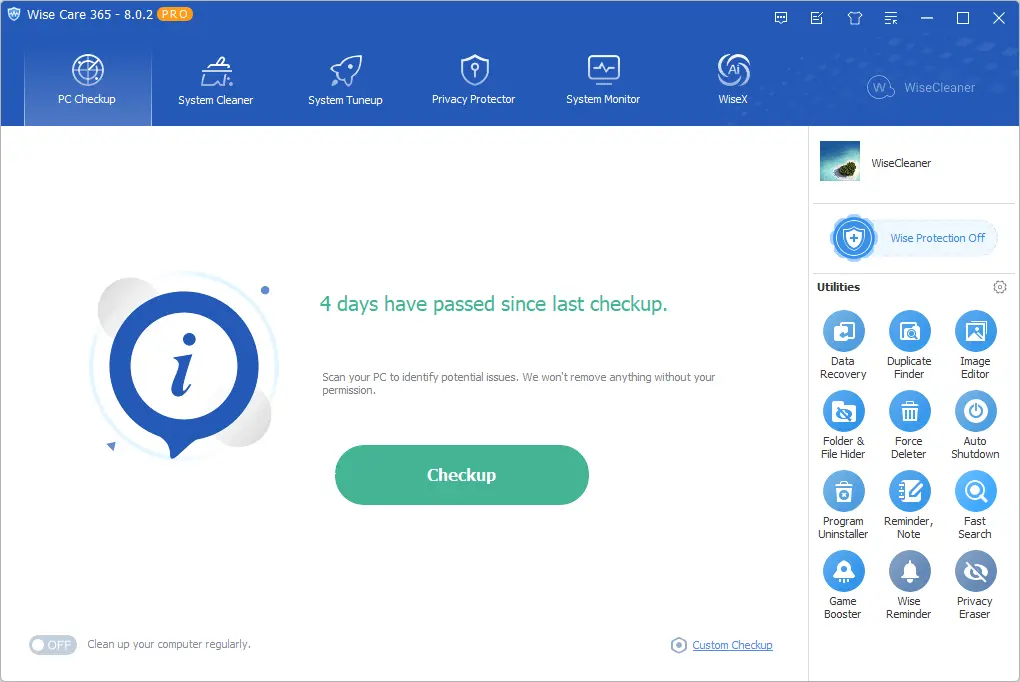
Beyond the main features, the app bundles smaller tools like a program uninstaller, data recovery, duplicate finder a startup manager, auto shutdown, image editor, game booster, a process manager, and a file shredder. These extras add value without needing separate downloads for each function.
Part 4: How to Use Wise Care 365 Tool: Step by Step Guide
Getting started with this tool is not complicated. The setup process is quick, and the interface guides you through most steps on its own. Whether you download the free version or the paid one, the process stays mostly the same.
Below is a simple guide to help you get from download to a cleaner PC. Follow these steps in order for the best results.
Step 1: Go to the official WiseCleaner website and download the setup file. Run the installer and follow the on screen prompts. The install process takes just a couple of minutes. Once done, launch the app from your desktop or start menu. Open the app and click the “Checkup Now” button on the main screen.
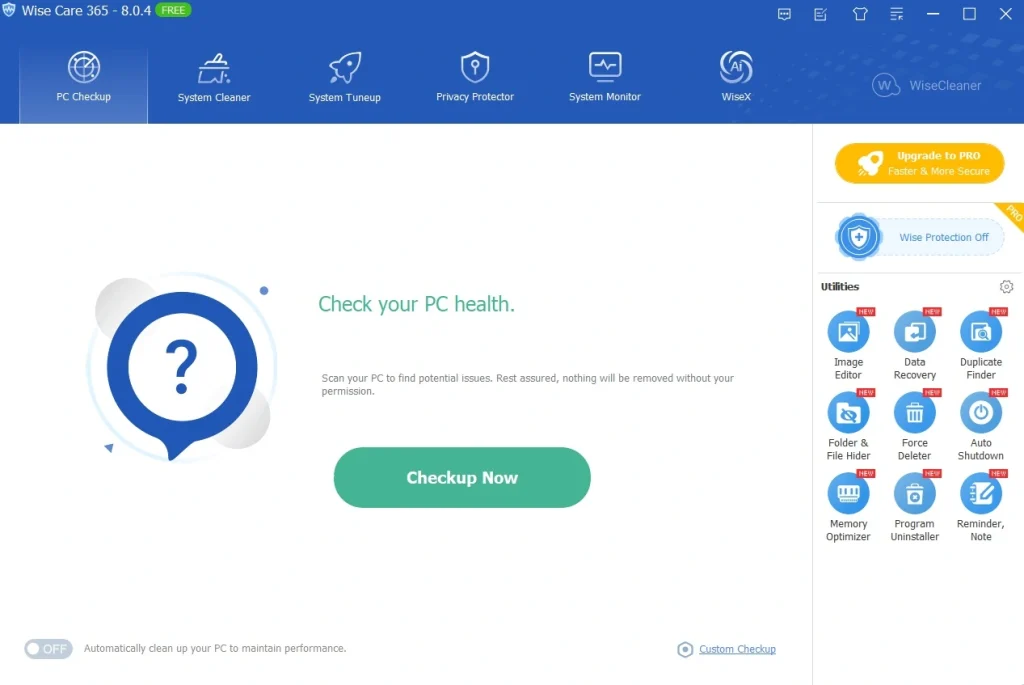
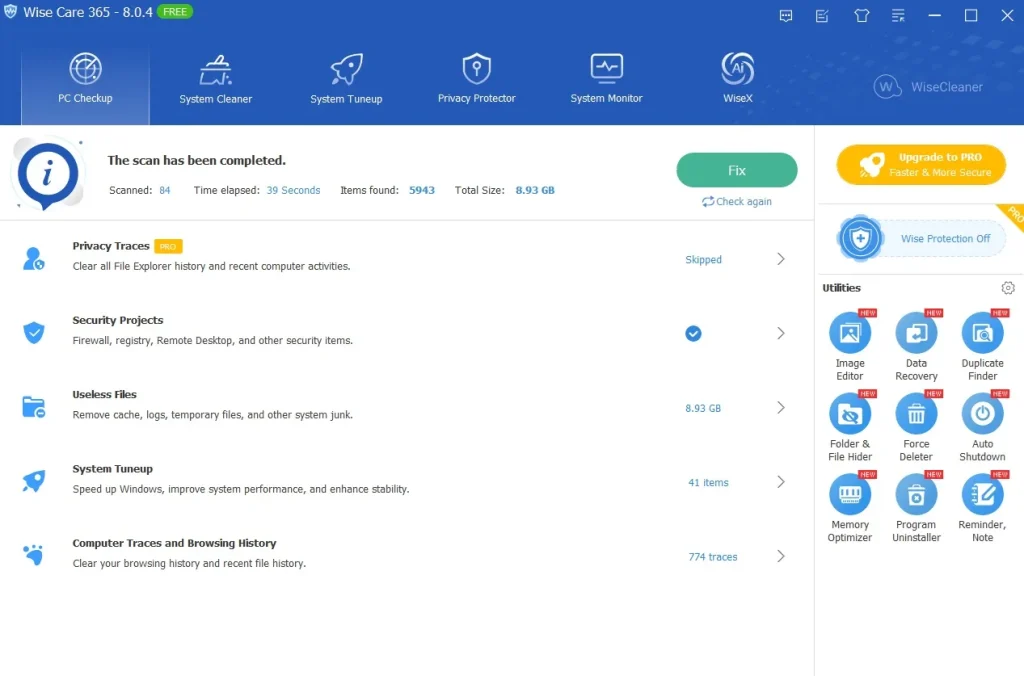
Step 2: The tool will scan your system for junk files, registry issues, and other problems. Wait for the scan to finish, then review the health score and the list of suggested fixes.
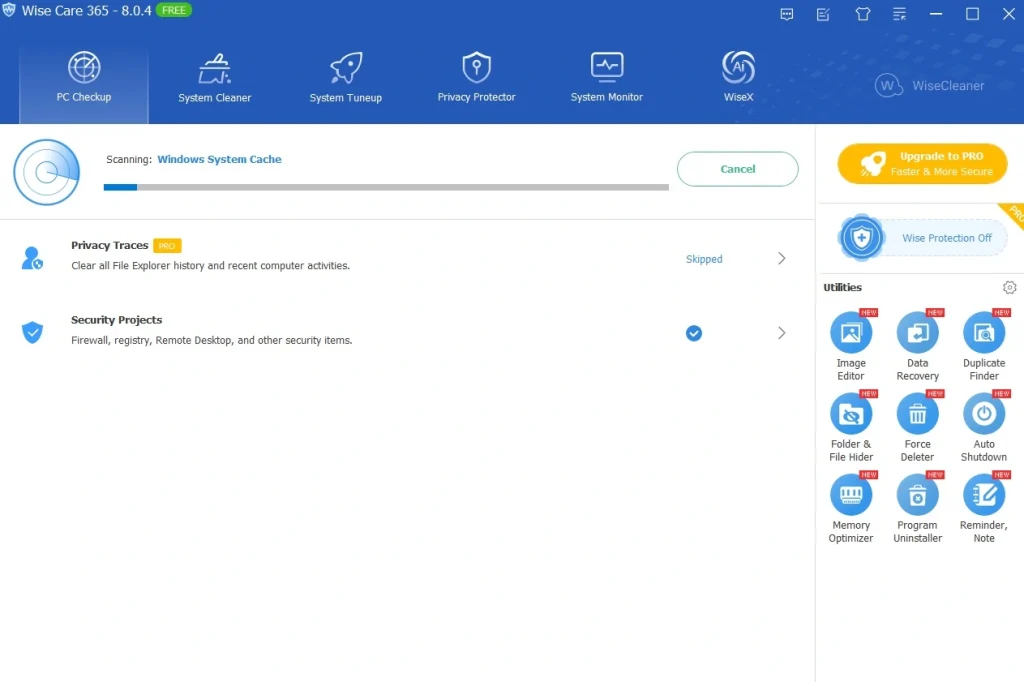
Step 3: Select the issues you want to fix and click the Fix button. Once cleaning is done, check the settings menu to turn on scheduled scans. This keeps your PC clean without needing to run manual checks every time.
Part 5: Pros and Cons Explained: Wise Care 365
Every tool has strengths and weaknesses. This part gives a balanced look at what works well and what could be better. Knowing both sides helps you set the right expectations before you install it.
Pros
- Fast scanning: The system cleaner scanned junk files in under a minute, even on a cluttered drive.
- Deep registry cleaning: It found hundreds of invalid registry entries that CCleaner missed, and cleaning them didn’t break any apps.
- Startup manager: I disabled three unnecessary startup programs, and my boot time dropped by about 20 seconds.
- System tune-up: The optimization tools noticeably reduced lag when opening large folders.
- Privacy eraser: It wiped browser traces across Chrome and Edge in one go, saving me from digging into settings.
- Lightweight performance: CPU usage stayed under 5% during scans, so I could keep working without slowdown.
- One-click optimization: The “Checkup now” button is convenient. I ran it daily without needing to tweak settings.
Cons
- Limited free version: The free edition skips advanced tune-up features, so you quickly feel pushed toward Pro.
- UI design: The interface feels dated. Icons and layout aren’t as polished as competitors like Advanced SystemCare.
- Driver updater absence: Unlike Auslogics or Iolo, it doesn’t include a driver updater, so I had to use another tool.
- Notifications: It occasionally popped up reminders to upgrade, which got annoying during work.
- Duplicate features: Some tools overlap (like disk cleaner vs. privacy cleaner), making the dashboard feel cluttered.
No real-time monitoring: It doesn’t actively monitor system health. You have to run scans manually.
Part 6: Pricing Plans: Wise Care 365 Tool
Free Edition
- Wise Care 365 Free
- Cost: Free
- Features: Basic PC checkup, junk file cleaning, registry cleaning, privacy protection.
- Limitations: No real-time system protection, no automatic updates, limited optimization tools.
Pro Edition (Paid)
- Single-PC License
- Price: $19.97/year (discounted from $39.95)
- Validity: 1 year, 1 computer
- Features: Real-time system protection, deep registry/disk cleaning, auto updates, premium support.
- Family Pack
- Price: $23.95/year for 3 PCs (bundle deal with extra tools included)
- Validity: 1 year, up to 3 computers
- Features: Same as single-PC Pro, plus bundled gifts like Wise Duplicate Finder, Registry Cleaner Pro, Hotkey, and Folder Hider Pro.
- Lifetime License
- Price: Varies (around $59.95–$149 depending on promotions)
- Validity: Lifetime, single or multiple PCs depending on plan
- Features: Permanent access to Pro features, lifetime updates, premium support.
Quick Comparison Table
| Plan | Price | PCs Covered | Duration | Key Features |
| Free Edition | $0 | 1 PC | Unlimited | Basic cleaning, privacy protection |
| Pro Single-PC | $19.97/year | 1 PC | 1 Year | Real-time protection, deep cleaning, updates |
| Pro Family Pack | $23.95/year | 3 PCs | 1 Year | Pro features + bundled utilities |
| Pro Lifetime | $59.95–$149 | 1–3 PCs | Lifetime | Permanent Pro features, updates, support |
Things to Note
- Discounts are frequent: WiseCleaner often runs 25–50% off promotions.
- Family Pack is best value if you have multiple PCs.
- Lifetime license pays off if you plan to use the tool long-term.
- Free edition is fine for casual cleanup, but serious optimization requires Pro.
Part 7: Honest Feedback of Using Wise Care 365 On My PC
I installed Wise Care 365 and ran it on my Windows PC. The first thing I noticed was the speed. The scan finished quickly and cleared a lot of junk files. My boot time improved after disabling a few startup programs. It felt lighter right away.
Then I tried the registry cleaner and privacy tools. They dug deep, finding entries and browser traces I didn’t expect. Cleaning them didn’t break anything, which was a relief. The one‑click checkup became my daily routine because it was simple and fast. The privacy eraser was a plus. Really useful.
Still, there were downsides. The UI looks old, and some features overlap, making the dashboard cluttered. The free version felt limited, and the upgrade reminders popped up too often. Overall, it did improve performance, but it’s not perfect. More polish and fewer nags would make it better.
Part 8: Worldwide Ratings: What Experts and Users Say About Wise Care 365
Trust matters a lot when it comes to software that touches your registry and system files. This part looks at how the tool is viewed by users and reviewers across different platforms. Ratings and feedback give a broader picture beyond one person’s experience.
Global Reviews & Ratings
Expert Ratings
- ZipDo Rankings (July 2026): Rated 9.5/10 overall, ranked #1 in system care software for ease of setup and repeatable maintenance workflows.
- Tech Review Sites: Average score 9.1/10, praised for affordability, one-click optimization, and real-time protection.
- Worldmetrics Comparison (June 2026): Highlighted as “Easiest to use” with strong duplicate file detection and fast cleanup.
User Sentiment
- Positive feedback:
- Fast scans and noticeable performance improvements.
- Affordable pricing compared to CCleaner and Advanced SystemCare.
- Lightweight impact on CPU usage during cleaning.
- Critical feedback:
- Interface feels dated compared to competitors.
- No SSD optimization features.
- Occasional upgrade reminders can be intrusive.
| Tool | Overall Rating | Strengths | Weaknesses |
| Wise Care 365 | 9.1–9.5/10 | Affordable, fast scans, one-click optimization, privacy protection | Dated UI, lacks SSD tools |
| CCleaner | ~9.1/10 | Scheduled cleaning, cross-platform (Windows + macOS) | Past trust issues with bundled software |
| Advanced SystemCare | ~8.9/10 | Security checks, repair checklist UI | Heavier on resources, more complex UI |
| Glary Utilities | ~9.0/10 | Best value, guided scans | Less polished privacy tools |
Trust & Transparency Notes
- Money-back guarantee: Wise Care 365 offers a 60-day refund policy, which adds credibility.
- Global presence: Used across North America, Europe, and Asia, with strong adoption among small IT teams and home users.
- Support: Premium tech support, forums, FAQs, and manuals available worldwide.
In short, Wise Care 365 is trusted globally as a reliable, affordable PC optimization suite, ranking consistently in the top tier. If you value speed and simplicity, it’s a safe bet, though if you want modern UI or SSD-specific tools, competitors like CCleaner or Glary Utilities may suit better.
Conclusion
Wise Care 365 is a solid choice for anyone looking to clean and speed up a Windows PC without a steep learning curve. It combines several useful tools, like a junk file cleaner, registry fixer, and privacy protector, into one simple dashboard. For most everyday users, this bundle covers what they need without extra hassle.
The free version is enough for basic upkeep, while the paid plans add automation and deeper cleaning for those who want a more hands off approach. Pricing stays reasonable compared to some competitors, and the tool has built a good reputation over its years in the market. Based on my own testing, it delivers on the basics without overselling itself.
If you are dealing with a sluggish Windows PC and want a straightforward fix, this tool is worth trying. Start with the free version, see how it performs on your system, and decide from there if the paid plan makes sense for your needs.
FAQs
Is Wise Care 365 safe to use on my PC?
Yes, it is generally considered safe. It comes from an established software company with a long track record, and it does not require deep system access beyond what is needed for cleaning and registry fixes. As always, it is smart to back up important files before running any registry cleaner.
Does Wise Care 365 work on both Windows 10 and Windows 11?
Yes, the tool supports both Windows 10 and Windows 11. It also works on some older Windows versions, though performance and feature support may vary slightly depending on your system’s age and setup.
Can I use Wise Care 365 for free, or do I need to buy a license?
You can use the free version at no cost, which covers basic cleaning and registry fixes. If you want features like scheduled scans, registry defrag, and support for multiple PCs, you would need to buy one of the paid plans.

Author Bio:
Dinesh Lakhwani, the entrepreneurial brain behind “TechCommuters,” achieved big things in the tech world. He started the company to make smart and user-friendly tech solutions. Thanks to his sharp thinking, focus on quality and the motto of never giving up, TechCommuters became a top player in the industry. His commitment to excellence has propelled the company to a leading position in the industry.
Popular Post





Recent Post

CCleaner PC Cleaning Tool: An In-Depth Review
Learn how to clean your PC with CCleaner. This complete guide covers features, step-by-step instructions, pros, cons, pricing, and FAQs to help you decide.

Avira PC Speed Up Tool: Is It Actually Worth It?
A fresh Windows install feels like a different world. Isn’t it? Everything opens fast. Menus snap into place. Then a year passes, sometimes less, and that same machine starts to feel heavy for no clear reason. Nothing dramatic happened. No single event caused it. It was just months of small leftovers stacking up quietly in […]

Avast PC Cleanup Tool: A Detailed Review
Computers do not slow down overnight. Well, yes! That’s right! It happens in small steps. A temporary file here. A leftover installer there. A browser cache that quietly grows for months without anyone noticing. Add a few startup programs that load automatically, and soon your once fast machine feels like it is wading through mud. […]

Outbyte PC Repair and Cleanup Tool: A Detailed Review
The laptop took nearly two minutes to open one folder. Chrome froze twice. The fan sounded like a tiny jet engine. Most of us have lived through a day like this. Right? Don’t worry! The machine is not dying. It is just tired and messy. A good cleanup can often bring back some of the […]

WMaster Cleanup PC Cleaner Tool: A Detailed Review
Your PC was fast on day one. Right? Every click felt instant, every app opened in a snap, and the fan barely made a sound. Then came the browser tabs, the half-finished downloads, and the apps you tried once and forgot to remove. Slowly, without any warning, that same machine started to feel tired. Boot-ups […]

BleachBit PC Cleaner Tool: Complete Review After Running Tests
A PC never stays clean on its own. Every app you open, every website you visit, and every file you download leaves something behind. Weeks turn into months, and suddenly your storage feels tight, and your PC feels slower, with no clear reason why. The usual fix is a cleaning tool. But the market is […]

Iolo System Mechanic Review: Full Breakdown and Honest Take
Iolo System Mechanic is designed for users who want their PC to feel fresh and responsive again. With just a few clicks, it digs into the system, clears out unnecessary clutter, and delivers noticeable speed improvements. The interface is straightforward and beginner‑friendly, making it easy to navigate without confusion. But this tool goes beyond simple […]

Clean Master for PC Tested: A Full Breakdown of Its Tools
A computer doesn’t slow down overnight. Right? It happens bit by bit. Extra downloads, leftover cache, startup apps piling up. Soon the fast machine you loved feels sluggish. Boot times drag, programs freeze, and even opening a browser tab feels heavy. This slow decline is common, caused by junk files, cluttered registries, and hidden tasks […]

How To Clean Your PC/Laptop: Guide for Beginners to Experts
A computer never announces that it needs help. Well, yes! It just gets slower, hotter, and noisier, one day at a time, until you finally stop and wonder what changed. Nothing changed overnight. What happened is dust and clutter, working quietly in the background for months. Dust settles inside fans and vents, trapping heat and […]

Wise Care 365 PC Cleaner Tool: A Hands-On Review
Every Windows user knows the feeling. Your computer runs fast on day one. Then months pass. Files pile up. The registry gets messy. Startup takes longer. Apps freeze more often. This slow decline is normal, but it is also annoying. Most people just live with it. Some restart their PC often, hoping it helps. It […]
